
 Try for free
 Blog
Shopify Order Management System for Made-to-Order (2026)
Native Shopify, a multichannel OMS, MRP, and a production queue all get called an OMS. See which one a made-to-order shop needs, with app prices checked 10 September 2026.
Written by Subhendu Singh · Published · Updated
On this page
- What is a Shopify order management system?
- What is MRP software and when do you need it?
- What are the best MRP software options for Shopify?
- What is an omnichannel OMS and when do you need it?
- Do you need an omnichannel OMS if you also sell on Etsy and Faire?
- What are the best OMS for Shopify?
- What is a production queue app and when do you need it?
- What are some production queue apps for Shopify?
- Can you use MRP and a production queue together?
- When is a production queue more than enough?
- Frequently asked questions
- How do you manage workflow for made-to-order products?
- Does Shopify have an OMS for made-to-order products?
- How do I add extra stages for manufacturing steps?
- Will Shopify stay in sync if I fulfill from the queue?
- What does "Shopify OMS integration" mean?
- Sources
TL;DR
- An order management system (OMS) shows every order in one place with its status and shipping details. Shopify Admin is one.
- Three other tools get called an OMS: a multichannel OMS (stock across channels), MRP (materials and recipes), and a production queue (what to make and when to ship for made-to-order orders).
- Most made-to-order shops need the production queue. This page helps you pick.
What is a Shopify order management system?
An order management system (OMS) shows all your received orders in one place. It carries the details your team works from: fulfillment status (fulfilled or unfulfilled), payment status (paid, unpaid, partially paid), shipping and delivery status, and shipping details like the customer’s name and address.
If you searched “Shopify order management system,” you likely know that much already. The useful part starts here, because four different tools get called an OMS, and only one of them fits a shop that makes each order to the customer’s choices.
| Tool | The job it does | Who needs it |
|---|---|---|
| Native Shopify | Every order, payment, and fulfillment in Admin | Shops that sell stocked products |
| Multichannel OMS | Sync stock to several channels and pull their orders into one place | Shops selling the same product on Shopify, Amazon, Etsy, Faire |
| MRP software | Track the materials, recipes, and purchasing behind what you make | Shops that build products from parts (candles, furniture) |
| Production queue | Show each made-to-order order’s choices, production stage, and ship-by in one view | Shops that make or personalize after payment |
All four get casually called “OMS.” This page takes them one at a time and shows when to pick which. Two terms run through it: a ship-by date is the day an order must leave your shop, and a production stage is the step the work is at, such as Cutting, Engraving, or Packed.
What is MRP software and when do you need it?
MRP (material requirements planning) software tracks the parts behind a product: their stock, their recipes (a bill of materials), how much each finished item costs to make, and what to reorder.
You need MRP when what you make is built from parts, and Shopify’s product stock number is not enough.
Two examples:
A candle and soap maker. Each product is a recipe: wax, fragrance, dye, vessel, wick. Shopify shows “Vanilla 8oz — 12 left.” It does not show that those 12 jars share a drum of fragrance with three other scents, or what one candle cost after last month’s wax price change.
A furniture workshop. A customer orders a dining table and six chairs. On the floor it is shared timber, hardware, finish, and days of work. If oak runs short you cannot promise Friday, even though the table still shows in stock. MRP keeps the bill of materials so purchasing and promise dates follow the parts.
What are the best MRP software options for Shopify?
Well-known MRP tools that work with Shopify, with App Store ratings and prices as of 10 September 2026. They are examples of the category, not a ranking. Re-check each listing before you subscribe.
| App | Where it lives | App Store rating | Published price | Best when |
|---|---|---|---|---|
| Stocksmith (Craftybase) | Shopify app + maker inventory | 4.4 (31 reviews) | From $24/month. Tiers $24 / $49 / $99 / $199; two-way stock sync from $99 | Small-batch recipes, cost of goods, materials |
| Katana Cloud Inventory | Full MRP; Shopify integration | 4.2 (131 reviews) | Free (30 SKUs). Core from $299/month + usage | Inventory, purchasing, and manufacturing as the record |
| Orderkraft | Shopify app (work orders) | No reviews yet (0) | $29/month + usage from $0.75/order | Work orders and bills of materials; a new listing, so trial first |
If materials are your problem, start here. If they are not, a production queue costs less and fixes more. Compare Orderline vs Katana and vs Stocksmith.
What is an omnichannel OMS and when do you need it?
A multichannel (or omnichannel) OMS is for shops where stock is the hard problem. The same product sits in more than one place, sells on more than one channel, and has to stay in sync so you do not sell a unit twice.
You need it when Shopify stops being the record for where the units are. That is when you add 3PLs, warehouses, bins, stock transfers, wholesale, or Amazon and eBay as real inventory.
Selling on Etsy or Faire and copying those orders into Shopify is order intake, not a multichannel OMS. In that case Shopify is still the record; you just need a better list.
Do you need an omnichannel OMS if you also sell on Etsy and Faire?
No, not just to see the orders. If you sell on Etsy, Faire, Amazon, or eBay and those orders are synced into Shopify, Shopify is your single source of truth: the order, the payment, and the customer live in one place. What is missing is a list your team can work from together.
That is the job a production queue does. Orderline works from whatever is synced into Shopify, so orders from any channel — Etsy, Faire, Amazon, eBay — appear in the same list. It filters by sales channel and saves that filter as a view your team reopens each morning — “Etsy work,” “Amazon only,” “wholesale,” or a name you choose. See custom order views and filters.
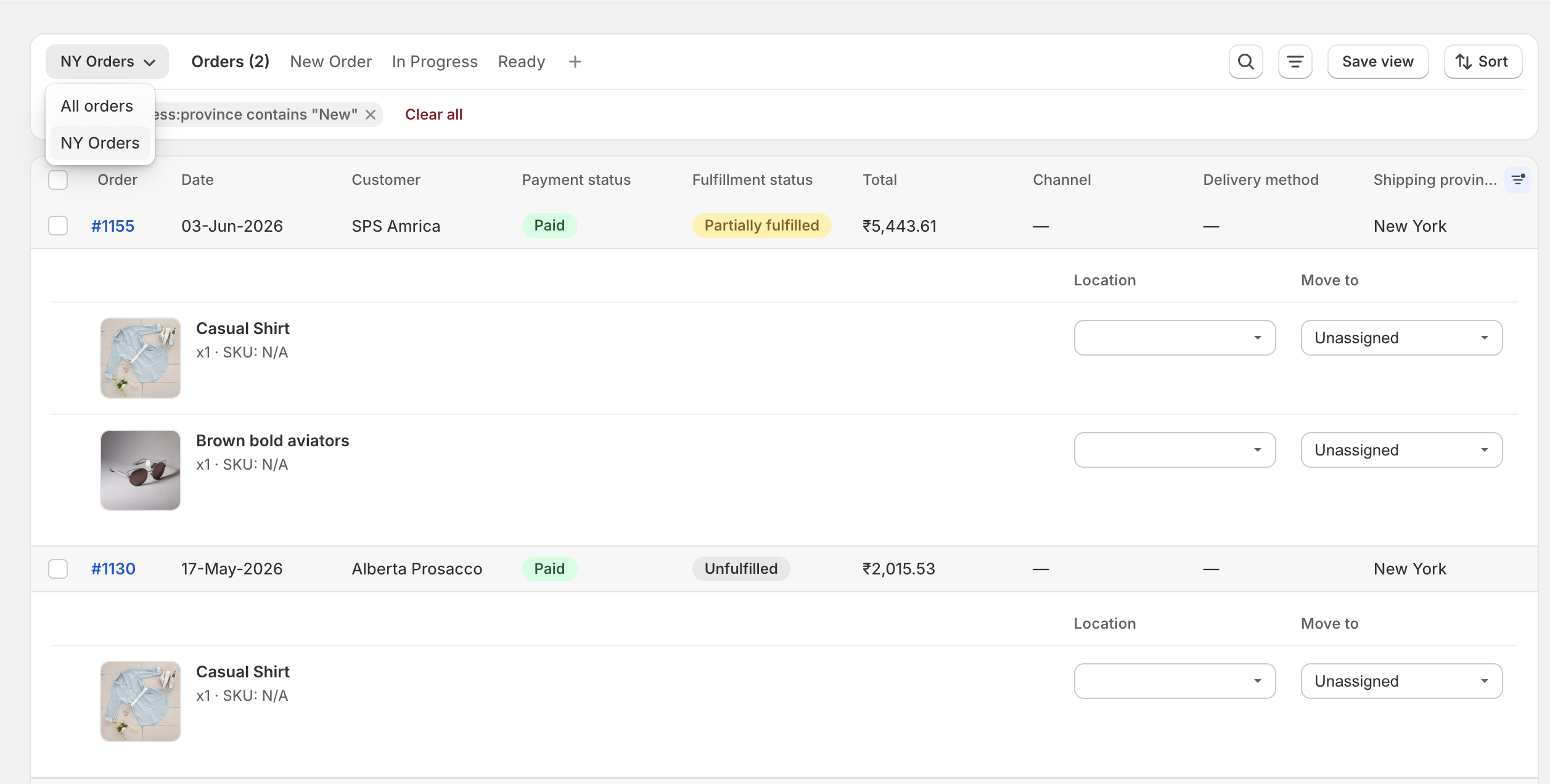
Save the channel filter once, so “Etsy work” is one click tomorrow.
You only step up to a full omnichannel OMS when stock is the hard problem. That means the same unit listed in several places and at risk of overselling, or stock you must push back out to each channel. If every order lands in Shopify and Shopify tracks the stock, you do not need an OMS — you need the list.
What are the best OMS for Shopify?
With App Store ratings and prices as of 10 September 2026. Several of these are connectors; the real subscription is billed by the vendor. Re-check before you subscribe.
| App | Where it lives | App Store rating | Published price | Best when |
|---|---|---|---|---|
| Cin7 Core | Inventory + order platform | 4.3 (61 reviews) | From $349/month. Standard $349 / Pro $599 / Advanced $1,199; Omni is a separate quote | Multi-location stock, purchase orders, higher volume |
| Linnworks | Omnichannel inventory and routing | 4.1 (3 reviews) | Free to install; price on request | Many channels, automated routing |
| Brightpearl by Sage | Retail operations | 4.6 (56 reviews) | Free connector; platform price not published | Mid-market retail wanting inventory and finance together |
These are built for stock and channels. They do not show a made-to-order team what to make next. That is the next tool.
What is a production queue app and when do you need it?
A production queue is for made-to-order sellers. Every order is different, because the customer picks the choices: an engraving, a color, a size, a name. Fulfillment staff have to make each order to those choices, which means they need two things every morning: exactly what to make, and when to ship.
A production queue shows both in one glanceable view. It lists each order’s line items and the customer’s choices, so staff do not open orders one by one. It moves each order through your production stages (cutting, stitching, polishing). It carries a ship-by deadline, and it sorts by that deadline so the team knows what goes first.
The cost of not having one is the click loop. This is an estimate from stated assumptions, not a survey. Say you review 40 unfulfilled orders a day and spend 45 seconds opening each one to read it, five days a week. That is 40 × 45 × 5 = 9,000 seconds, about two and a half hours a week. At 20 orders a day it is near 1.3 hours; at 60, near 3.8.
Real merchants describe the same loop:
“I have to click into each individual order to see the customization details” — r/shopify
“click to view items… slowing down our production team” — r/shopify
You need a production queue when that is your morning.
What are some production queue apps for Shopify?
Orderline is one, and FlowDeck is another. We build Orderline, so weigh this section accordingly, and check the limits we state at the end.
Orderline sits beside Shopify Admin and answers the two morning questions.
What to make. Every order shows its line items, the customer’s choices (a line item property), a product image, SKU, and quantity, without opening the order.
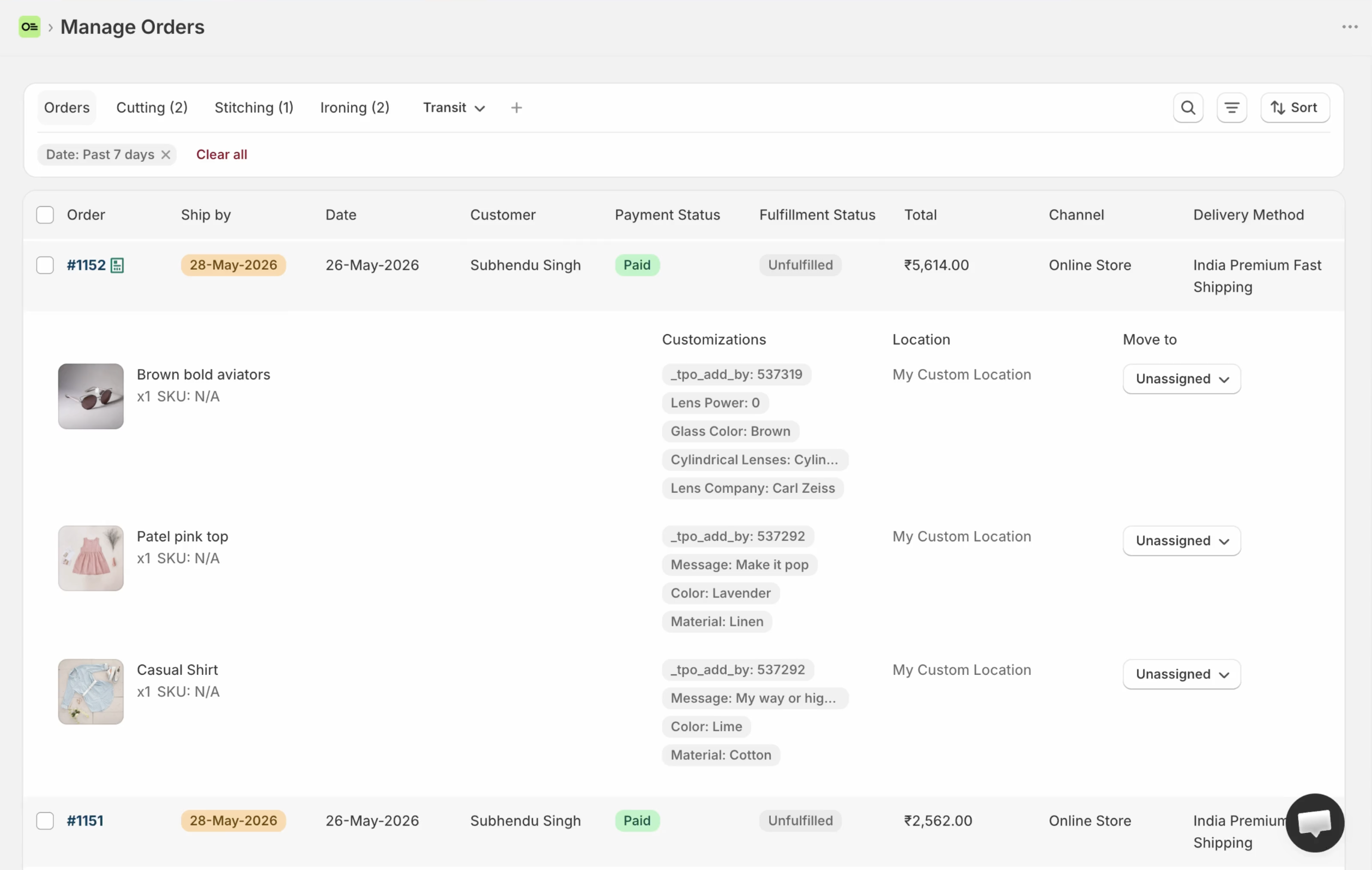
One view for the floor: line items, choices, production stage, and ship-by. Setup: unified orders view.
More detail in columns for the fulfillment staff. You can add columns the Shopify list cannot hold — delivery date and delivery time, a PO number, a shelf location — and they become filterable and sortable. See custom order columns.
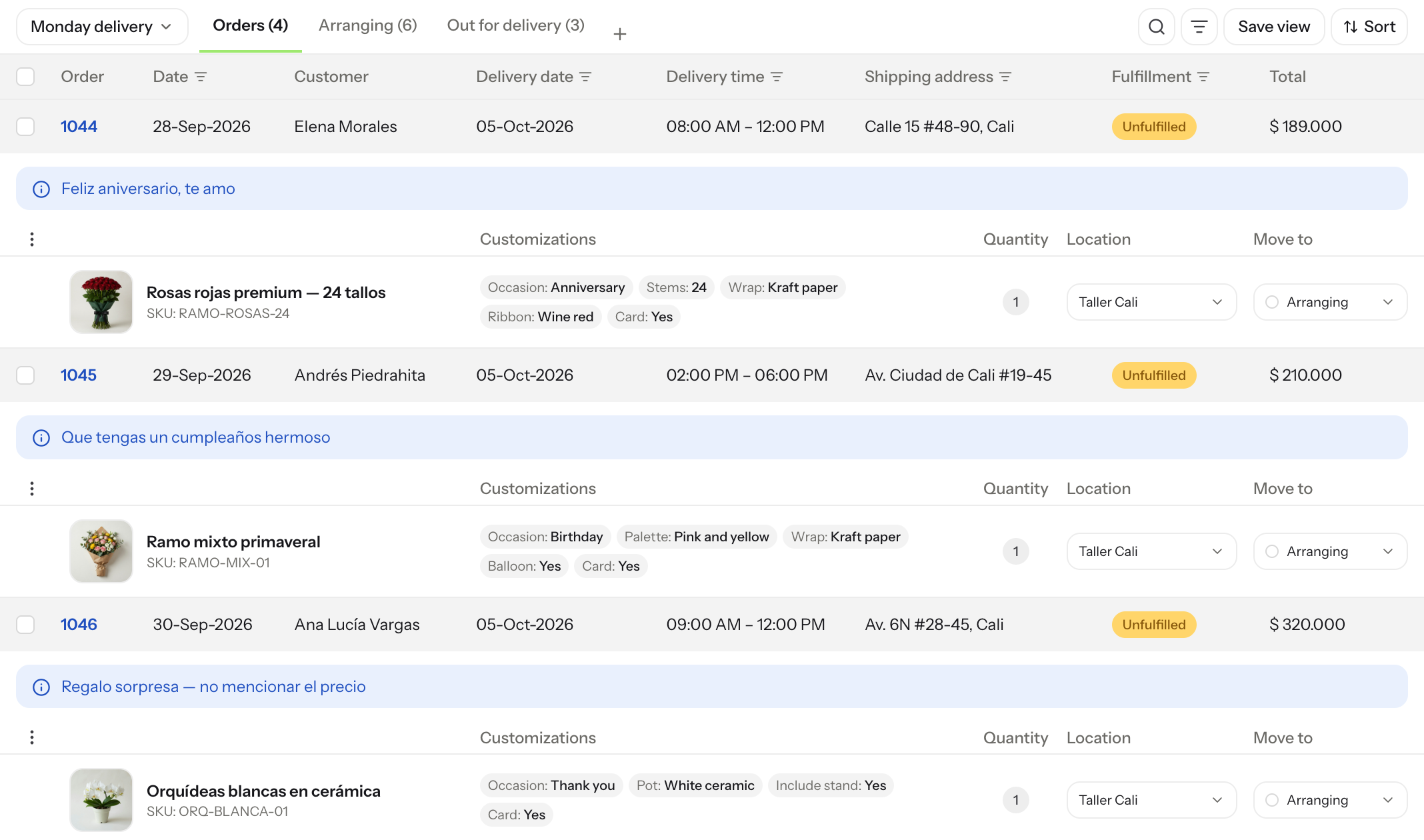
Delivery date and delivery time as their own columns, so the floor reads them without opening the order — from the Casa Anturio case study.
Which production stage each line item is in. Your flow may be Designing → Cutting → Polishing → Engraving. You can move the whole order or a single line item: on one order of a dining table and six chairs, the chairs can be in Polishing while the table is in Cutting. See production stages.
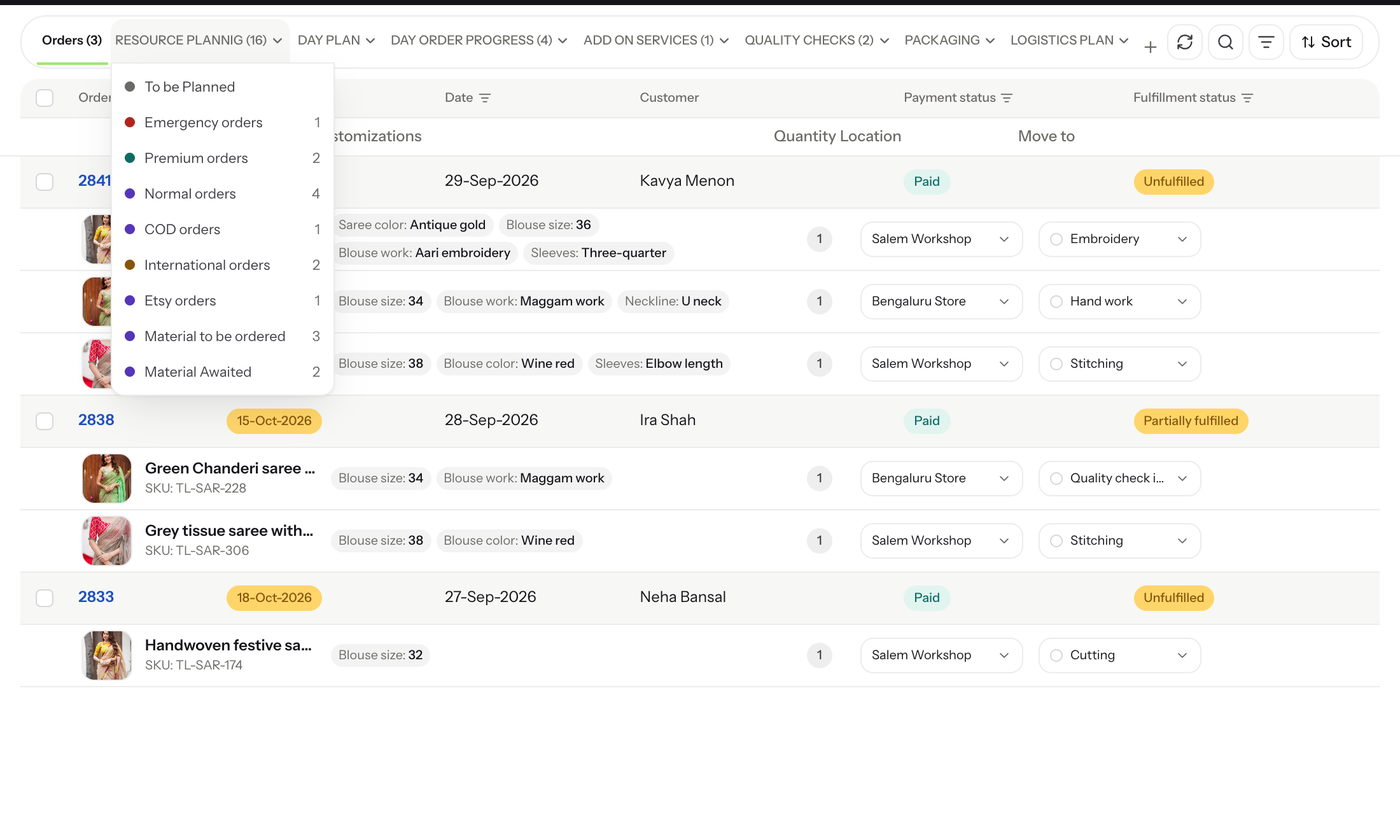
Line-item production stages next to ship-by, so the floor sees what to make and what is due at once — from the Threadslabel case study.
What leaves when. Set priority by first come, first served; by shipping-policy promises; or by how long each product takes to make. Orderline sets the ship-by date from those rules, or staff set a date on each order, then filter and sort by it.
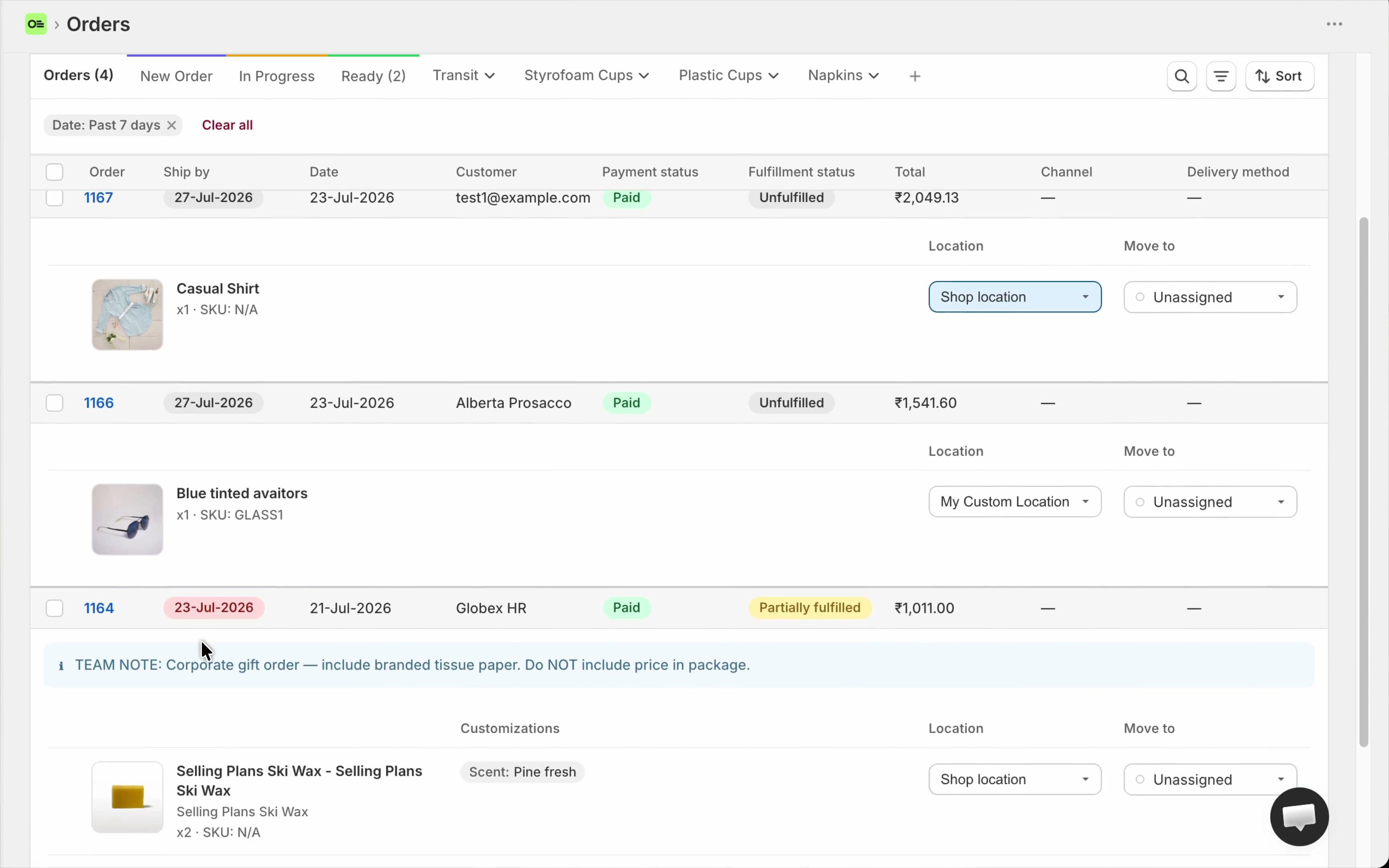
Ship-by dates, sorted so the soonest work is on top. Setup: ship-by deadlines.
Packing slips the floor can use. You can add fields to the packing slip — the customer’s choices, product pictures, a shop-floor note — so the person packing does not have to reopen the order to check a name.
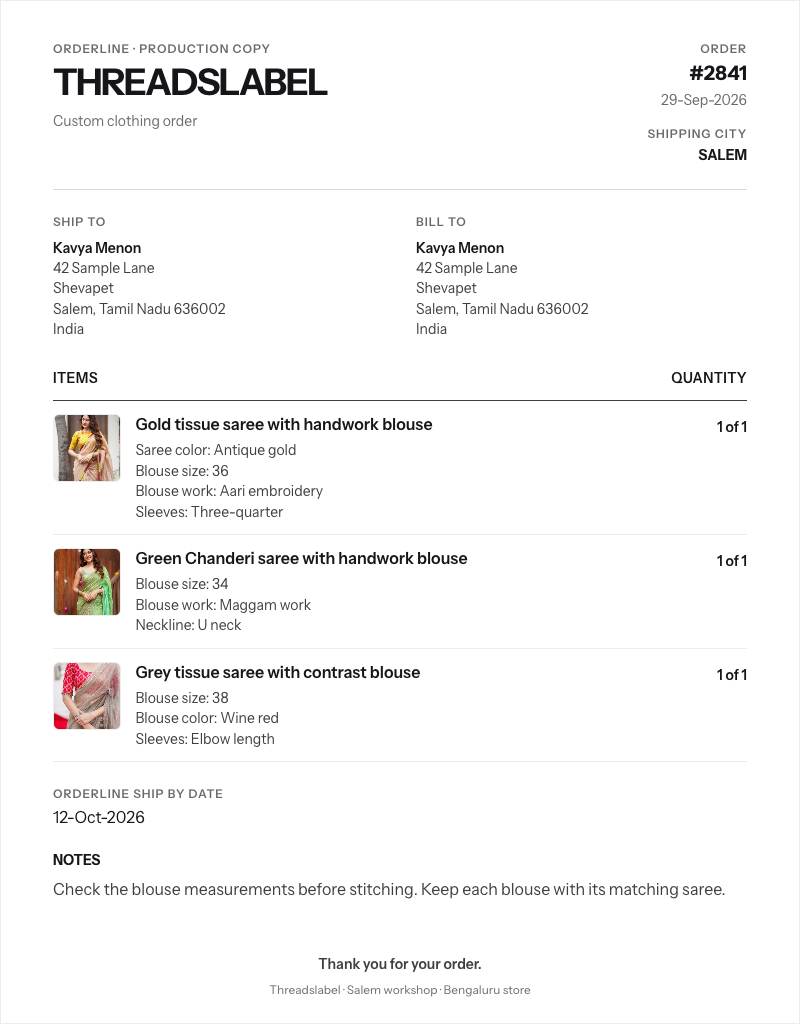
The packing slip carries the customer’s choices, the ship-by date, and a staff note, so the packer never reopens the order — from the Threadslabel case study. Setup: packing slips. Free template: Shopify packing slip template.
When an order ships, Orderline marks it fulfilled back in Shopify, so you do not update two systems. See fulfillment sync.
Where Orderline stops. It is a Shopify production queue, not MRP and not a multichannel OMS. If your problem is materials or stock across warehouses, it is the wrong tool. See who it’s for and pricing.
Can you use MRP and a production queue together?
Yes, and it is a strong combination when you have both problems.
The split is by job:
- MRP owns materials. Ingredients, timber, fabric, reorder points, and the cost of one finished item.
- The production queue owns the Shopify order list. The customer’s choices, the ship-by date, the packing slip, and fulfillment.
The one rule: keep production stages in one system. If your team already runs Cutting → Polishing in the MRP, leave that there and use Orderline for packing and ship-by. Running the same board in two apps is how orders fall through.
When is a production queue more than enough?
For most made-to-order shops, the production queue is the whole fix. It is enough when:
- Every order carries choices someone must read before making it.
- Your pain is opening orders, tracking stages, and knowing what ships first.
- Stock lives in one place, or Shopify already tracks it well enough.
- Materials are simple, or you are not tracking them as a bill of materials.
In that case MRP and a multichannel OMS add cost without fixing the morning. Start with the list.
Frequently asked questions
How do you manage workflow for made-to-order products?
Keep Shopify as the order and payment record, and run the production stages — Received, Cutting, Engraving, Packed — in one tool that owns them. If you also sell on Etsy, Faire, Amazon, or eBay, sync those orders into Shopify first, then run one queue across all of them — filter by channel and save it as an “Etsy work” view you reopen each morning. See custom order views and filters.
Does Shopify have an OMS for made-to-order products?
Not as a production workflow. Native order management handles payment and fulfillment well, but it has no shop-floor stages, no sortable ship-by queue, and no way to see line-item choices without opening each order.
How do I add extra stages for manufacturing steps?
Shopify’s status stays Unfulfilled → Fulfilled. Merchants who need more ask for it directly: “Etsy has the ability to add custom workflow steps… Shopify has a fulfillment status screen that allow only a few ‘status’ options… The additional status steps are internal…” (Shopify Community). A production queue adds those stages without changing Shopify’s status.
Will Shopify stay in sync if I fulfill from the queue?
Yes. Orderline reads orders from Shopify and marks them fulfilled back in Shopify, so you never update two systems.
What does “Shopify OMS integration” mean?
It usually means a warehouse or MRP tool connecting to Shopify for orders and inventory. A production queue also sits beside Admin; it does not replace Shopify Orders.
Sources
App Store ratings and plan prices were checked on 10 September 2026 and are re-verified before each update. The time estimate is a formula from stated assumptions, not a merchant survey.
- Shopify Help, Order management and fulfillment — https://help.shopify.com/en/manual/orders
- Shopify Enterprise, What is an order management system? — https://www.shopify.com/enterprise/blog/order-management-system-oms
- Shopify App Store listings (10 Sep 2026): Stocksmith, Katana, Orderkraft, Cin7 Core, Linnworks, Brightpearl by Sage
- Merchant threads — r/shopify: managing custom and personalized orders, r/shopify: seeking advice on a custom order management workflow, Shopify Community: additional order status to track in-house manufacturing
- Native list gaps — Why Shopify Orders Fail Made-to-Order Sellers