
 Try for free
 Blog
Why Shopify Orders Fail Made-to-Order Sellers
Why Shopify’s Orders list fails made-to-order shops: missing details, personalization, images, stages, ship-by, custom columns, channel views, and location routing.
Written by Subhendu Singh · Published · Updated
On this page
- 1. You need every order’s details in one place
- 2. Personalization has to be visible at a glance
- 3. You need product images on the list, not only inside the order
- 4. "Unfulfilled" does not mean where the order is in production
- 5. Rush orders need a ship-by date next to the work
- 6. Default columns are often not enough
- 7. Multi-channel sellers need channel views
- 8. Pickup store vs workshop: Shopify’s location is often not the work location
- What this post is not
- Frequently asked questions
- Why doesn’t Shopify show product images on the Orders list by default?
- Are personalization options visible on the Orders page?
- Can I add a Ship By column to Shopify’s Orders page?
- Can different products on one order be at different stages?
- Is this only a jewelry problem?
- What to do next
- Sources (retrieval 2026-07-30)
Who this is for
Shopify sellers who make products to order or personalize them - jewelry, gifts, embroidery, signs, custom apparel - and open order after order on the Orders page just to see what to make, what was personalized, and what must ship first.
Who this isn't for: If you already know the Orders list is the wrong shape and need what order management means for made-to-order, which tool type to pick, a full workflow, or where Orderline fits - start with the pillar instead: Shopify order management for made-to-order products. This page names the screen gaps.
If each paid order is a unique promise - a different engraving, monogram, or option - and Shopify’s Orders page only shows the customer name, the total, and Unfulfilled, that list is the wrong place to run production.
Shopify is fine at selling and shipping. The problem is the Orders list itself. It was built so you can see who paid and whether you have shipped. It was not built so you can see what to make without clicking into every order.
Here are the gaps that show up on a normal morning for personalized shops - and what a work-focused orders screen needs instead.
The Bottom Line
- 1. You can’t see full order details in one place - you open every order.
- 2. Personalization is not visible on the list.
- 3. Product images are missing from the list.
- 4. "Unfulfilled" does not tell you where work is in making - and items on one order can be at different stages.
- 5. There is no ship-by date next to the work on Shopify’s Orders page.
- 6. Default columns are often not enough - you need your own fields (and to filter or sort by them).
- 7. Sales channels (Online Store, Etsy, and others) need their own saved views.
- 8. Pickup store vs workshop: Shopify’s location on the order is often not where the work happens.
- For tools, workflow, and when to stay simple, use the full guide.
1. You need every order’s details in one place
If you sell the same ready-to-ship products every day, order number + customer + paid + unfulfilled is often enough. You already know what is in the box.
If you make to order, every row is a different job. Which product? Which options? How far along is it? When does it need to leave?
Shopify’s Orders page shows a simple list of receipts. To learn what to make, you open #1047, then #1048, then #1049. When you have more than a handful of custom orders, that click-every-order loop becomes the whole morning.
What you need instead: one screen where each order shows the products, images, personalization, location, and how it ships - so you plan the day without opening every order like an envelope.
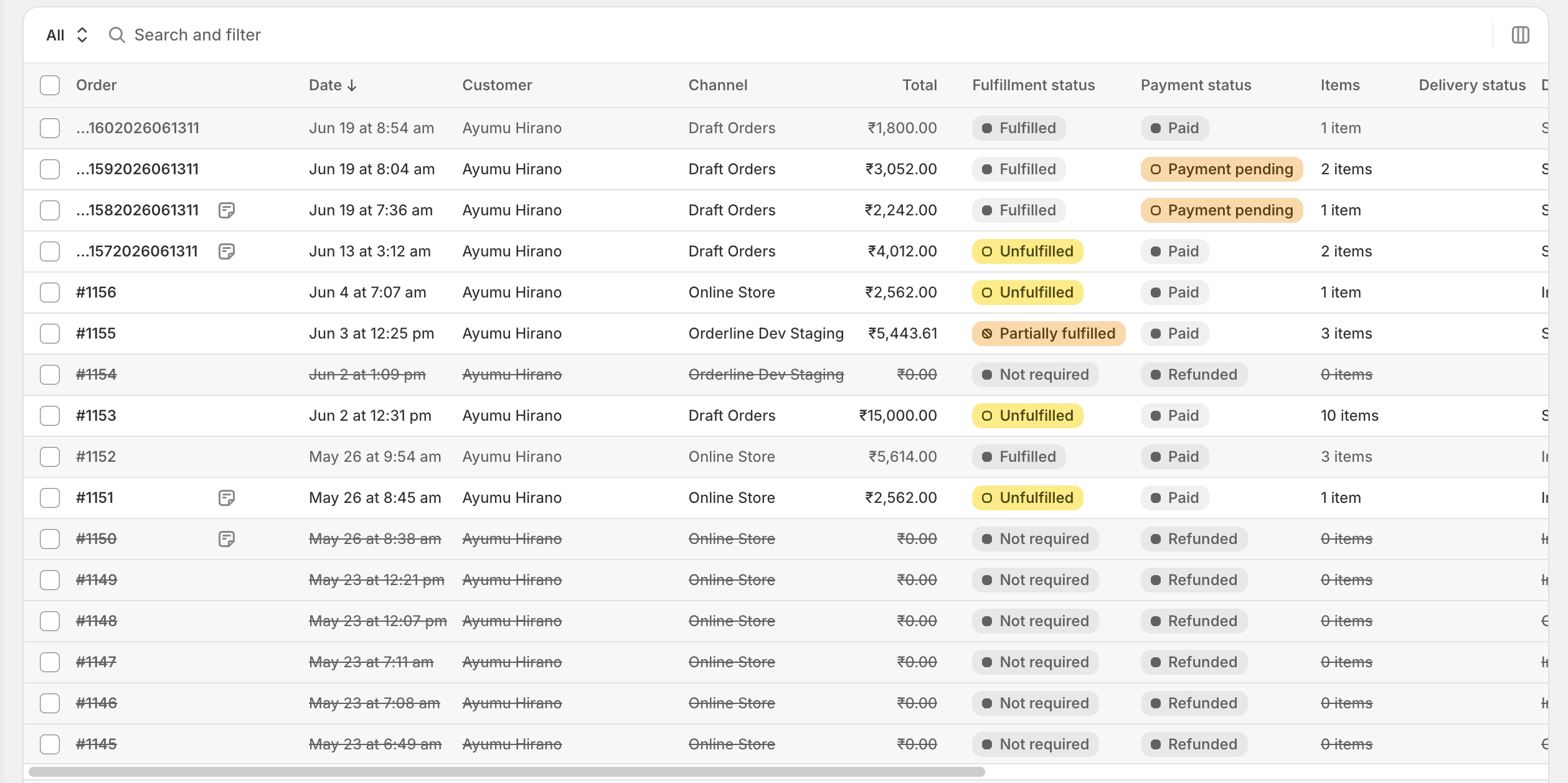
Shopify’s Orders list focuses on who ordered and whether the order is paid or shipped - not on what you need to make next.
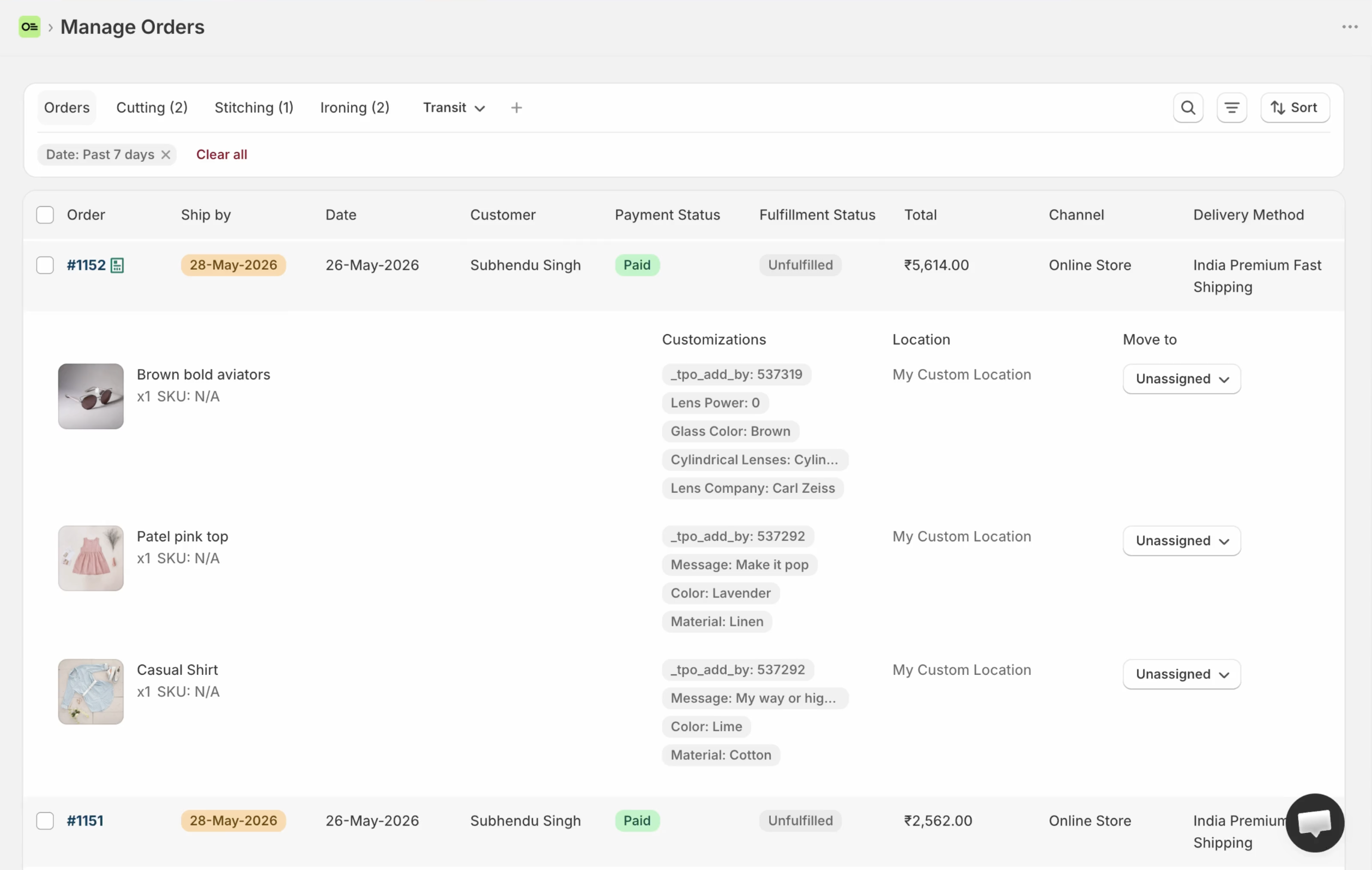
A work screen for made-to-order keeps those details on the list so your morning is planning, not hunting.
Setup: unified orders view.
2. Personalization has to be visible at a glance
For jewelry, gifts, embroidery, signs, and custom apparel, the most important part of the order is often the personalization: engraving text, monogram, thread color, size, coordinates, message.
That text usually lives on each product line inside the order (Shopify calls these line item properties). It does not show as a clear column you can read across many orders on the Orders page. Hovering items on one order helps a little. It does not let you scan twenty orders at once.
Two orders can look the same until you open them: both paid, both Unfulfilled, similar totals. The difference is Noah · 12.04.2019 versus a blank bar, or engraving on the front versus the inside. Wrong text is expensive. Trying to remember it is a bad system.
What you need instead: the personalization text next to the product - the thing you actually make - without a click.
Personalization belongs on the list you work from, not only after you open the order.
3. You need product images on the list, not only inside the order
People who make things scan with their eyes. A small picture of the ring, the sign, or the apparel style helps you pick the right job and avoid the wrong product.
Shopify’s default Orders list does not put product images on each row. You hover, or you open the order. That is slow when every order is different.
What you need instead: product images on the same screen as the rest of the work.
Thumbnails make a payment list feel like a work list you can actually scan.
4. “Unfulfilled” does not mean where the order is in production
In Shopify, Unfulfilled means you have not marked the order as shipped. It does not mean proofing, engraving, drying, quality check, or ready to pack.
How production moves is different for every business. A jeweler might run Design → Engraving → Polish → Ready to Ship. A sign shop might run Proof → Cut → Cure → Ready. A furniture maker might run Cutting → Assembling → Polishing → Drying. Tags like proofing can help you filter. They still are not a clear status list the whole team shares - and a tag never shows the engraving text.
What you need instead: production statuses in your words - and the ability to move work through them - separate from Paid / Unfulfilled / Fulfilled.
It also has to work per product on the order, not only for the whole order as one block. A furniture order can include a dining table, six chairs, and a high chair. The chairs may already be ready while the table is still in polishing. If status only exists at the order level, the list lies about progress.
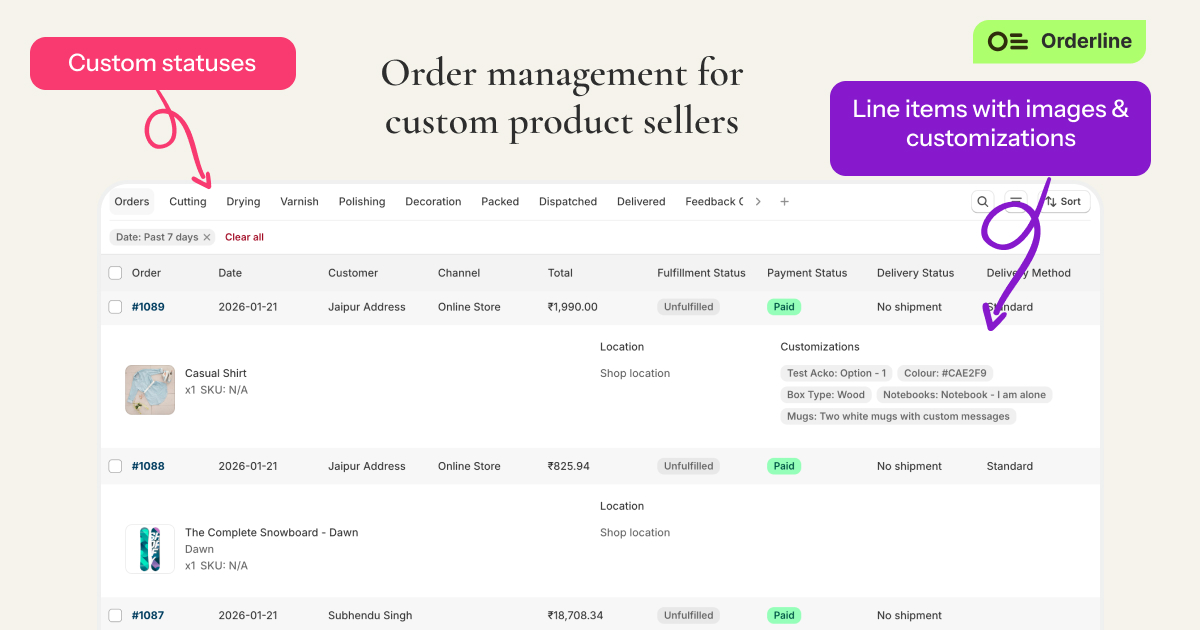
Your own stages answer “where is it?” Unfulfilled only answers “has it shipped yet?”
Setup: custom production statuses (including moving one product line at a time with Move to).
5. Rush orders need a ship-by date next to the work
Made-to-order shops don’t only ask what to make. They ask what must leave first. Without a deadline next to the order, today’s rush and next week’s normal order look the same: both Unfulfilled.
Shopify’s Orders page does not give you a real Ship By column you can sort as part of production. And a ship-by date for your team is not the same as a delivery-date picker at checkout for the customer’s preferred arrival day - different problem, different tool.
What you need instead: a ship-by date (and a clear sense of urgency) on the same screen as the product and personalization, so you can sort and filter by what leaves first.
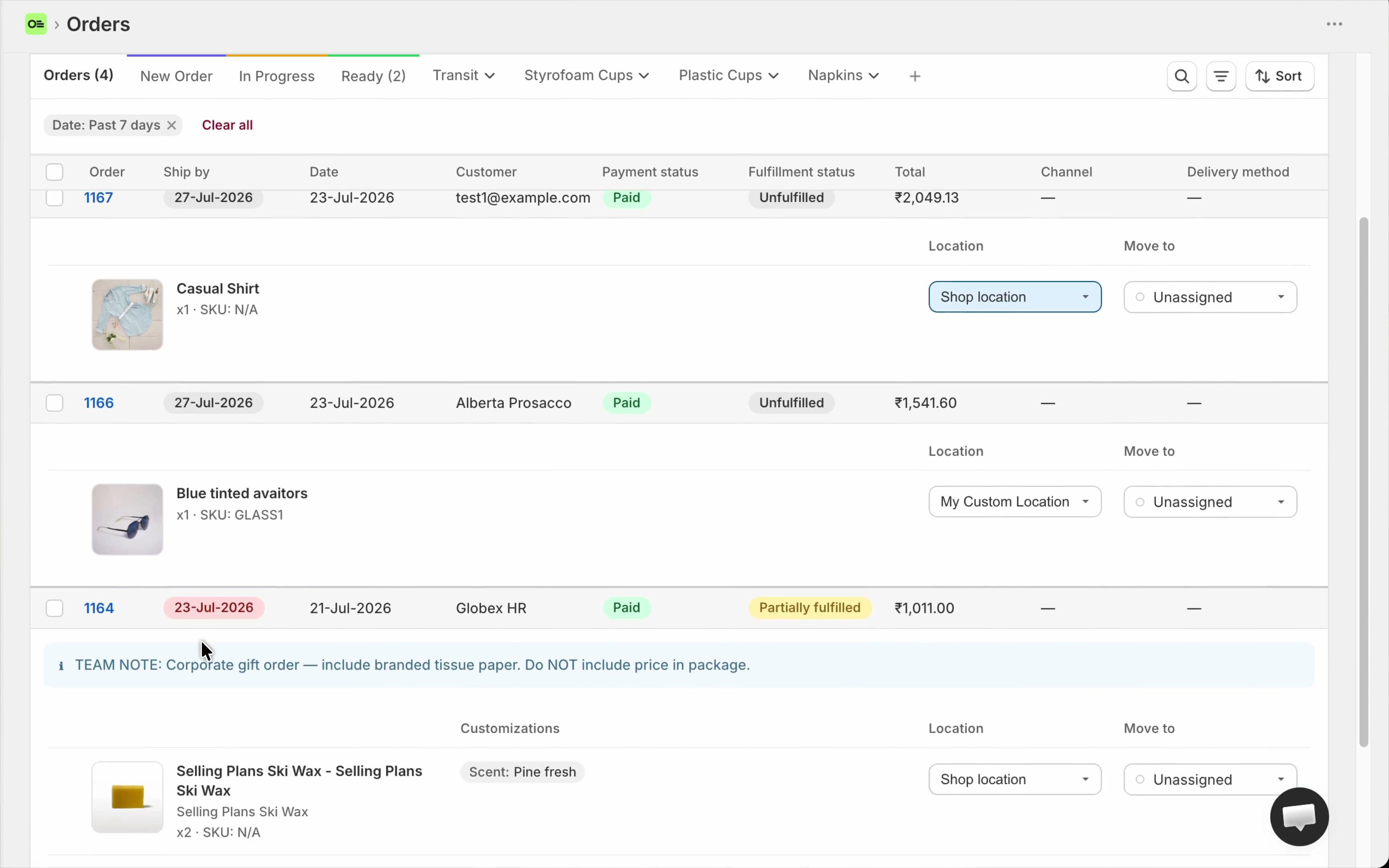
A deadline next to the work turns “everything is unfulfilled” into “this leaves today.”
Why that column matters, and the three ways to set the date: Stop missing ship dates on made-to-order Shopify orders. Setup: ship-by deadlines.
6. Default columns are often not enough
Shopify’s Orders list gives you a fixed set of fields: order, customer, payment, fulfillment, total. For many made-to-order shops, that is not a full picture.
You may already store the missing data on the order - a delivery date for a florist, a retailer or PO number for wholesale, a gift note, or any field another app writes onto the order. Shopify does not turn those into columns you can live on all day.
What you need instead: add your own columns from:
- Order custom attributes (extra fields from checkout or another app), or
- Order metafields (extra fields Shopify stores on the order when they have a definition)
Then show them on the list, filter them, and sort when that field is how you plan the day.
Example: a florist adds a delivery-date field as a column, filters to “today,” and works only that list. A jewelry shop might show a retailer code. A furniture shop might surface a PO reference.
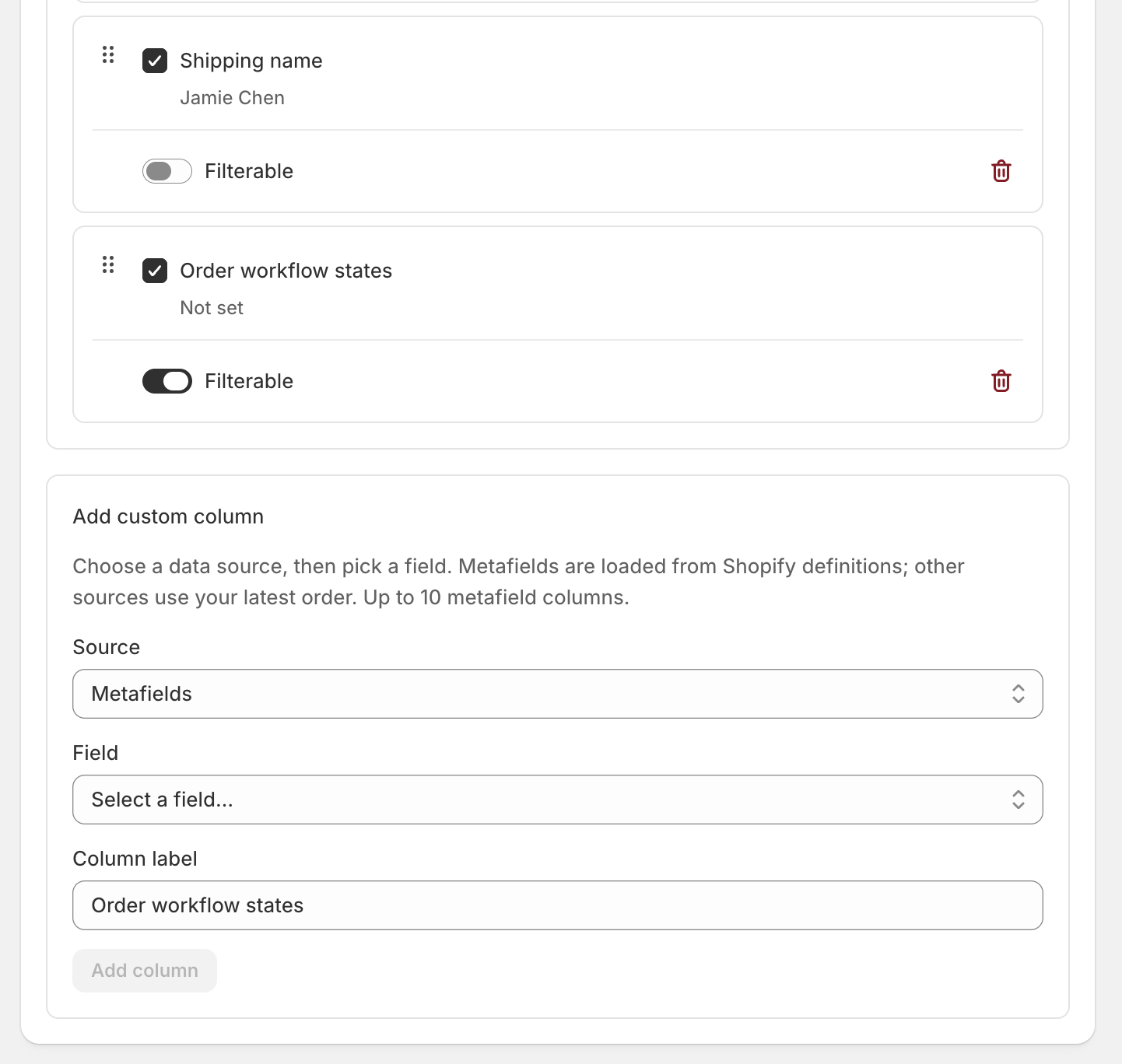
Build columns from the fields your shop already collects - not only from Shopify’s default list.
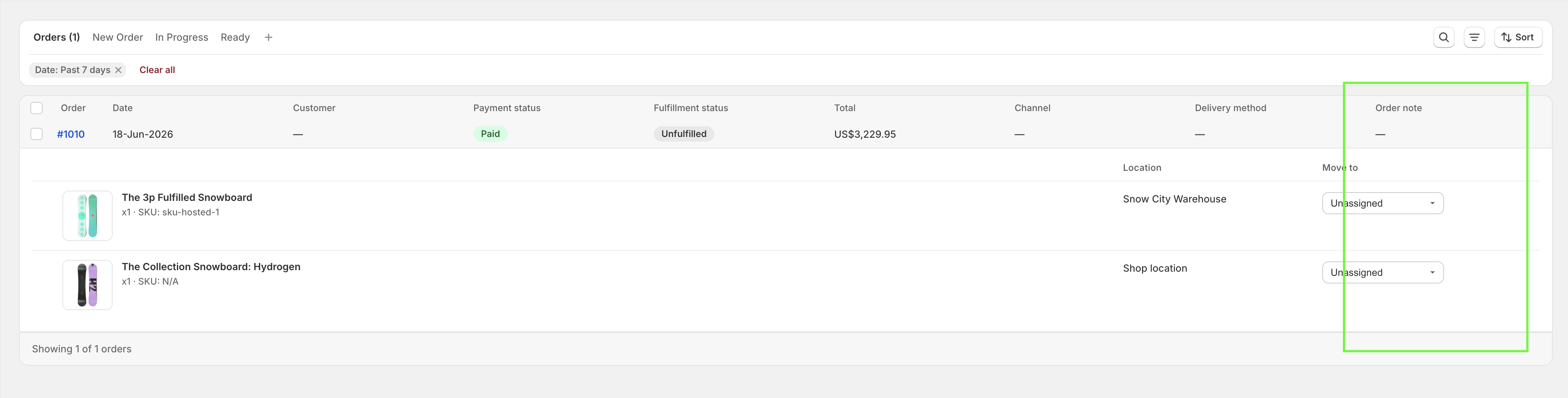
Show, hide, and reorder columns so the list matches how you actually work.
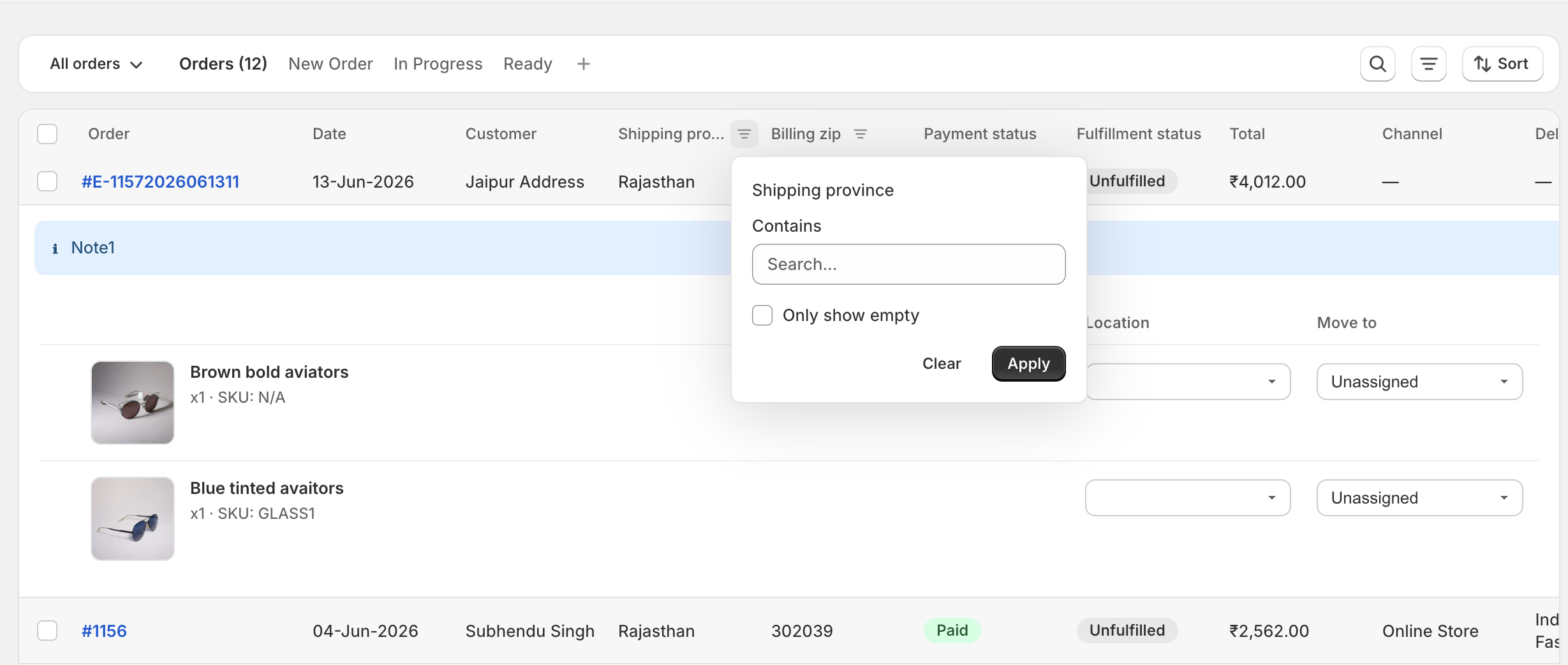
When a column is filterable, you can narrow the list from the header - for example today’s deliveries.
Setup: custom order columns and custom order views.
7. Multi-channel sellers need channel views
Many shops sell on the Online Store and also sync orders from other places - Etsy, Faire, and other channels - into Shopify. On Shopify’s Orders page you can filter, but you still do not get a durable “Etsy work only” board that matches how your team thinks about the day.
What you need instead: filter by sales channel, then save that setup as a view you reopen every morning.
Examples: Etsy work, Online Store only, or a named view that mixes channel with payment or date.
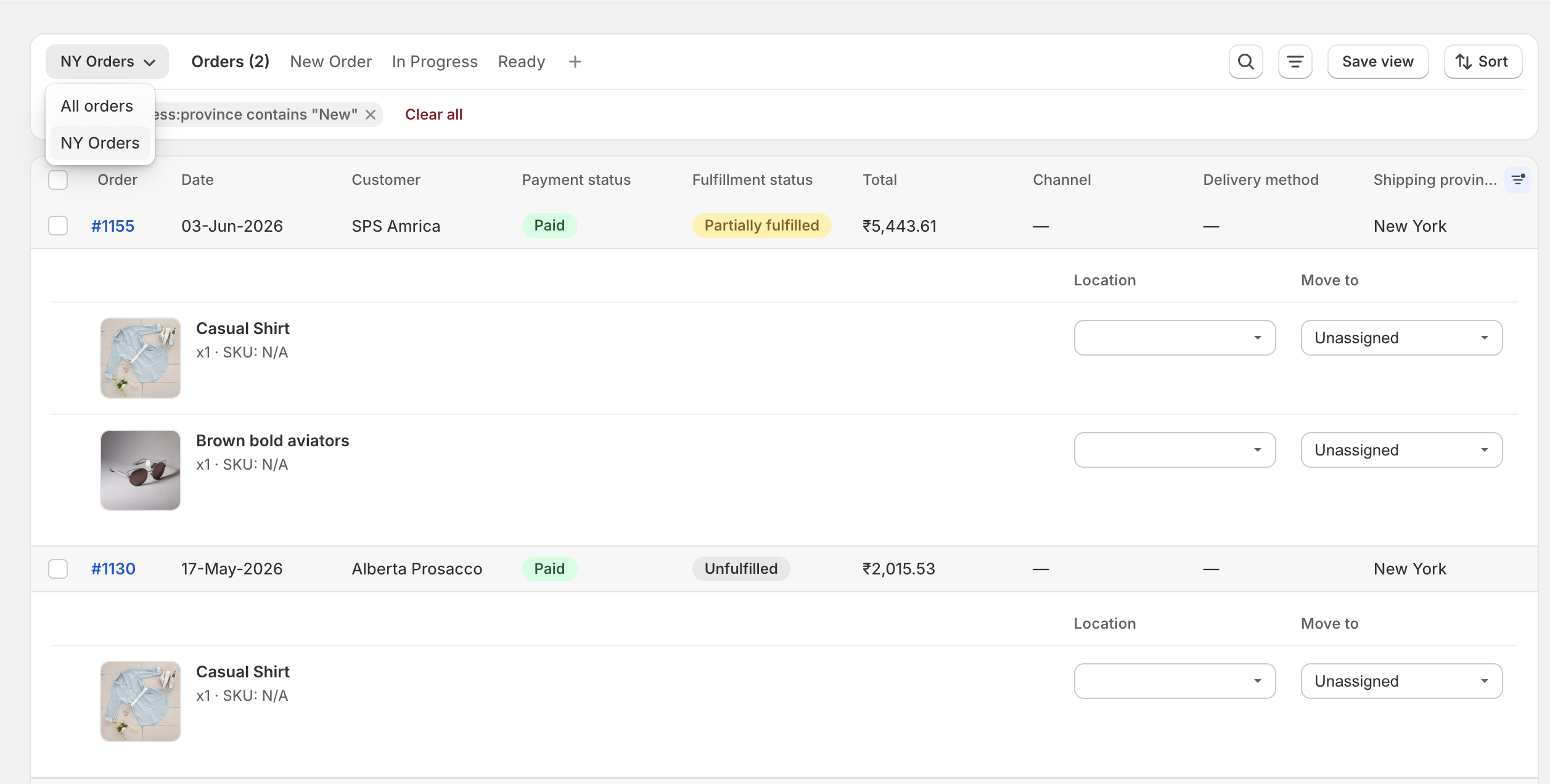
Save a channel filter once - open “Etsy work” (or any name you choose) whenever you need that list.
Setup: custom order views and filters (channel is one of the filters you can save into a view).
8. Pickup store vs workshop: Shopify’s location is often not the work location
Some shops have a pickup store (or outlet) and a separate manufacturing or warehouse location. Shopify often assigns the order to the pickup location - that is what the customer expects for pickup. Staff at the workshop still need to see the work and move it.
You usually cannot freely reassign that for internal production on Shopify’s Orders list without fighting how fulfillment locations work. If workshop staff only look at “their” Shopify location, they may never see the order.
What you need instead: keep Shopify’s location as Shopify has it, and internally assign the order (or individual products on the order) to the manufacturing location so workshop staff see it. When work is done, assign it back to the pickup location for handover - without changing Shopify’s location.
Furniture example: dining table + chairs land as one order on the pickup store in Shopify. Internally you send the work to the warehouse. Chairs can already sit in Ready while the table is still in Polishing. Warehouse staff limited to that location only see warehouse work. When pieces are done, move them back toward pickup for the customer - Shopify still shows the original fulfillment picture you need for the storefront.
Staff who only work at one site can also be limited so they only see work for that location.
Internal location and status live on the work screen so pickup and workshop can share one order without fighting Shopify’s assigned location.
Related setup:
- Staff access and location permissions - invite staff and limit who sees which location
- Unified orders view - location on the same board as products and personalization
- Custom production statuses - different stages per product on the same order
What this post is not
This page explains why the default Orders screen fails for made-to-order and what a work screen needs. It is not a software shortlist or a full install playbook.
| Need | Go here |
|---|---|
| What “order management” means for made-to-order + which tools fit | Shopify order management for made-to-order |
| DIY with drafts, tags, packing slips | Manage custom orders |
| Products and personalization in one view | Unified orders view |
| Production stages (including per product line) | Custom production statuses |
| Ship-by dates | Stop missing ship dates · Ship-by deadlines |
| Your own columns (metafields, attributes) | Custom order columns |
| Saved views (channel, delivery date, and more) | Custom order views |
| Staff and location limits | Staff location permissions |
Frequently asked questions
Why doesn’t Shopify show product images on the Orders list by default?
Because the Orders list is built as a payment and shipping overview for many kinds of stores, not as a work board for custom making. If you need pictures on every row, you usually print something, hover one order at a time, or use a separate app screen.
Are personalization options visible on the Orders page?
They live on each product line inside the order. They are not shown as always-visible columns across many orders on the list (Shopify line item docs).
Can I add a Ship By column to Shopify’s Orders page?
Not as a built-in production column you add and sort on Admin → Orders. A ship-by date for your team is also not a checkout delivery-date picker. See ship-by deadlines.
Can different products on one order be at different stages?
They should be able to - for example chairs ready, table still polishing. Shopify’s Unfulfilled / Fulfilled language does not express that well. See custom production statuses.
Is this only a jewelry problem?
No. Jewelry makes the gap obvious. The same list problem shows up for embroidery, custom print, furniture with options, gifts, signs - anything where each line is a unique promise.
What to do next
- Open your own Orders list and check it against the gaps above.
- Write down what must be visible without a click (picture, personalization, stage, ship-by date, your own fields, channel).
- If you need tools, workflow, and when the default list is still enough, read the full made-to-order order management guide.
- If you only want day-to-day workarounds inside Shopify, use How to manage custom orders on Shopify.
- If you already know you need a better orders screen, start with who it’s for and the App Store listing. Setup steps live in the guides.
CTA: Fix the screen first. More tags on a payment list rarely fix a production problem.
About the author
Subhendu Singh is the founder of Orderline. He builds order software for Shopify merchants who sell made-to-order and personalized products. X: spsbuilds.
Reviewer
Anjali Rathore reviews technical and operational accuracy on Orderline acquisition content. LinkedIn.
Sources (retrieval 2026-07-30)
- Shopify Help Center, Order management and fulfillment, https://help.shopify.com/en/manual/orders
- Shopify Admin GraphQL, LineItem, https://shopify.dev/docs/api/admin-graphql/latest/objects/LineItem
- Orderline product definition and guides (unified view, statuses, columns, views, ship-by, staff locations), https://orderlinehq.com