
 Try for free
 Guides
Custom order views and filters
Narrow your Orders list to the work you care about—today’s deliveries, one sales channel, a product name—and save that setup as a view you can reopen anytime.
Published · Updated
On this page
- Why views exist
- Views are not the same as status tabs
- Ways to narrow the list
- Custom columns and filtering them
- Filter from a custom column header
- Save a view
- Good examples
- Switch or clear a view
- Delete views you no longer need
- If someone only works at one location
- Completed, cancelled, and refunded orders
- Troubleshooting
- Checklist
- Related guides
Why views exist
Most days you do not need to stare at every open order. You need a shorter list: deliveries for today, only Etsy, only one product line, paid orders from the last week, or orders still missing a phone number.
In Orderline you build that shorter list with search and filters on the Orders screen. When the list looks right, you can save it as a view—a named shortcut that brings the same filters back in one click.
Views are not the same as status tabs
Across the top of the Orders screen you will often see status tabs (for example your production stages like “In production” or “Ready to ship”). Those tabs answer: where is this order in the making process?
A view answers a different question: which subset of orders am I looking at right now?—by product, channel, payment, date, and so on.
| You want to… | Use… |
|---|---|
| Move work through production stages | Status tabs |
| Jump back to the same short list every morning | A saved view |
You can use both at once. For example, open your Today’s deliveries view, then switch status tabs to see only the ones still in a certain stage. The view keeps your filters; the tab only changes the stage. Status is not stored inside the view—if you save a view while on “Ready to ship,” reopening the view will not force that tab again.
Tip: avoid creating a new status for every product type. Keep one shared set of stages for the whole shop, and use views (or search) for product-specific boards.
Ways to narrow the list
On the Orders screen you can combine several tools. Whatever you leave active when you click Save view (if you are an admin) is what the view remembers—except the production status tab, as above.
Search
Open search from the toolbar and type a product title, SKU, order number, or customer email. Orderline looks across those fields and across every open status—you do not need to open the right status tab first. When a result matches, the order shows all its open line items, and the status picker on each line tells you which stage that work is in.
Search stays a finder until you click a status tab. Clicking a tab while a search is active narrows the same query to that stage; typing again widens it back to all statuses. Saved views keep their usual behavior: applying a view uses your current status tab, so the list still matches the stage you were on.
Filters in the toolbar
Use the filter control on the Orders screen for things like payment status, fulfillment status, shipping-label state, order created date (for example past 7 days or a custom range), location, and products when those options are available.
Sales channel
If you sell on more than one channel, you can filter by channel (for example Online Store, Etsy, or Faire) and include that in a view.
Sort
Change how the list is ordered (order number, date, total, or ship-by when order timelines are on). Sort is saved with the view.
As you add filters, small tags appear so you can see what is active. Click a tag’s remove control to drop that filter without losing the rest. Clear all removes every active filter and search.
Custom columns and filtering them
Sometimes the data you care about is not a standard Shopify column—it is something your shop collects on the order, such as a delivery date, a gift message, or a field another app stores on the order.
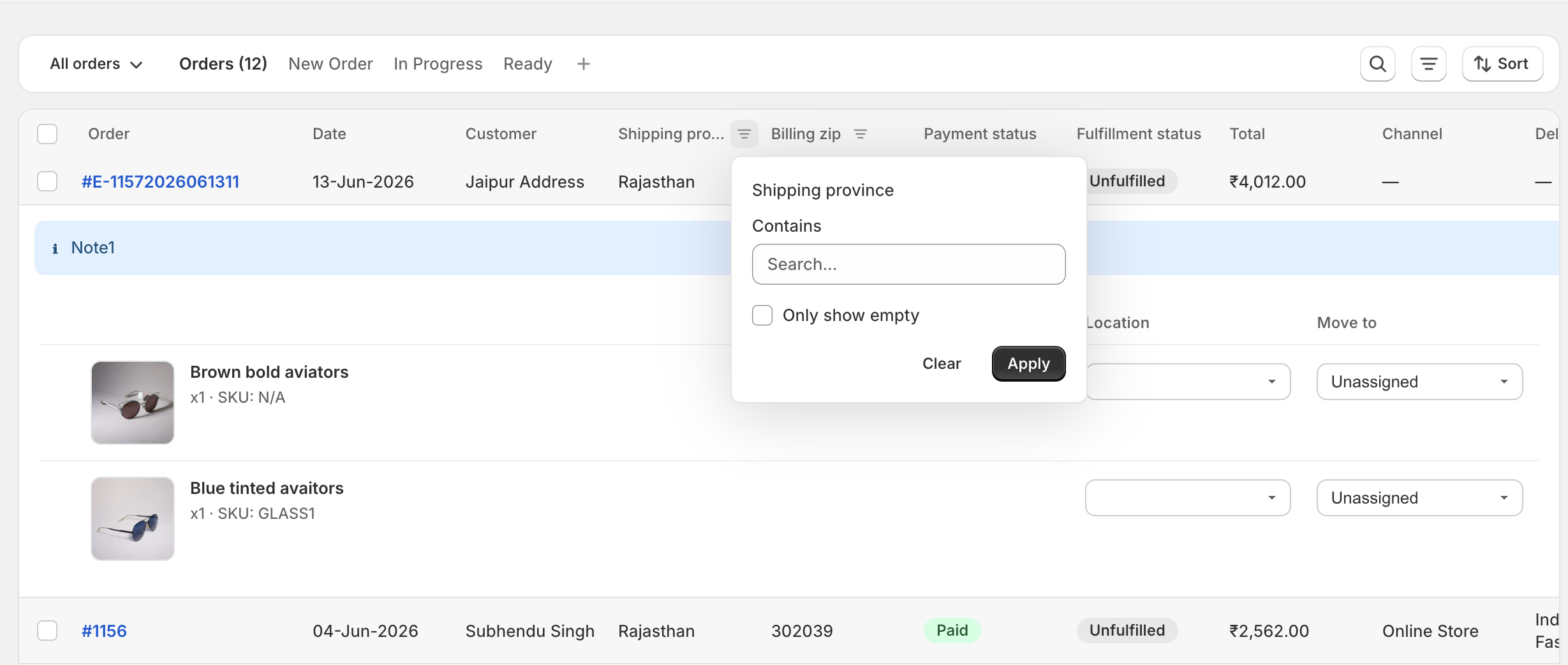
In Orderline you can add those fields as custom columns on the Orders table (Settings → Columns). That way you see the value for every order in the list. You can also turn on Filterable for a custom column so a filter icon appears on that column header, just like other filters on the Orders screen.
You do not need custom columns for every view. Searching for a product name, or filtering by payment and date in the toolbar, is enough for many shortcuts. Use custom columns when the field only exists as extra order data—for example “deliveries today” from a delivery-date field. Full setup steps are in Custom order table columns.
Filter from a custom column header
- Open Orders.
- Hover the custom column header (for example Delivery date).
- Click the filter icon and choose what to show (for example today, a date range, empty values, or text that should appear in the field).
You can filter more than one column at a time. The list only keeps orders that match every filter you applied.
Filter icon on a custom column header
Save a view
Only store admins see Save view. The button shows when you have at least one active filter or search worth saving.
- Build the list you want with search, toolbar filters, and/or custom column filters.
- Click Save view.
- Give it a clear name.
- Save.
Later, open the Views menu on the Orders screen and pick that name. Orderline reapplies everything you saved and refreshes the list. The counts on your status tabs update so they match the filtered list.
If you tweak filters after opening a view, you are working on a temporary copy—the saved view is not overwritten until you save again. Re-select the view from the menu to go back to the saved version.
Good examples
| Name | How you might build it before saving |
|---|---|
| Today’s deliveries | Custom delivery-date column filtered to today |
| Etsy work | Channel filtered to Etsy |
| One product line | Search for that product name or SKU |
| Missing phone | Phone (or a custom phone column) set to empty |
| Paid, last 7 days | Payment = Paid, and order date = past 7 days |
| Today’s morning deliveries | Delivery date = today, plus a delivery-time column filtered to a morning window, optionally payment = Paid |
If the list has a date range applied and you want the view to include all dates, clear that date filter before you save.
Switch or clear a view
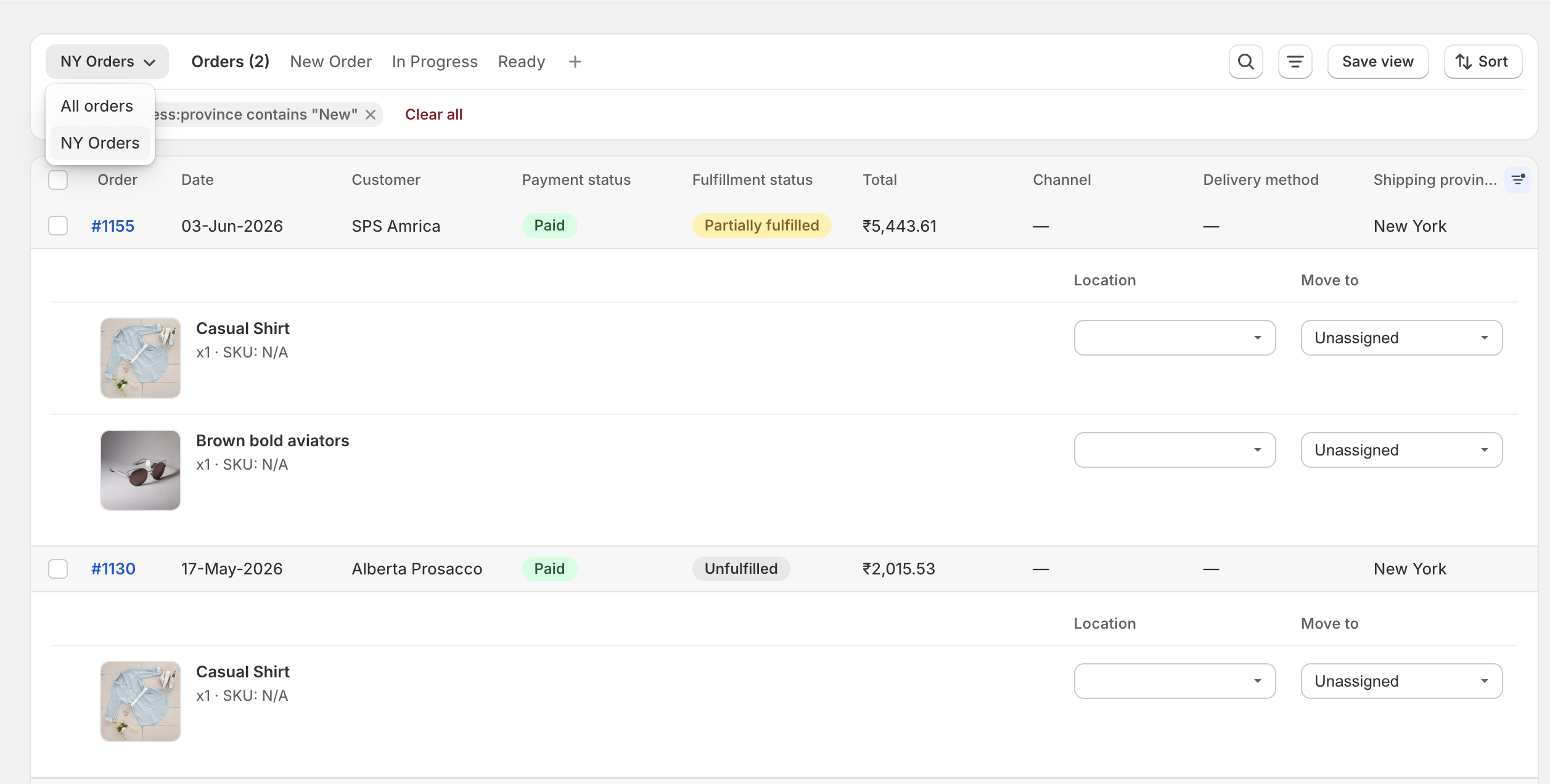
- Open Views on the Orders screen (it appears once you have at least one saved view).
- Choose a named view, or choose All orders to leave the saved setup.
- Use Clear all if you want every filter and search tag removed in one step.
Views dropdown
Delete views you no longer need
- Go to Settings → Views.
- Review the list and the short summary of each view’s filters.
- Delete anything you do not use.
You still create and refine views from the Orders screen; Settings is for review and cleanup.
If someone only works at one location
Staff who are limited to a single location only ever see orders for that location—even when they open a view. Admins can choose a location filter and include it when they save a view.
Completed, cancelled, and refunded orders
By default, Orderline is a production queue: the Orders list shows open work only. If you also want Shopify-style slices for closed orders—Completed, Cancelled, or Refunded—you can turn that on in Settings → General.
- Open Settings → General.
- Under Order lifecycle, check Show completed orders to see closed orders that are already in Orderline, plus anything that completes or cancels from now on.
- Optionally check Also import last 60 days to pull in the last two months of Shopify history. Orderline shows how many orders will be imported before you confirm; these imports do not count toward your monthly order limit.
- Choose which slices appear in the views dropdown: All orders, Completed, Cancelled, Refunded. Only the ones you enable appear.
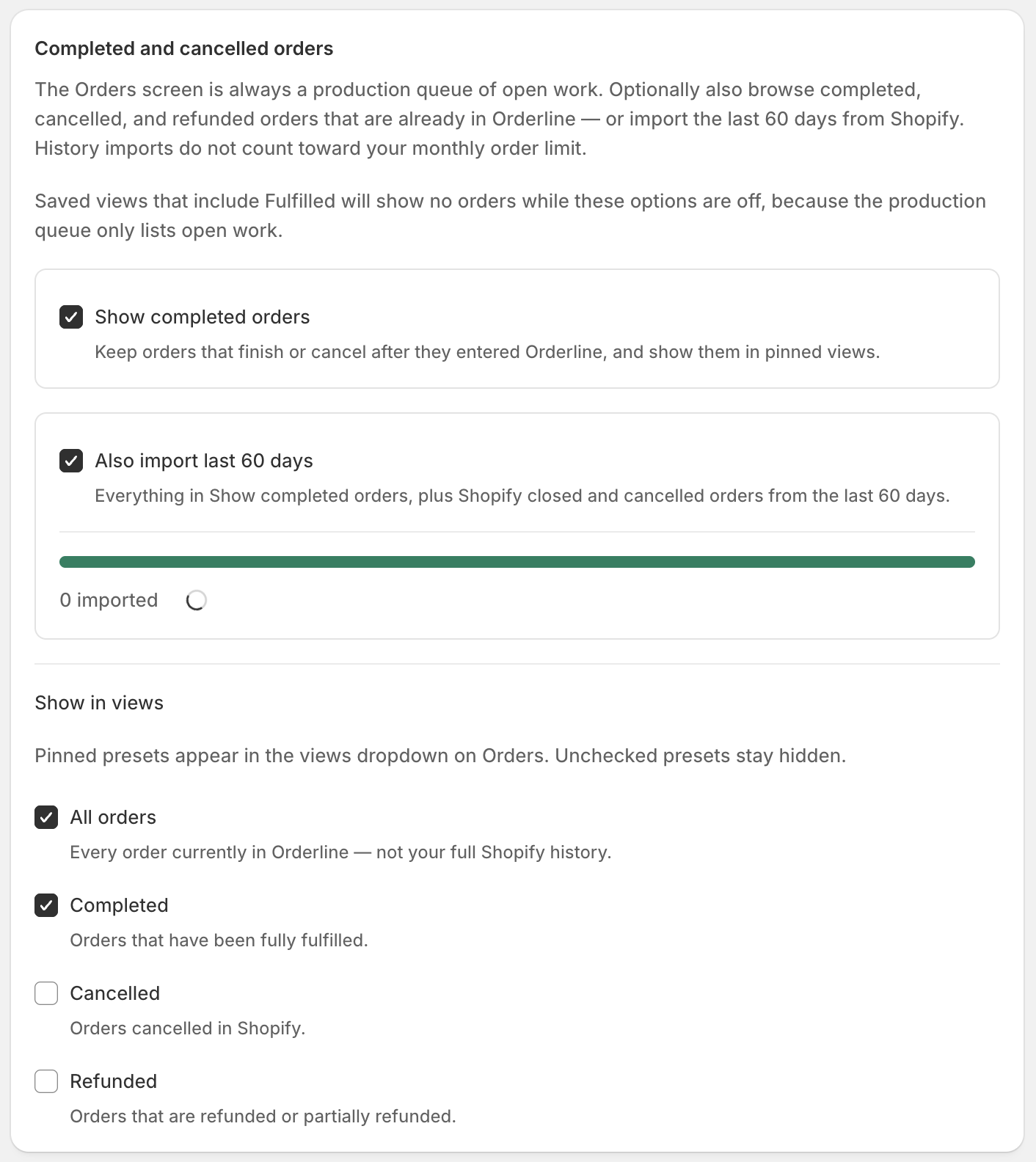
Open the Views menu on the Orders screen to switch between your open queue and these closed-order slices. Closed orders are read-only: you cannot change production status, print packing slips, or buy labels from them. Ship-by dates show if they were already set, but without urgency colors.
Leave both settings off and nothing changes—your list stays open work only.
Troubleshooting
The view shows no orders
Your filters may be too strict. Remove a tag or two. Check that custom fields actually have values on those orders in Shopify. Try another status tab while the view stays on—some stages may simply have no matching rows.
I do not see Save view
You may not be an admin, or you have not set any filter or search yet.
There is no filter icon on my custom column
Open Settings → Columns, find that column, and turn on Filterable. Wait if the app shows indexing.
I renamed a column and worried my view broke
Views follow the field itself, not the label. Renaming the column does not break the view.
Checklist
- Decide whether you need a status (production stage) or a view (a reusable short list).
- Narrow the Orders list with search and toolbar filters.
- Add custom columns and enable Filterable when you need to filter on extra order fields.
- As an admin, click Save view and name it with a clear example like the ones above.
- Switch views from the Orders screen; clean up old ones under Settings → Views.
Related guides
- Custom order table columns — extra fields, metafields, and Filterable
- Order deadlines (ship-by date) — ship-by column and urgency
- Getting started
Need more help? Contact Orderline support.