
 Try for free
 Guides
Fulfill, hold, unhold, and cancel from Orderline
Mark orders as fulfilled, on hold, release holds, or cancel from the Orderline Orders screen—actions sync to Shopify, including partial line-item fulfillment.
Published · Updated
On this page
What this is for
The main idea: process fulfillment without leaving Orderline. You already see line items, customizations, and production stages on the Orders board. When something is ready to ship, needs a hold, or must be cancelled, you run those Shopify actions from the same screen—no jumping into Shopify Admin for every order.
From Orderline you can:
- Fulfilled — create fulfillment in Shopify
- Hold — put fulfillment on hold in Shopify
- Release Hold — release a fulfillment hold in Shopify
- Cancel Entire Order — cancel the order in Shopify (with limits for some staff)
Results go through Shopify’s API. Fulfillment status in Shopify Admin matches what you ran (including partially fulfilled when only some line items were fulfilled). You can confirm by opening the order in Shopify Admin—the same flow shown in the video below.
This is not the same as Change Status (your custom production stages). Production stages stay inside Orderline; Mark As updates Shopify fulfillment / order state.
Production status vs Mark As
| Control | What it changes |
|---|---|
| Change Status | Orderline production stage (e.g. In Production → Ready). Does not fulfill in Shopify by itself. See custom production statuses. |
| Mark As | Shopify-side fulfillment or order cancellation. Syncs with Shopify Admin. |
Typical flow: move work through production statuses, then Mark As → Fulfilled when those items are actually shipped or handed off.
Line-item fulfillment and partial fulfill
Fulfillment in Orderline is line-item aware. When you Mark As → Fulfilled, Orderline sends Shopify only the open line items that match the board you are on—especially the active status tab (and location scope when staff are location-locked).
Example
An order has three line items. One is ready; the other two are still in production.
- Move the ready line to a production status such as Ready (line-item status).
- Open the Ready status tab so that line is what you are working on.
- Select the order and Mark As → Fulfilled.
Orderline fulfills that ready line item in Shopify. The other lines stay unfulfilled. In Shopify Admin the order shows as partially fulfilled. You can open the order in Shopify to confirm—same check demonstrated in the video.
You can repeat for other lines when they are ready, until the order is fully fulfilled.
Hold is also scoped to the relevant open line items when applicable. Release Hold and Cancel Entire Order are broader Shopify actions (hold release / whole-order cancel), not “one line cancel.”
Open Orders and select work
- Open Orderline from your Shopify admin.
- Go to Orders.
- Optionally filter by status tab, location, or fulfillment status so the right work is on screen.
- Select one or more orders with the row checkboxes.
When orders are selected, the bulk toolbar appears (including Change Status, Mark As, and other bulk tools).
Staying on this screen for both production stages and Shopify fulfillment is the point—no separate “go to Admin to fulfill” loop for day-to-day work.
Mark As menu
With orders selected, click Mark As, then choose:
| Menu label | Action |
|---|---|
| Fulfilled | Create fulfillment in Shopify for the in-scope line items (see partial fulfill above). |
| Hold | Put fulfillment on hold in Shopify for the in-scope line items. |
| Release Hold | Release hold in Shopify. |
| Cancel Entire Order | Cancel the whole order in Shopify. |
A progress UI tracks the bulk job. Large selections may process asynchronously; wait for completion before assuming every order succeeded. Failed items can appear with an error reason in the progress results.
Cancel Entire Order and staff location locks
Cancel Entire Order is hidden when a staff member is locked to a single location and is not an admin. Location-limited staff process site work; cancelling the entire order is reserved for unrestricted or admin users.
Other Mark As actions still run in a location-aware way: only line items in that staff member’s effective location are included when a location lock applies.
What syncs to Shopify
Mark As runs Shopify GraphQL mutations from Orderline (not a fake local-only flag). After the action:
- Shopify Admin reflects fulfilled / partially fulfilled / hold / release / cancel as Shopify defines those states.
- Orderline refreshes order data so fulfillment status on the board matches.
- For cancel, Shopify may show a pending cancellation briefly until webhooks confirm the final cancelled state.
You can verify anytime by opening the same order in Shopify Admin → Orders—as shown in the guide video.
Delivery status after you fulfill
Mark As → Fulfilled sets Shopify fulfillment. Carrier progress is a different field. Turn on the Delivery status column in Settings → Columns to see Tracking added, In transit, Out for delivery, and Delivered on the Orders list.
The column is off until you enable it. It is not a substitute for Fulfillment status. 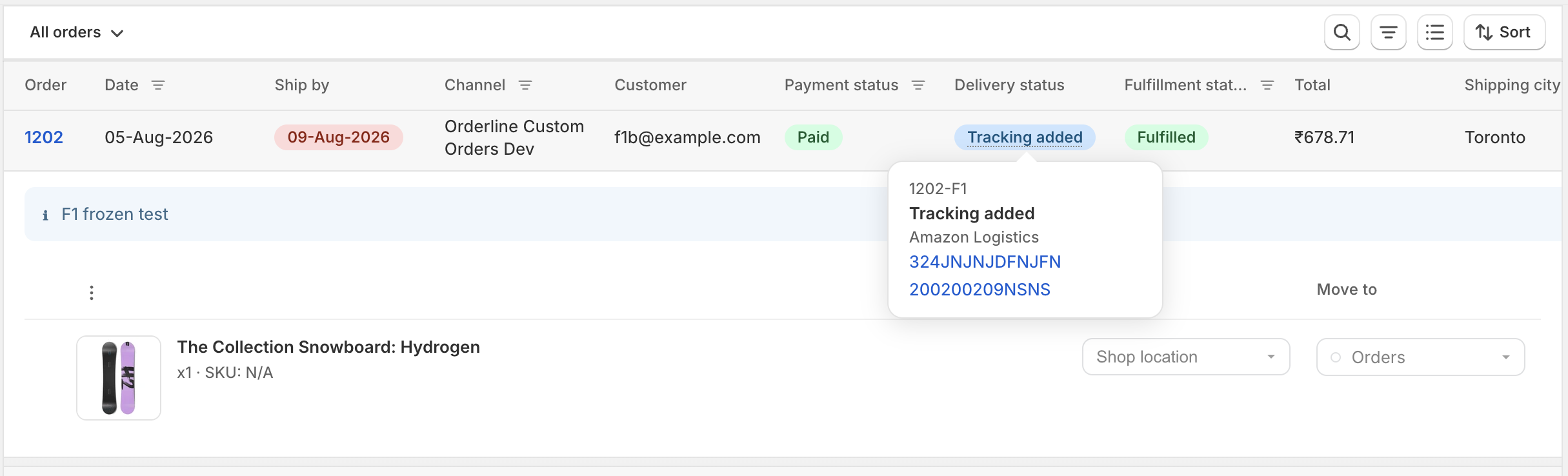
Tips
- Prefer production statuses for internal stages; use Mark As → Fulfilled when those items actually ship.
- Use the status tab that matches the lines you intend to fulfill so partial fulfill stays intentional.
- Use filters (unfulfilled, location, ship-by) before bulk select so you do not fulfill the wrong set.
- Combine with packing slips and shipping labels when you use those tools.
- Staff with location locks: see staff access and location permissions.