
 Try for free
 Guides
The Orderline orders view — line items, images, and customizations
Use Orderline’s Orders screen to see product images, line items, and customer customizations in one list—without clicking into every Shopify order.
Published · Updated
On this page
- Why this screen exists
- Open the Orders screen
- What each order shows
- Order-level row
- Line items (the unified detail)
- Show or hide line items
- How customizations appear
- Ship-by and urgency on the list
- Status tabs on the same view
- Filters, views, and saved boards
- Notes and team context
- Mobile and tablet compatible
- What this screen is not
- Quick start checklist
- Related
Why this screen exists
Shopify’s default orders dashboard covers important details like payments, fulfillment and delivery status. For most of the merchants who sell pre-built products that do not require customization, that is enough. But, for the merchants who build product from scratch for each order, that is not enough. For made-to-order and personalized products, the details that matter—line-item images, customizations, production stage, ship-by—are usually hidden until you open each order. At scale, that click-through is a major time sink.
Orderline does not replace or redesign Shopify Admin Orders. It provides its own orders screen so you can scan production work in one place: line items, images, customizations, ship-by deadline, location, delivery method, and more—in a single view.
If that sounds like your shop, you are in the right product: Who Orderline is for.
Open the Orders screen
- Open Orderline from your Shopify admin.
- In the app navigation, open Orders (home link in the app).
After install, Orderline syncs orders automatically. The first sync can take a few minutes depending on volume.
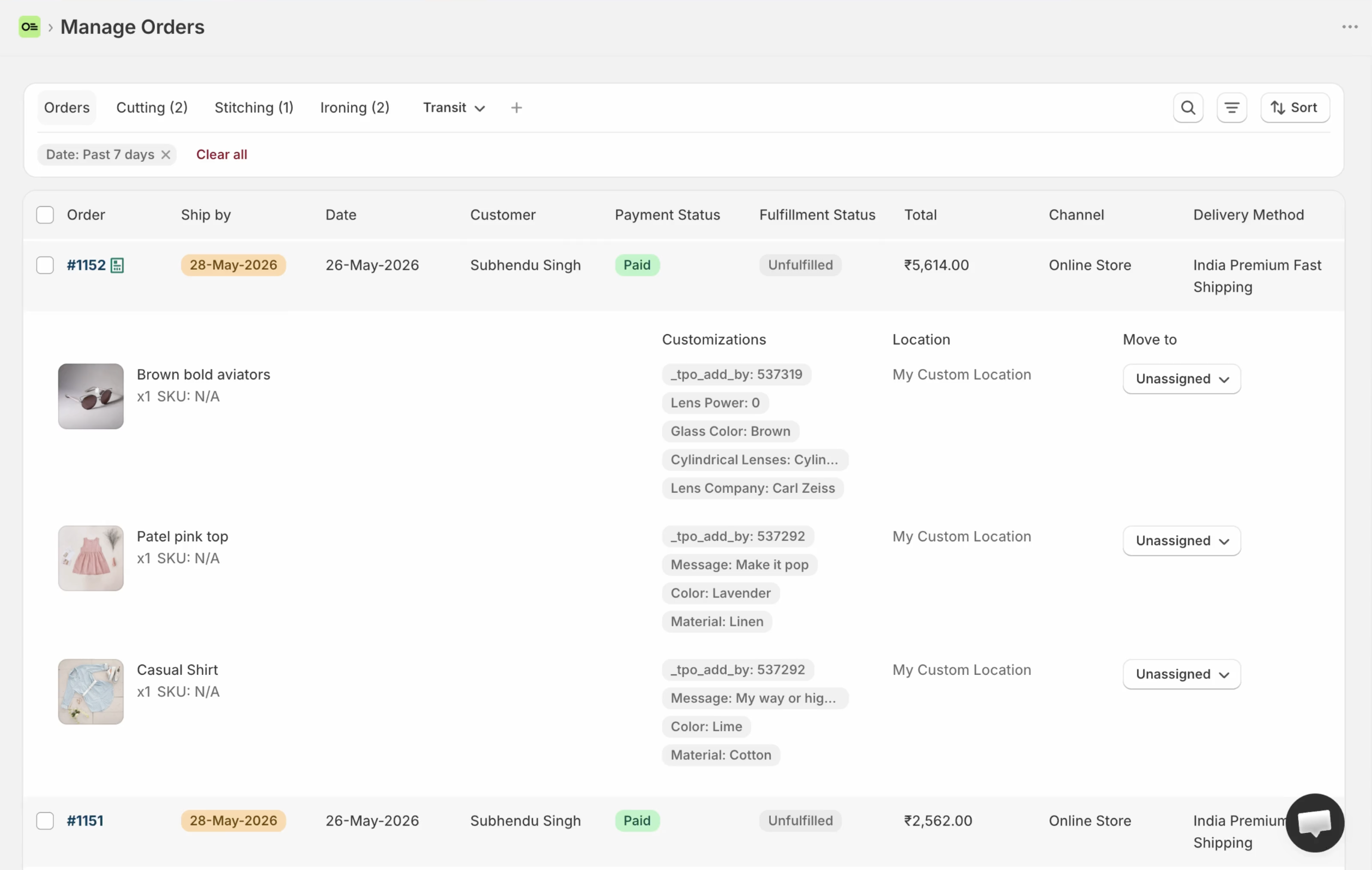
You will see:
- Status tabs across the top (production stages and an Orders inbox-style tab)
- The orders table with configurable columns
- Line items under each order (product image, title, options, customizations, and more)
- Filters, bulk actions, and related tools on the same screen (status changes, packing slips, labels, fulfillment—covered in their own guides)
What each order shows
Order-level row
Typical order-level information on the table includes fields such as:
| Area | Examples |
|---|---|
| Order | Order name/number. Medium or High Shopify risk shows a warning icon next to the number (Low risk stays hidden). Shipping-label status can appear in the same cluster. |
| Date | When the order was placed |
| Customer | Customer name |
| Payment status | Shopify financial status |
| Fulfillment status | Shopify fulfillment status |
| Delivery status | Optional column: Tracking added, In transit, Delivered — see custom columns |
| Total | Order total |
| Channel | Sales channel |
| Delivery method | How the order ships or is delivered |
| Ship by | Ship-by deadline and urgency (when order timelines are enabled) |
You can show, hide, and reorder many columns—and add custom columns using metafields, order custom attributes or shipping adress —in custom order table columns. For example, you might want to add delivery time and delivery date column to your orders that your customers select on your product page.
Line items (the unified detail)
Under each order, Orderline lists line items so you do not have to open the Shopify order to see what to make. Line-item detail commonly includes:
- Product thumbnail / image
- Product title and variant information
- SKU and quantity
- Customer customizations (line item properties / options)
- Location (where the item is assigned for work)
- Production status (Orderline stage for that line item)
Multi-item orders: one order can contain several line items. Different lines can be in different production statuses or locations at the same time. Filtering by a status tab shows the line items in that stage—not necessarily every line of every multi-item order. See custom production statuses.
New shops start with a sensible number of line items shown per order in the list (shop default is configured for a compact scan). Expand or scroll within the order as needed to work the full set of lines.
Show or hide line items
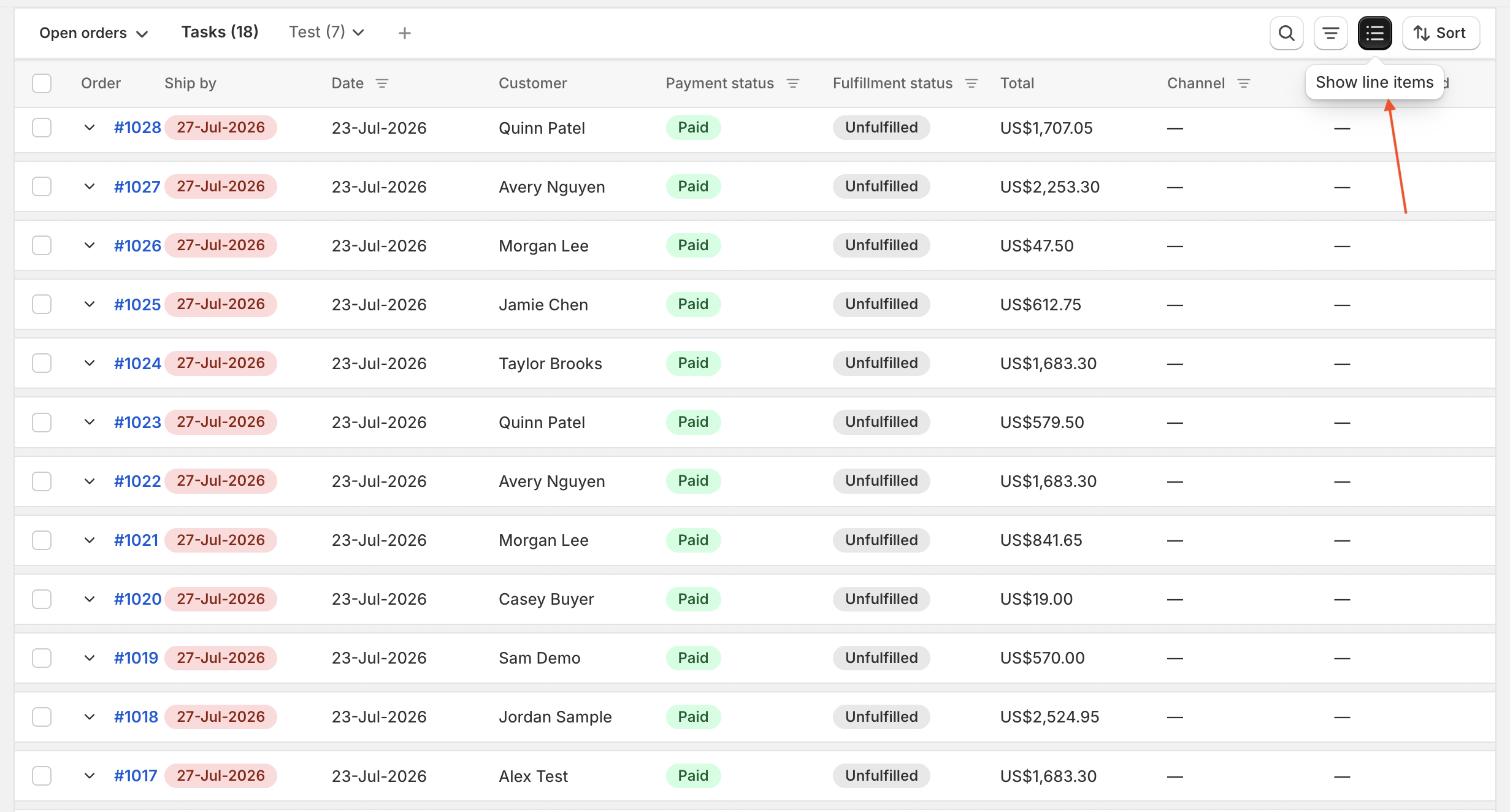
The default Orders view shows line items under each order. To scan more orders at once, use the toolbar toggle next to Sort: Show orders only collapses the list to order headers; Show line items brings the products back. In the compact list, expand a single order from its chevron when you need its lines.
How customizations appear
Customer personalization is the core of the unified view. Customizations come from the options and properties attached to each line item (for example engraving text, color choices, messages, or upload URLs).

Orderline renders each customization as a label and value pair so long text stays readable:
| Value type | How it displays |
|---|---|
| Short or long plain text | Text that wraps naturally (gift messages, notes, long engraving copy) |
| Direct image URL | Small thumbnail (for example 64×64) that opens the image in a new tab (extensions such as .jpg, .png, .webp, and similar) |
| Other https URLs | Clickable link opening in a new tab (for example non-image files) |
That means artwork uploads and long messages are usable in the list—not only one-word option chips.
Ship-by and urgency on the list
When order timelines are enabled, a Ship by column shows calculated deadlines and urgency so you can prioritize the board without opening each order.
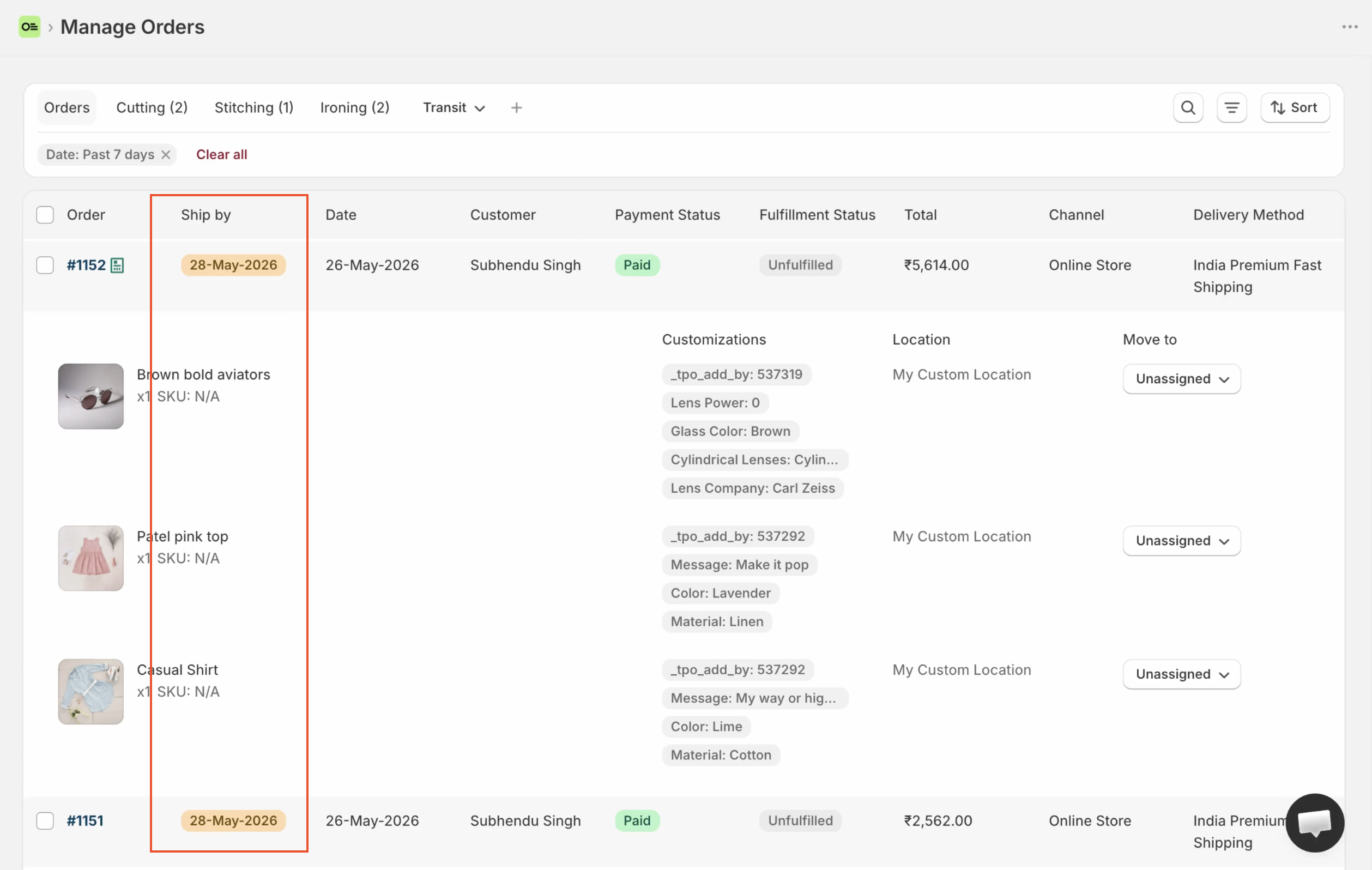
Configure rules, operational days, and urgency tiers in the ship-by deadlines guide.
Status tabs on the same view
Above the table, status tabs filter the board by production stage (and an Orders default/inbox-style tab). Counts on tabs help you see bottlenecks.
- Flat statuses → individual tabs
- Categories → dropdown of child statuses
- Bulk Change Status and per-line Move to move work through the board
Full setup: custom production statuses.
Filters, views, and saved boards
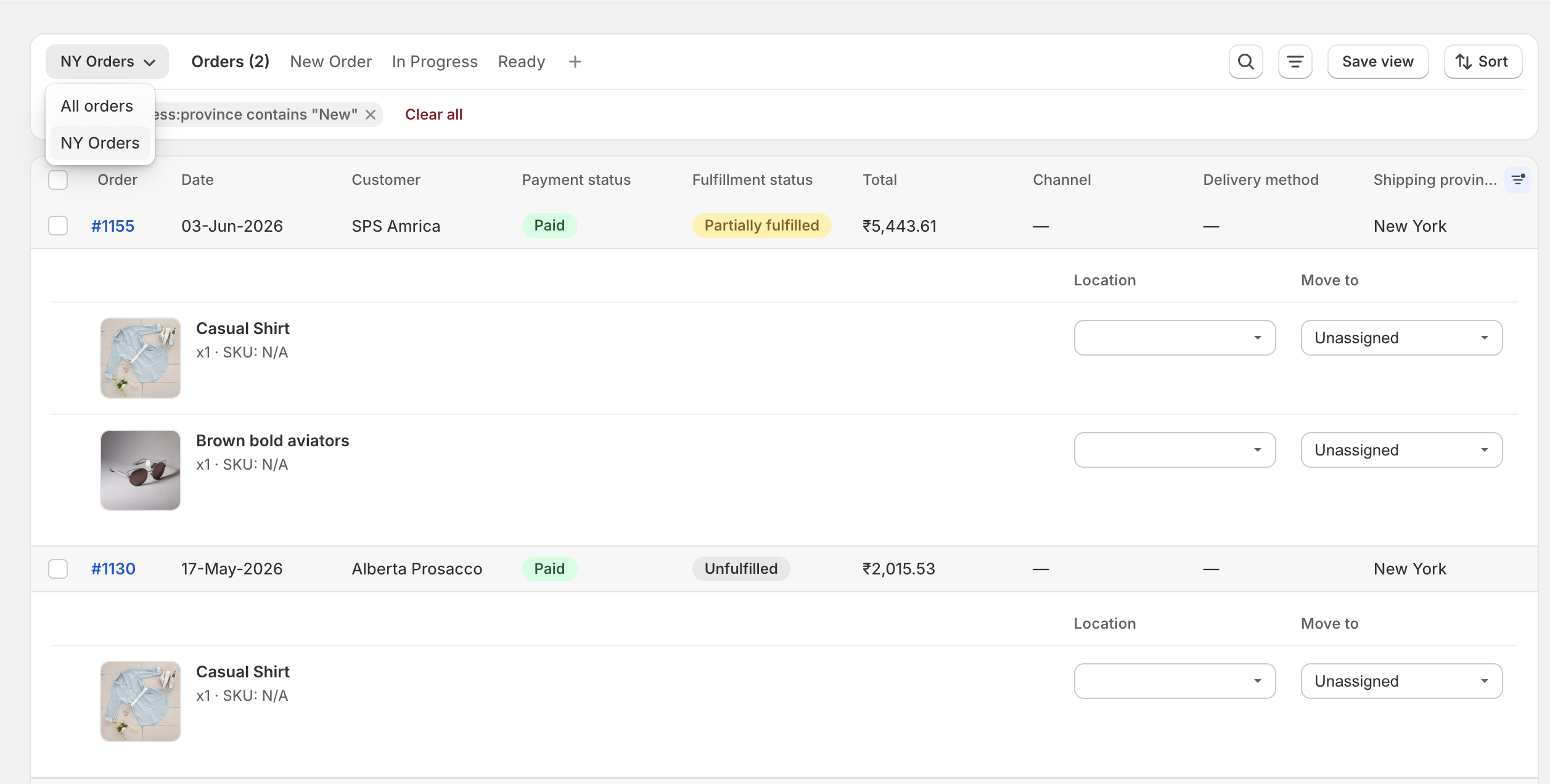
On the same unified view you can filter orders (for example by fulfillment or payment status, location, shipping label state, order id, and other order data). You can also filter by custom column values and save views for recurring boards such as “Today’s deliveries.”
Notes and team context
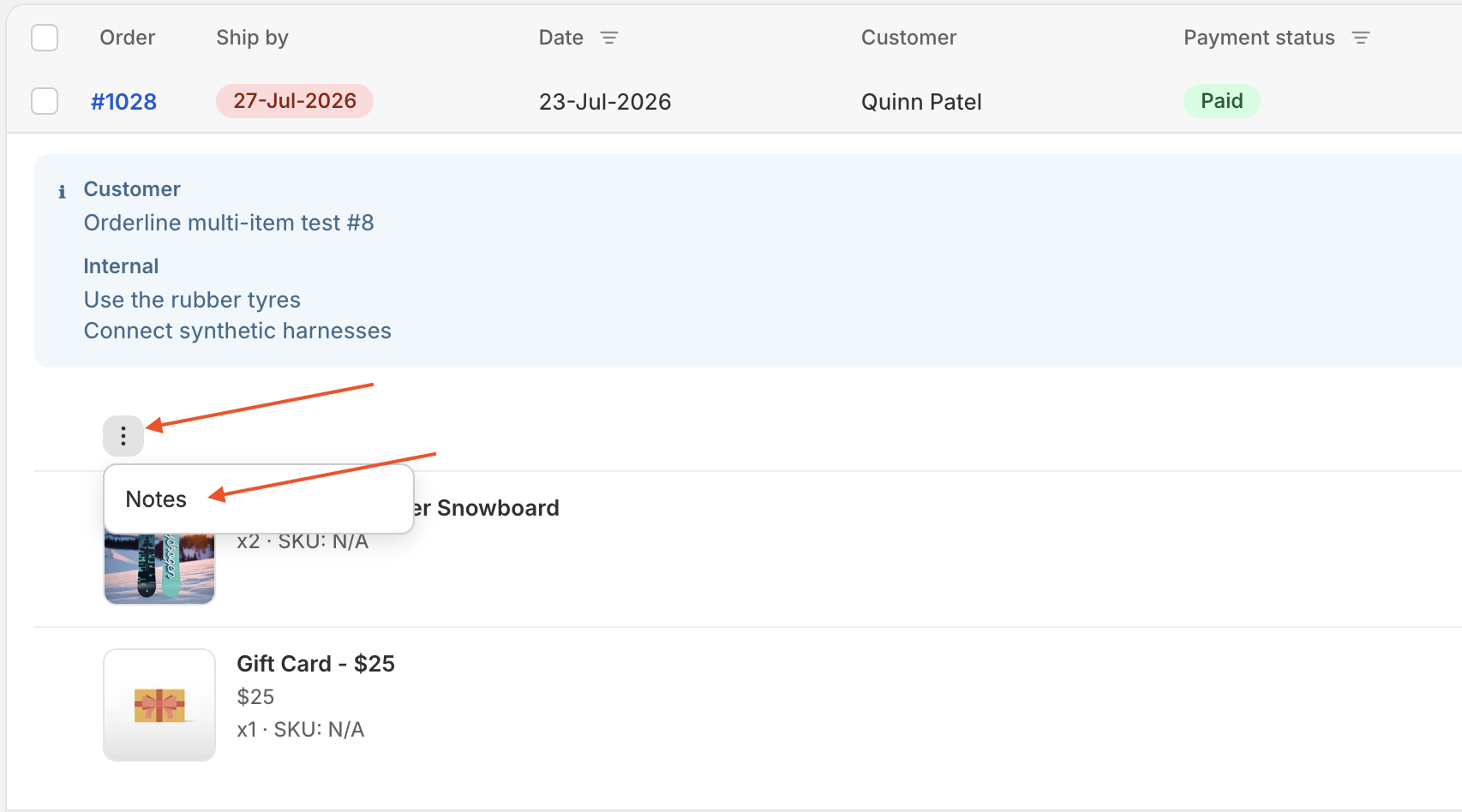
Order notes and team-visible context support production instructions. Orderline also supports internal production notes that stay separate from the customer’s Shopify note—use them for shop-floor reminders, allergies, or reprint instructions. See internal production notes.
Mobile and tablet compatible
 We understand that on the production floor, staff generally works with a mobile phone or tablet because those devices are handy and do not require a separate desk. Orderline is completely optimized for mobile and table so you and your staff can easily continue working even when not on your laptop. In fact, in most caseses, you won’t even require a laptop.
What this screen is not
| Expectation | Reality |
|---|---|
| Replaces Shopify Admin → Orders | No — separate Orderline screen that fills MTO gaps |
| Full MRP / BOM materials system | No — production order visibility and workflow; materials planning is a different class of tool if that is your only need |
| Enterprise multi-channel OMS | No — focused on Shopify made-to-order operations |
For ICP fit, see Who Orderline is for.
Quick start checklist
- Open Orderline → Orders after sync completes.
- Scan an order with personalization: confirm image, line items, and customizations are visible without opening Shopify Admin.
- Turn on ship-by deadlines if you promise timelines.
- Shape your production statuses.
- Tune columns and views for your daily board.
- Use bulk status moves and line-item Move to as work progresses.