
 Try for free
 Guides
Ship-by dates by shipping method
Calculate ship-by from order date and lead time (in days) per shipping method—plus a store default for unmatched rates—with urgency on the Orders list.
Published · Updated
On this page
When this is useful
Use By shipping methods when the rate the customer picks at checkout should drive how soon you ship—Express in one day, Standard in three, everything else on a default.
Orderline sets ship-by as:
order date + lead time (in days) for that method (in your operational days)
If a method has no rule, it uses your default deadline.
For the other modes (by product, manual), see Order deadlines (ship-by date).
1. Turn on Order timelines
- Open Orderline → Settings → Shipping.
- Turn Order timelines on.
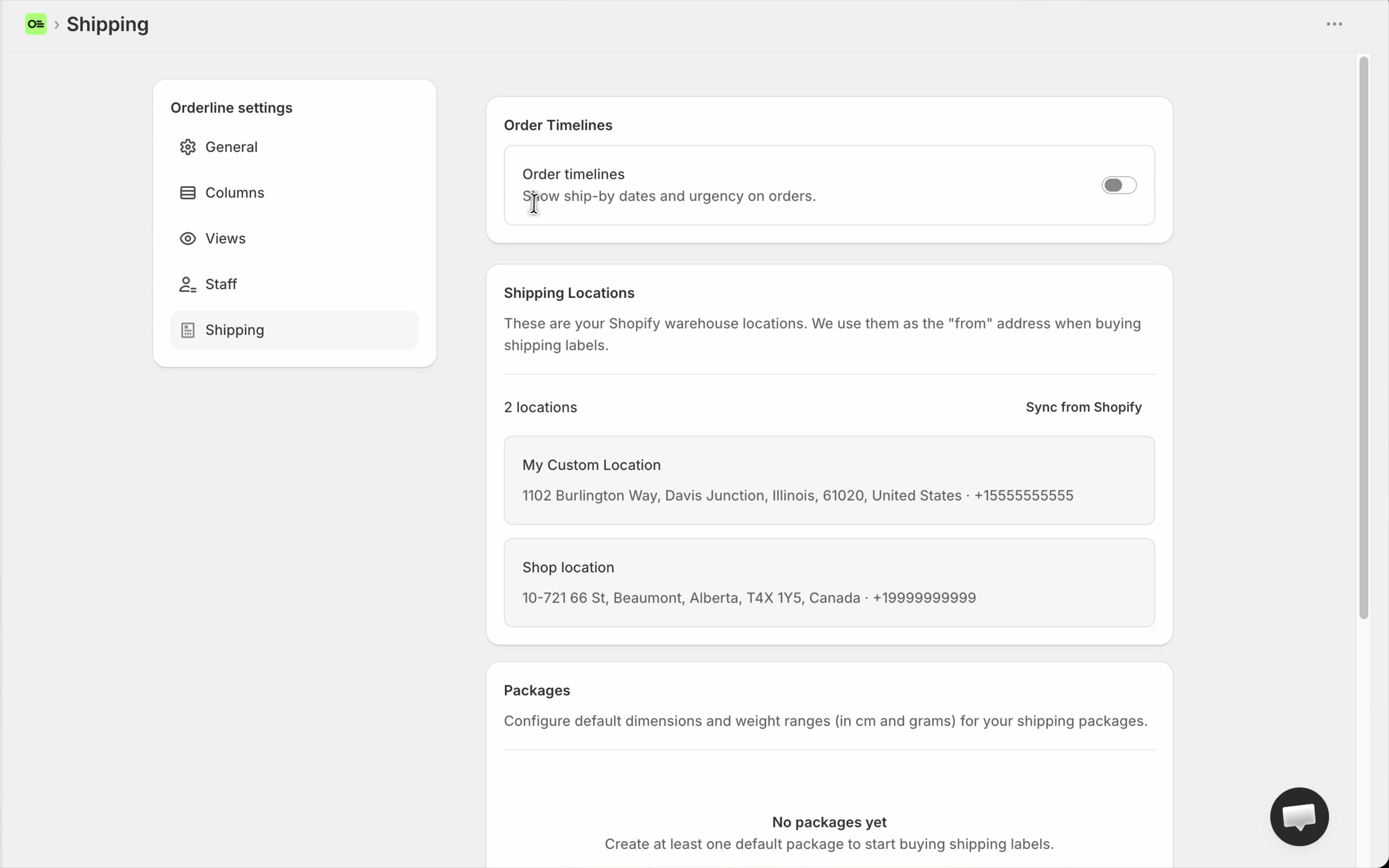
The Ship By column appears on Orders. New and open orders can get dates once you finish the settings below.
2. Choose By shipping methods
Under How ship-by dates are set, stay in Automatic mode and select By shipping methods (not By products, not Manual).
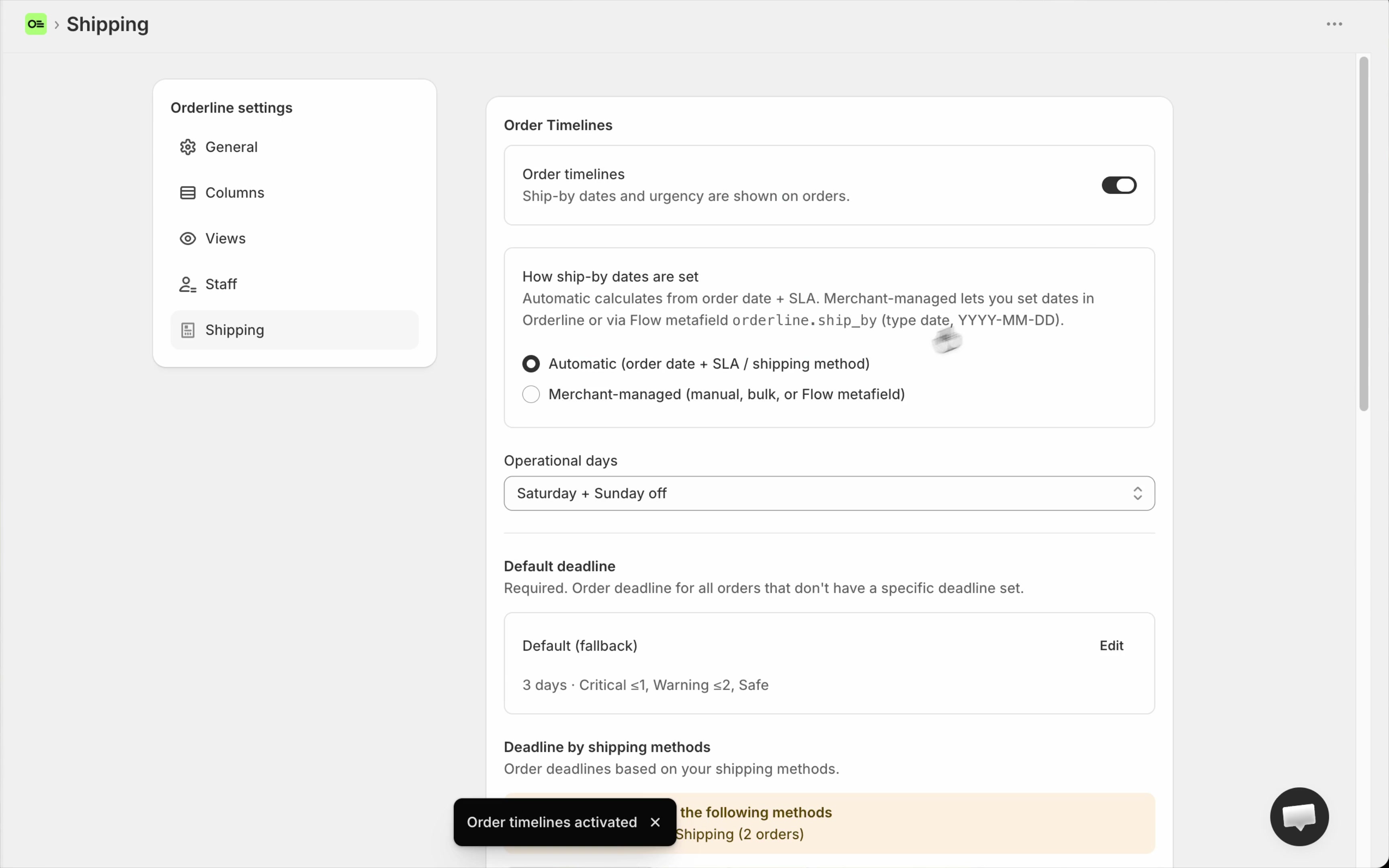
You can switch modes later. Product and manual settings stay saved; only the active mode writes dates.
3. Set operational days
Tell Orderline which days count toward the lead time. Non-working days are skipped.
- Find Operational days.
- Pick a preset or custom days:
| Preset | Days selected |
|---|---|
| Monday – Friday | Mon–Fri |
| Monday – Saturday | Mon–Sat |
| Every day | Mon–Sun |
| Custom | You pick |
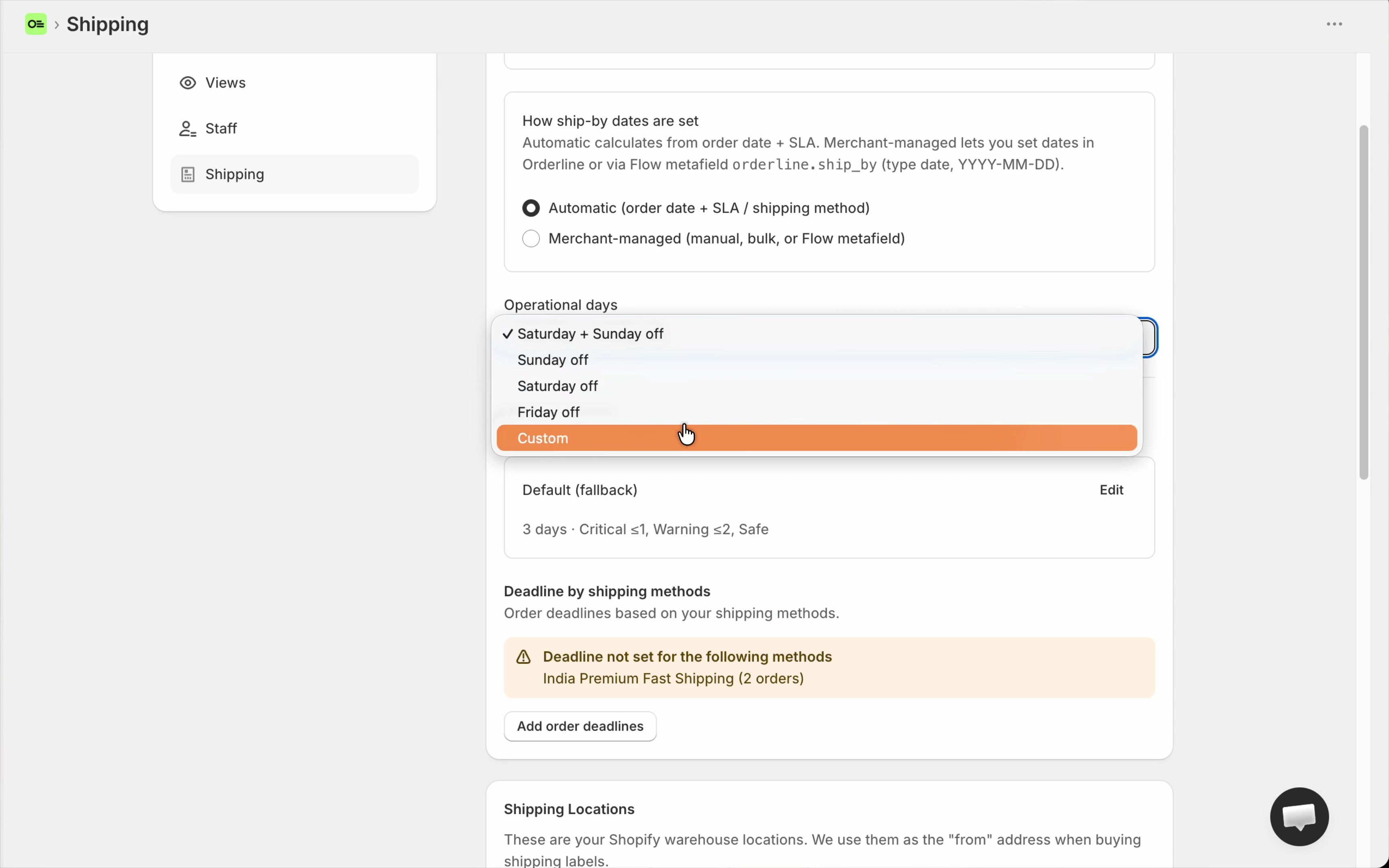
Example: Lead time is 2 days and the order lands Friday evening—ship-by moves past the weekend when Saturday and Sunday are off.
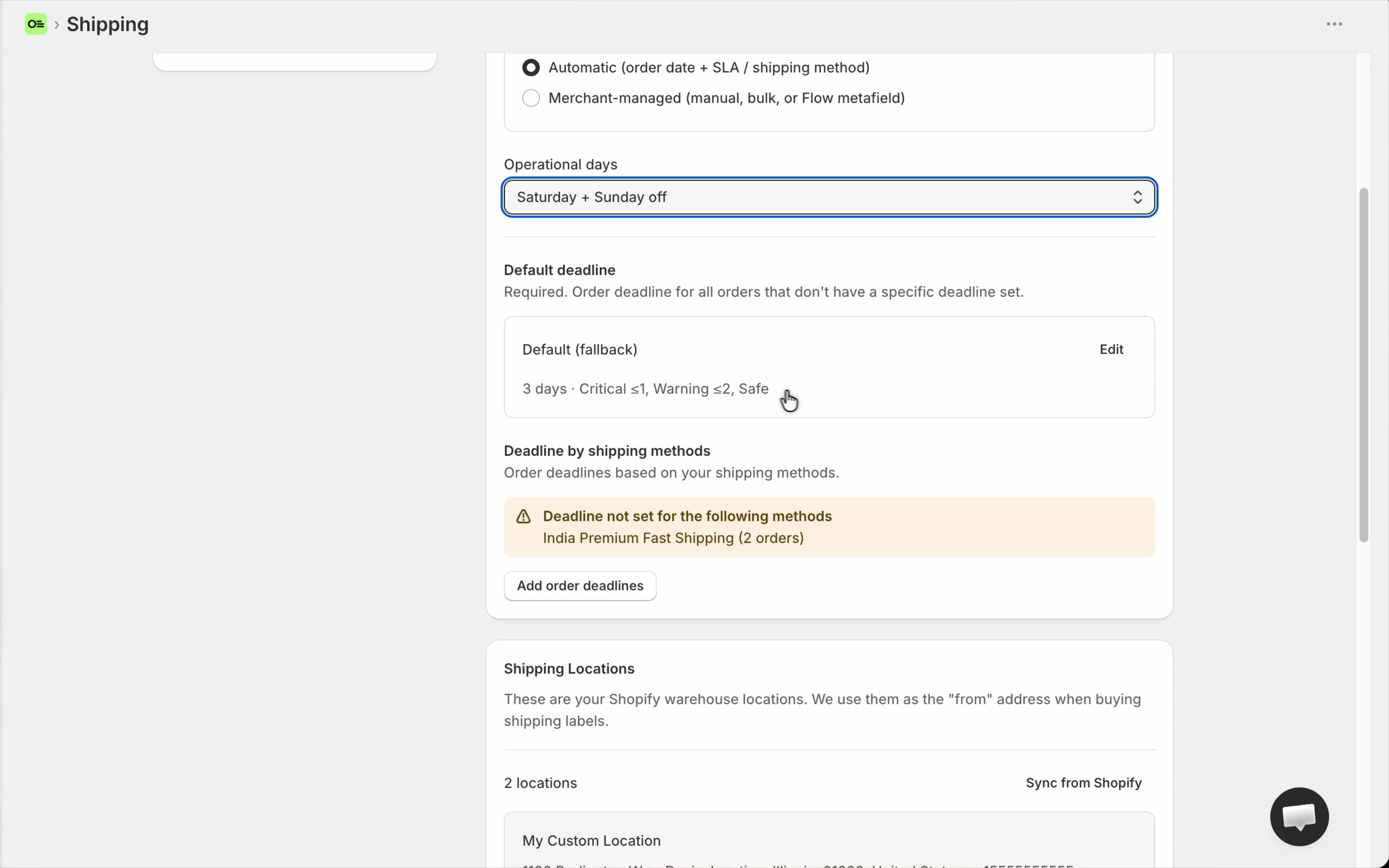
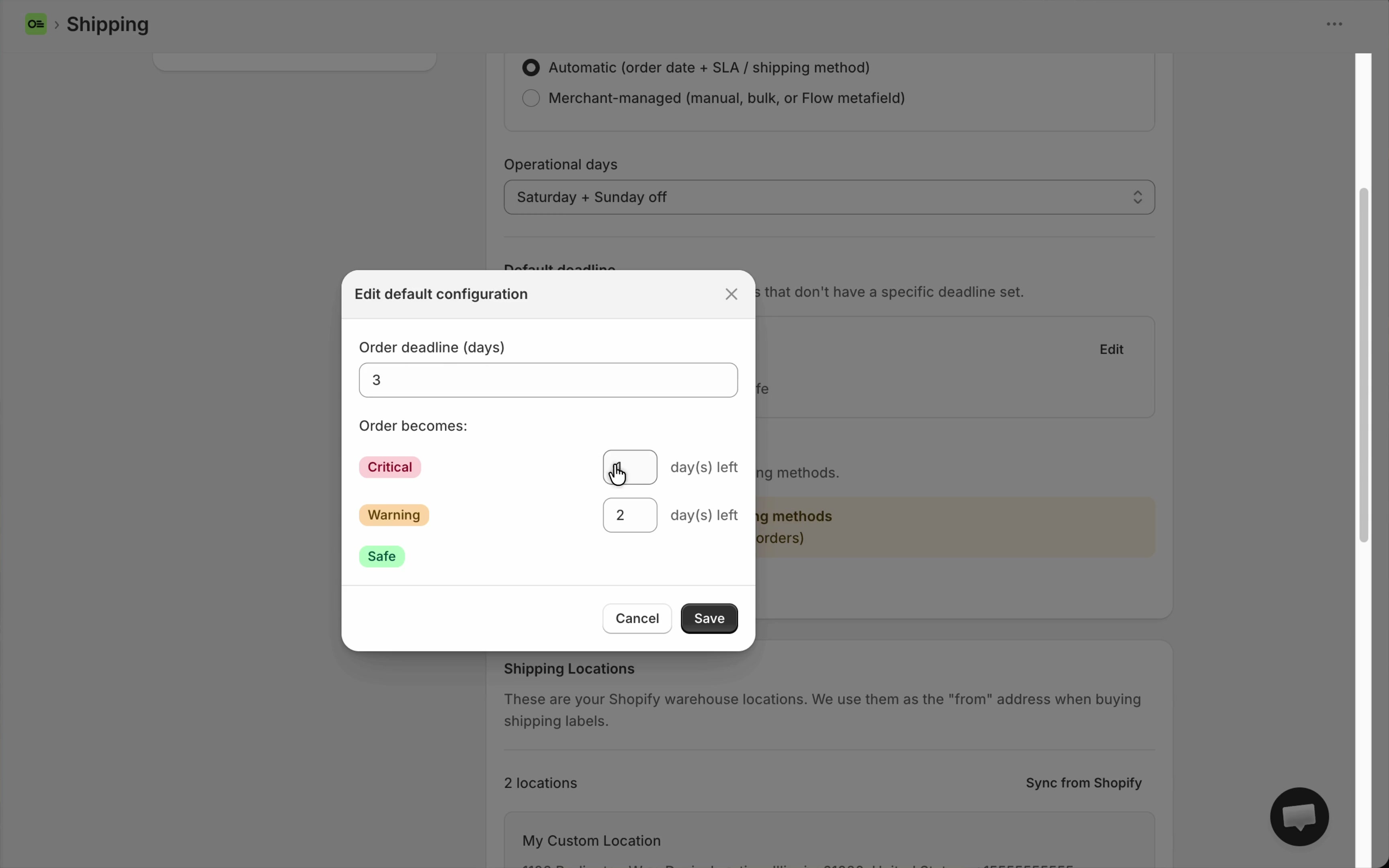
4. Set the default deadline
The default deadline is required. It covers every order whose shipping method does not have its own rule.
- Open the Default deadline card → Edit.
- Set days, cutoff, and urgency tiers.
- Save.
| Field | Meaning | Example |
|---|---|---|
| Order deadline (days) | Business days when no method rule matches | 3 |
| Cutoff time | Orders at/after this time start on the next business day | 17:00 |
| Urgency tiers | When Critical / Warning badges appear | See below |
5. Add deadlines per shipping method
These override the default only for orders that use that method (the rate from Shopify checkout).
- Under Deadline by shipping methods, click Add order deadlines.
- Select a Shipping method.
- Set days, cutoff, urgency, and optionally Always critical.
- Save.
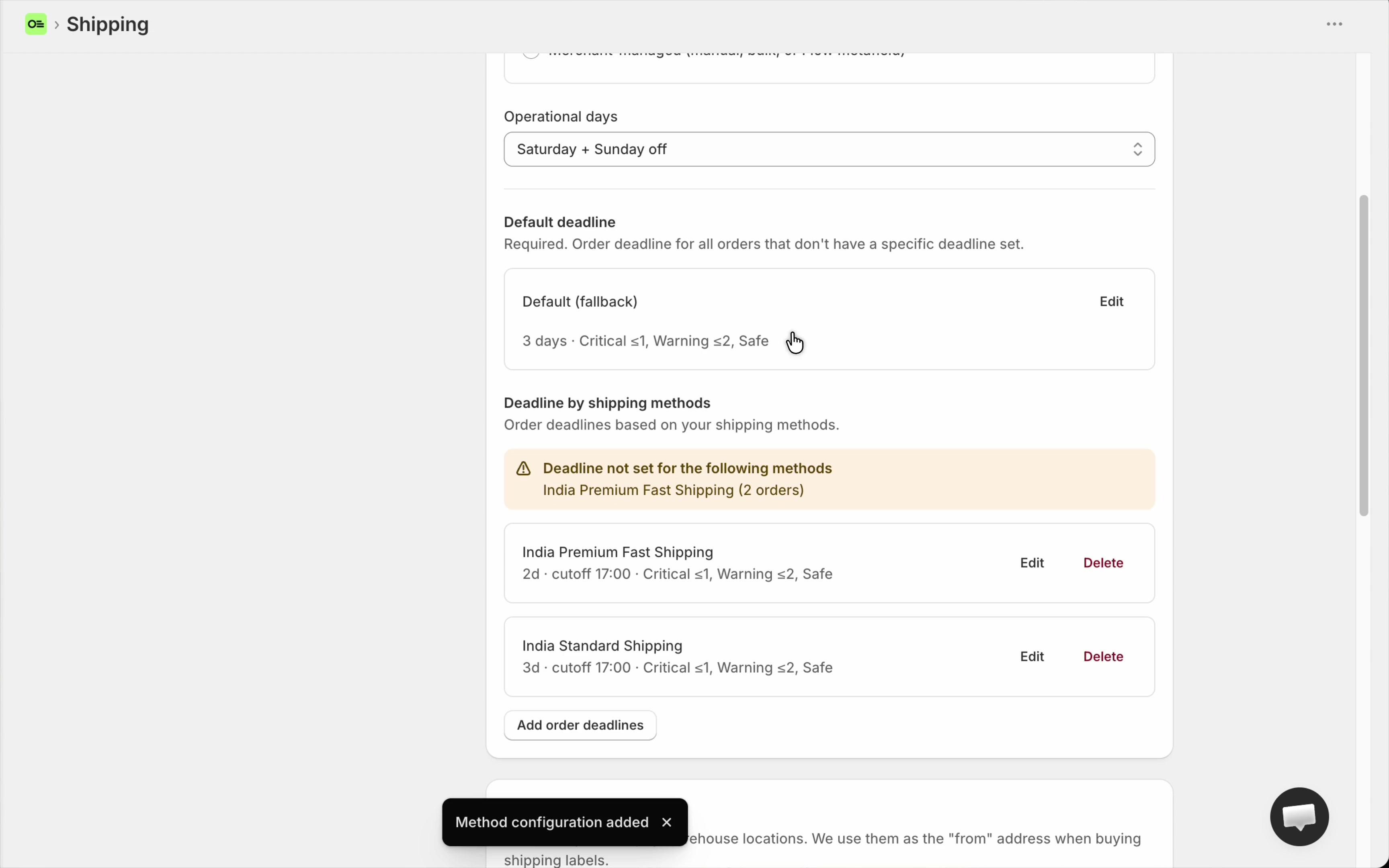
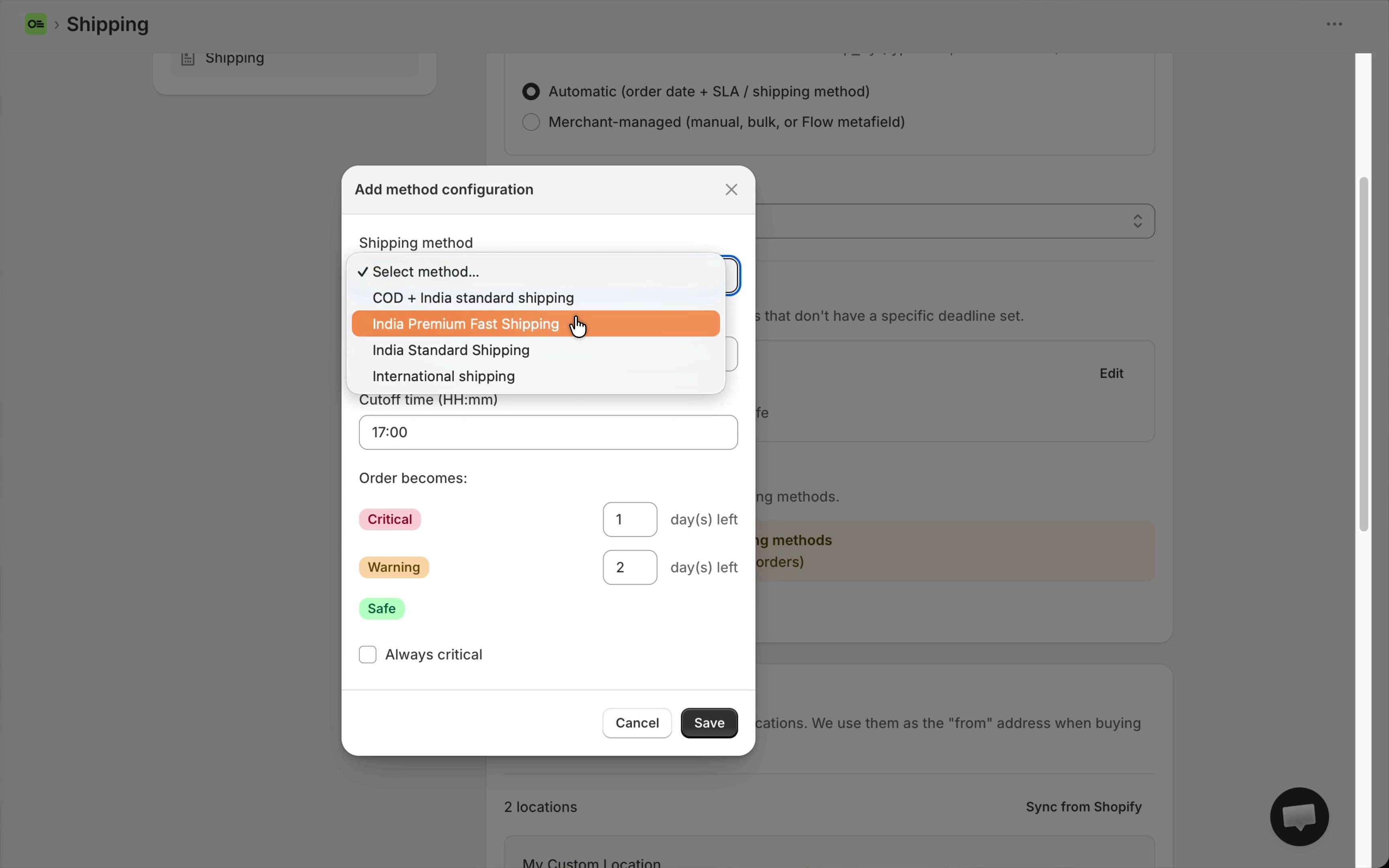
Example: Default = 3 days. Express = 1 day. Express orders get 1-day ship-by; Economy (unconfigured) gets the 3-day default.
Edit or delete a method anytime. Delete sends that method back to the default. A warning can list active methods that still need a rule when you have open orders on them.
Urgency tiers
Badges use days remaining until ship-by:
| Tier | Typical color | Meaning |
|---|---|---|
| Critical | Red | Very close to (or past) the deadline |
| Warning | Orange | Approaching |
| Safe | Green | Plenty of time |
Orderline checks Critical first, then Warning, then Safe. When editing a deadline, Critical must be stricter than Warning. Always critical forces red for that method (for example same-day).
How calculation works
For each order, Orderline roughly:
- Reads the order’s shipping method and picks that method’s lead time—or the default.
- Starts from order created time (store timezone) and applies that rule’s cutoff.
- Counts operational days for the deadline days.
- Writes Ship By.
New and updated orders stay in sync as webhooks and sync run. Switching to Manual later stops recalculation so dates you set yourself are not overwritten.
Troubleshooting
| Issue | Fix |
|---|---|
| No ship-by on some orders | Timelines on? Default set? Wait a few minutes after first enable if backfill is still running. |
| “Deadline not set for the following methods” | Add those methods, or rely on a complete default. |
| Manual edits keep disappearing | You are still on Automatic—switch to Manual, or sync will recalculate. |
| Urgency looks wrong | Check Critical vs Warning thresholds (Critical stricter; first match wins). |
| Cutoff surprises | Use 24-hour HH:mm in store timezone; orders at cutoff roll to the next business day. |
Checklist
- Order timelines on
- Automatic → By shipping methods
- Operational days set
- Default deadline set
- Method overrides where needed
- Spot-check Ship By and urgency on live orders
Related
- Order deadlines (ship-by date) — overview of all three modes
- Ship-by dates by product
- Ship-by dates (manual)
- Video: Order deadlines in Orderline