
 Try for free
 Guides
Production summary: a build list of products in your orders
Shop receives orders but fulfilment staff work by products not orders. Production summary shows clubbed products, count and related orders in one list.
Published · Updated
On this page
- Is Orderline right for your store?
- The bottom line
- What does the Orderline orders view show?
- What are production stages in Orderline?
- Why can't the orders view tell you what to build?
- What is production summary?
- How do you switch to production summary?
- How do you see which orders are related to a particular product in the production summary list?
- What do the numbers mean?
- What changes the product count in production summary?
- Why is the button sometimes missing?
- Who can use production summary?
- Related
Is Orderline right for your store?
Orderline is a orders management app for Shopify stores that make products to order. If you sell ready-made stock that ships exactly as it arrived, you probably don’t need it, because Shopify’s own orders list already handles that. If every order means building something, Orderline is built for you.
Take a shop that prints custom t-shirts and hoodies. Its stages are Printing, Drying and Packing. One person spends the day printing tees, and someone else packs them. Nobody works “the order”. They work a product, all day.
If that sounds like your week, this guide is for you. If you are still deciding whether you need an app at all, who Orderline is for is the shorter read.
The bottom line
- Production summary is a build list that shows a summary of all products in the orders along with their counts and related orders.
- The fulfilment staff needs a list of products they need to make, not a list of orders they have to filter out products from. Production summary gives the staff that summary list.
- Production summary is scoped by production stage. That means, a summary of all t-shirts under the ‘printing’ stage.
- You can switch between orders view and production summary with a toggle button.
What does the Orderline orders view show?
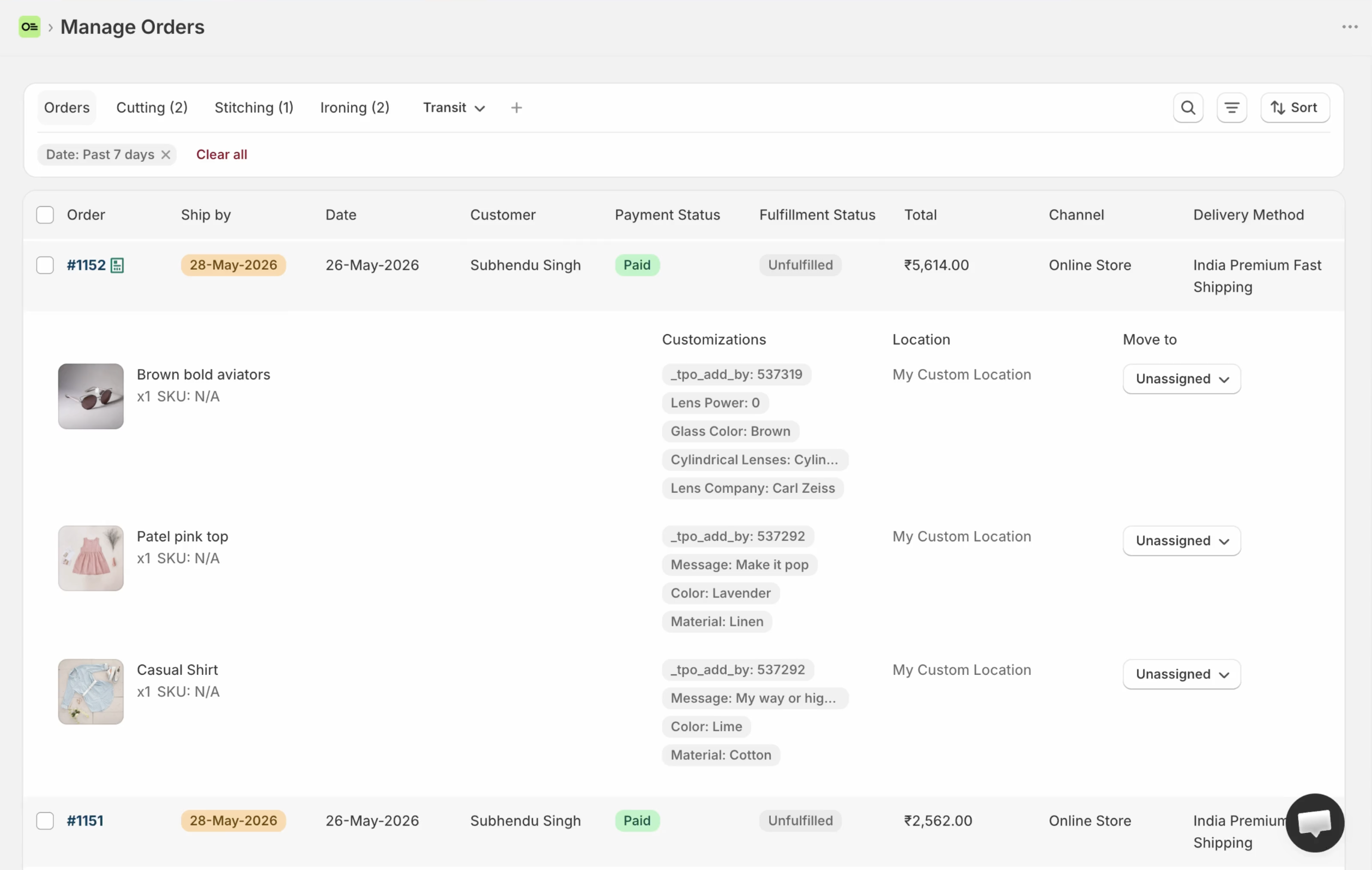
Orderline’s orders view shows one row per order, with the products, photos, options and customizations underneath it, and the date each order has to ship by. You can sort it by Ship by, so the most urgent order is always at the top. This screen shows you exactly what to make in each order. You can also add custom columns like ‘delivery date’ to view more information together.
What are production stages in Orderline?
Production stages are the steps in your production workflow, named however you like: Printing, Drying, Packing. You move a whole order into a stage, or move one product from an order when the two things in it are at different steps. A stage is just a holding area for work, so everything in Printing is waiting to be printed.
An order with two shirts might have one already in Drying while the other is still waiting in Printing. They are different jobs, so they are allowed to be in different stages. Stages are set up once in custom production stages.
Why can’t the orders view tell you what to build?
Because it lists orders, not products. If 50 orders in Printing each contain one Medium black tee, the orders view shows you 50 orders and makes you count the tees by hand. Production summary removes that counting.
The person on the press doesn’t want to know about the 50 orders. They want one number: how many Medium black tees do I have to print? On the orders view they open an order, spot a tee, add it up, open the next order, add that up. Fifty orders later the number is a guess, and guessing is how you print too many or too few.
What is production summary?
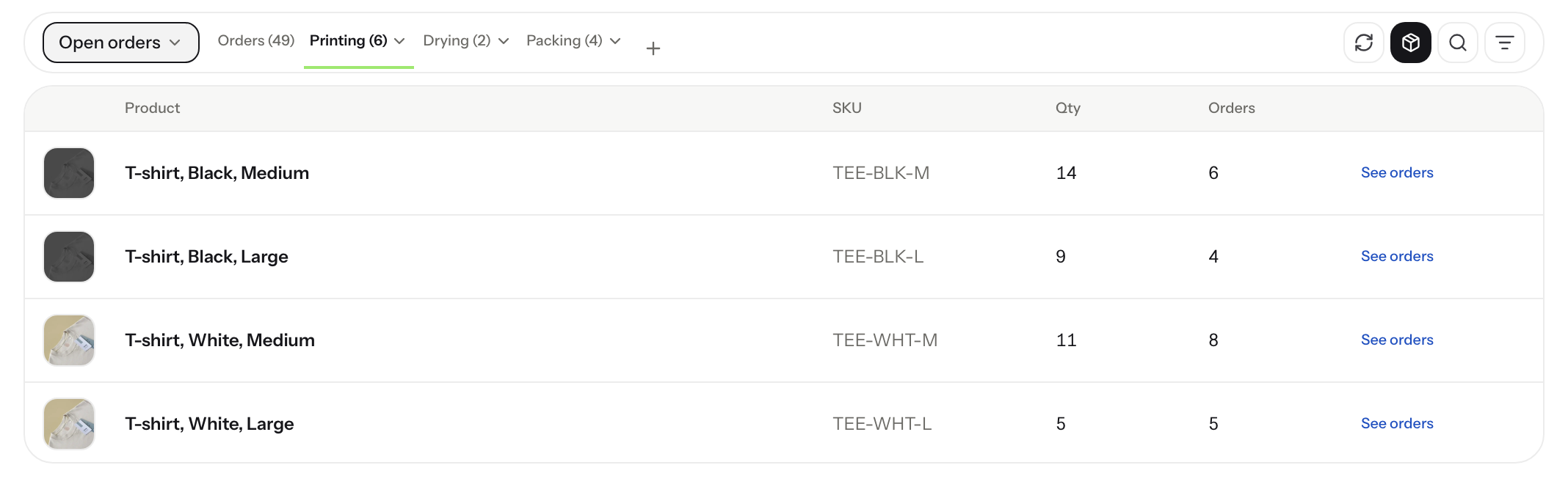
Production summary turns a production stage into a build list: one row per product and SKU, how many you have to build, and how many orders those pieces cover. If, under a production stage, say ‘Printing’, you applied a filter for example, you filtered the orders by channel ‘TikTok shop’, the production summary list will reflect that filter as well and will cut out the products that don’t match the filter.
Those 50 orders collapse into a handful of rows:
| Product | SKU | Qty | Orders |
|---|---|---|---|
| T-shirt, Black, Medium | TEE-BLK-M | 14 | 6 |
| T-shirt, Black, Large | TEE-BLK-L | 9 | 4 |
| T-shirt, White, Medium | TEE-WHT-M | 11 | 8 |
| T-shirt, White, Large | TEE-WHT-L | 5 | 5 |
Fourteen Medium black tees covers six orders. The press gets set up once, prints 14, and six orders move forward. Nobody counts anything, because the number is already there.
How do you switch to production summary?
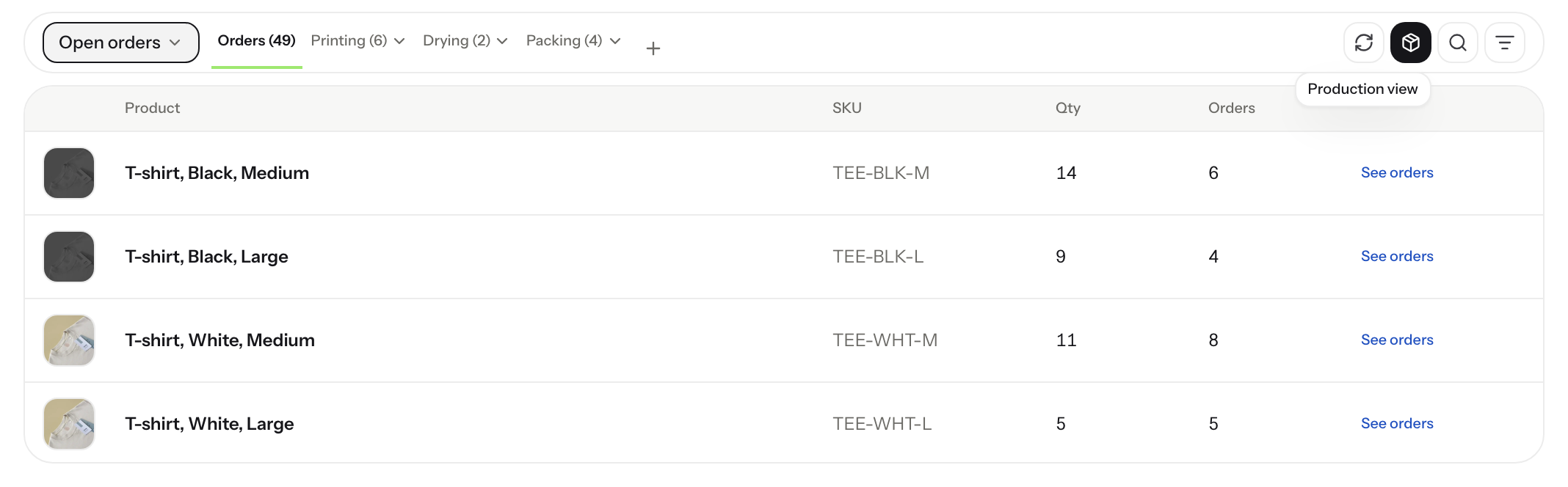
It is a simple toggle button. Click the Production summary button in the toolbar at the right end of the tabs bar, next to refresh and search. Your list becomes one row per product. Click the same button again to go back to your orders.
- Open Orderline from your Shopify admin and go to Orders.
- Pick the stage you want to look at, in this shop Printing.
- Find the button with a box icon at the right end of the toolbar. Hover it and it says Production summary.
- Click it.
How do you see which orders are related to a particular product in the production summary list?
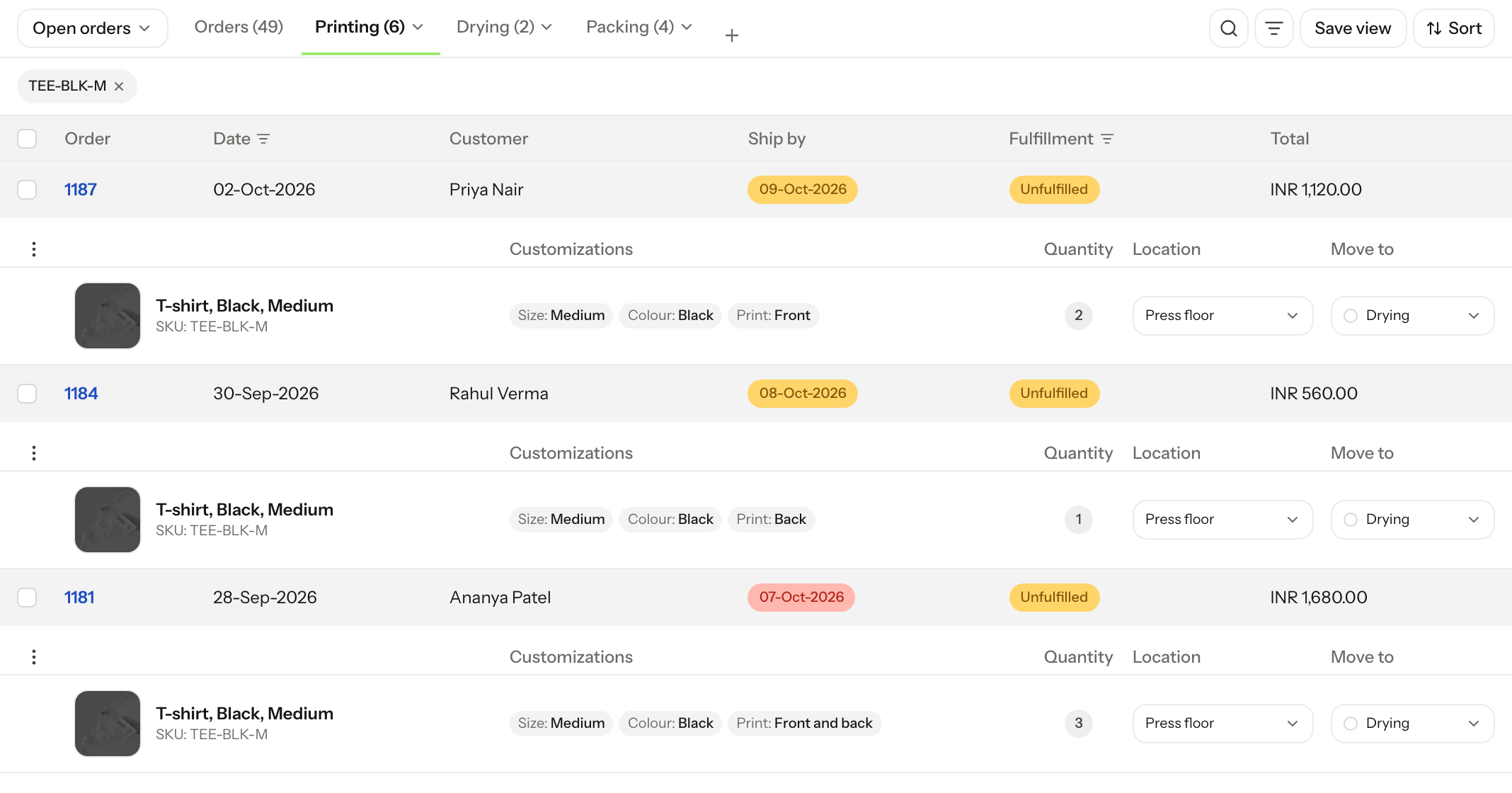
Click See orders link at the end of a row. You go back to the orders list filtered to that product, with a filter tag at the top showing what you are filtered to. Remove the tag to see everything again.
Click it on the Medium black tee and you see only the orders that contain that tee. If one of those orders also has a white tee in it, the white tee stays out of the way, because you asked for Medium black tees.
The orders you land on are your real orders. You can change their stage, print their packing slips, and carry on like normal. Production summary tells you what to build, and See orders takes you straight to the orders to build it.
What do the numbers mean?
In the production summary list, quantity is the total number of products ordered under a particular stage and orders count shows how many orders contain that product. For example, 14 T-shirts, black in 6 orders.
Finished and cancelled work drops out, and the totals cover the whole stage rather than the rows on screen.
- The count is what’s left to build. If part of it is already made, only the remainder shows.
- Orders counts each order once. If one order has the same tee on two lines, that is still one order.
- Finished work drops out. If Shopify has fulfilled or cancelled something, or there is nothing left to build, it leaves the list.
- The totals cover the whole stage. What the list says is the total, so there is no scrolling to the end to get the real number.
- Every product variant gets its own row. A Medium black tee and a Large black tee are two rows, because they are two different prints and two different jobs. Renaming a product in Shopify updates the labels but does not merge the rows.
- If an order contains a custom product, that is not in the shop’s catalog and has no SKU, that product is also clubbed by quantity.
What changes the product count in production summary?
The stage you are on, the filters you have saved, and your location all change the count. Save a view for one product line, and production summary on a stage shows only that line’s build list. With nothing filtered, you get the whole stage.
- The stage you pick. Each stage has its own build list, so Printing shows what is in Printing and Drying shows what is in Drying.
- The filters you saved. If the shop saves a view for one product, say only the Large tees, production summary on Printing shows only the Large tees in Printing. That is a build list per product line, without the rest getting in the way. See filtering and saving your order views.
- Your location, if you are limited to one. Staff who only work at one site see that site’s work and nothing else. This follows the same rules as staff access and location permissions.
- The first tab, usually called Orders. This is the one for products you have not moved into a stage yet. Production summary counts those the same way.
Why is the button sometimes missing?
The Production summary button hides on All orders, Completed, Cancelled and Refunded, because those are finished-order lists with no floor work left to count. It also hides while the search box is active, because search looks across every stage at once. Clear the search and the button comes back.
The button shows on your normal working tabs: the first one, and your named stages like Printing. Clicking it on a stage with nothing in it gives you “No items in this stage”, which means nothing is left open there.
Who can use production summary?
Anyone who can open the orders list. Production summary adds no extra permission of its own.