
Compare · Shopify Orders
Orderline vs Shopify Orders for made-to-order and custom product sellers
When Shopify Admin Orders is enough for custom sellers—and when a glanceable production list like Orderline wins. Honest side-by-side for personalized work.
Who this is for: People who sell on Shopify with products that are custom, personalized, or built after the order comes in — jewelry and engraving, printed or embroidered apparel, signs, furniture, candles, gifts, packaging, flowers, cakes, and similar shops. You already live in Admin → Orders and want a straight answer: keep using it, or add a clearer work list.
Who this isn’t for: Teams whose main problem is multi-warehouse inventory software, full factory materials planning, or customer tracking pages after a parcel is already in the mail. Those are different tools.
We build Orderline, so we’re not neutral here — read the “when the built-in page is enough” section as critically as the rest.
The short answer: Shopify’s Orders page is excellent at running the store — taking payment, handling refunds, marking things fulfilled. It’s a weak work list when every line has personalization and your team shouldn’t have to open every order to see it. Stay on Orders alone if volume is low and one person can handle the click-through. Add Orderline when mornings start with “open order, read options, close, next” and that loop is eating the day.
Even if you never create fancy production stages, Orderline still earns its place as a single glanceable list: product images, line items, and customer options side by side. Custom statuses, ship-by dates, columns, and views are there when you grow into them — they’re not required on day one.
Key takeaways
- Shopify Orders handles money and fulfillment well. It wasn’t designed as a shop-floor board for personalized products.
- Sellers say this in public forums: you can’t see custom options on the list, and “unfulfilled” isn’t a multi-step build process.
- Orderline sits beside Shopify Orders. It doesn’t replace payments or the official order record.
- The free path is the native list. Orderline is a paid app: $9 / $19 / $39 per billing period depending on order volume and staff, with a 7-day free trial (pricing, checked 31 July 2026).
What we are comparing
This page is only about how you run the day after someone pays for something custom: what to make, in what order, and by when.
Shopify already covers the broader story of order management — payment, refunds, printing, fulfillment (Shopify Help on orders, retrieved 31 July 2026). That story is real and useful, and for stocked products it’s often enough. For personalized work, the gap is almost always the list itself: the details that tell staff what to build sit one click deep.
How people use Shopify Orders today
Most shops start here, and for good reason — the page is always there, staff already know it, and for simple catalogs it just works.
For custom and personalized sellers, the daily habits look familiar. You open each order to read line items and options. You add tags like “proof” or “in production” because there’s no real stage field. You leave notes for one-off context, filter by payment or fulfillment status, and hope that’s enough. Some shops print packing slips or export to a spreadsheet just so the personalization is finally on one surface.
None of that is wrong. It’s sensible. But every one of those habits is a workaround for the same gap: the Orders page is doing store work while production needs a work list.
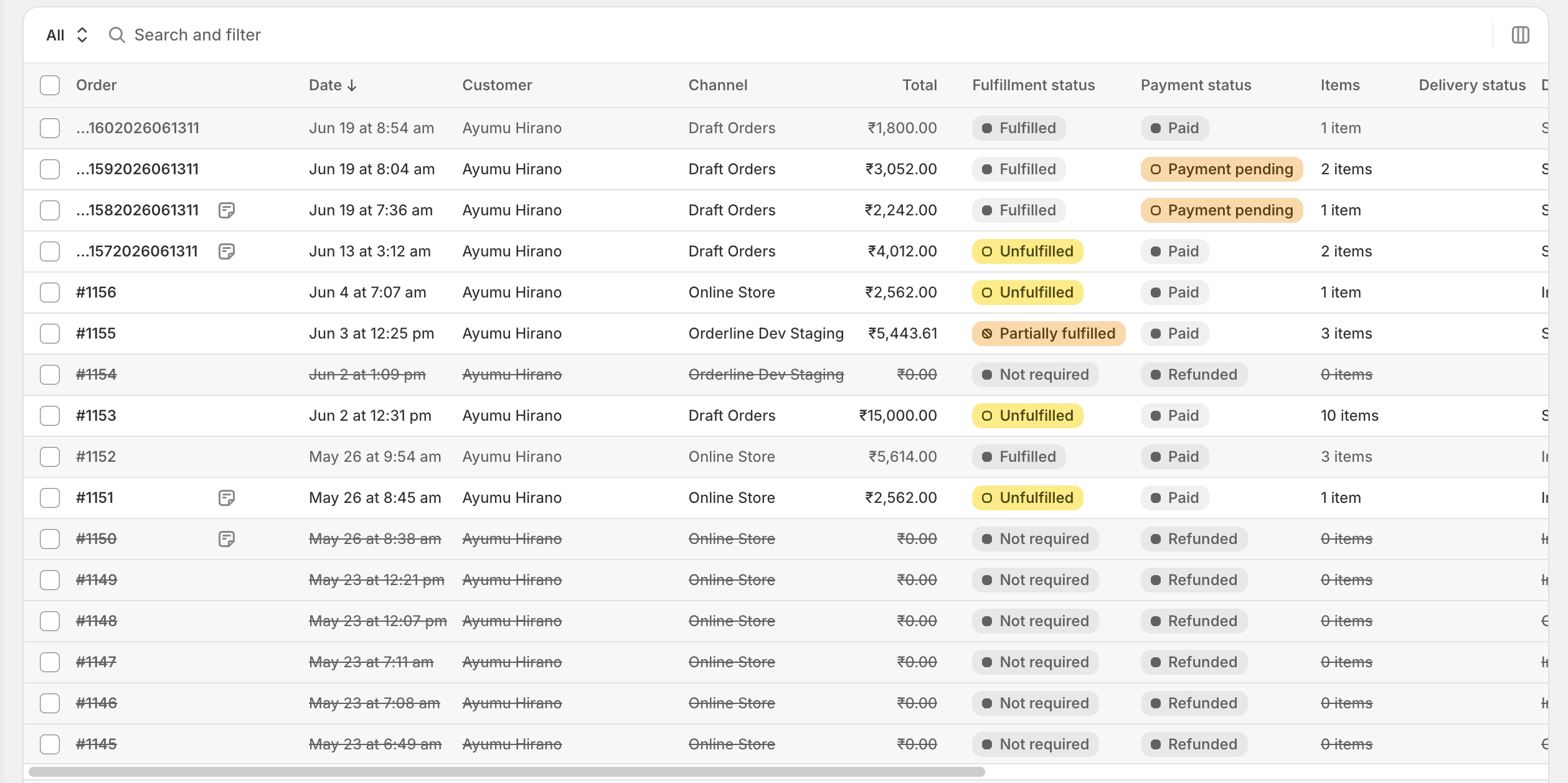
Shopify Admin → Orders: great for payment and fulfillment. Personalization and line detail still sit one click deep.
What sellers say in public communities
Opening every order for custom options
On Reddit, someone running high-volume custom orders asked whether line-item details can sit on the Orders page without the click-through:
“We do high-volume custom orders, and the ‘click to view items’ workflow is slowing down our production team significantly. Have to click each order just [to] view the line items and customisations.”
— r/shopify (retrieved 31 July 2026)
Another seller in the same thread was blunter: the default Shopify orders page isn’t built for this, and the team needs one screen, not a morning of clicking through Admin.
“Unfulfilled” is not a build process
Sellers who build in stages — proof, cut, cure, ready — hit the same wall: Shopify’s fulfillment language is mostly unfulfilled, fulfilled, partial, and on hold. A custom sign maker asked for internal steps like “Proof Sent” and “Cut/Paint/Cure” and found only those basic options on the Orders screen (Shopify Community, September 2023; the thread was still getting “same problem” replies later).
Tags help some shops. Answers elsewhere in Community are consistent: you can’t invent a core status like “In progress” for manufacturing; people use tags, metafields, or apps (thread on “in progress” for production, retrieved 31 July 2026).
Shopify feels aimed at finished goods
A seller buying a long-running custom manufacturing business wrote:
“It looks like 99% of Shopify stores and apps are geared towards selling and drop-shipping of finished goods, with lots of focus on inventory management… How do I show order status in a manufacturing setting?”
— r/shopify (retrieved 31 July 2026)
Some replies point at large manufacturing systems. Plenty of shops aren’t ready for that — they need a clearer list and stages first.
Where the built-in Orders page gets painful
When products are personalized, the list starts to fight you.
Personalization is hidden. Engraving text, colors, sizes, and uploads live inside the order. Staff can’t scan a morning of work without opening rows.
Stages are too simple. Unfulfilled and fulfilled describe shipping state, not “waiting on proof” or “in polish.”
There’s no first-class “must leave by” column on the list for your own shop rules. You improvise with notes and tags.
Gift delivery day is awkward. A cake for Saturday noon or flowers for a birthday might sit in a note or a custom field, but the Orders page doesn’t turn that into a clean “Saturday deliveries” board.
Quotes and drafts feel separate. Phone quotes and wholesale invoices start as drafts. The draft list is fine for building a cart; it’s thin as a pipeline of “quote sent → invoice sent → ready to convert.”
None of this means Shopify is broken. It means the default list is optimized for a different kind of day.
Shopify Orders and Orderline, side by side
| What you need | Shopify Admin → Orders | Orderline |
|---|---|---|
| See line items, images, and custom options without opening every order | Weak — click into each order | Strong — unified orders view |
| Internal production stages (shop language) | Tags and notes only | Custom statuses, optional categories, colors on the table (statuses guide) |
| Ship-by or “must leave by” on the work list | No dedicated column built for this | Ship-by with urgency; automatic rules or dates you set / push from Flow (ship-by guide) |
| Gift delivery day or time as something you can filter | Possible as a field; hard to run as a daily board | Custom columns from attributes or metafields, then saved views (columns, views) |
| One glanceable list even with no custom stages | List shows order-level summary | Same list job, with lines and options visible by default |
| Keeping a second tool in sync | Not needed — this is Shopify | Not needed for the board — it’s embedded in admin |
| Customer “where is my order?” after shipping | Shopify tracking and order status page | Not Orderline’s main job |
| Bills of materials and factory materials planning | No | No — use manufacturing software if that is the real need |
| Fulfill, pack, buy labels | Native fulfill; often a printer app | Fulfill from Orderline with sync, packing slips, optional Shippo labels |
| Quotes as draft orders | Drafts list + complete in Admin | Drafts board with its own statuses, then convert |
| Money cost | Included with Shopify | Starter $9 (up to 100 orders per period), Pro $19 (up to 500, staff), Pro+ $39 (unlimited); 7-day trial (pricing, 31 July 2026) |
| Time to start | Already there | Install and open the board; deepen stages and columns when ready |
Orderline does not add a Ship By column to Shopify’s own Orders table. The production list lives on Orderline’s screen next to Admin.
The first win: a list you can actually read
Before you design a perfect workflow, notice the simple case.
Many shops only need this: every open order, with every line, image, and option visible, so nobody clicks through fifty orders to build a pick-and-make plan. That’s the unified orders view. You can install Orderline, leave statuses almost default, and still kill the open-close-open loop that Shopify sellers describe on Reddit.
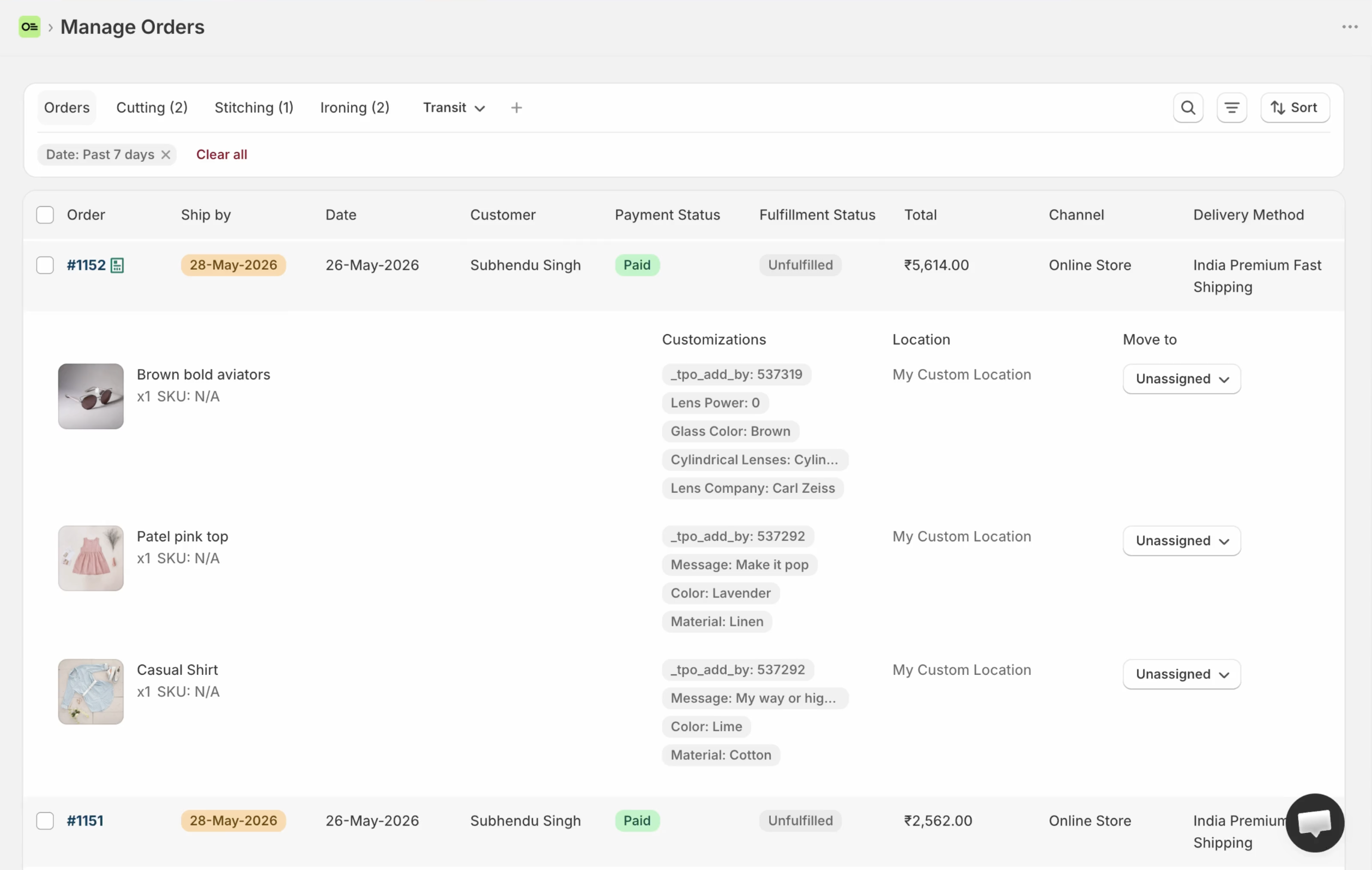
Orderline’s production list: images, line items, and custom options visible without opening every order.
Everything below builds on that list. None of it is required on day one.
When you are ready, the same list carries more of the day
Production stages you can see
If your work has steps — proof, make, quality check, ready to ship — name those stages in Orderline. You can group related stages under categories so the tabs stay tidy (Production with Cutting and Polishing underneath, for example). Each status can have a color on the table, so the stage is obvious without reading fine print. These stages are your team’s workflow language; they sit separate from Shopify’s fulfillment status.
Ship-by dates for “what leaves first”
Turn on order timelines when you care about deadlines. Orderline can calculate ship-by from the order date and your shipping methods, or you can set dates yourself — one order, many orders, or Shopify Flow writing a date metafield. Urgency shows on the list, so late work doesn’t hide in a note.
This is for your shop’s promise to get work out, not a customer date picker on the product page.
Columns and views for gift deliveries (flowers, cakes, timed gifts)
Florists, bakeries, and gift shops often sell to one person for delivery to someone else on a fixed day. The hard part isn’t taking the order — it’s running Tuesday’s deliveries without a mess of notes.
A practical pattern:
- Collect delivery date and, if you need it, delivery time on the order — through your product options, cart attributes, or order metafields.
- In Orderline, add those fields as custom columns and allow filtering on them.
- Save views with names your team already says out loud: “15 Aug delivery”, “16 Aug delivery”, “18 Aug noon”.
Production stage still lives on status tabs; the view is the calendar slice. You can run a clean day list even while statuses move from new to ready.
The same idea works for wholesale: a retailer or PO number column, filtered and saved as a view.
Drafts, quotes, and wholesale before payment
If work starts as a Shopify draft — phone quote, trade show, retailer invoice — Orderline’s Drafts board shows line detail and uses a separate status list, so quote stages don’t clutter paid production. Common names: quotation sent, awaiting approval, invoice sent, ready to convert.
Keep PO number, retailer, and notes on the Shopify draft so they still show as columns after the draft becomes a real order. You edit line items and prices in Shopify Admin; you run the queue in Orderline.
Fulfill, pack, and labels when the physical work is done
When a piece is ready, mark fulfillment from Orderline and let Shopify update. Print packing slips in bulk. Buy shipping labels through Shippo if that’s your path. Refunds, fraud checks, and heavy payment edits stay in Shopify Admin, where they belong.
How Orderline and Shopify Orders work together
Orderline is a Shopify app. It doesn’t replace Admin — it adds a production list next to the Orders page you already use.
Keep in Shopify Admin: checkout and payment, refunds and risk, creating and editing draft contents, the official order record, customer-facing order status and tracking.
Do in Orderline: the daily scan of what to make, internal stages, ship-by and delivery-day views, draft quote stages, pack and fulfill when work is done.
A calm first week looks like this: install and confirm you can see images and options on the list; optionally rename a few statuses and colors; turn on ship-by if deadlines matter; add one column you already use (delivery date or retailer); save one view your team will actually open. If you quote first, define draft statuses and run new quotes only on Drafts for a few days.
Guides for each piece: Getting started · Unified view · Statuses · Ship-by · Columns · Views · Drafts
When the built-in Orders page is enough
Stay on Shopify Orders alone when most products are stocked and personalization is rare, when one person handles a small number of open orders and tags are enough, or when your real headaches are refunds and fraud rather than reading the make list.
Choose a different kind of software when you need full materials and manufacturing orders as the heart of the business, when you mainly need automatic customer updates about production steps, or when you want a general project tool for marketing and files more than a Shopify-connected order list. Orderline isn’t trying to win those races.
Common questions
Does Orderline replace Shopify Orders?
No. Money, refunds, and the official order stay in Shopify. Orderline is the production list and workflow next to Admin.
Can I add a Ship By column to Shopify’s own Orders page?
Not as a proper production column inside Admin Orders. Ship-by lives on Orderline’s board, and it’s not the same product as a delivery-date selector at checkout.
Are Orderline statuses the same as Shopify fulfillment status?
No. Shopify still uses unfulfilled, fulfilled, and related fulfillment states. Orderline statuses are your internal words for where the work sits in the shop.
Do I need custom statuses to get value?
No. Many shops start only for the readable list of orders, line items, images, and options. Statuses, ship-by, columns, and views come when the day needs them.
Can delivery date for flowers or cakes drive the work list?
Yes, if that date (and optional time) is stored on the order. Add it as a column you can filter, then save a view per day or window. The native Orders page stores the field more easily than it turns it into a daily board.
What about drafts with PO numbers and retailer names?
Build and edit the draft in Shopify. Run quote stages on Orderline Drafts. Keep PO, retailer, and notes on the order so they stay visible and filterable after conversion.
What does Orderline cost compared with free Orders?
The Orders page is included with Shopify. Orderline runs $9 to $39 per billing period depending on volume (and staff on higher plans), with a 7-day trial — pricing has the live numbers. Confirm on the App Store before you subscribe.
What to do next
If your team is losing time opening every custom order, try the list — even before you design a perfect stage model.
- Install Orderline (7-day trial)
- Pricing
- Who it’s for
- Related reading: Orderline vs tags and Shopify Flow · Orderline vs Google Sheets · Shopify order management for made-to-order products · Why Shopify Orders fails custom sellers
Sources (retrieved 31 July 2026)
- Shopify Help, Order management and fulfillment — https://help.shopify.com/en/manual/orders
- Shopify Community, manufacturing workflow steps on Orders — https://community.shopify.com/t/how-to-add-additional-fulfillment-status-for-manufacturing-process-steps/253013
- Shopify Community, custom in-progress status — https://community.shopify.com/t/shopify-app-order-make-in-progress/588473
- Reddit r/shopify, line items and customizations on the orders list — https://www.reddit.com/r/shopify/comments/1rilj4m/seeking_advice_on_a_custom_order_management/
- Reddit r/shopify, custom manufacturing on Shopify — https://www.reddit.com/r/shopify/comments/1kkb7mz/shopify_apps_for_manufacturing_of_custom_products/
- Orderline product description —
context/about-orderline.mdand live guides - Orderline pricing — https://orderlinehq.com/pricing
- July 2026 merchant email (ship-by, status categories and colors, columns, views) —
apps/growth/emails/newsletters/2026-07-status-update.md