
 Try for free
 Guides
Ship-by dates by product
Set different ship-by lead times per product—rings in a few days, furniture in two weeks—and let Orderline use the latest deadline on multi-product orders.
Published · Updated
On this page
When this is useful
Some products take longer to make than others. A pair of sunglasses might leave in three business days; a custom snowboard might need seven. If every order used one store-wide shipping-method lead time, the short jobs get delayed for no reason—or the long jobs look late on the board.
By products (under Automatic mode) lets you set a lead time on each product. Orderline then calculates ship-by as:
order date + product lead time (in your operational days)
If an order has more than one product, Orderline uses the latest deadline among them. Products without a custom value fall back to your store default.
For the other modes and a short overview, see Order deadlines (ship-by date).
Before you start
You need:
- Order timelines turned on
- Operational days (which weekdays count toward the lead time)
- A default deadline for products you have not configured yet
Then you switch Automatic mode to By products and set days on the product list.
1. Turn on Order timelines
- Open Orderline in Shopify admin.
- Go to Settings → Shipping.
- Find Order timelines and turn the toggle on.
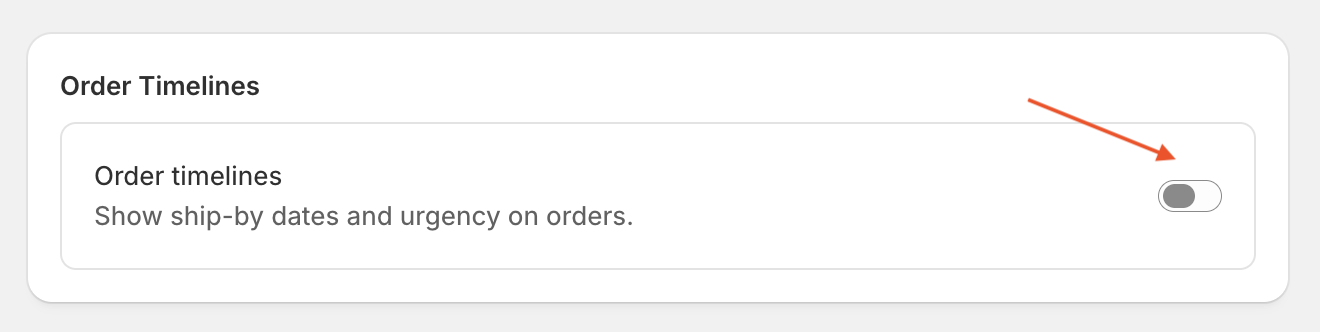
That shows the Ship By column on orders and unlocks the deadline settings below.
2. Operational days, default deadline, and By products
Still on Shipping settings:
- Choose your operational days (for example, Saturday + Sunday off). Orderline skips non-working days when it counts lead time—so a “2 day” product ordered Friday evening moves past the weekend when those days are off.
- Confirm Default deadline—the store-wide fallback (days + urgency tiers). Any product without a custom number still gets a ship-by date from this default.
- Under How ship-by dates are set, stay in Automatic mode, select By products, then click Manage product deadlines.
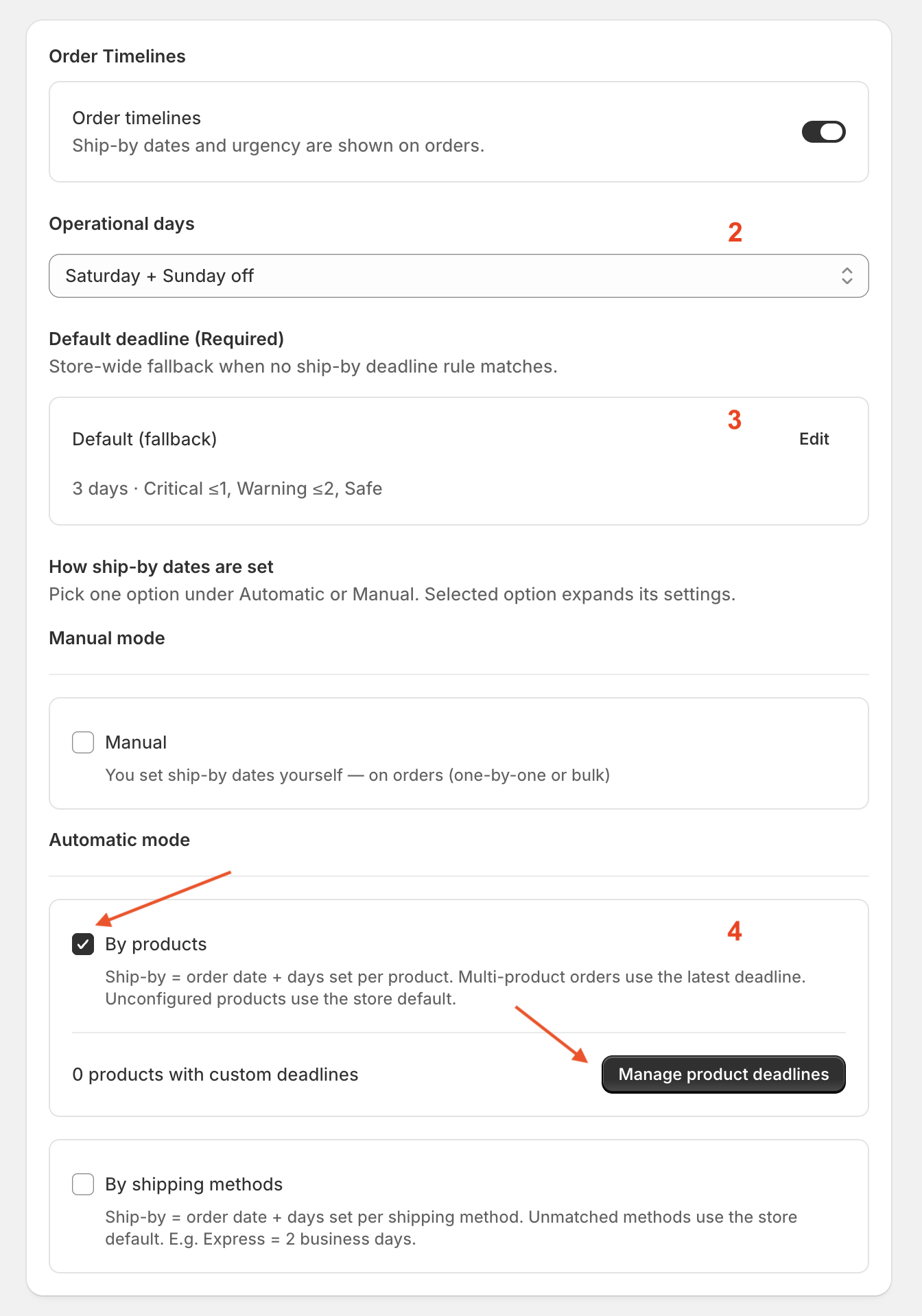
When you switch into product mode, Orderline recalculates open orders from your product rules (you will see a confirmation). Method-specific deadlines stay saved if you switch back later—they are just not used while By products is active.
3. Set lead time per product (or in bulk)
You land on a searchable list of your Shopify products. The blue banner reminds you of the store default and that multi-product orders use the latest product deadline.
Single product
- Find the product (use Search by title if the catalog is long).
- Type the number of business days in the field on the right.
- Leave the field empty to stay on the store default (or clear a custom value by emptying it).
The subtitle under the title shows whether the row is Using default or a Custom deadline.
Several products at once
- Check the products you want to update.
- Enter days in the bulk bar and click Apply.
- Or use Clear custom to put selected products back on the default (then Save).
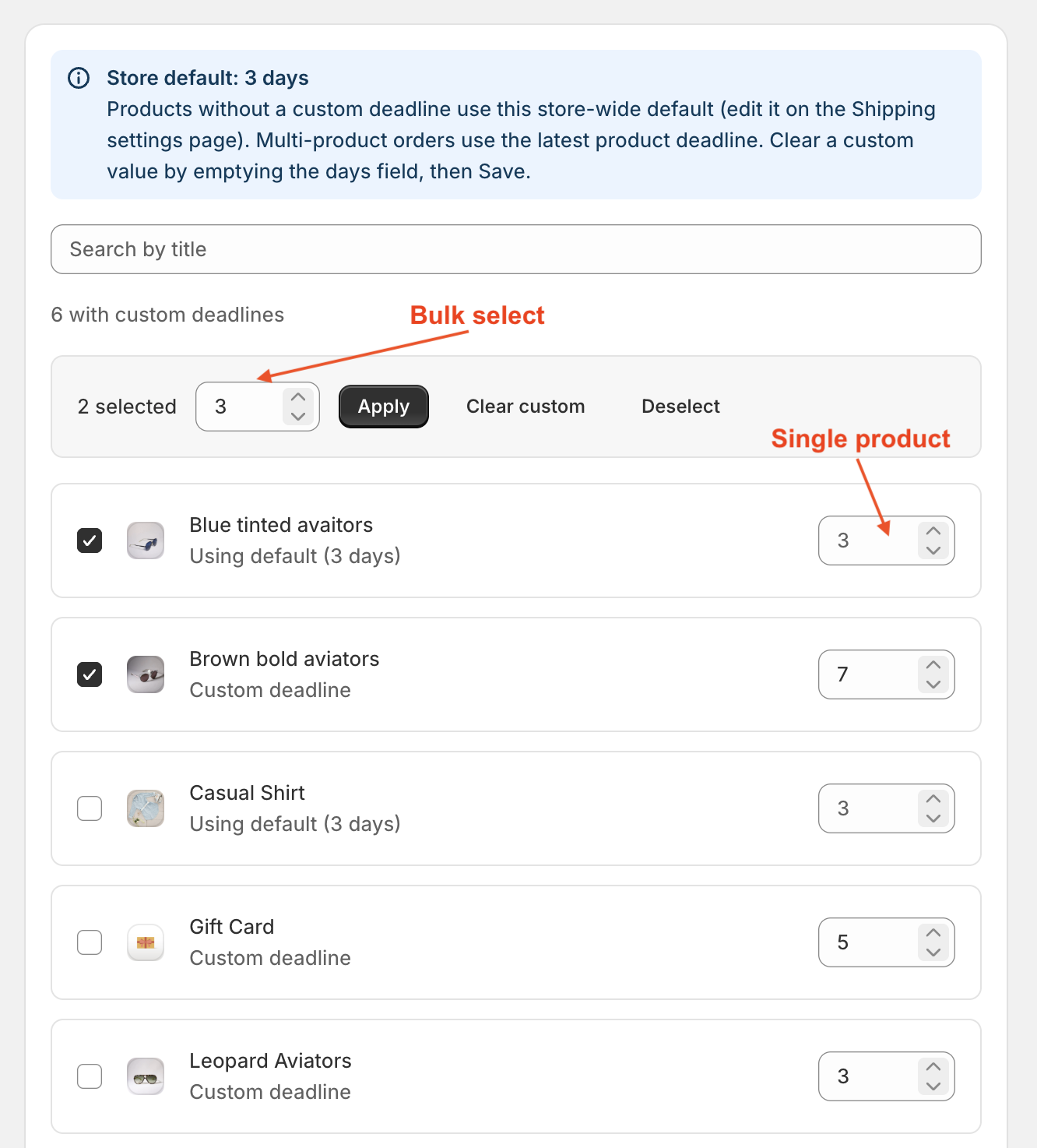
Load more appears at the bottom when there are additional products. If you have unsaved edits, save (or discard) before loading the next page.
4. Save
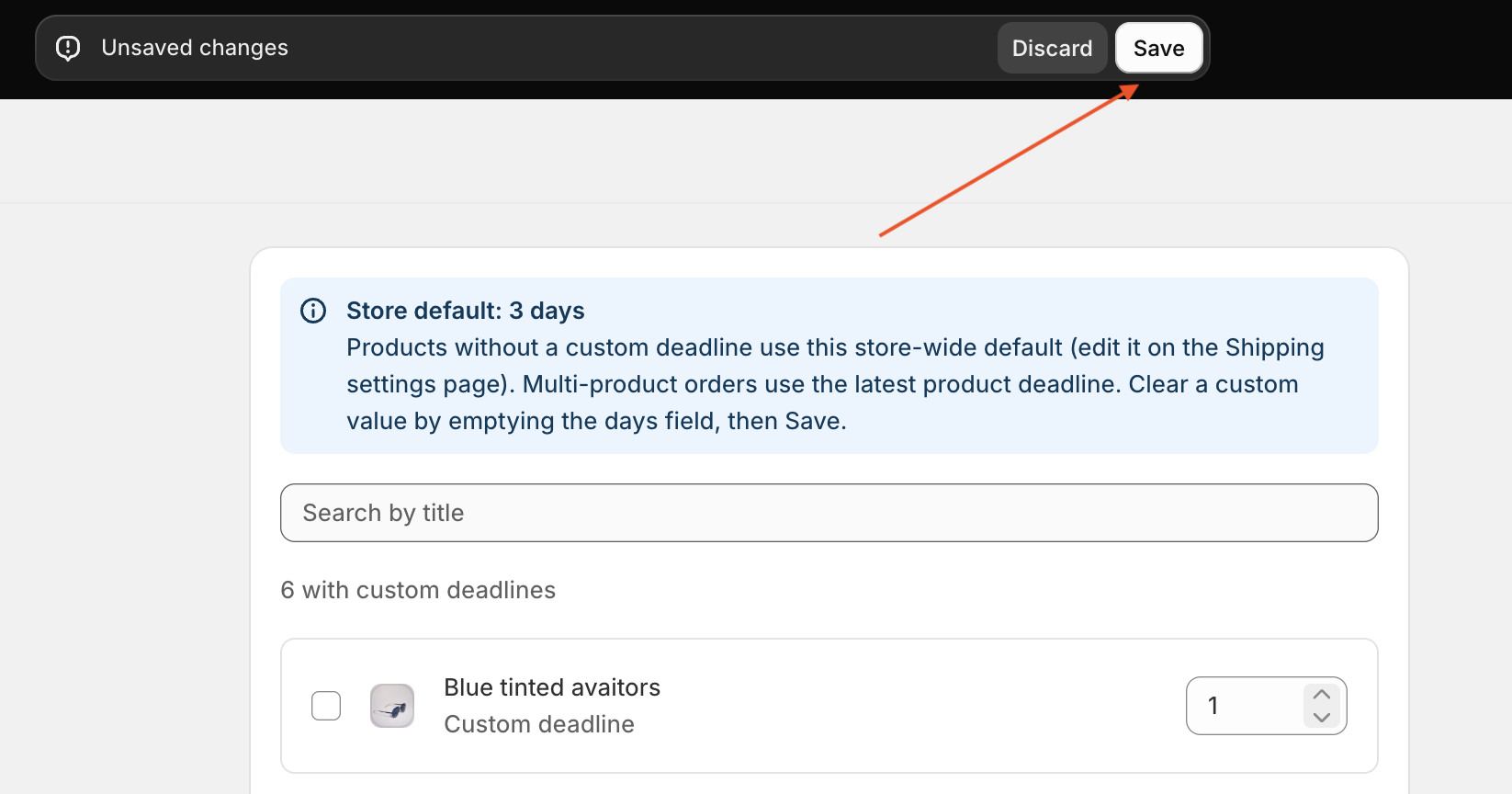
Edits stay local until you click Save in the top bar (Unsaved changes). Use Discard if you want to throw away the draft.
How Orderline calculates the date
| Order contents | Ship-by |
|---|---|
| One product with a custom lead time (e.g. 5 days) | Order date + 5 operational days |
| One product with no custom lead time | Order date + store default |
| Product A = 4 days and Product B = 9 days | Order date + 9 operational days (latest wins) |
| Mix of custom and default | Max of the resolved days for each line (custom or default) |
Urgency badges (Critical / Warning / Safe) still come from your store default tiers—product mode only changes how the date itself is calculated.
Tips
- Start with the products that truly differ from the default; leave the rest on the fallback.
- After you Save, give open orders a moment if a backfill is running—new orders pick up the rules on sync.
- Switching to Manual mode ignores product lead times until you return to Automatic → By products.
- Product lead times are at the product level in this version (not per variant).
Checklist
- Order timelines on
- Operational days match how you actually work
- Default deadline set
- Automatic → By products selected
- Custom days saved for the products that need them
- Spot-check a new order (and a multi-product order) on the Orders list