
 Try for free
 Guides
Ship-by dates (manual)
Set ship-by yourself on orders—one at a time, in bulk, or from Shopify Flow via the orderline.ship_by metafield—then sort and prioritize by urgency.
Published · Updated
On this page
When this is useful
Use Manual when you decide the ship-by date yourself—preorders, batch arrivals, vendor ETAs, or any rule Orderline should not invent from lead times.
In Settings this mode is under Manual (merchant-managed): you edit dates on the Orders list, set many at once, and/or let Shopify Flow write a metafield Orderline already reads. Why the date belongs on the list: stop missing ship dates.
For automatic modes (by shipping method or by product), see Order deadlines (ship-by date).
1. Turn on Order timelines
- Open Orderline → Settings → Shipping.
- Turn Order timelines on.
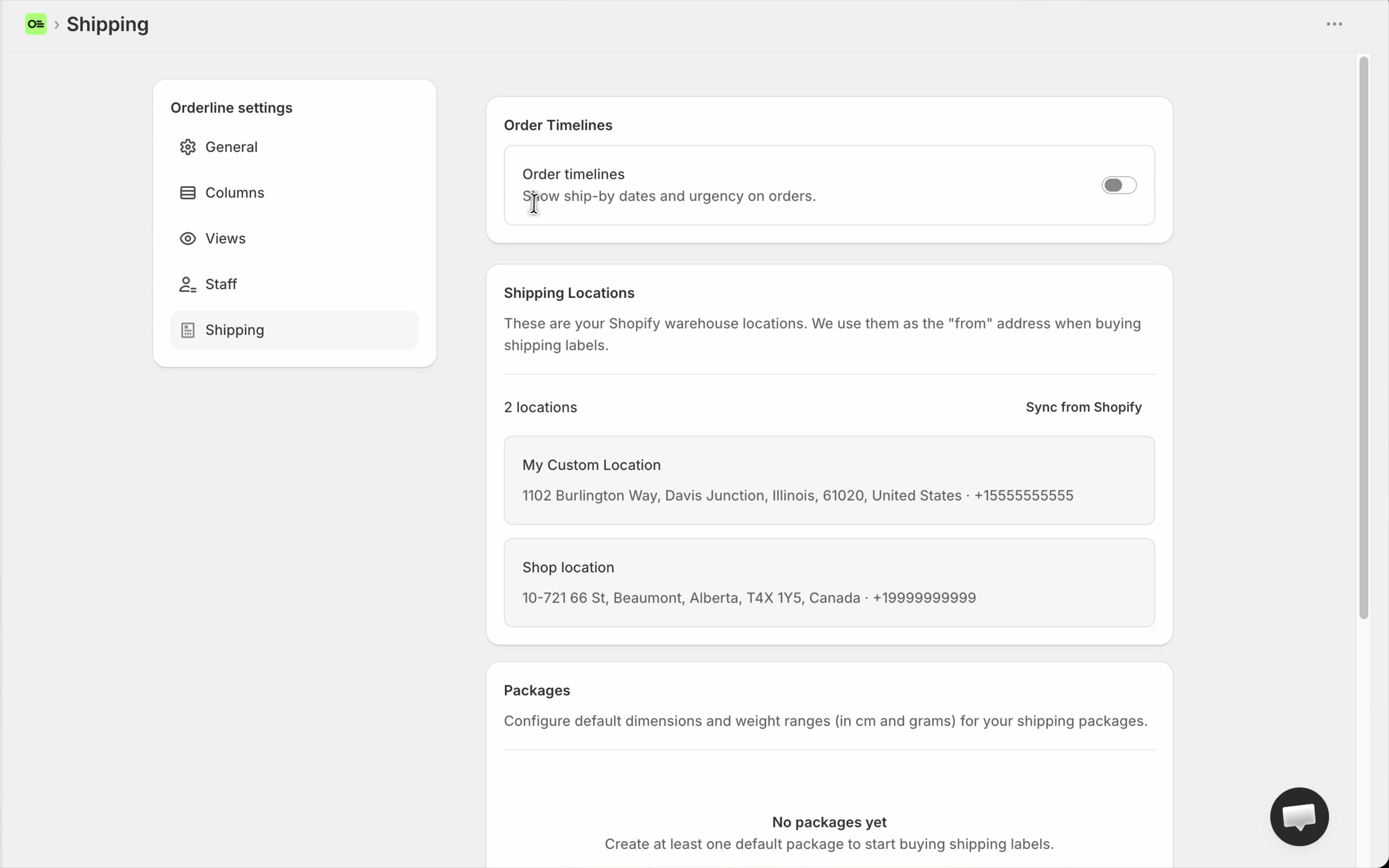
The Ship By column appears. In Manual mode, dates show only when you or Flow set them—nothing is auto-calculated from lead times.
2. Choose Manual mode
Under How ship-by dates are set, select Manual.
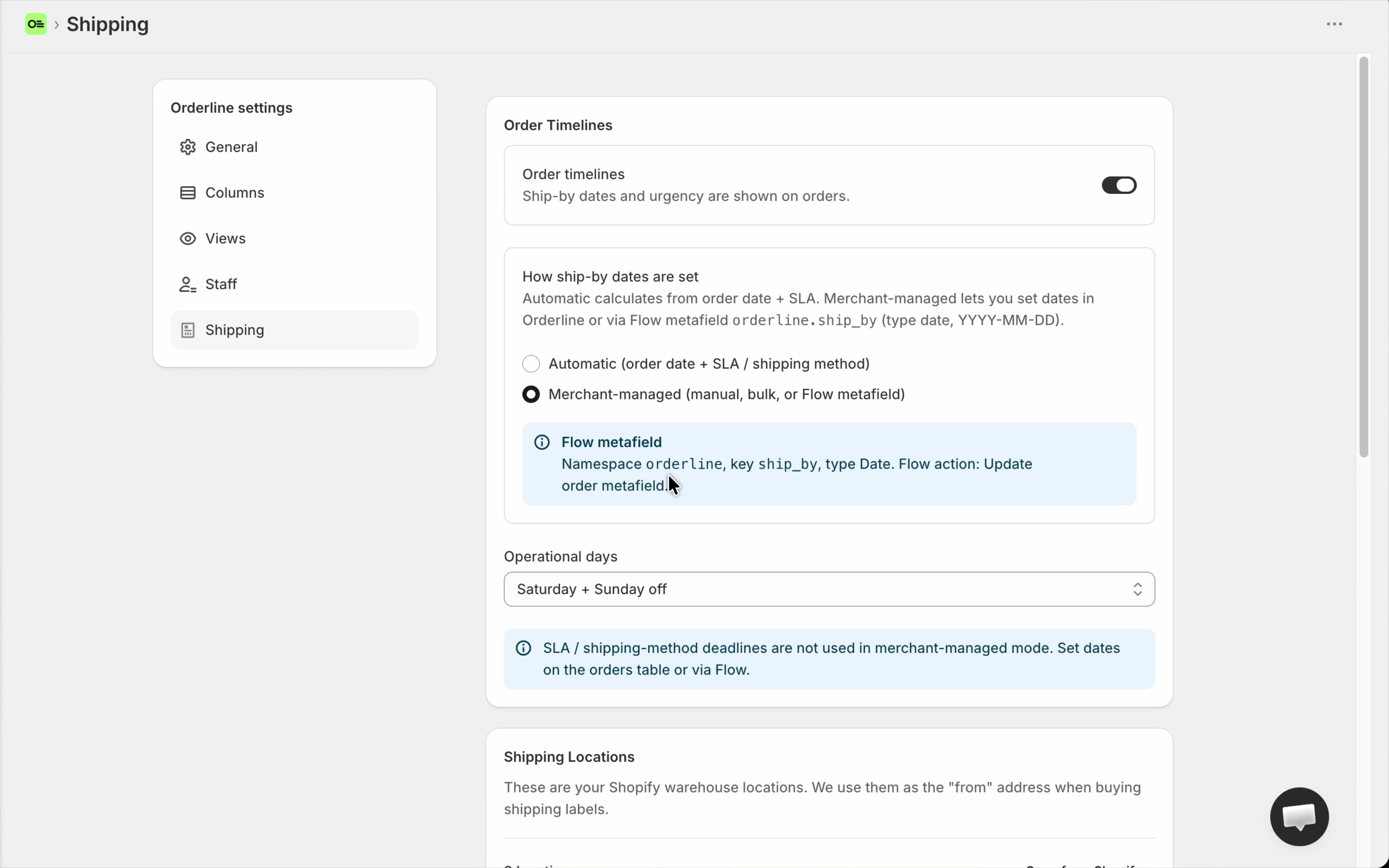
Shipping-method and product lead-time cards are not used while Manual is active. Default and method settings stay saved if you switch back to Automatic later.
3. Set ship-by on a single order
- Open Orders.
- In the Ship By column, click the date badge—or Set date if empty.
- Pick a date (or clear it) and save.
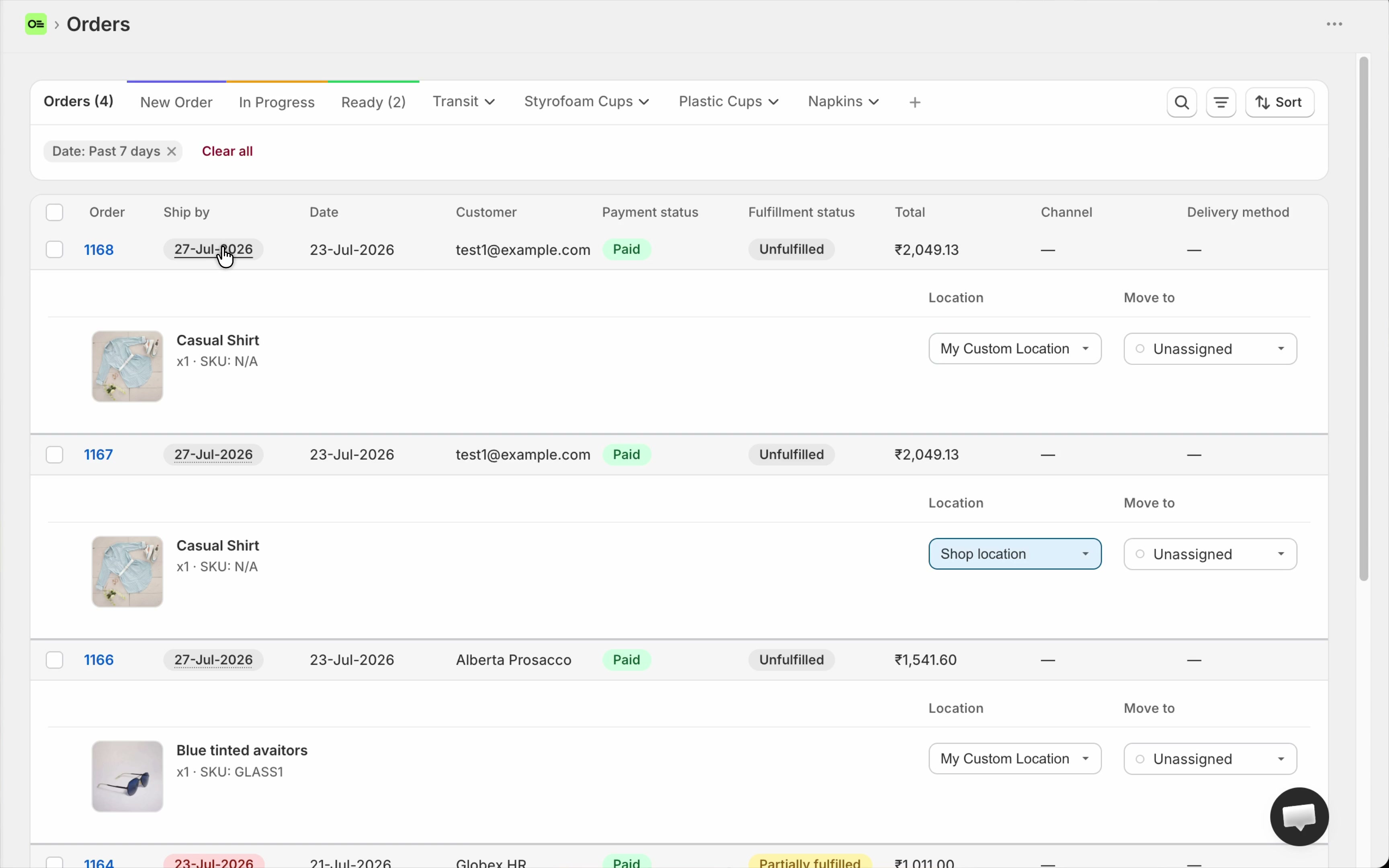
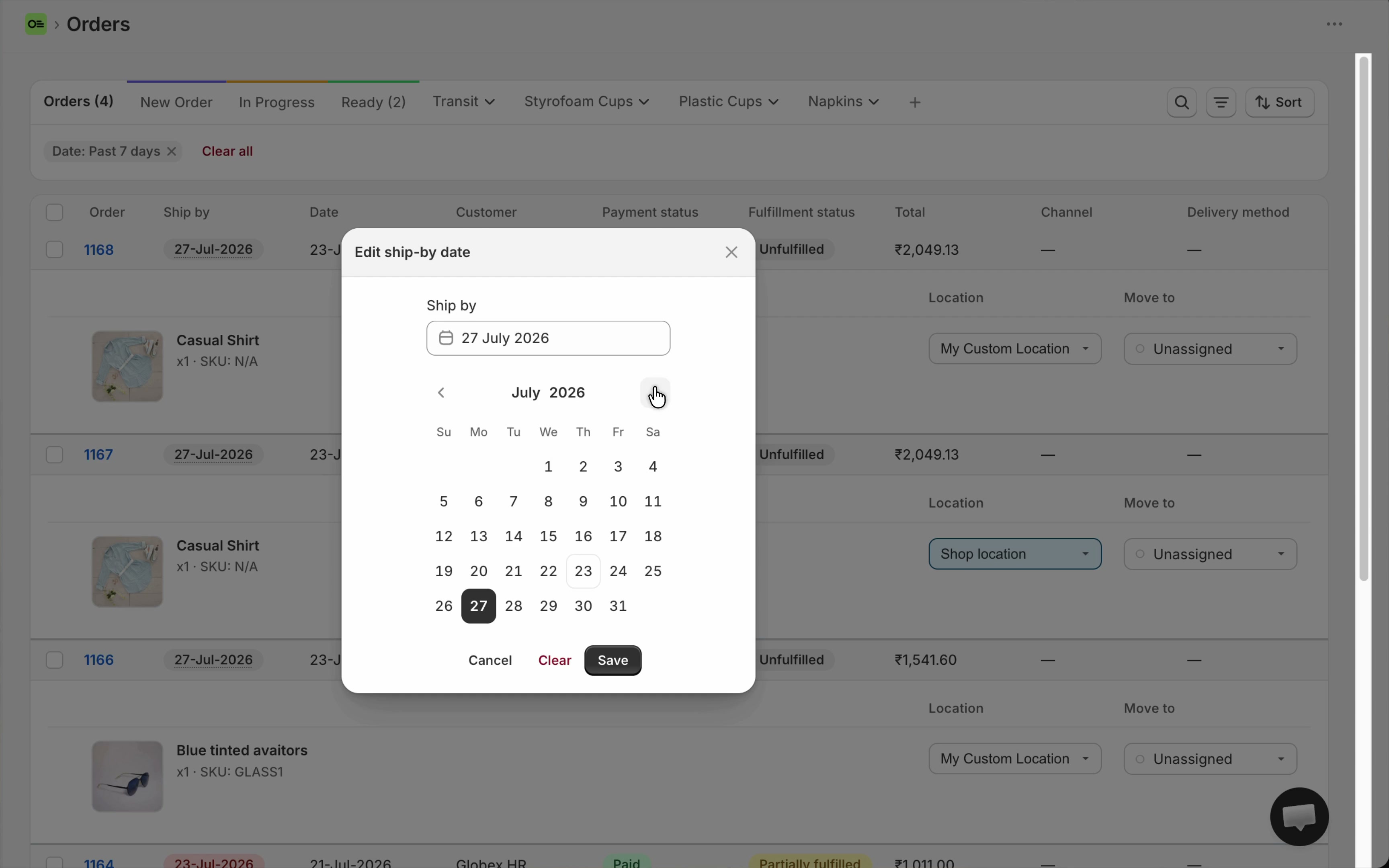
Single and bulk editing are available only in Manual mode.
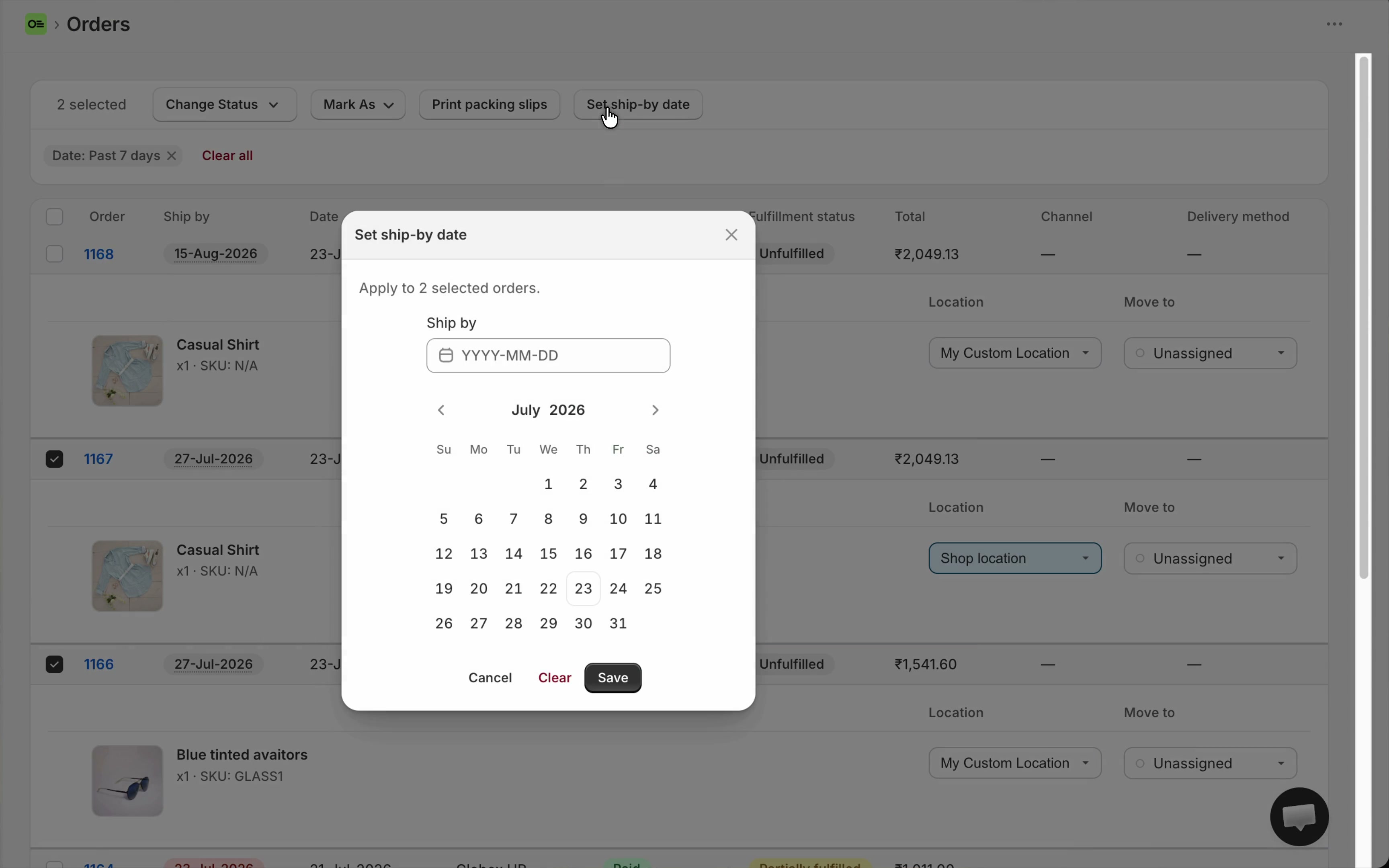
4. Bulk set ship-by
- Select one or more orders.
- In the bulk bar, click Set ship-by date.
- Choose one date for all selected (or clear) and save.
5. Shopify Flow metafield (optional)
Flow (or any automation that updates order metafields) can write ship-by. Orderline reads a fixed metafield and copies it into the same Ship By field used by manual/bulk edits.
| Owner | Order |
| Namespace | orderline |
| Key | ship_by |
| Type | Date |
| Value | YYYY-MM-DD (example: 2026-09-28) |
| Flow action | Update order metafield |
| Metafield in Flow | Orderline ship by date (orderline.ship_by) |
Example Flow
- Trigger: Order created.
- Action: Update order metafield → Orderline ship by date.
- Value: a fixed batch date, or Liquid such as:
{{ "now" | date_plus: "15 days" | date: "%Y-%m-%d" }}If the order is created on 1 July 2026, that expression sets ship-by to 16 July 2026. When Orderline ingests the order (or metafield update), the date appears on Ship By and works with sort, filter, and urgency.
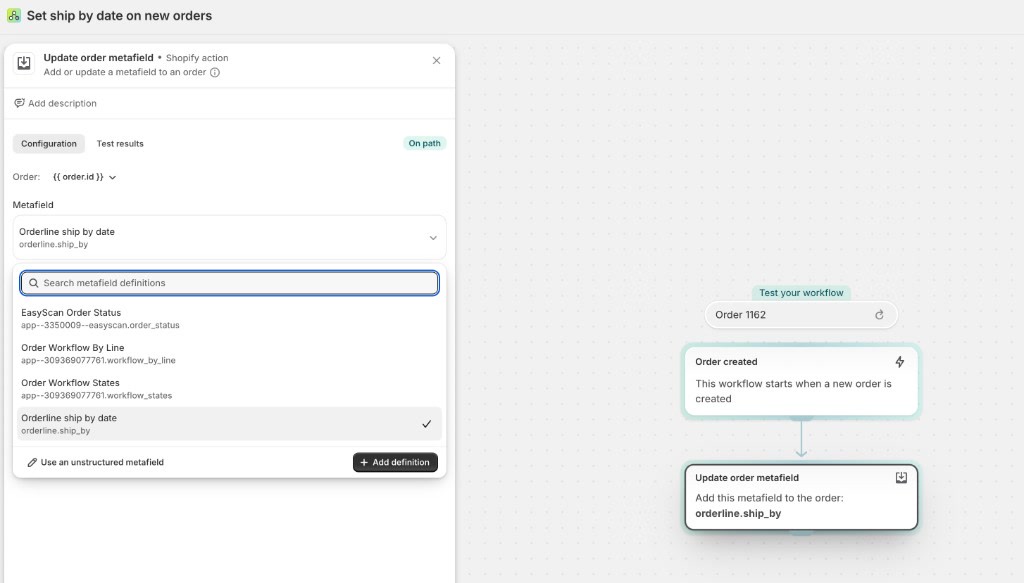
You can add a Condition first (for example tag contains preorder). You do not need a custom Orderline API key. Keep marketing tags as conditions; use the metafield as the date source of truth. Mode must be Manual for Flow writes to drive Ship By.
On the Orders list
Ship By looks the same as in automatic modes—urgency badges, sort by column, filter by deadline. Empty cells show Set date until you or Flow provide a value.
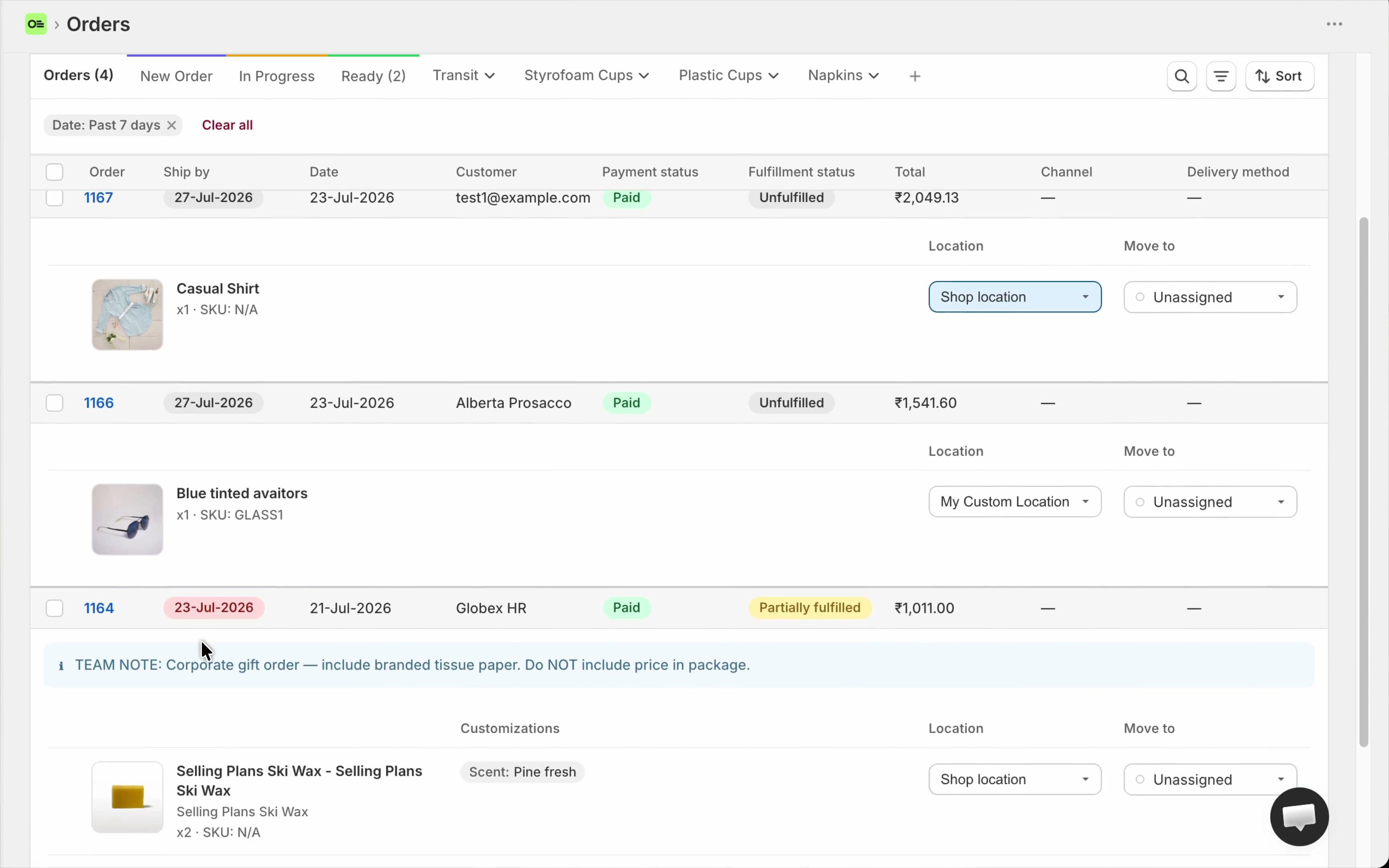
Completed or cancelled orders do not show urgency badges.
Troubleshooting
| Issue | Fix |
|---|---|
| No ship-by on an order | Nobody set a date yet—edit the cell, use bulk, or write orderline.ship_by via Flow. |
| Manual edits keep disappearing | You are likely still on Automatic. Switch to Manual, or sync will recalculate and overwrite. |
| Flow metafield not showing | Namespace orderline, key ship_by, type Date, value YYYY-MM-DD. Mode must be Manual. Allow a moment for ingest. |
Checklist
- Order timelines on
- Manual selected
- Practice single-order Set date / edit
- Practice bulk Set ship-by date
- (Optional) Wire Flow to
orderline.ship_by - Spot-check sort and urgency on the Orders list
Related
- Order deadlines (ship-by date) — overview of all three modes
- Ship-by dates by shipping method
- Ship-by dates by product
- Video: Order deadlines in Orderline