
 Try for free
 Blog
Shopify processing time for made-to-order orders
Shopify allows one processing time for the whole store. How to set it, why its Fulfill by date is static, and how to get a ship-by date per order.
Written by Subhendu Singh · Published · Updated
On this page
- The short answer
- How do you add processing time in Shopify?
- What does the processing time change?
- Can you set a different processing time for each product?
- How do you know which orders have to ship today?
- What about preorders and dates you only know later?
- How do you make sure customers notice the lead time?
- Questions people ask
- Does processing time include shipping?
- Can I turn off delivery dates completely?
- Why does my Orders list show a Fulfill by date I never set?
- Will Shopify penalize me if I ship after the Fulfill by date?
- What to do next
- Two dates, two jobs
- Sources
You can add processing time in Shopify under Settings > Shipping and delivery > Estimated delivery dates. Set one custom fulfillment time of between 1 and 40 business days, and Shopify adds it to the shipping time to show a delivery date at checkout. For made-to-order shops the catch is that it is one fixed number for the whole store. It can’t follow each product’s make time or a preorder date, and the Fulfil by date on your Orders list uses that same fixed number. Orderline, the Shopify app we make, adds a rule-based Ship By date to every order. The rule can be each product’s lead time, the shipping method, or a date you or Shopify Flow set.
Written by Subhendu Singh, founder of Orderline · Updated 13 October 2026
The short answer
Shopify calls processing time “fulfillment time”. It is the time between the order and the moment you hand the parcel to the carrier. You set it once, and Shopify uses it in three places: the delivery date at checkout, the “Fulfill by” date on your Orders list, and Shop Promise eligibility.
The Fulfill by date is static. Every order gets the order date plus that one number, whatever was ordered, which only works if every product takes about the same time to make. Say your engraved keyrings take 3 days and your embroidered blankets take 10. Set the store to 3 and every blanket looks overdue before it could be finished; set it to 10 and the keyrings sit in the queue looking fine for a week. Preorders and orders waiting for materials don’t fit either way.
For those shops the working answer is a ship-by date set by rules. Orderline, our app, works one out for each order. It can use each product’s lead time (an order with several products takes the latest date), the shipping method, or a date you or Shopify Flow set. The date sits next to the order’s customizations on Orderline’s own orders screen. It doesn’t change the date shoppers see at checkout, so keep Shopify’s fulfillment time at your slowest common product.
This guide is for Shopify merchants who make products after the order comes in: engraving, embroidery, printing, jewelry, furniture, candles. If you sell stock that is already on the shelf, the default “same day” or “next business day” setting is all you need.
This video shows the four ways Orderline sets that ship-by date: by hand, by product, by shipping method, or from a metafield.
How do you add processing time in Shopify?
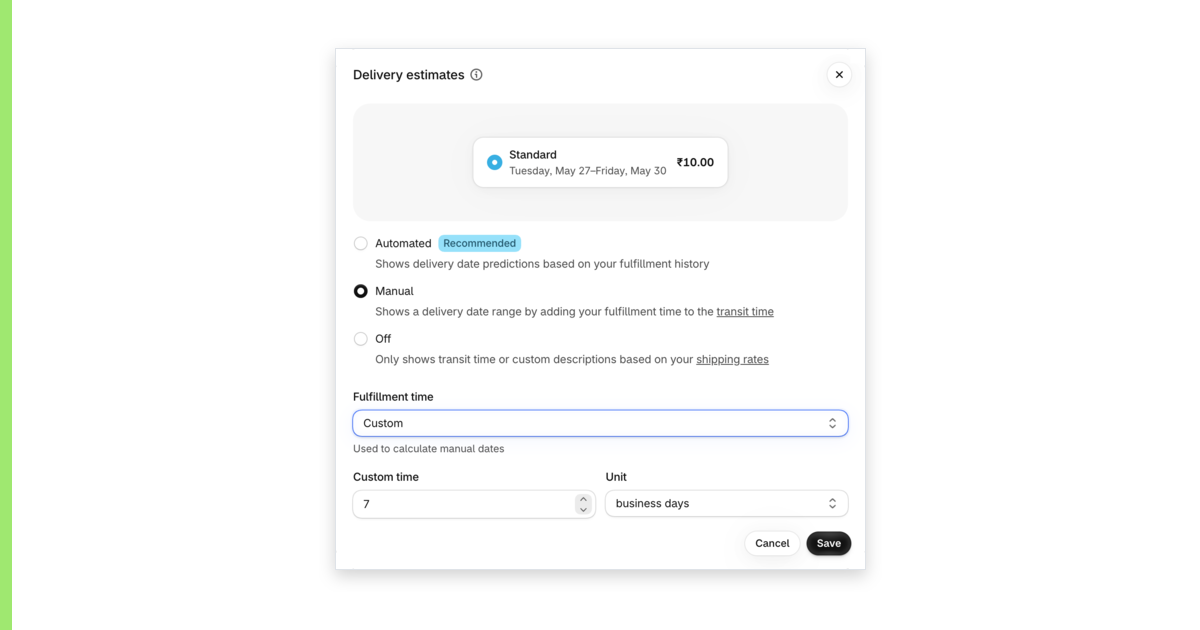
Turn on manual delivery dates and set a custom fulfillment time. Shopify then adds your making time to the carrier’s transit time and shows customers a date range at checkout instead of a bare “3 to 5 business days”.
- In your Shopify admin, go to Settings, then Shipping and delivery, then Estimated delivery dates.
- Open Delivery estimates and select Manual.
- In the Fulfillment time menu, choose Custom.
- Enter the number in Custom time and choose the Unit: business days (1 to 40) or weeks (1 to 8).
- Click Save, then place a test order to see the date at checkout.
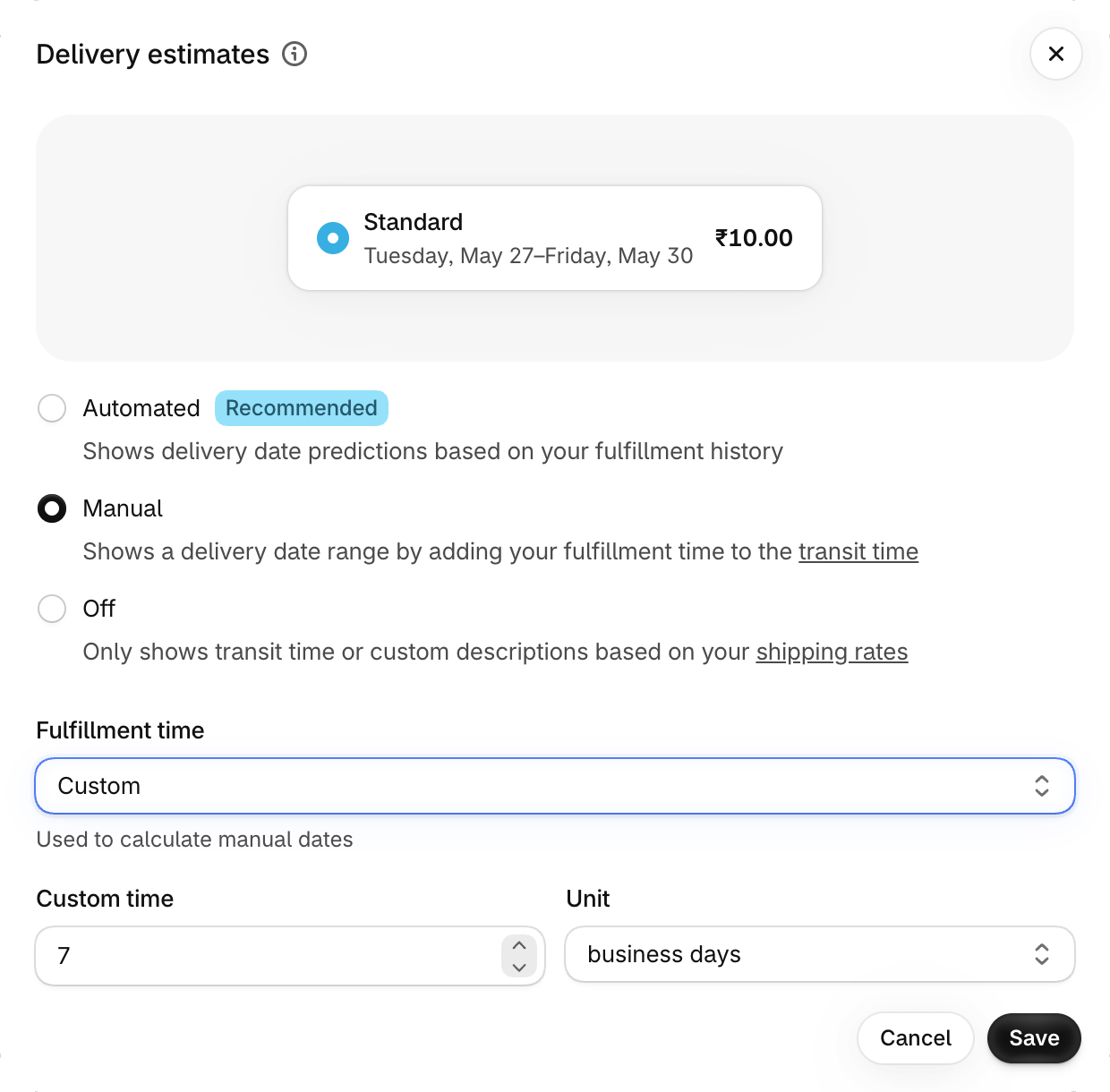
Save stays greyed out until a fulfillment time is chosen, so a missing date range at checkout usually means step 3 was skipped.
A few rules decide the date you will see. Shopify counts business days as Monday to Friday, skips weekends and public holidays, and treats any order after 12 pm local time as arriving the next business day. Shopify’s own example: an order comes in after noon on a Wednesday, the fulfillment time is 2 business days, and Friday is a holiday. The parcel goes to the carrier the following Tuesday (Shopify Help Center).
Manual dates only appear with certain shipping rates: flat rates with a transit time, rates calculated from Shopify Shipping labels, or negotiated carrier rates. They don’t work with rates that come from a third-party app, and if your checkout mixes eligible and ineligible rates, Shopify shows no dates at all.
You may also see an “Automated” option, which predicts dates from your shipping history. It only covers orders that arrive within 5 days in the US (4 in Europe), and only products that are in stock (Shopify Help Center). With a make time of a week or more, your orders fall back to manual dates anyway, so manual is the setting to get right.
This setting is newer than many of the answers you will find. In 2022 Shopify capped processing time at 2 business days. Merchants in a long Shopify Community thread pushed back for a year (“Hand made items take more than two days”), and the custom option arrived by July 2023. Advice telling you to rename your shipping method or edit theme text is from before then.
What does the processing time change?
It changes what the customer is promised and what your Orders list says you owe. Shopify uses the same number for both (Shopify Help Center).
| Where the date shows | Who sees it | What it says |
|---|---|---|
| Checkout, Shop Pay, the order confirmation email, the order details page | The customer | A delivery date range: your fulfillment time plus the carrier’s transit time |
| The Fulfill by column on the Orders page, and the order details page | You and your team | The order date plus the same store-wide fulfillment time |
| Shop Promise eligibility | Shopify | Whether the order can carry the Shop Promise badge |
Shopify shows the date to the customer at checkout, in Shop Pay (Shopify’s saved-details checkout), in the order confirmation email and on the order details page after checkout. If you have edited your order confirmation email template in the past, the date may be missing from the email until you add Shopify’s delivery date code back in.
Your team sees the Fulfill by date on the order details page. The Fulfill by column can also be added to any view on the Orders page and filtered on (Shopify Help Center). It is a fixed offset, the order date plus your one store-wide fulfillment time, and it doesn’t change with the product, the shipping method or a preorder date. One merchant on Reddit noticed that “Shopify automatically places a timeframe on fulfillment internally” and worried about being punished for missing it (Reddit). A date like that comes from your own fulfillment time setting, counted from the order date.

Can you set a different processing time for each product?
No. Shopify has one fulfillment time for the whole store. Shipping profiles let you charge different rates for different products, but they don’t carry their own processing time.
You will see answers that say otherwise, including from AI assistants and in Shopify Community replies, so it is worth being precise. When a jewelry shop asked how to give made-to-order items a longer time, one reply suggested a separate shipping profile (Shopify Community). Another merchant wanted one time for personalized items and another for plain ones. A fellow merchant who had looked into it replied that processing time “seems to be a global setting that applies to all products on a site” (Shopify Community). Shopify’s help pages describe a single setting, and the most recent post in that thread, from November 2024, is still asking for “a product by product solution”.
So you have three options with Shopify alone:
| What you can do with Shopify alone | What it changes | What it does not fix |
|---|---|---|
| Set the store time to your slowest common product | The delivery date at checkout and the Fulfill by date, for every order | Quick items still look slow at checkout, and no per-product date appears |
| Show each product’s make time on its product page, stored in a product metafield (for example “Production time: 7 business days”) | What the customer reads before buying | The checkout date and the Fulfill by date stay on the store setting |
| Use a delivery date app that rules by product or collection, such as Estimated Delivery Date ETA | The checkout date itself | You have to check the app against your theme and checkout first, and the Fulfill by date still uses the store setting |
Combining the first two is the simplest setup that keeps the promise honest.
How do you know which orders have to ship today?
Shopify’s Fulfill by date only helps when every order really is due the same number of days after it was placed. In that case, add the Fulfill by column to the Unfulfilled view, filter by it and save the view as “Ship today”. That gives you a free daily list.
For most made-to-order shops it isn’t practical, for three reasons:
- It is static. Every order gets the same offset from the order date, so a 3 day keyring and a 10 day blanket ordered on the same morning show the same deadline. No rule can make one product due later than another.
- The real date often doesn’t come from the order date. Preorders, batch production and orders waiting for materials have a ship date that no store-wide number can predict.
- The person making the item needs more than a date. They need the engraving text, the thread color and the photo next to it, and the Orders list only shows a count of items.
A merchant moving from Etsy described the same gap in 2022, with a 3 to 6 week make time. The question was blunt: “is there an app that will keep track of purchases and let me know how many days I have to ship an item out like Etsy does?” (Shopify Community). The reply in that thread only pointed to email settings.
Orderline answers that question; it is our app, so weigh what follows accordingly. It puts a rule-based Ship By date on each order, on its own orders screen. The date sits next to the line items, the product photos and the customizations, and it changes color as the deadline gets close.
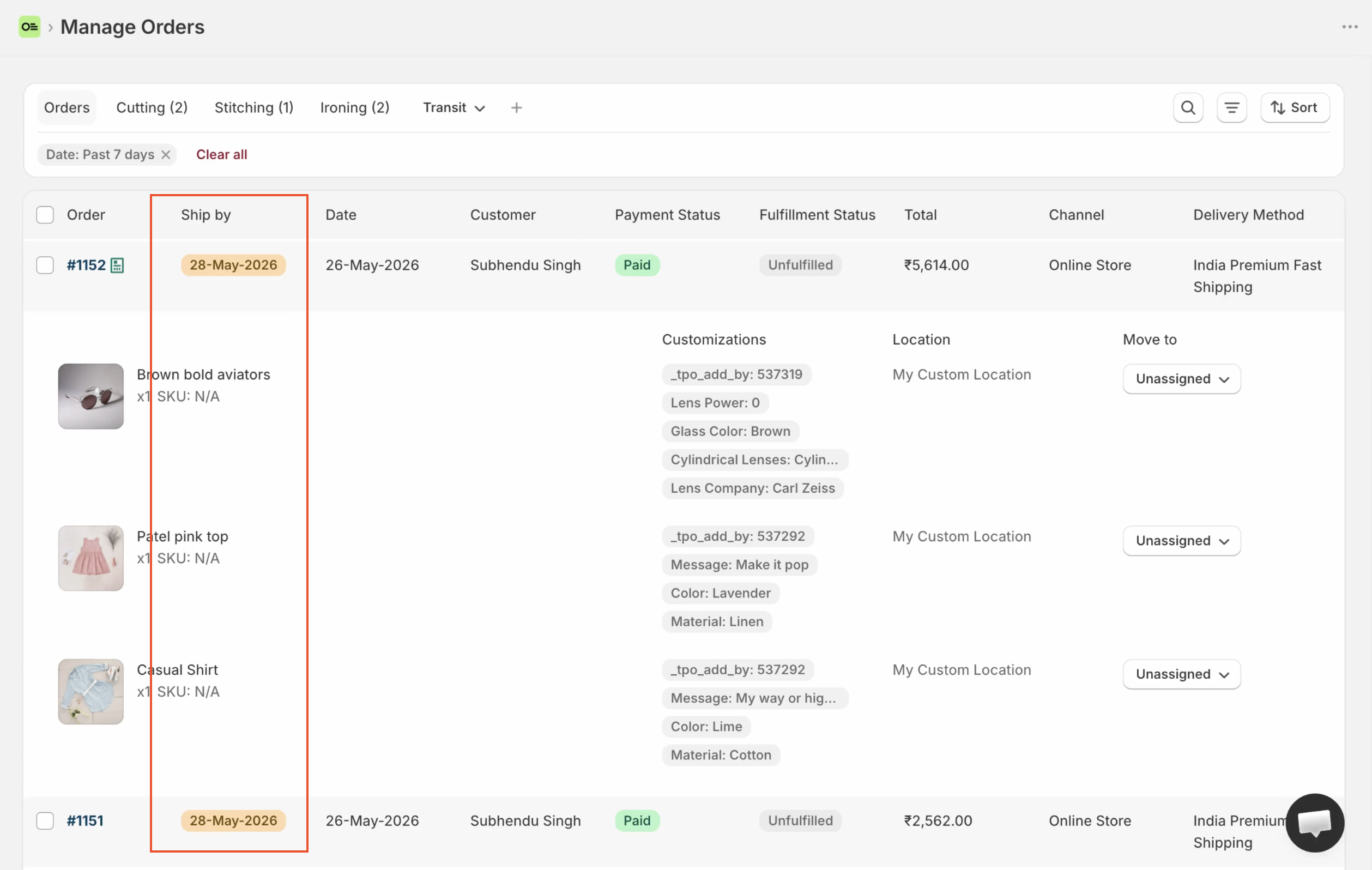
| What differs | Shopify Fulfill by | Orderline Ship By |
|---|---|---|
| Where the date sits | The Orders page and the order details page | Orderline’s own orders screen |
| How the date is set | The order date plus one store-wide fulfillment time | Rules: product lead time, shipping method or a date you or Shopify Flow set |
| Per-product dates | No | Yes, and an order with several products takes the latest date |
| Alongside the customizations | No, the list shows an item count | Yes, next to the line items and product photos |
| What the customer sees | The checkout date, because it is the same number | Nothing; the checkout date stays Shopify’s |
| Price | Included with Shopify | From $9 a month, 7-day free trial |
You choose how the date is set:
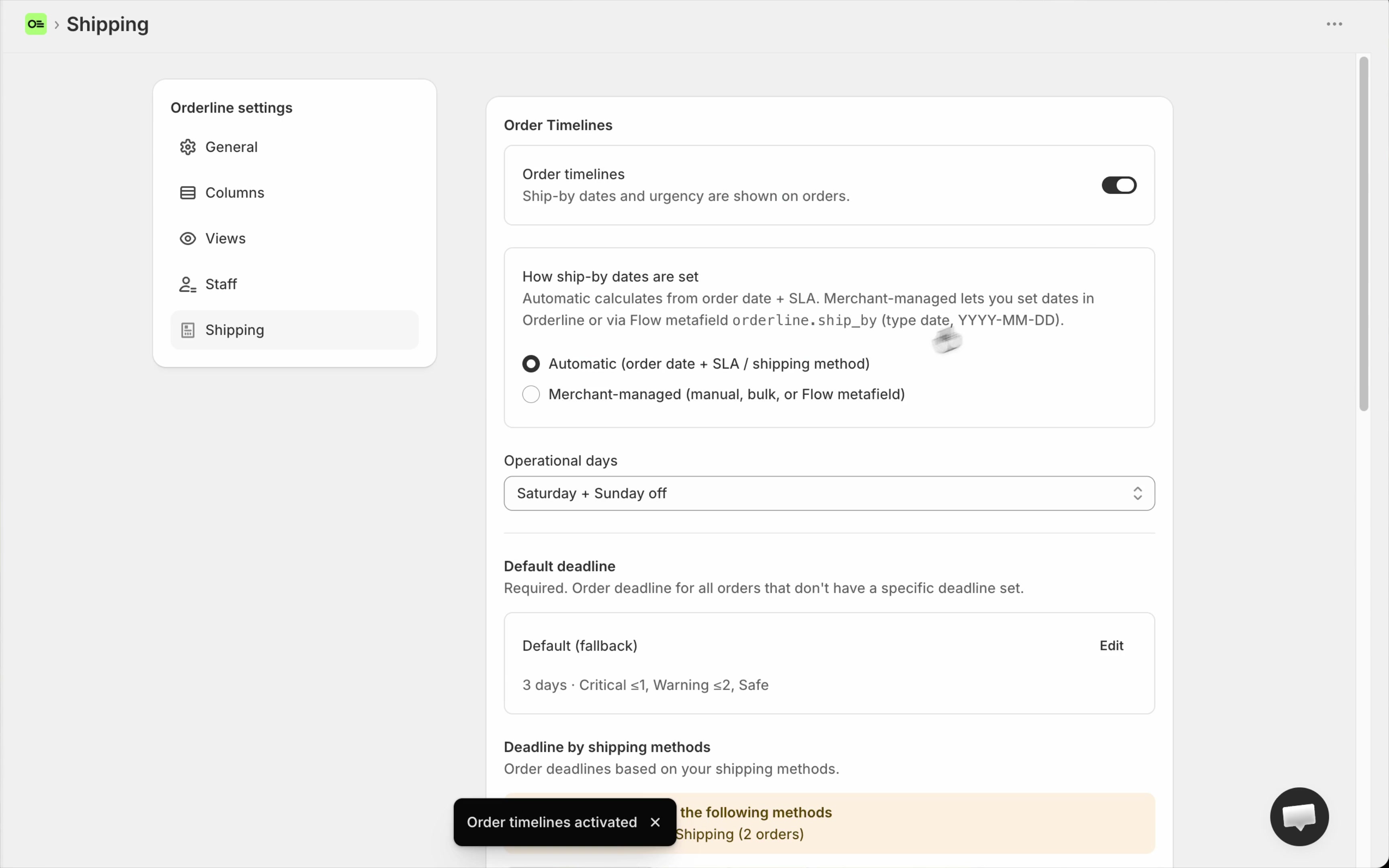
| Mode | How it works | Best for |
|---|---|---|
| By products | Each product gets its own lead time in business days. Orderline adds it to the order date, skips the days you don’t work, and an order with several products takes the latest date. Products you haven’t set use your default. (How to set it up) | Products with very different make times sold under one shipping method |
| By shipping methods | Express could be 1 day and standard 3, with a cutoff time for each. (How to set it up) | Checkout rates that already match how fast you ship |
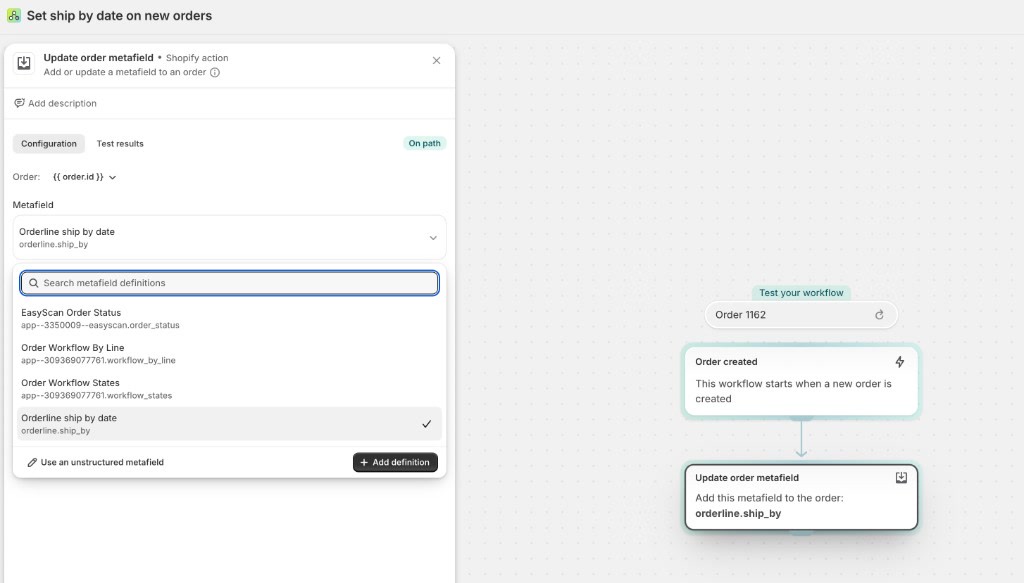
| Manually | Set the date on one order or a whole batch at once, or let Shopify Flow write it into the orderline.ship_by order metafield. (How to set it up) | Preorders and stock arrivals |
Then you sort or filter the list by Ship By, and the overdue and due-today orders sit at the top.
Two things Orderline does not do. It doesn’t change the delivery date Shopify shows at checkout, so keep your Shopify fulfillment time at your slowest common product and let the per-product dates drive the work. It also doesn’t add a column to Shopify’s own Orders page; the Ship By date lives on Orderline’s screen. Orderline starts at $9 a month with a 7-day free trial, and ship-by dates are on every plan.
What about preorders and dates you only know later?
Shopify works out the delivery date once, at checkout. It won’t recalculate it when a preorder campaign closes or when your materials arrive. A Shopify staff member confirmed it in a 2025 Community thread: estimated dates “don’t generate a new delivery date after checkout based on pre-sale end dates or production start dates”.
| Event | Does the Shopify delivery date change? |
|---|---|
| The preorder campaign closes | No |
| Your materials arrive | No |
| You buy a label and add tracking | Yes, the carrier’s date replaces Shopify’s estimate |
For preorders, two things help. Say the ship window plainly on the product page, because the checkout date will be wrong. And hold the orders until you can make them. Shopify Flow has an action called “Hold all fulfillment orders for an order”. Run it on a batch of preorders, then release the hold when the stock arrives. Flow can also write the ship date itself.
How do you make sure customers notice the lead time?
Say it everywhere they look, because many won’t read your shipping policy. One merchant in the same Community thread put it bluntly: “Customers do not read what’s hidden on shipping details pages”. That merchant was dealing with a disappointed customer “about once a week”. In a Reddit thread about 2 to 3 week lead times, the advice from shops that have done it for years was the same: “You can’t say it too much.”
| Place | What to show |
|---|---|
| The product page, near the price | That product’s make time |
| The checkout | The date itself, which is why the fulfillment time setting is worth getting right. Shopify’s one-page checkout can collapse the shipping method description, so don’t rely on text there alone. |
| The order confirmation email | The date the order will ship |
| A short note when the order moves into production | Worth sending when your lead time is longer than two weeks |
Questions people ask
Does processing time include shipping?
No. Shopify keeps them separate and adds them together. Processing, or fulfillment, time ends when the carrier has the parcel, and transit time starts there. Shopify’s help page on transit time says it “doesn’t account for order processing time” (Shopify Help Center).
Can I turn off delivery dates completely?
Yes. Go to Settings, Shipping and delivery, Estimated delivery dates, and select Off. Customers then see only transit times or your shipping rate descriptions. In June 2025 several merchants reported an expected delivery date on some orders even with everything switched off, and nobody found the cause. Place a test order after you change the setting.
Why does my Orders list show a Fulfill by date I never set?
Because Shopify calculates it from your store’s single fulfillment time, counted from the order date. Every order gets the same offset. Change the fulfillment time and new orders get a new Fulfill by date.
Will Shopify penalize me if I ship after the Fulfill by date?
Shopify’s help pages say the fulfillment time sets the Fulfill by date and decides whether you qualify for Shop Promise. They don’t describe a penalty for shipping later than your own setting. The practical risk is customers who expected the earlier date, which is why the date at checkout should match how you actually work.
What to do next
Set your Shopify fulfillment time to the make time of your slowest common product, place a test order, and check the date at checkout and in the confirmation email. If your products take different times, or your dates come from preorders and stock, set up a per-order ship-by date so the workshop sees the real deadline.
- Order deadlines (ship-by date) in Orderline
- Why the ship-by date belongs on your work list
- Install Orderline from the Shopify App Store
Two dates, two jobs
The date at checkout is a promise to the customer. The date on your work list is an instruction to the workshop, and Shopify’s single fulfillment time can only carry the first one. Set it to your slowest common product, accept that quick items arrive early, and let a per-order Ship By date drive the work. If every product takes about the same time to make, the two dates line up, the Fulfill by column is enough, and you do not need an app for this.
Sources
Read 13 October 2026.
- Shopify Help Center: Getting started with fulfillment time and delivery dates
- Shopify Help Center: Setting up manual delivery dates
- Shopify Help Center: Setting up automated delivery dates
- Shopify Help Center: Understanding fulfillment time
- Shopify Help Center: Setting up transit time
- Shopify Help Center: Fulfilling orders individually
- Shopify Community: How to add 2-5 day processing time before item is shipped?
- Shopify Community: Made-to-order and pre-order production and ship dates
- Shopify Community: How does order tracking and processing time work on Shopify?
- Shopify Community: How do I specify made-to-order on the expected delivery time / processing time?
- Shopify Community: Preorder fulfilment status
- Reddit r/shopify: How do you manage a shop with longer processing times?
- Reddit r/shopify: Fulfillment timeframe