
 Try for free
 Blog
Stop Missing Ship Dates on Made-to-Order Shopify Orders
If you make products to order on Shopify, every open order can look the same. How a ship-by date — the day work should leave your shop — helps you pick what to pack first.
Written by Subhendu Singh · Published · Updated
On this page
- What your customer was promised vs what your Orders list shows
- Why tags, notes, and a spreadsheet usually are not enough
- Three ways to put a ship-by date on the order
- 1. Lead time by shipping method
- 2. Lead time by product
- 3. You set the date yourself (one order, many orders, or Shopify Flow)
- What your morning looks like once the date is on the row
- Where this fits — and where Orderline does not
- Frequently asked questions
- Can I add a Ship By column to Shopify’s Orders page?
- What’s the difference between ship-by and a delivery date?
- Should I set lead time by shipping method or by product?
- Do ship-by dates work with Shopify Flow or preorder apps?
- Will this help me fulfill custom orders?
- What to do next
- Sources (retrieval 2026-08-12)
Who this is for
You sell on Shopify and you make or personalize after the customer pays — jewelry, gifts, embroidery, custom apparel, furniture, print. You tell shoppers when an order will ship. Then you (or your team) open the Orders page and cannot tell, from the list alone, which job has to leave today.
Who this isn't for: If you need warehouse routing, a page where the customer tracks a parcel, or a calendar at checkout for their preferred arrival day, that is a different tool. If you want the full picture of order management for made-to-order shops, start there. This article is only about the day work should leave your shop.
If you sell made-to-order products on Shopify, you already make a time promise. The product page might say “ships in 3–5 business days.” Express checkout might mean tomorrow. A custom table might need two weeks.
Your customer remembers that promise. You and your team have to keep it.
The place most shops try to keep it is Shopify Admin → Orders. That list is good at two things: who paid, and whether you have marked the order shipped. Shopify calls an unshipped paid order Unfulfilled. On a busy morning, a rush ring due today and a gift that can wait until next week can both show the same Unfulfilled badge, similar totals, and similar customer names. Nothing on the row says when this should leave the shop.
That is how made-to-order shops miss ship dates. Not because nobody cares — because the list you work from does not show the promise you already made.
This article explains what a ship-by date is, how it differs from delivery dates and tracking, why tags and notes usually fail, and three ways to put a ship-by date on each order. Step-by-step clicks live in the ship-by guides. The other gaps on Shopify’s Orders page (hidden personalization, no product photos, no production stages) are in Why Shopify Orders Fail Made-to-Order Sellers.
The Bottom Line
- A ship-by date is the day an order should leave your shop. It is not the day the customer wants it to arrive, and it is not parcel tracking.
- Shopify’s Orders page has no Ship By column you can sort. Tags and notes can store a date. They do not turn twenty orders into a list you can work in priority order.
- You can set the date three ways: lead time by shipping method, lead time by product, or you pick the date (including Shopify Flow).
- Once the date is on the same row as the product, you can sort and see what is late, due today, or fine to wait.
- Orderline puts that column on its own orders list. We build it. Setup is in the guides, not here.
What your customer was promised vs what your Orders list shows
Made-to-order is different from selling stock off a shelf. The customer is not buying a box that is already in the warehouse. They are buying work you still have to do — an engraving, a print, a piece of furniture — and a window in which that work should ship.
Shopify’s built-in order tools cover the path from payment to fulfillment well (Order management and fulfillment). Shopify does show a Fulfill by date on the Orders list. It is the order date plus one fulfillment time for the whole store, so every order gets the same deadline, and it does not sit next to the product photo or the customization. How that date is set.
So you end up with two records of the same order: the promise on the storefront, and a row in Admin that only says Unfulfilled. Your team opens order after order to reconstruct the promise from notes, tags, or memory. That reconstruction is slow, and it is how a due-today job gets packed after a job that could have waited.
Before you look for an app, it helps to name the date you actually need. Three different dates get sold as “the shipping date,” and they solve three different problems.
| Date | Question it answers | Who uses it |
|---|---|---|
| Ship-by date | When should this leave our shop? | You and whoever packs / makes the work |
| Delivery / arrival | When does the customer want it there? | The customer at checkout; delivery apps |
| Tracking | Where is the parcel now? | The customer after you have shipped |
If your real problem is “the customer wants to pick a Saturday arrival,” you need a checkout date picker, not a different orders list. If your real problem is “where is the box in transit,” you need the carrier or Shop. Ship-by is the first row: a date you can sort, sitting next to what you are making.
The rest of this article is only about that first row.
Why tags, notes, and a spreadsheet usually are not enough
Most made-to-order shops already try to mark urgency somehow. A common stack is an options app for engraving text, then tags like rush or preorder, then a note or a Google Sheet for the date. That stack is good at capturing what the customer chose. It is weak at ranking twenty open orders.
A tag is a flag, not a date. Fourteen orders tagged rush are still fourteen Unfulfilled rows. You cannot sort “rush” into today vs Thursday.
An order note can say ship 12 Aug. Your team will not sort twenty notes. The person who typed the note is often the only person who opens it.
A spreadsheet can hold real ship-by dates. Then you have two places to update: Shopify when you fulfill, and the sheet when the date changes. The sheet goes stale the first time someone ships in Admin and forgets the tab. We compared that pattern in Orderline vs Google Sheets.
What actually works is simpler than a manufacturing system:
- A date on the same row as the product and the personalization.
- A rule for how that date got there, so you are not typing it on every order.
- A clear label for late / due today / can wait.
- Sort (and a saved filter for “due today,” if that is how you start the morning).
That is picking what to pack first, not factory planning. If your ship date comes from materials and machine time, you want manufacturing software. If it comes from “this product takes three business days” or “this drop all ships on 1 October,” you want a date on the orders list.
When the ship-by date sits on the order, “everything is Unfulfilled” becomes “this ships today.”
Three ways to put a ship-by date on the order
There is no single rule that fits every catalog. A ring that ships in three days and a table that needs fourteen should not share a fake “everything is 5 business days” policy. A preorder drop that all ships on one calendar day should not pretend the date was calculated from checkout.
In Orderline you pick one of the three modes below in Settings. The other settings stay saved if you switch later. This section is the decision. The clicks are in the ship-by overview.
1. Lead time by shipping method
Use this when the rate the customer chose at checkout is the promise. Express should ship sooner. Standard should not.
Example — jewelry, Express vs Standard. Your store default is 3 working days. You set Express to 1 day. Maya pays for a signet ring with Express on Monday. Ship-by is Tuesday. Sam orders the same ring with Standard. Ship-by is Thursday. You never configured Economy, so those orders still get the 3-day default instead of sitting blank.
Example — print shop, cutoff. You ship Monday–Friday. Standard is 2 days, with a 2pm cutoff. An order that lands Tuesday at 11am has ship-by Thursday. The same Standard order at 4pm Tuesday starts counting Wednesday, so ship-by is Friday. Weekend days do not count if you marked them off.
Most shops try this first because it matches how they already talk on the product page. Setup: ship-by by shipping method.
2. Lead time by product
Use this when the product is the constraint, not the shipping rate. Two items can share “Standard shipping” and still take very different time to make.
Example — mixed catalog. Ready sunglasses take 3 days. A custom snowboard takes 7. An order with only sunglasses gets ship-by = order date + 3 working days. An order with both gets +7 — the later date wins, because you cannot ship the box until the slow item is ready. A gift card you never configured still uses the store default (say 3 days), so you do not type a number on every SKU.
Example — jewelry, same rate, different work. Both products check out as Standard shipping. A simple band is 3 days. A custom engagement ring is 14. Two Standard orders on the same Monday: the band’s ship-by is Thursday; the ring’s is two weeks out. If one order contains the band and the ring, ship-by follows the ring.
This is the mode to use once your catalog mixes “almost ready” and “made after payment.” Setup: ship-by by product.
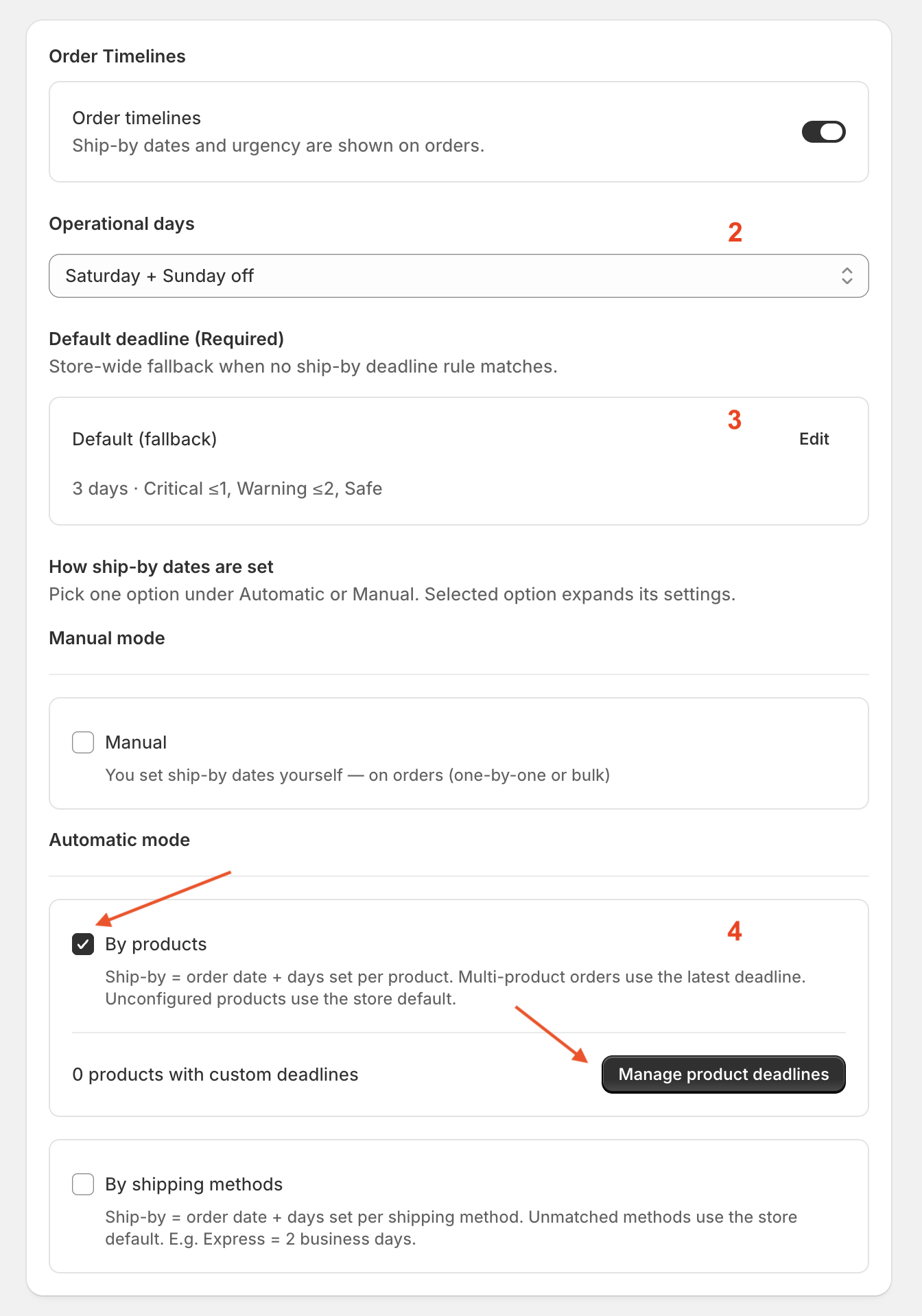
Working days skip weekends when you count lead time. The default covers products you have not configured yet. Choose By products when the days live on the item, not on the shipping rate.
3. You set the date yourself (one order, many orders, or Shopify Flow)
Use this when automatic math would be wrong. A preorder wave. A date from your vendor. A batch that all ships on the first of the month. A date another app already knows.
Example — preorder drop. You sell a winter jacket that all ships on 1 October, no matter which day in August the customer paid. You filter to the preorder tag, select those orders, and set ship-by to 1 October. Or Shopify Flow writes the order metafield orderline.ship_by when the tag is applied, and Orderline copies it onto Ship By. Automatic lead times stay off so a later sync does not overwrite 1 October.
Example — vendor ETA. A furniture order is waiting on a stain that arrives 20 September. You open that one order, set ship-by to 22 September (two days after the stain lands), and leave every other order on its usual rule. Next week the vendor slips to the 25th; you edit that one date. You are not asking software to invent the delay from checkout.
This is also how an orders list sits after a preorder app: that app sells the wait; you still need a ship-by date once the order is paid. Setup: ship-by dates (manual).
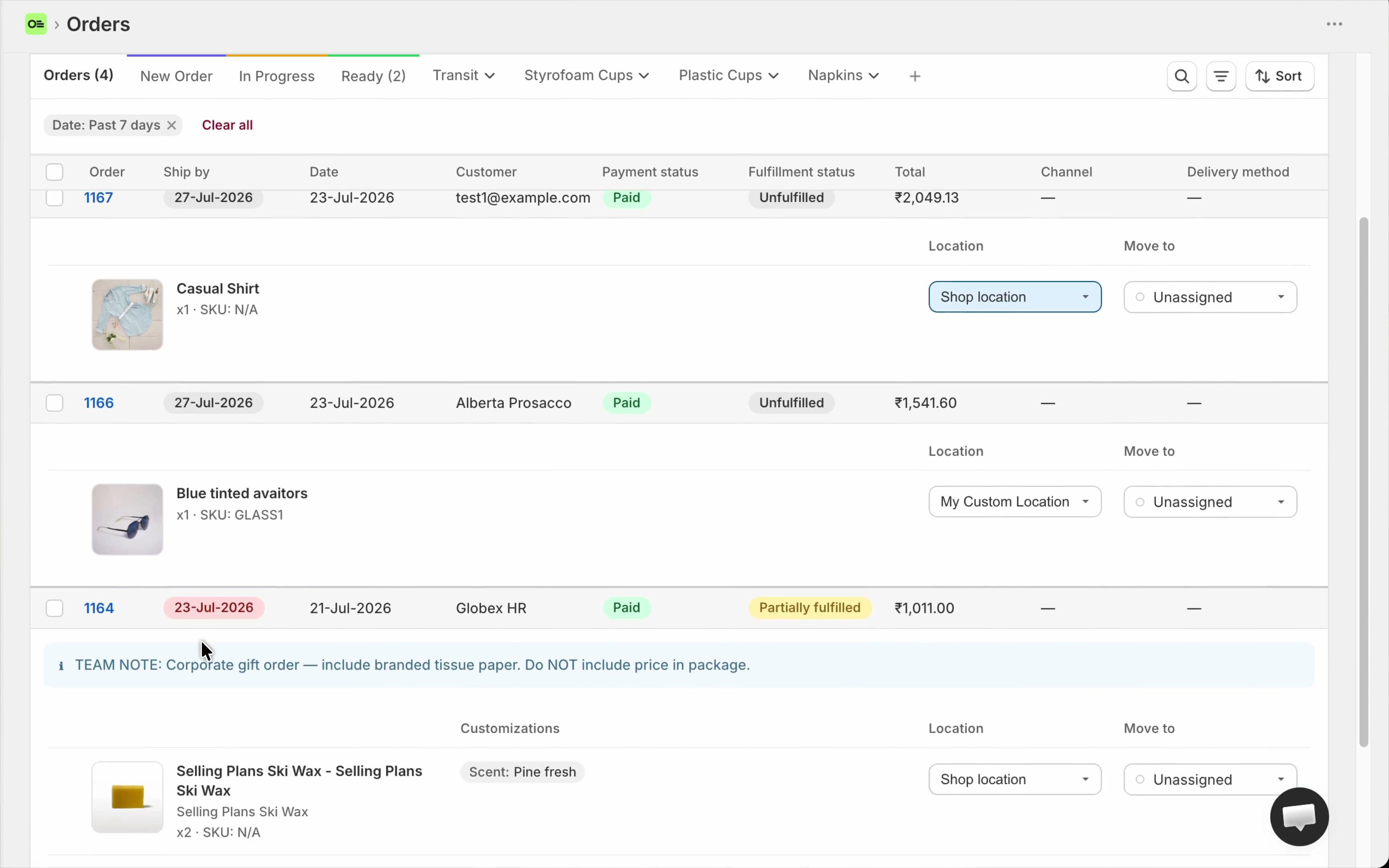
Ship-by on Orderline’s orders list: calculated from lead times, or a date you set. It is not a column inside Shopify’s native Orders page, and it is not a delivery calendar for the customer.
What your morning looks like once the date is on the row
The point of the date is not the date. It is that Unfulfilled stops being the only signal.
You sort by Ship By. Late work rises. Today’s work is obvious. An order due next week no longer jumps ahead just because it sits at the top of the page.
If you start every day the same way, you can save that filter — “due today,” or “Etsy and due this week” — as a named view.
Colors (late, due soon, fine) only help your team if the date is honest. A wrong lead time just paints the wrong rows red.
The date also has to sit next to what you are making. A ship-by column on a list that still hides the product photo and the engraving text just adds another field you open the order to understand. A useful orders list shows the item, the personalization, and the date on one row (unified orders view). Production statuses answer where the job is. Ship-by answers when it must leave. Most made-to-order shops need both.
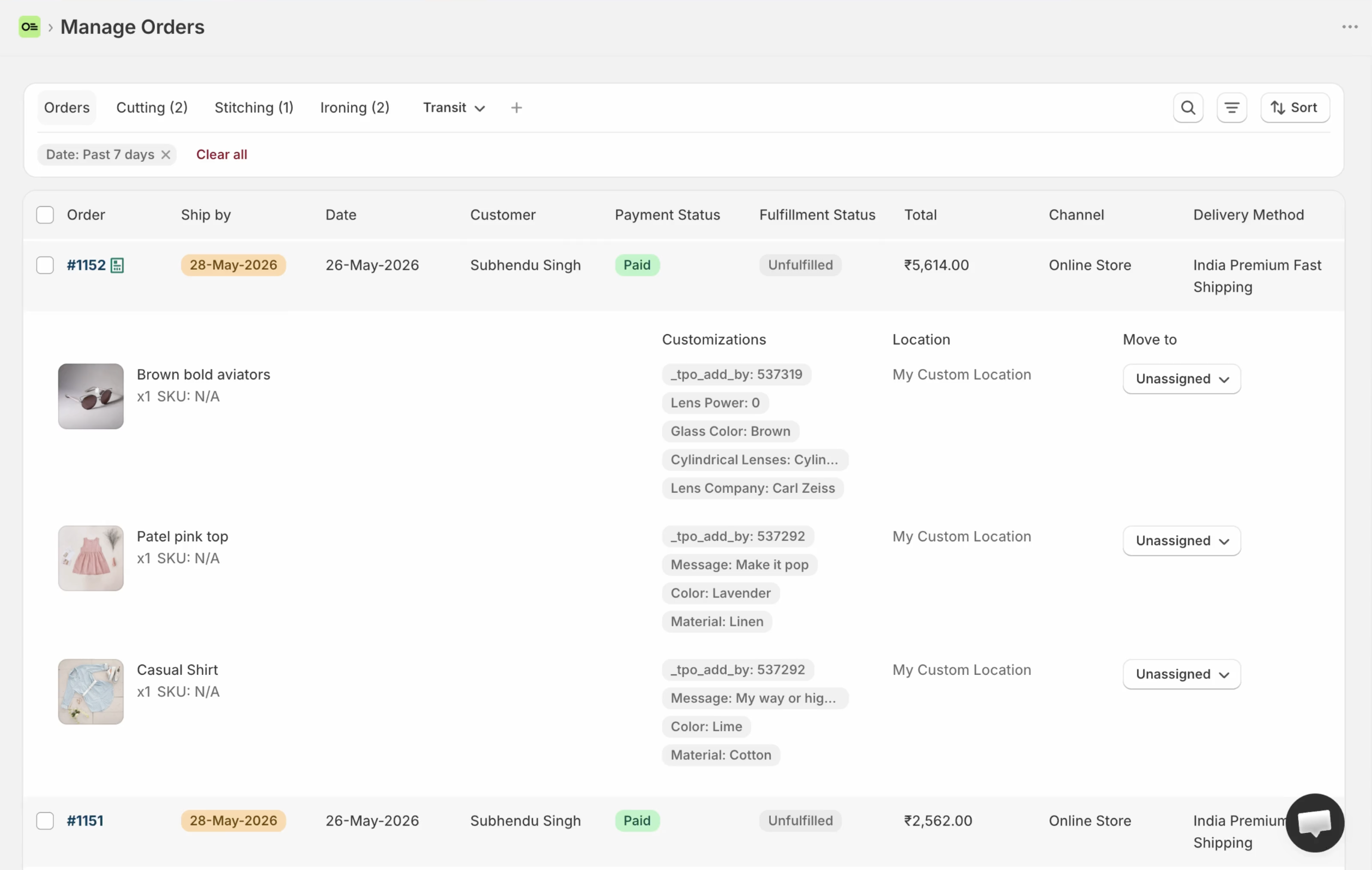
A date without the work is a calendar. The work without a date is a pile. Your morning needs both on one row.
Where this fits — and where Orderline does not
Shopify “order management” in search results usually means warehouse software or a tour of native Admin. For a made-to-order shop, the daily job is closer to an orders list you can actually work from: what to make, which stage it is in, and what must ship first. That bigger choice is in Shopify order management for made-to-order. Ship-by is only the “what ships first” part.
Orderline is ours. It will not add a Ship By column to Shopify’s native Orders page. It will not replace a checkout calendar for the customer’s arrival day. It will not calculate a date from a bill of materials. If materials and machine time are the promise, look at manufacturing software, not a list app.
A good fit if you already know your lead times in days — by shipping rate, by product, or by a date you can name — and you want your team to see urgency without opening twenty orders.
A poor fit if the plan is “we’ll decide the date when we pack.” Software cannot invent a rule you do not have.
Frequently asked questions
Can I add a Ship By column to Shopify’s Orders page?
Not as a built-in column you sort on Admin → Orders. Notes and tags can hold a date; they do not give you a list you can work in date order. A ship-by date for your team also is not a checkout calendar for the customer. See ship-by deadlines.
What’s the difference between ship-by and a delivery date?
Ship-by is when the order should leave your shop. A delivery date is when the customer wants it to arrive. Florists and cake shops often need both: an arrival column for the event, and a ship-by date for the work. Do not store both ideas in one field.
Should I set lead time by shipping method or by product?
If Express vs Standard is the real constraint, use shipping methods. If a ring and a table share a rate but not workshop time, use by product. If the date is a drop, a vendor ETA, or a preorder window, use manual / Flow. Pick one mode so the math matches how you actually promise.
Do ship-by dates work with Shopify Flow or preorder apps?
Yes, in manual mode. Flow (or another app) writes the order metafield orderline.ship_by as a date. Orderline copies it onto Ship By. Keep the preorder app for selling before stock exists; use the orders list after payment. Do not run automatic lead times on a drop that all ships on one day.
Will this help me fulfill custom orders?
It helps you decide which custom order to fulfill first. It does not print the carrier label. Labels and packing slips are a separate job (fulfill from Orderline, manage custom orders). A perfect packing slip still leaves late if the wrong order was first in line.
What to do next
- Open Shopify Admin → Orders. Find two unshipped orders: one that must ship soon, and one that can wait. Notice that the list may not show that difference.
- Write down how you actually promise customers: by shipping rate, by product, or by a named date (preorder, vendor, drop).
- If you use Orderline, turn on Order timelines and pick that one mode — overview.
- Check a one-product order and an order with two products. The mixed cart should use the later product lead time.
- Tomorrow, sort by Ship By. If the list does not change, the dates are not on the rows yet.
Setup: Getting started · Ship-by deadlines · App Store
About the author
Subhendu Singh is the founder of Orderline. He builds order software for Shopify merchants who sell made-to-order and personalized products. X: spsbuilds.
Reviewer
Anjali Rathore reviews technical and operational accuracy on Orderline acquisition content. LinkedIn.
Sources (retrieval 2026-08-12)
- Shopify Help Center, Order management and fulfillment, https://help.shopify.com/en/manual/orders
- Orderline ship-by guides, https://orderlinehq.com/guides/ship-by-deadlines
- Orderline, Shopify order management for made-to-order, https://orderlinehq.com/blog/shopify-order-management-made-to-order