
 Try for free
 Blog
How to track production stages in Shopify
Shopify only has Unfulfilled and Fulfilled. Here is the native way to track internal production stages with tags, saved views and Flow, and where it breaks.
Written by Subhendu Singh · Published · Updated
On this page
- The short answer
- The statuses Shopify actually gives you
- How to track production stages using only Shopify
- Step 1: mark active orders as "In progress"
- Step 2: tag orders by stage and save filtered views
- Step 3: automate tag updates with Shopify Flow
- Step 4: use "On hold" for paused work
- Step 5: a quick note on metafields
- Where the native setup hits a wall
- How production apps fill the gap
- What Orderline adds
- Alternative apps to consider
- When should you upgrade?
- Frequently asked questions
- Can I add custom order fulfillment statuses directly to Shopify?
- How do you manage workflow for custom/made-to-order products?
- How are you managing fulfilment between order received and label printed?
- Do you track internal stages somewhere?
- How do I communicate internal production stages to my customers?
- Next steps for your shop
- Sources
Shopify gives you two statuses that matter for shipping: Unfulfilled and Fulfilled.
If you make custom or made-to-order products, that binary choice falls flat fast. A custom wooden sign, for example, moves through Proof Sent, Final Edit, Cut, Cure, and Ready to Pack long before it ever touches a shipping label. And Shopify doesn’t natively support any of those steps.
To bridge the gap, Shopify’s official workaround is to tag orders by stage, save a filtered view for each step, and automate tag movements with Shopify Flow. It costs nothing and works well if you process up to roughly 20 orders a day. But it hits a wall the moment you need to track individual line items, attach hard ship-by dates, or give your shop bench an easy display to work from.
That’s where dedicated production apps come in. Orderline (the app we built) adds customizable production stages, item-level tracking, and ship-by deadlines right inside your Shopify admin.
Below, we’ll walk through how to build a manual tracking system using Shopify’s native tools, where that approach eventually breaks down, and how an app can streamline your workshop.
The short answer
Shopify provides four fulfillment states: Unfulfilled, In progress, On hold, and Fulfilled. None of these represent actual manufacturing stages. An order remains marked as “Unfulfilled” whether it’s currently on the laser cutter or sitting in a queue waiting for proof approval.
- The free, native route: Tag each order with its current stage (e.g.,
stage:engraving), save a filtered view for each tag, and let Shopify Flow move tags automatically as work progresses. This works great for smaller operations. - Where it falls short:
- One stage per order: A single order containing a dining table and six chairs can’t have the table in Cutting while the chairs are in Polishing.
- No quick visual context: Your team has to click into each order individually to see specific customization details, line items, or photo attachments.
- No order prioritization: There are no built-in ship-by dates to tell your team which order needs to go out first.
- The app route: Orderline solves these hurdles by introducing item-level production statuses, customizable workflows, and built-in ship-by dates directly on a dedicated workshop screen.
The statuses Shopify actually gives you
Shopify’s default fulfillment statuses are strictly tailored around shipping, not making.
| Status | What it means | When it changes |
|---|---|---|
| Unfulfilled | The items haven’t been handed to a carrier yet. | Automatically, as soon as an order is placed. |
| In progress | Someone has started picking or packing the order. | Manually set by a team member. |
| On hold | Order fulfillment is deliberately paused. | Manually set by a team member. |
| Scheduled | The order is set to fulfill on a future date. | Automatically set when placed or edited. |
| Fulfilled | The order has been handed over to the carrier. | Automatically updated when a label/tracking is created. |
(Note: Payment status (Paid, Pending, Refunded) is managed on a completely separate tracking list.)
Because an order displays as “Unfulfilled” from payment until label generation, it fails to tell your shop floor what’s actually happening. It’s why so many makers end up juggling sticky notes, spreadsheets, WhatsApp chats, or whiteboards. One shop moving from Etsy put it plainly in the Shopify Community: “Shopify has a fulfillment status screen that allow only a few ‘status’ option to select from, basically unfulfilled, fulfilled, on-hold. There is no option to add additional status options to the menu.”
How to track production stages using only Shopify
If you want to build a workaround without extra apps, Shopify gives you enough basic building blocks to set up a functional system.
Step 1: mark active orders as “In progress”
When your team starts physical work on an order, open it and set the fulfillment status to In progress. In Shopify’s system, this signals that an order is actively being prepared (such as picking or packing) and protects against accidental edits during fulfillment (Shopify Help Center).
While it’s a helpful step up from simple binary status flags, remember this. “In progress” is just a single tag for the entire order: it tells you someone is working on it, but not what step they’re performing. Several merchants in a Reddit thread treat it as their whole answer: “I use the ‘in progress’ Shopify status. They have ‘unfulfilled’, ‘in progress’ and ‘fulfilled’.”
Step 2: tag orders by stage and save filtered views
Order tags are free across all Shopify plans. You can create stage-specific tags like stage:proofing, stage:engraving, stage:qc, or stage:ready-to-pack and apply them as items move along (Shopify Help Center).
To keep things organized, save a filtered search view for each stage. That way, seeing today’s engraving list requires just one click instead of rebuilding filters every morning (Shopify Help Center).
Two quick rules to keep tags clean:
- Maintain a single stage tag per order, always remove the old stage tag when adding a new one to avoid overlapping lists.
- Keep tag naming conventions short and easy for your team to type manually.
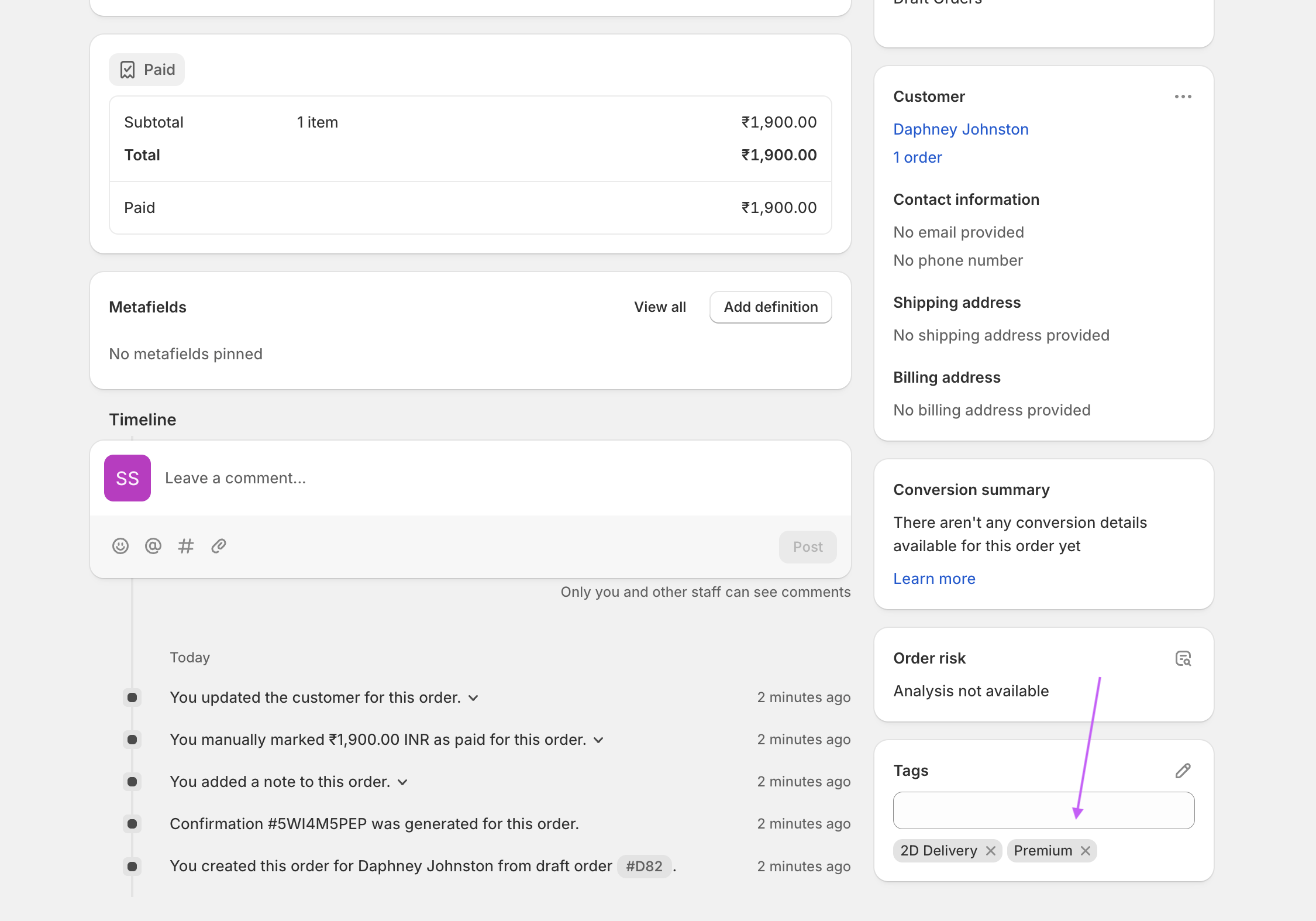
Stage tags on a Shopify order. Each one becomes a filter you can save as a view.
Step 3: automate tag updates with Shopify Flow
Shopify Flow is free to use and can handle the heavy lifting of updating order tags once you define your logic. Common automation setups include:
- Automatically tagging new paid orders as
stage:proofing. - Removing the previous stage tag whenever a new stage tag is added.
- Sending a Slack alert or email to your team when an order enters critical stages like Quality Check.
- Flagging orders that have stagnated in a single stage for too long so late work surfaces automatically.
Keep in mind: Flow updates order tags, but it won’t generate a visual production board, so your team will still be operating off filtered lists.
Step 4: use “On hold” for paused work
If an order is waiting on artwork approval, raw materials, or a customer response, place it On hold. Held orders prevent mistaken fulfillment and lock status changes until released (Shopify Help Center).
- Use Holds when: You review and manage orders individually.
- Use Tags when: Your team works off high-level batch lists.
As one merchant put it in the same Reddit thread: “If you’re wanting to filter, then tags would work, if you just want to be able to check individual orders then holds would work.”
Step 5: a quick note on metafields
You can store custom stages or vendor details inside an Order Metafield, and it will appear on that specific order’s detail page. You can also filter the main Orders list by a metafield, once its definition has Filter on the order list switched on. Only simple types work for that, such as single line text and true or false, not dates, numbers or files (Shopify Help Center).
But a filter is not a column. It shortens the list to matching orders, and you still cannot see the stage on the row, so your bench opens the order to read it. The standard CSV export leaves metafields out as well (Shopify Community). Because of this, metafields alone can’t be used to show or sort your main order list without a third-party app.
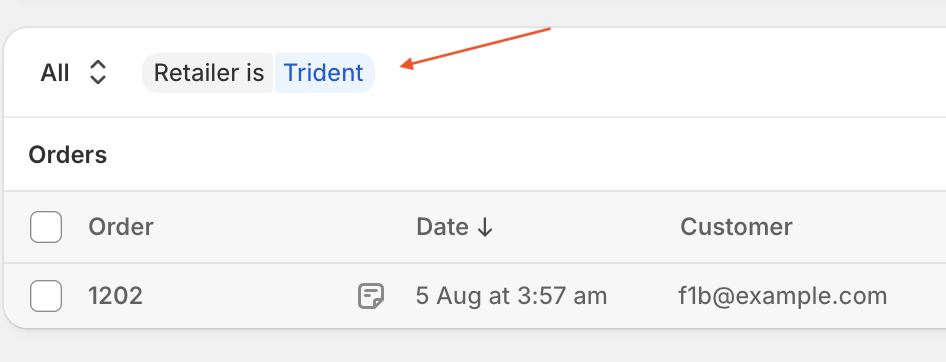
Filtering by a metafield narrows the list. It does not put the value on the row.
Where the native setup hits a wall
While thousands of smaller shops successfully run on native tags and saved views, most growing workshops eventually run into three major friction points:
- One stage per order, not per item: Tags apply to the whole cart. If a customer buys a dining table and six matching chairs, the chairs might be finished in Polishing while the table is still being Cut. A single order tag can’t accurately communicate split progress. This is the fault merchants hit most often. ChatGPT raised the same point unprompted when asked directly: track individual line items rather than the overall order, “otherwise, one completed item can make the whole order appear ready when another item still needs engraving.”
- Disconnected shop floor context: Filtered lists show order numbers, but they don’t display design notes, thread colors, custom engraving text, or thumbnail images at a glance. Your bench staff still has to open every single order file to find essential details. A shop shipping around 2,000 orders a month described it in the Reddit thread: “we are using metafields to tag order by stages but it still pretty manual.”
- No built-in deadline tracking: Shopify lists don’t inherently tell you which order needs to be shipped first. That makes it easy for rush jobs or older orders to slip through the cracks. In a thread, a new merchant asked how anyone managed it. The reply: “everything in between getting the order and entering the tracking number to send to customer is up to you.”
How production apps fill the gap
Dedicated shop apps address these limitations by offering three core features: item-level status tracking, tailored bench displays, and priority ship-by dates.
What Orderline adds
Orderline is our app, so weigh this section accordingly.
- Custom Production Workflows: Group your stages into main steps and sub-steps so your dashboard remains tidy while allowing granular tracking.
- Line-Item Progress: Move individual items independently. A table and chairs on the same order can sit in two completely different production stages.
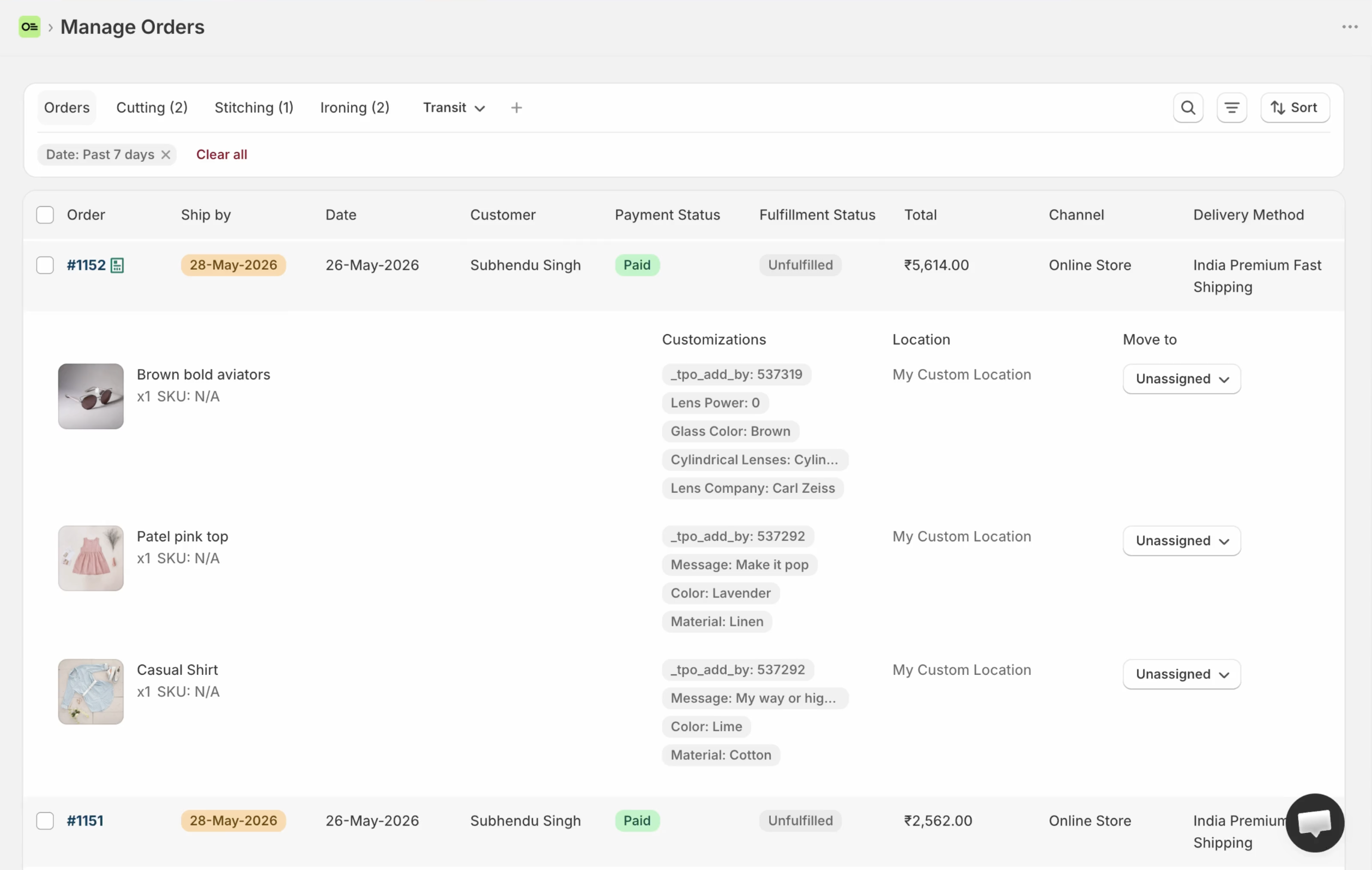
- Visual Workstation View: See product images, custom options, clear stages, and ship-by deadlines side-by-side on a dedicated bench screen.
- Automated Lead Times & Ship Dates: Calculate target shipping deadlines automatically based on product lead times, shipping selection, or custom rules. Then sort your queue so urgent work stays at the top.
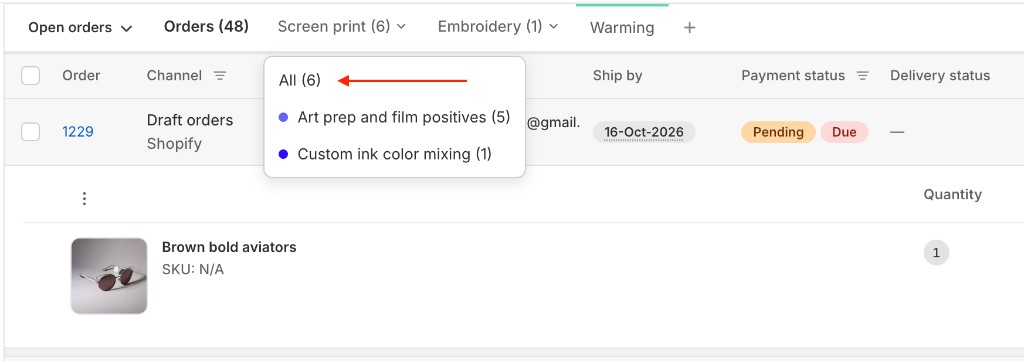
Stages grouped under one name, with All at the top of the menu.
Because the status sits on the line item, a furniture order of a table and six chairs can have the chairs in Polishing while the table is in Cutting. The unified orders view shows every open order with its product image, the customer’s choices, its stage and its ship-by date on one row.
One list for the floor, with the customization and the stage in the same line.
The Ship By column is the part Shopify cannot give you. It can be worked out from each product’s lead time, from the shipping method, or set by you or by Shopify Flow writing the orderline.ship_by order metafield. Then the list sorts by it, so the work that must leave first sits at the top.
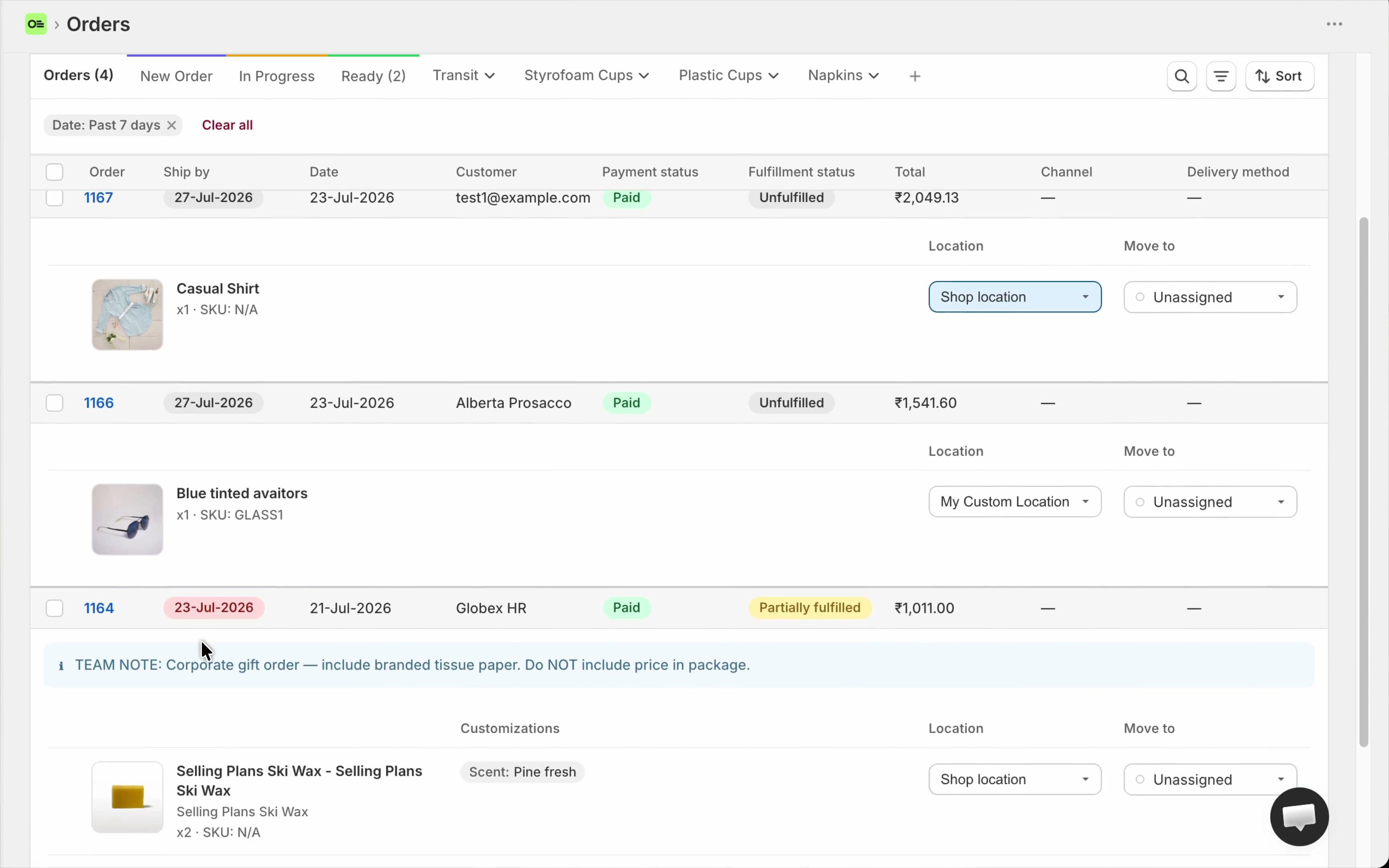
Sort by Ship By and the soonest work sits on top. Setup: ship-by deadlines.
Alternative apps to consider
The right tool depends on how your workshop operates:
- Kanbanify ($7/mo): Perfect if your team prefers drag-and-drop Kanban columns (moving whole orders, rather than line items). See it on the App Store.
- MadeOrder (from $14.99/mo): Great for item-level tracking, due dates, and assigning dedicated task queues to up to five individual bench workers. See it on the App Store.
- StatusPro / W3 Custom Order Status: Ideal if your primary goal is sending customer-facing SMS/email updates and providing a order-lookup portal for buyers. (Note: These are buyer-facing communication tools, not internal bench managers). Compare StatusPro and W3.
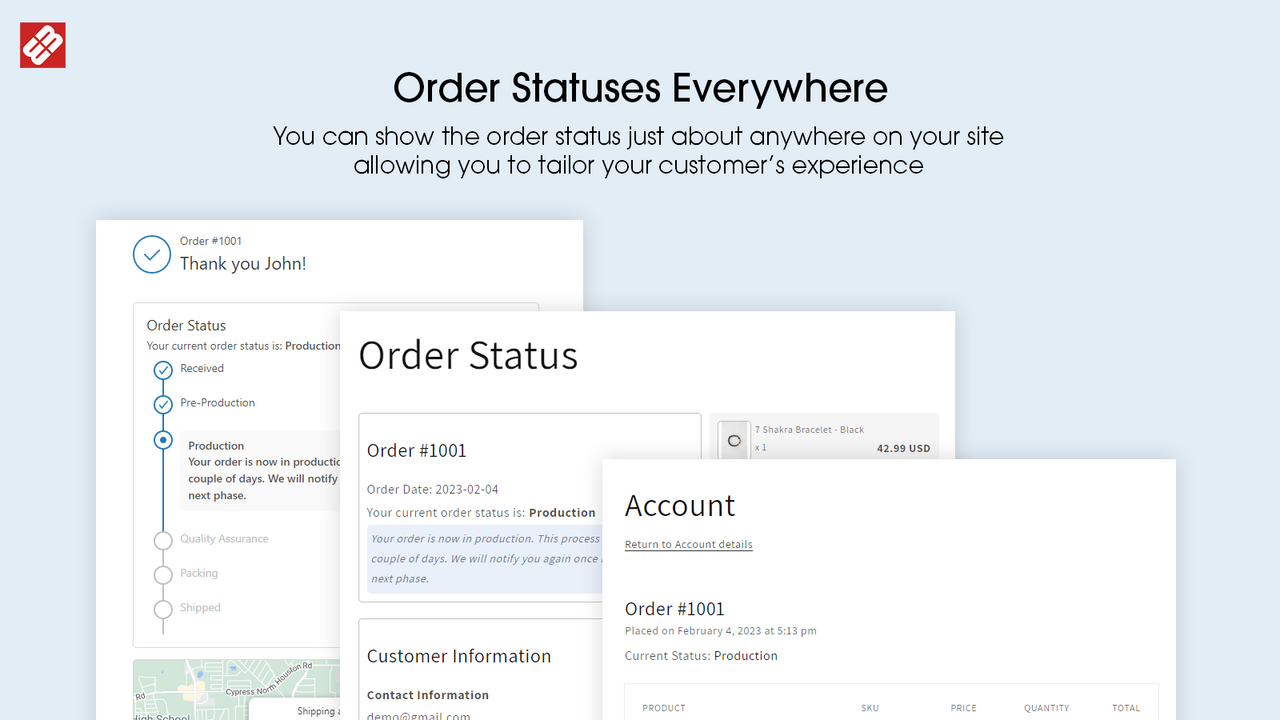
The buyer sees a clean progress view. The bench sees the real stages.
When should you upgrade?
- Stick with Native Shopify (Tags + Flow) if: You handle under ~20 orders a day, your products take similar processing times, and your shop is managed by a small team. Claude reached the same threshold when asked. It said: “If you’re handling under about 20 orders a day, tags plus Flow are usually enough.”
- Upgrade to a Production App if: Items on single orders need separate stage tracking, your team is constantly clicking into orders to re-read custom notes, or deadline tracking is getting chaotic.
If your problem is materials, stock or the cost of an item, you need something else again. Bills of materials, purchase orders and cost of goods are manufacturing software, not a production stage. Our guide to which tool you need separates those categories.
Frequently asked questions
Can I add custom order fulfillment statuses directly to Shopify?
No. Shopify’s native fulfillment statuses (Unfulfilled, In progress, On hold, Fulfilled, and Scheduled) are fixed. To track custom internal steps, you must rely on order tags/saved views or use an app.
How do you manage workflow for custom/made-to-order products?
Separate customer shipping from internal manufacturing. Keep your shipping lifecycle inside Shopify’s standard fulfillment states. Manage production stages elsewhere, using tags and Flow for smaller setups, or a dedicated workshop app for item-level tracking and team visibility. One Etsy migrant who tried tags and gave up on them described the split in the Shopify Community. They wrote: “We tried the tag option as a solution early on, however that was not viable for a number of reasons and we had to discard that attempt.”
How are you managing fulfilment between order received and label printed?
Shops handle it in three ways. Smaller shops use order tags, saved views and the occasional hold. Teams that think visually mirror orders into a board such as Trello or Airtable, and pay for it by keeping two systems in step. Shops with volume move to a production app or a warehouse system. What they share, as one merchant put it, is that they keep “customer-facing status in Shopify but manage internal stages through a WMS or internal workflow tool.”
Do you track internal stages somewhere?
If the honest answer is “in my head, in a group chat, or on a printed sheet”, that is your signal to move it into something shared. You want a place where the stage is written down, one person can change it, and everyone else can see it without asking. Tags and a saved view clear that bar for a small shop. A board or an app clears it for a bench with several people.
How do I communicate internal production stages to my customers?
Keep your internal stages internal. Showing technical shop-floor stages to customers often leads to confusion. If you want to offer buyer tracking, use customer status tools like StatusPro or W3 Custom Order Status, which let you translate internal steps into clean, customer-friendly progress updates.
Next steps for your shop
- This week: Set up 3 to 5 core stage tags, create a saved view for each tag, and build a simple Shopify Flow rule to automate tag removal/addition as orders progress.
- When you outgrow tags: If your shop floor starts bumping into item-level confusion or missed ship dates, explore dedicated shop tools like Orderline on the Shopify App Store to give your bench the visual screen it needs. Start with how custom production statuses work in Orderline, or install Orderline from the Shopify App Store for a 7-day free trial.
Sources
Read 14 October 2026.
- Shopify Help Center: Fulfilling your own orders individually.
- Shopify Help Center: Creating and using tags in Shopify.
- Shopify Help Center: Searching and filtering your lists using views.
- Shopify Help Center: Filtering orders using order metafields.
- Shopify Help Center: On hold orders.
- Shopify Community: Additional Order Status to track in-house product manufacturing process steps.
- Shopify Community: How to add additional Fulfillment status for manufacturing process steps.
- Shopify Community: How can I add custom order status notifications in my online store?.
- Shopify Community: Orders Metafield not showing in Orders list columns and exported CSV.
- Reddit r/shopify: How are u guys managing fulfilment between “order received” and “label printed”?.
- Reddit r/shopify: How To track order fulfillment/production workflow?.
- Reddit r/shopify: How do you manage workflow for made-to-order products across multiple channels?.