
 Try for free
 Case study
How Threadslabel organizes its workflow from procurement to shipping
Follow how Threadslabel moves a custom clothing job from first quote to final handoff — shipping-method deadlines, department-based production stages, line-item routing between two sites, and fulfillment.
Written by Subhendu Singh · Published · Updated
On this page
- Who is Threadslabel?
- How do they turn an event enquiry into a confirmed order using draft statuses?
- How do they prioritize production using shipping-method deadlines?
- How do they manage a confirmed job across departments using status categories?
- How do they keep track of each piece through weeks of handwork using line-item statuses?
- How do they route each piece to the right site using internal line-item locations?
- How do they keep each site focused on its own work using location lock?
- How do they pass instructions to the shop floor using internal production notes?
- How do they hand off finished pieces to customers using line-item fulfillment?
- What does Threadslabel’s production workflow look like in numbers?
Who is Threadslabel?
Threadslabel’s storefront brings together sarees, blouses, kurtis, and lehengas, with saree collections organized by fabric and craft—from cotton and chiffon to Indian Kanchi silk and hand-crafted styles. Some event orders call for custom work and detailed handcraft. Production happens at the Salem workshop in Tamil Nadu, India, while customers can collect orders from the Bengaluru store also in India. Since one order can include pieces with different work and delivery timelines, the team needs to track each piece from the first quote through its final handoff.
Because one order can run for weeks or months and pass between two sites, the interesting question is not which features Threadslabel uses — it is how a job keeps moving from one step to the next. The sections below follow that sequence, and the Orderline feature behind each step.
How do they turn an event enquiry into a confirmed order using draft statuses?
An event order does not start as a paid order. It starts as a conversation — what the customer wants, what it will cost, and what the piece should look like. Threadslabel captures that in a Shopify draft order, and the draft appears on Orderline’s Drafts board with its line items, so the team can review what was quoted without opening each draft in Shopify Admin.
Quotes need their own pipeline, so Threadslabel tracks them with draft statuses — Quotation Sent, Invoice Generated, and Proof Sent. Orderline keeps draft statuses in a separate list from production statuses: a quote stage never appears as a tab on the Orders board, and a production stage never appears on Drafts. That separation is what lets the sales conversation and the workshop queue run side by side without leaking into each other.
Day to day, drafts with no status yet sit in the Drafts inbox tab. Staff select rows and use Change Status in bulk as each quote moves along. When a quote is accepted, Send Invoice triggers Shopify’s invoice email, and the Invoice Status column shows where each draft stands — Open, Invoice Sent, or Completed. Once the invoice is paid, Create Order completes the draft through Shopify. It becomes a regular order and the job moves to the Orders board for production.
See the draft orders guide for the full quote-to-order workflow.
How do they prioritize production using shipping-method deadlines?
The shipping method gives Threadslabel a practical starting point for planning dispatch. Standard orders have a longer lead time, Premium orders move through the queue faster, and International orders are planned around a two-week window.
Threadslabel maps those Shopify shipping methods to different lead times using Orderline’s automatic By shipping methods mode. Each method can have its own rule, and a store default covers methods without an override. Orderline calculates the Ship By date from when the order was created, the shop’s operational days, and its cutoff time. The date appears on the Orders board with an urgency badge, so the team can sort or filter open work and see which deadlines need attention as pieces move through production.
Ship By is the date an order should leave the shop; it is not a carrier’s estimate of when the customer will receive it. See ship-by dates by shipping method and the Orderline deadlines guide for the setup and how urgency works.
How do they manage a confirmed job across departments using status categories?
With the order confirmed and its ship-by date visible, work is handed from one department to the next. Rather than one generic “in production” state, Threadslabel mirrors those handoffs in production statuses grouped into categories that match its work areas:
| Work area | What the team tracks |
|---|---|
| Resource Planning | Priority and order type, plus whether materials need ordering or have arrived |
| Day Plan | Work allocated and planned for the day |
| Day Order Progress | Handwork such as embroidery, cutting, and stitching |
| Add-on Services | Extra work when an order needs it |
| Quality Checks | Items being inspected |
| Packaging | Orders that have been packed |
| Logistics Plan | Labels to book, orders ready for pickup, and orders picked up |
In Orderline, each category appears on the Orders screen as a dropdown of its child statuses, so seven work areas stay navigable instead of becoming a wall of tabs. Every tab shows a count of the work sitting in it, so a pile-up — say, everything waiting before Quality Checks — is visible at a glance without opening a single order. Staff pick the next status as each step completes: Change Status in bulk for orders moving together, or Move to for a single piece.
Resource Planning shows how granular the stages get. Urgent and premium work get their own stages, and material tracking has Material to be ordered and Material Awaited — the procurement half of this case study. By the time a piece reaches Packaging, the logistics team already knows what is coming to them.
See the custom production statuses guide for how categories, stages, and bulk moves work.
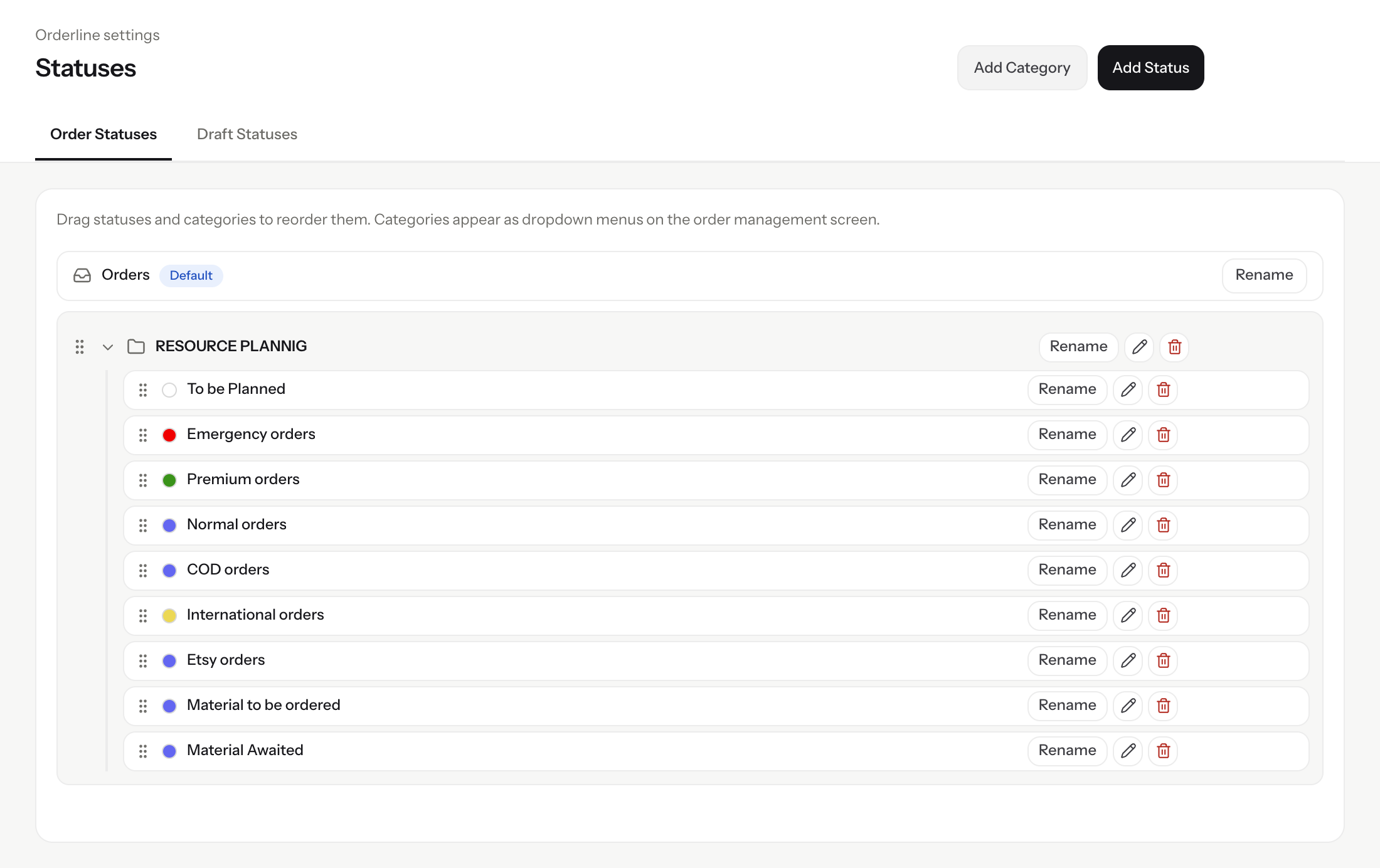
Illustrative settings mock configured with Threadslabel’s production stages; it is not a capture of their live account.
How do they keep track of each piece through weeks of handwork using line-item statuses?
A handcrafted job can run from a week to several months, and the pieces in one order rarely move at the same pace. An event order might have embroidery still in Day Order Progress while the jacket that goes with it is already in Quality Checks.
This is why Orderline tracks production status per line item, not just per order. Opening a status tab shows the line items sitting in that stage across all orders, so “what is ready for packaging today” is one click even when those pieces belong to different jobs. Move to changes one line item’s stage while the rest of the order stays where it is, and the unified view keeps each line’s image, customizations, and location next to its status — the details the floor needs to actually do the work.
See the orders view guide for how line items and their statuses appear together.
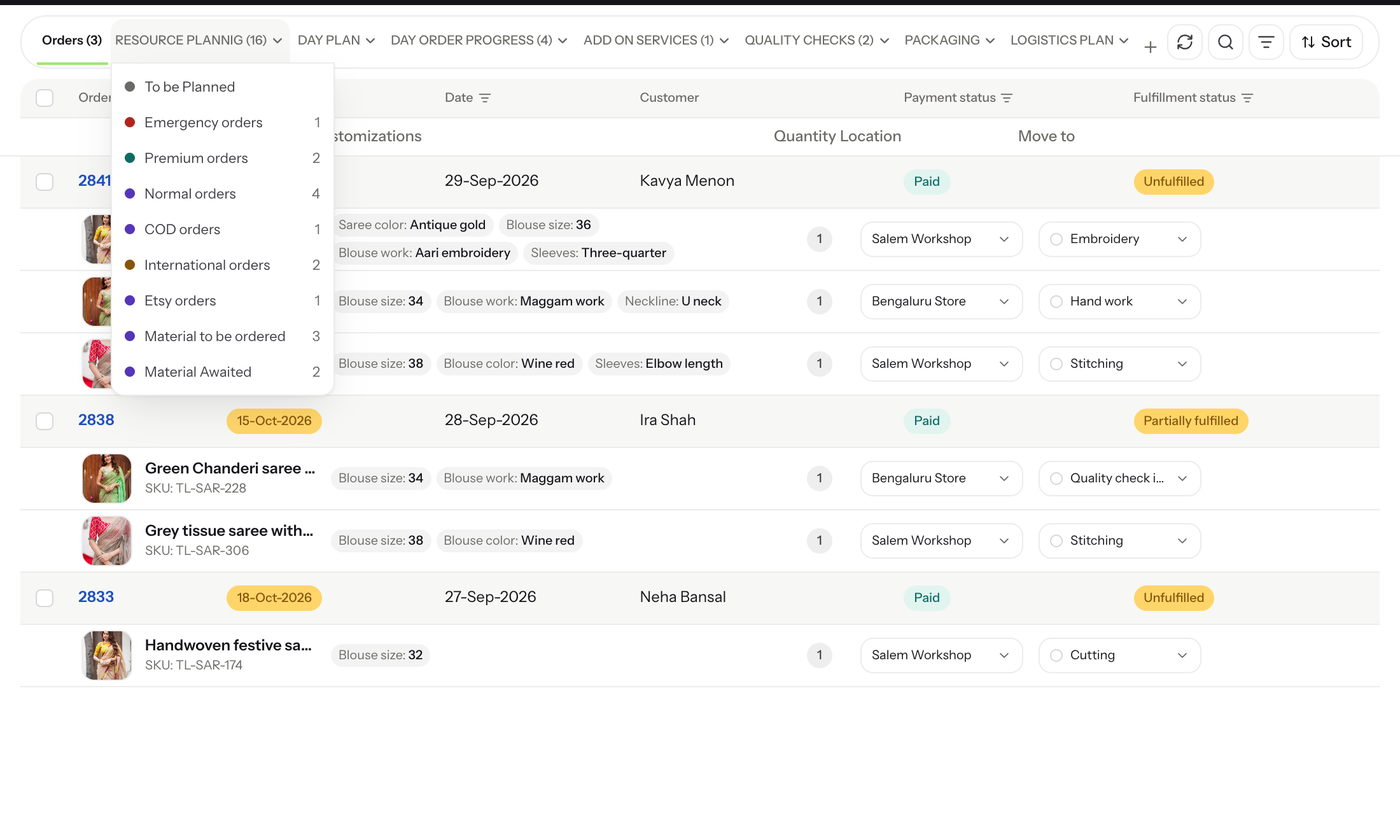
Illustrative Orders mock based on Threadslabel’s workflow; customer and order details are fictional.
How do they route each piece to the right site using internal line-item locations?
Not every piece in an order needs the same preparation site. If one item is ready for collection while another still needs handwork, Threadslabel assigns the first line item to the Bengaluru pickup store and the second to the Salem workshop.
That location is an internal Orderline assignment on each line item, and it works separately from fulfillment. Shopify keeps the fulfillment location it already assigned to the order, and the order stays intact in Shopify — the internal assignment is the work-routing layer on top. When a line has an internal assignment, that value becomes the item’s effective location; when it does not, the effective location falls back to Shopify’s. Everything downstream — staff visibility and fulfillment scope — follows the effective location.
See the orders view guide for how line-item locations appear on the board.
How do they keep each site focused on its own work using location lock?
Threadslabel assigns staff to the site where they actually work, and Orderline respects that boundary. An admin sets each member’s assigned location and turns on “Only see orders at this location.” From then on, the Orders board is locked for that person: a Salem workshop member sees the line items routed to Salem, while store staff see the work assigned to Bengaluru.
The lock follows each item’s effective location — the internal assignment when one is set, otherwise Shopify’s location — so routing in the previous step and visibility here stay in sync. Location filters are restricted for locked staff, so they cannot browse the other site’s queue, and actions are scoped to their site’s lines. Day-to-day work inside that scope — viewing orders, moving stages, fulfilling — needs no extra permissions; admins remain unrestricted across both sites.
See the staff access and location permissions guide for invites, location lock, and permissions.
How do they pass instructions to the shop floor using internal production notes?
Material reminders, sizing instructions, box choices — much of what a floor team needs to know is meant for staff, never for the customer. Threadslabel keeps that layer in Orderline’s internal production notes: staff open the order’s menu, choose Notes, and add instructions under Internal.
These notes live only in Orderline and are never overwritten by Shopify sync. Each note records who wrote it and when, so instructions stay accountable as a job changes hands over weeks. They sit beside — but separate from — the customer’s Shopify note, and both print on packing slips labeled Customer and Internal, so whoever packs the box knows which instructions are private. One boundary the team works around: internal notes exist on orders, not drafts, so the team adds them once a quote has become a confirmed order.
See the internal production notes guide for adding, editing, and printing notes.
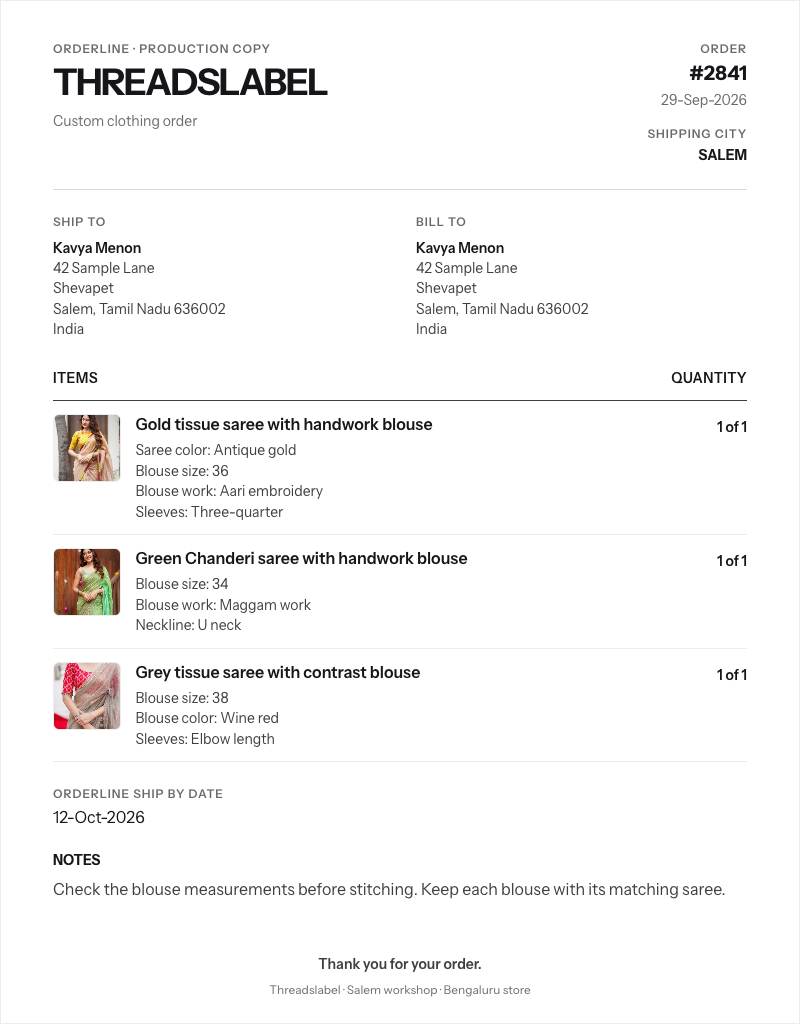
Illustrative packing slip configured for Threadslabel’s workflow; the order and customer details are fictional.
How do they hand off finished pieces to customers using line-item fulfillment?
Pieces finish at different times, and Threadslabel hands each one over as soon as it is ready instead of holding the whole order. When staff Mark As → Fulfilled from Orderline, the action is line-item aware: it fulfills the open line items matching the board they are working from — the active status tab and their location scope. A finished piece ships or is marked ready for collection while the rest of the order stays open for production, and Shopify shows the order as partially fulfilled until every line is done.
Production statuses and fulfillment stay distinct here: Change Status moves work through Threadslabel’s internal stages, while Mark As is what actually updates Shopify.
What happens after depends on the delivery method. For shipped orders, the Delivery status column — enabled once in Settings → Columns — shows Tracking added, In transit, Out for delivery, and Delivered as Shopify receives carrier updates, so the team can see a parcel’s progress without leaving the board. For pickup orders, the team tracks the handoff through its own Logistics Plan stages — Ready for Pick up, then Picked Up — before fulfilling the line in Shopify.
See the fulfillment guide for partial fulfillment, holds, and delivery status.
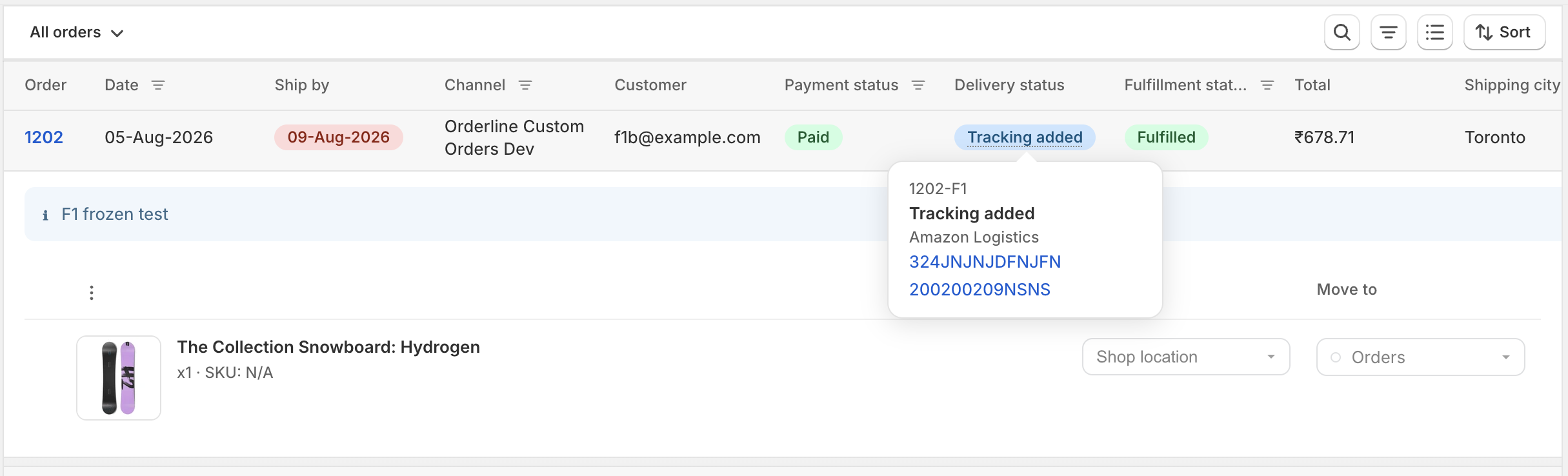
Illustrative Orderline product screenshot, not Threadslabel’s tracking data.
What does Threadslabel’s production workflow look like in numbers?
Threadslabel has organized its process into 7 production categories and 21 enabled statuses, from Resource Planning through Logistics Plan. The workflow connects 2 locations—the Salem workshop and Bengaluru pickup store—and accommodates jobs that can take one week to several months. Their delivery methods call for a longer Standard lead time, faster Premium handling, and a two-week International window; Ship By keeps those dispatch deadlines visible on the Orders board. For a multi-item order, line items can move through different stages and locations, then be fulfilled as each piece is ready. Together, those handoffs give the team a shared path from quotation and material planning to pickup or shipment.