
 Try for free
 Blog
How to Add Custom Columns to Shopify Admin Orders (2026)
Shopify's orders list can't show custom columns. Learn where order data lives, how to collect it, and how to add metafield columns with Orderline.
Written by Subhendu Singh · Published · Updated
On this page
- Short answer
- Where can you store custom data per order in Shopify?
- How to collect custom data?
- 1. Collect from customers - like Maria's delivery date
- 2. Create internal data - like Anna's retailer and PO number
- Using the collected data to filter orders and create custom columns
- Filtering by metafields in the official Shopify orders view
- Adding the custom column directly to the order view using Orderline
- Which option should you pick?
- Frequently asked questions
- Can I add a custom column to the official Shopify orders page?
- Can I filter orders by a metafield?
- Is filtering the same as a custom column?
- Where do cart attributes (like a delivery date) show up?
- Will a product options app add a column to the orders page?
- Sources (retrieved 7 September 2026)
Maria sells customized flower bouquets online for different occasions like birthdays, weddings etc. In order to prepare and deliver on time, her staff needs to know which orders need to go next. They need delivery date and time clearly visible on their orders queue.
Anna sells furniture. She has both retail customers ordering in pieces from her website and bulk customers who re-sell after ordering from her. For her bulk customers, her staff needs to know which order came from which retailer and under which purchase order and they want this critical information to be available right in the orders queue at a glance.
But, Shopify’s default orders admin view does not allow merchants to add custom columns derived from their custom data stored in metafields, order attributes or line item properties.
Good thing is there are robust solutions available. In this post, we will discuss and evaluate the solutions.
Written by Subhendu Singh, founder of Orderline · Reviewed by Anjali Rathore · Updated 7 September 2026
Key Takeaways
- Shopify’s official orders admin doesn’t allow custom columns
- To create custom columns from metafields and order attributes, you will need a solution like Orderline app - that is a separate orders management screen or a spreadsheet exports.
- To create custom columns from data. You need to collect data from customers - delivery date, delivery time etc using product options app or you need to create data in shopify admin using metafield editing apps like matrixify or metafields guru.
Short answer
Shopify does not allow you to add custom columns. But, it does allow you to collect custom data in a structured way using metafields. Shopify’s default order screen also allows you to filter orders using upto 5 metafields on supported metafield types only.
What you can change on the default orders screen is the set of built-in columns - you can show, hide, and reorder columns like date, customer, total, payment status, fulfillment status, tags, and item count. But you cannot add your own. See Shopify’s guide to viewing orders.
Merchants have been asking for more for years. These Shopify Community threads are still open: items, shipping address, and transaction ID as columns, a product purchased column, a delivery date column instead of notes, and extra columns for accounting and ERP workflows To add additional columns, you will have to rely on the solutions like Orderline app that allows you to add any field from metafields, order custom attributes, notes attributes or shipping address as a custom column and also allows you to filter on the custom columns. Another option is to use an app like Matrixify that allows you to create and export metafields using csv, excel and google sheets.
Let us now understand in detail how the admin data is setup in Shopify and how it can be used to create a better view of the orders queue to help the fulfilment staff ship efficiently.
Where can you store custom data per order in Shopify?
There are 4 places where custom data is stored:
- Order metafields
- Order custom attributes
- Line item properties
- Notes attributes
Each one holds a different kind of data, and each one shows up in a different spot in the admin.
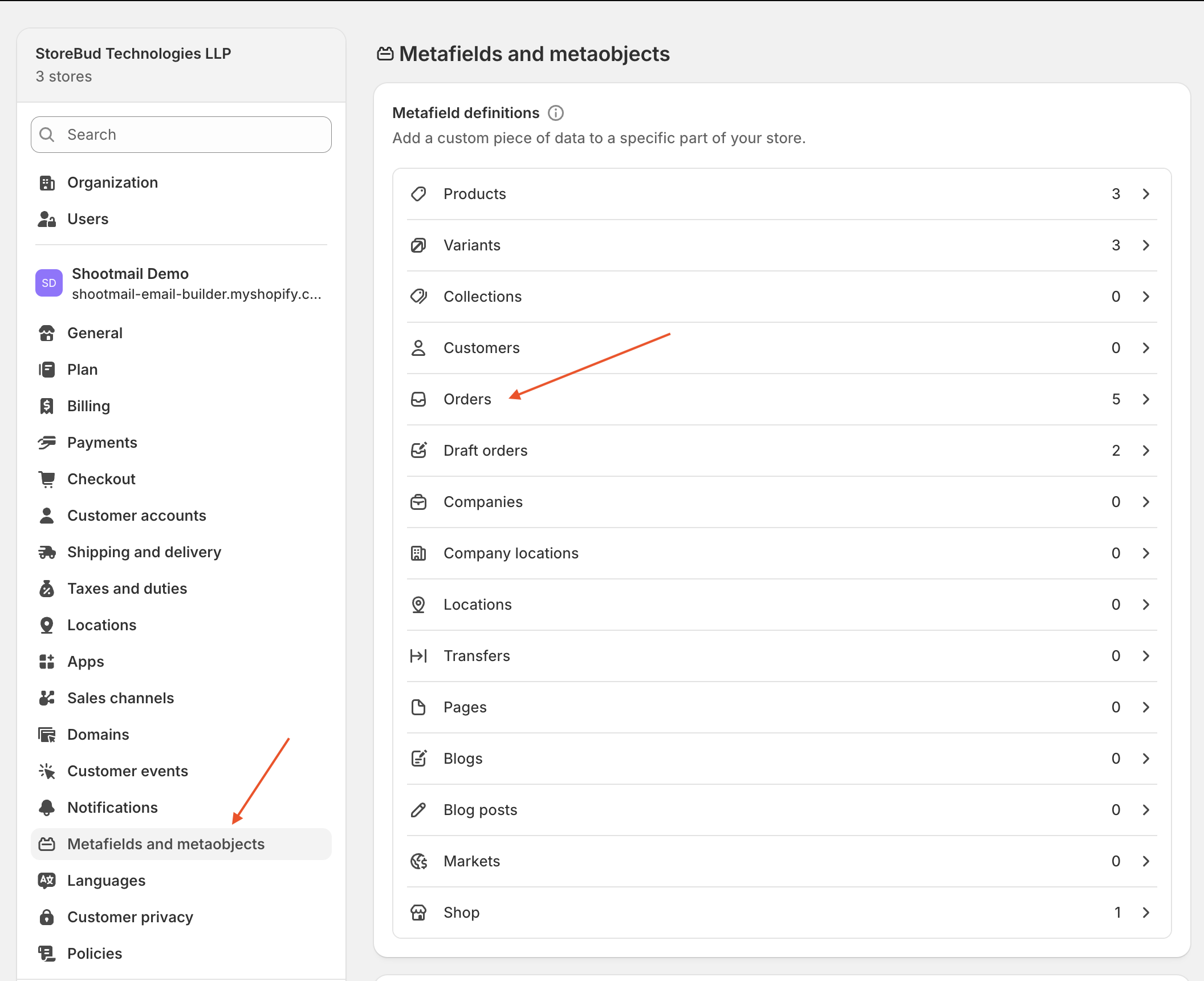
1. Order metafields - the most organized of the four. You first create the field once in Settings → Metafields and metaobjects → Orders. You give it a name (like Delivery date) and pick what kind of value it holds - text, a date, yes/no, and so on. Then your staff fill in the value on each order. Fields you “pin” show up right away in the Metafields box on the order page. The rest hide behind a View all link.
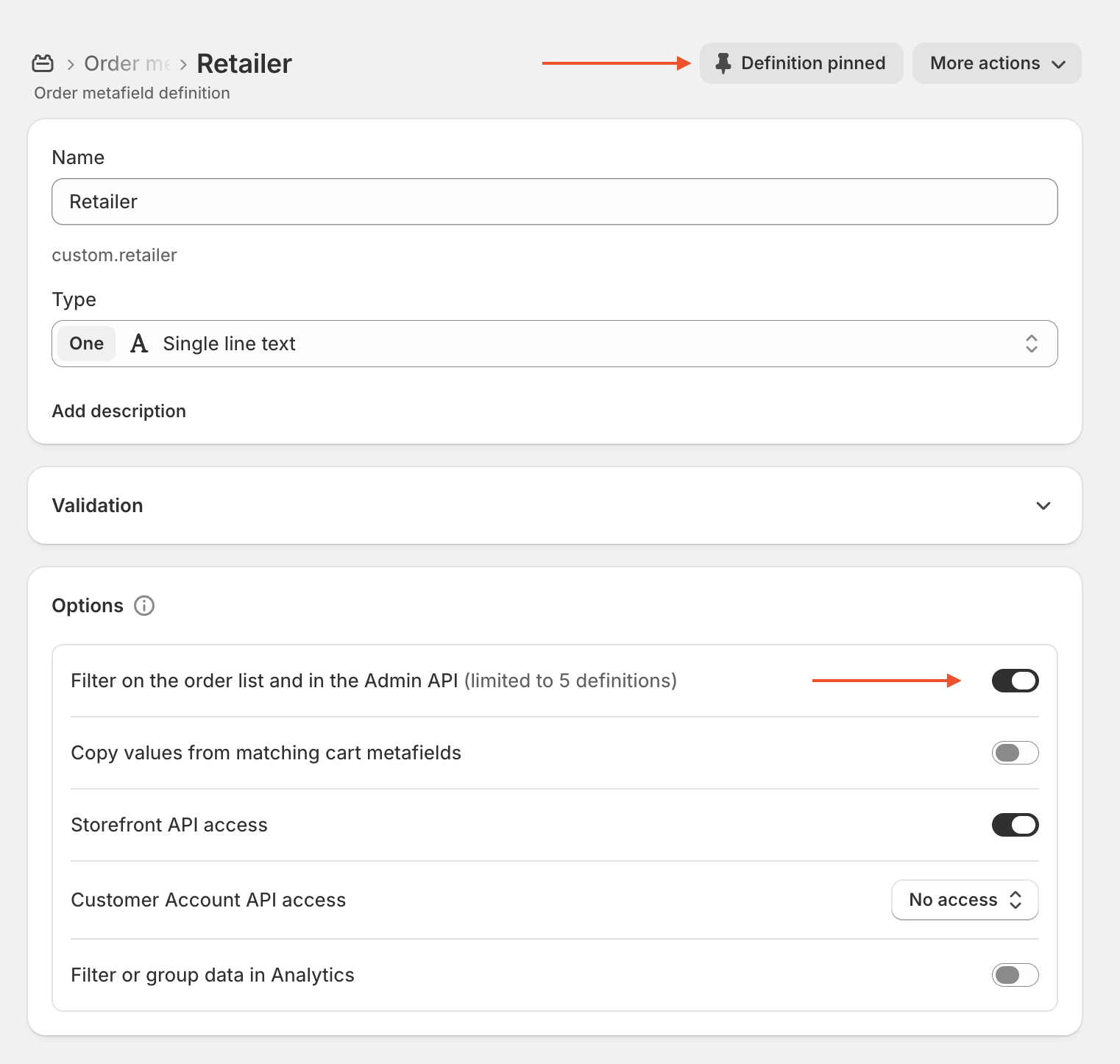
Metafields have one more advantage: they are the only one of the four that works with Shopify’s built-in orders filter. But only up to 5 fields, and only simple kinds like text or yes/no. Dates don’t work.
2. Order custom attributes (also called cart or note attributes) - plain “label: value” notes that apply to the whole order, like Delivery date: Sep 12, 2026. They are usually saved at checkout by your theme or a product options app, and they show in the Additional details box on the order. There are no field types and no checks on what goes in, and the built-in filter cannot use them.
3. Line item properties - “label: value” notes attached to each product in the order, like Initials: A.S. on a wallet, or a link to an uploaded photo. A product options app or your theme saves them when the customer adds the product to cart. They show under each product line on the order page.
4. Order notes - one plain text box per order. The customer can fill it at checkout, or your staff can add to it later. Easy to write, but hard to filter or turn into a column.
Here is the summary:
| Place | Best for | Where you see it | Works with the built-in filter? |
|---|---|---|---|
| Order metafields | Info your team maintains - batch, QC status, retailer PO | Metafields box on the order page | Yes - up to 5 fields, simple kinds only |
| Order custom attributes | Whole-order details from checkout - delivery date, gift message | Additional details box | No |
| Line item properties | Choices for each product - engraving, photo uploads | Under each product on the order | No |
| Order note | Quick reminders | Notes box | No |
Notice the pattern: all 4 places live inside the order page. None of them show up on the orders list (Admin → Orders) as a column. That gap is the whole reason this post exists.
How to collect custom data?
There are two sources of order data: your customers, and your own team or systems.
1. Collect from customers - like Maria’s delivery date
Shopify’s built-in product options (variants) can only handle simple choices like size or color - and only 3 options per product. A customer cannot type text, pick a date, or upload a file. That is exactly what product options apps add.
These apps put date pickers, text boxes, dropdowns, and file upload buttons on your product page. Whatever the customer picks gets saved on the order automatically - as line item properties or custom attributes, the two places we saw above.
Well-reviewed options (ratings as of September 2026):
- Globo Product Options - ~4.9★, free plan, paid from ~$9.90/month
- Easify Custom Product Options - ~4.9★, free plan, paid from ~$9.99/month
- Infinite Options - ~4.7★, $12.99/month, no free plan, around since 2015
One tip: if you want to filter or see the value on your orders list later, pick an app that saves things like the delivery date as an order custom attribute or metafield - not one that dumps every choice into the order note. Notes are hard to filter. Uploads should also be saved as real links you can click, not plain text.
2. Create internal data - like Anna’s retailer and PO number
For data only your team knows, you have 3 ways:
- By hand - free, no app. Create the field once in Settings → Metafields and metaobjects → Orders → Add definition, pin it, and your staff type the value on each order. Good enough for a handful of fields. (Shopify allows up to 250 such fields - plenty for most stores.)
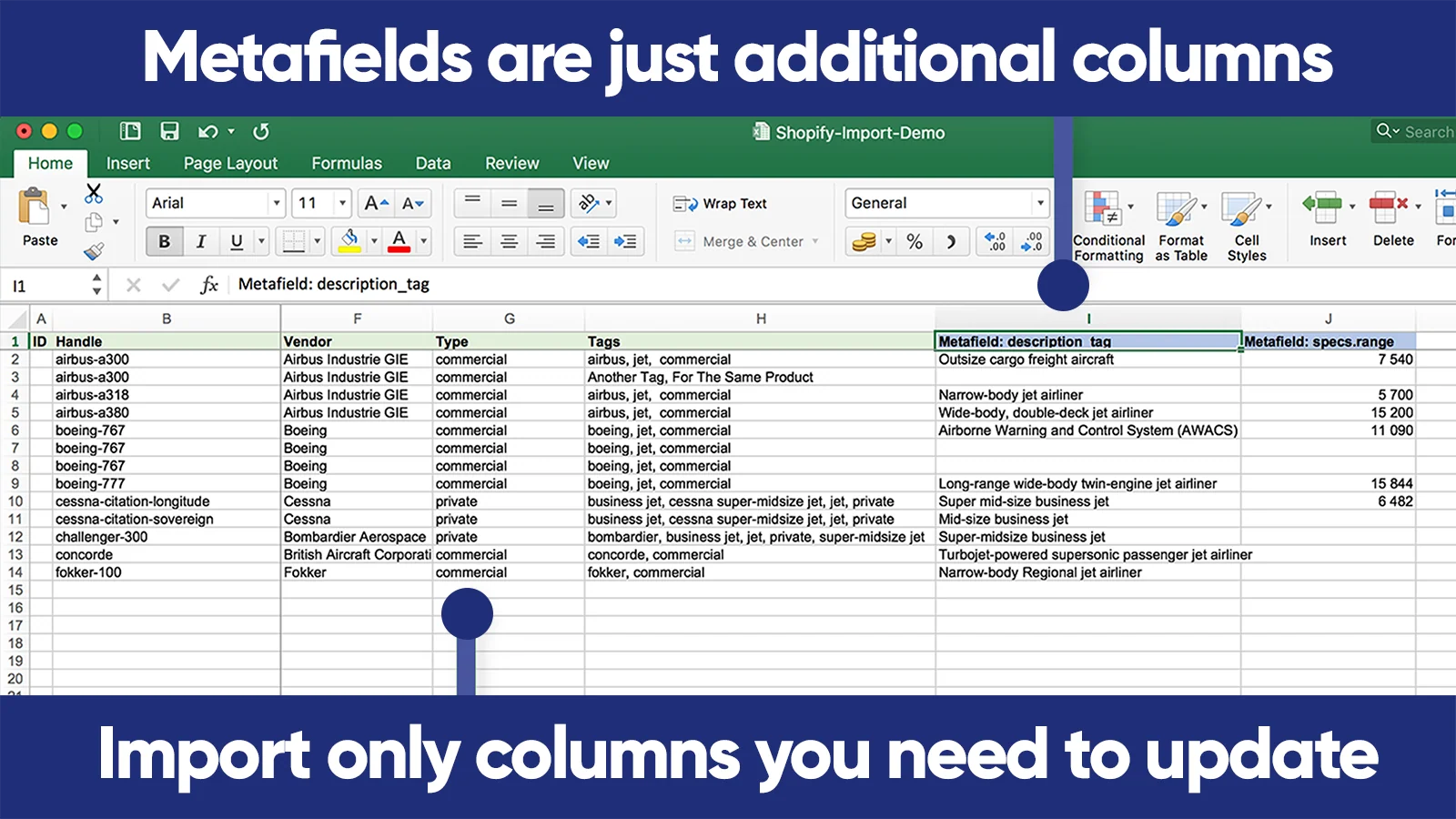
- In bulk - with a metafield editing app. Filling hundreds of orders by hand is too slow. These apps are built for it (ratings as of September 2026):
| App | Price | Best for | Rating |
|---|---|---|---|
| Matrixify | Paid plans | Import/export metafields with Excel, CSV, or Google Sheets - best for one-time bulk jobs | Highly rated, long-running |
| Metafields Guru | Free to install, ~$19/month for bulk | Spreadsheet-style editor inside Shopify - best for regular editing | ~5.0★ (~230 reviews) |
| Accentuate | $25/month | Bulk editing with a 90-day history of changes | ~4.8★ (~160 reviews) |
- Automatically - from your other systems. Shopify Flow (Shopify’s free automation tool) or your other business software - like an inventory or accounting system - can fill in metafields for you the moment an order arrives. Example: every wholesale order gets the retailer name and PO number filled in automatically, so nobody types them by hand.
One important thing: whether the data came from a customer or from your own team, it still sits inside each order. To see it across all orders at once, you need Shopify’s filter or custom columns - and that is what we will cover next.
Using the collected data to filter orders and create custom columns
Now that we have seen how to collect custom data and store with each order, in this section, we will see how to use that data to filter orders and create custom columns so that the fulfilment team has all the information at one place.
Filtering by metafields in the official Shopify orders view
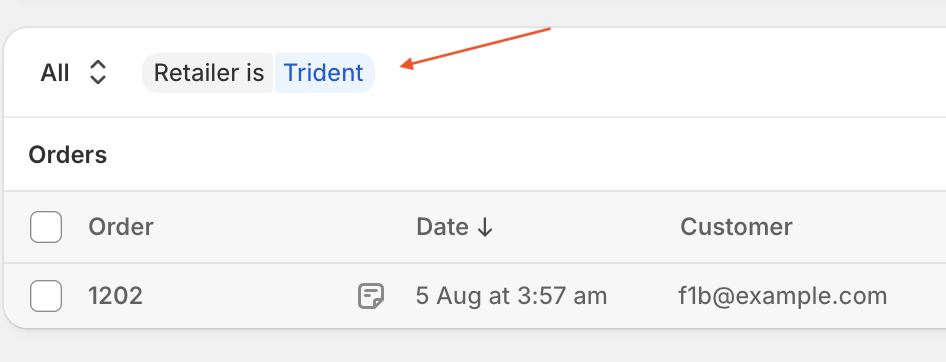
To filter the Shopify orders in the official Shopify orders admin view, you need to:
- Create metafields from the settings as explained above and turn on the filtering option.
- Once the filtering option is turned on, the metafield starts appearing in the search bar above the orders.
For a detailed setup and supported metafields, read this official document.
Two things to know before you rely on this:
- Only simple field types work - single-line text, yes/no, and a few reference types. Dates, numbers, and files do not. So a
Delivery datemetafield (a date) cannot become a filter - but a text field likeDelivery day: Saturdaycan. - A filter is not a column. Filtering shortens the list to matching orders, but you still cannot see the value on the list. To know which Saturday order is morning vs afternoon, you still have to open each order.
You can also save a filter combination as a named view (using Save as) so your team can reopen it anytime.
Adding the custom column directly to the order view using Orderline
Orderline is a Shopify app that has its own order management screen built to provide a better order management experience to the merchants. Orderline shows all the orders with its line items, images and customizations without having to click every order.
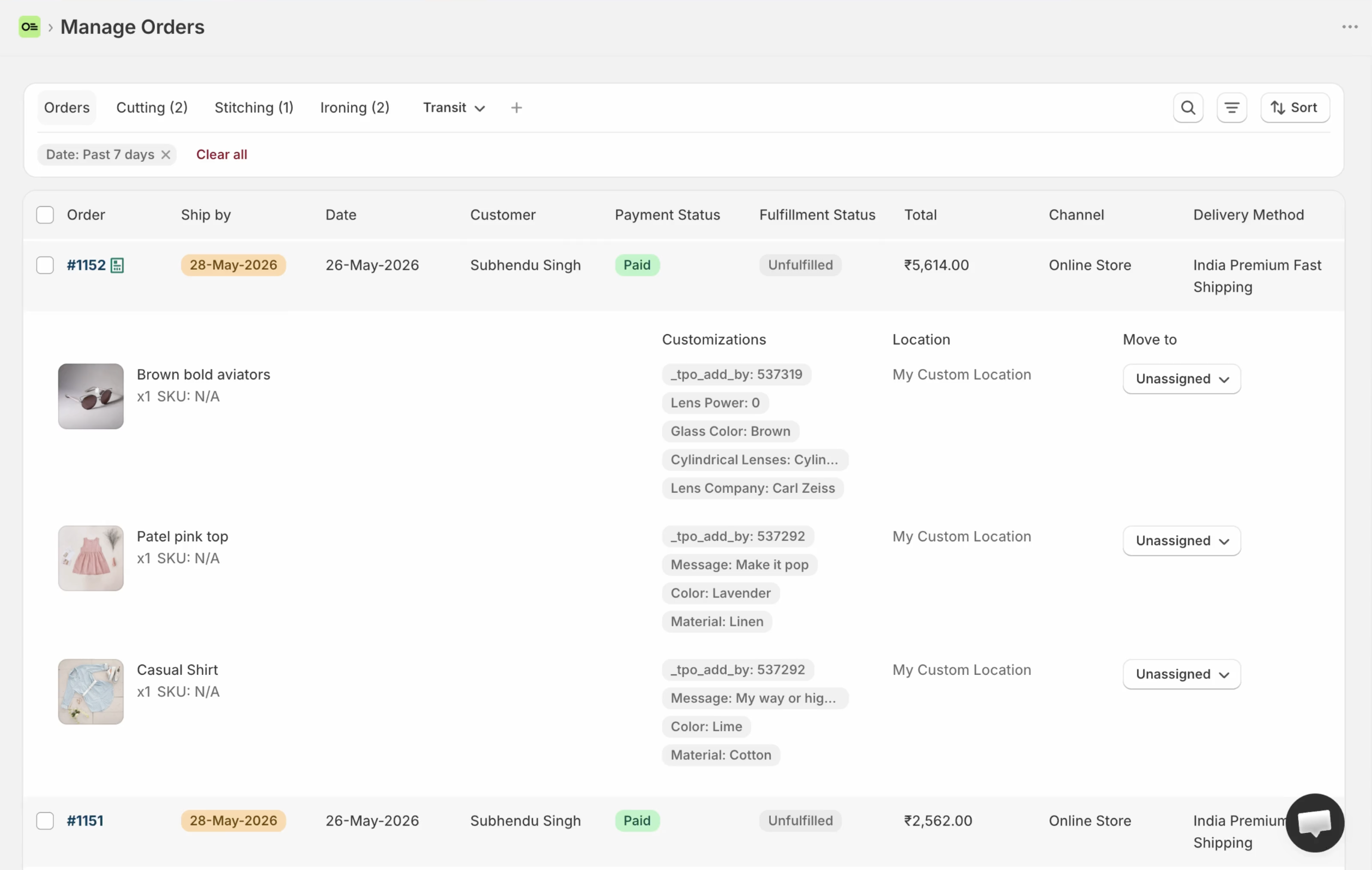
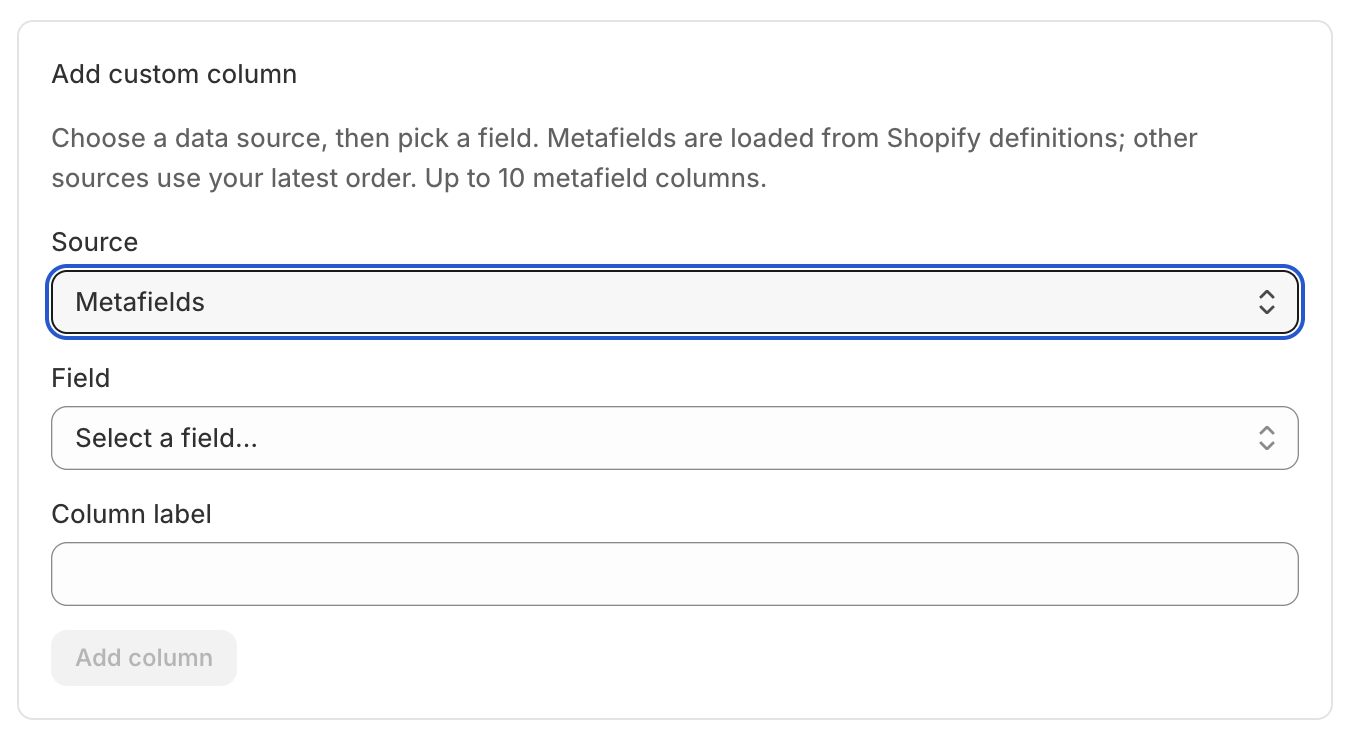
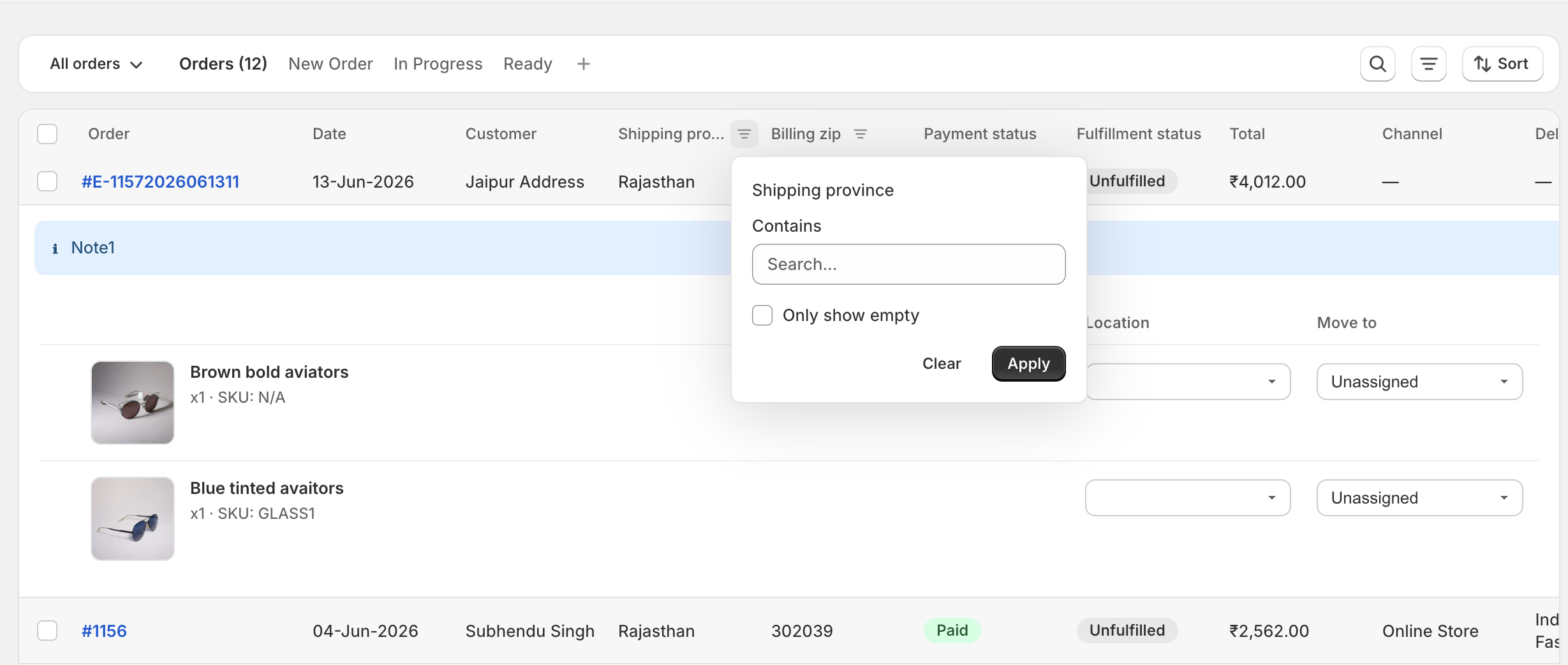
To add custom columns, Orderline has a columns settings where you can show/hide any column and add a new column using metafields, order attributes or shipping address fields.
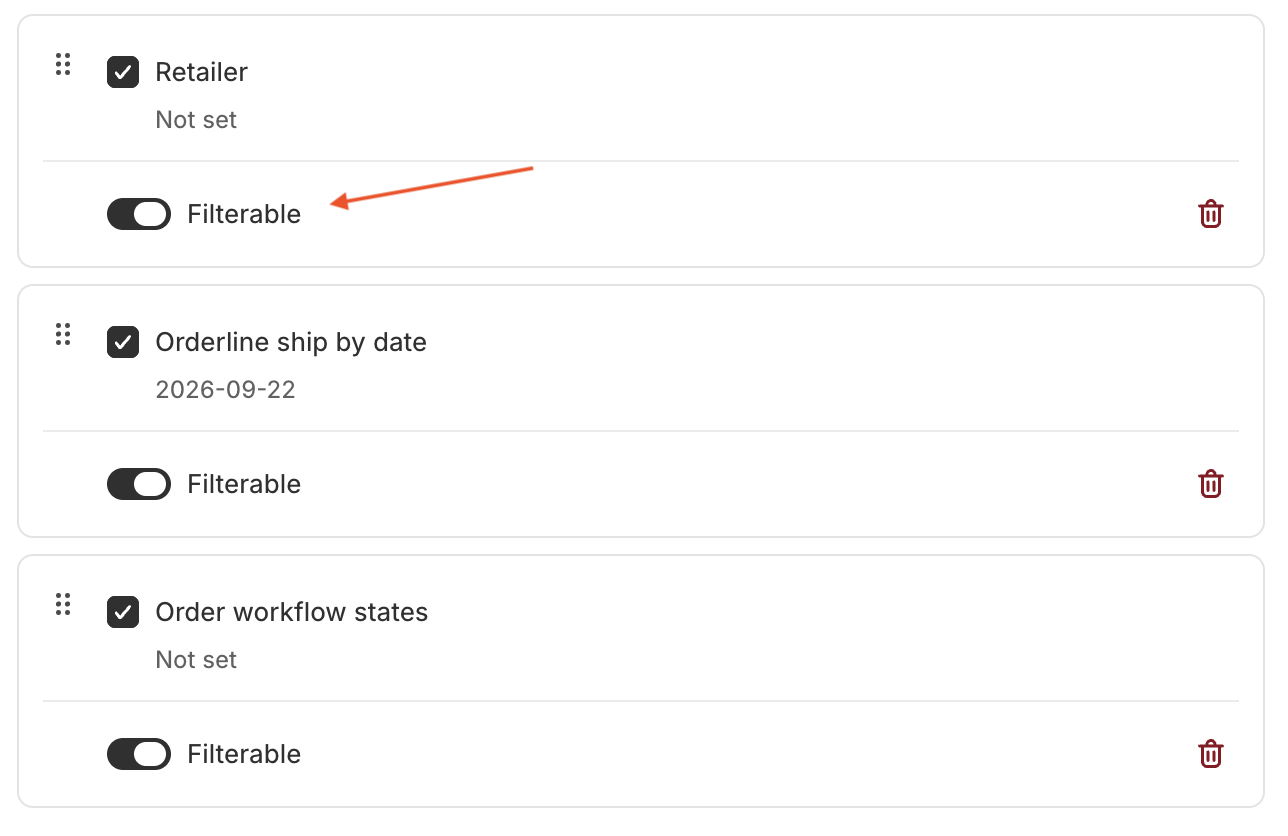
Optionally, you can mark your custom column as filterable
Once a custom column is added, it immediately appears in the orders table
To make things simpler, Orderline allows you to create views from the filters. Suppose, a particular staff member is only responsible for processing the orders coming from channels Etsy and Tiktok shops, you can filter by these channels and save the filters as a view.
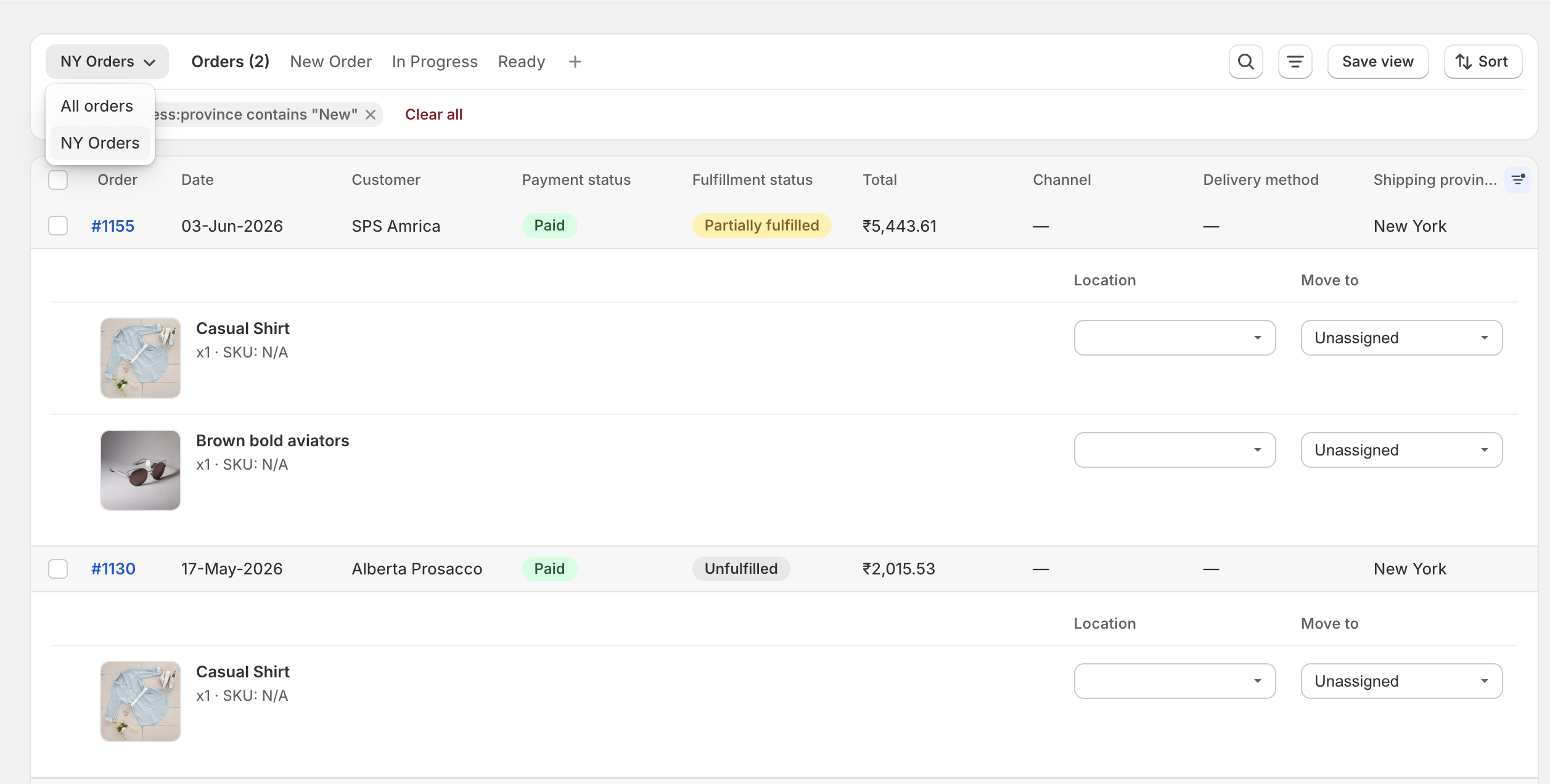
This way, you can have any data stored on your order as a real column on the orders management view.
A few honest limits, so you can decide fairly: Orderline does not change the official Shopify orders page - it is a separate screen. It supports up to 10 metafield columns, and only order metafields (a product metafield like a size chart cannot become an order column). Our App Store rating is 5.0★ from 8 reviews - a small but happy sample. (Disclosure: Orderline is built by our team.)
If you only need the data in a report once in a while, a simpler alternative is a spreadsheet export with an app like Matrixify, EZ Exporter, or Report Pundit - you get custom columns in Excel or Google Sheets, just not on a live orders screen.
Which option should you pick?
| Your situation | Best option | Cost |
|---|---|---|
| You just need a subset of orders - like all Saturday deliveries | Shopify’s built-in metafield filter | Free |
| The value must be visible as a column while scanning all orders | An orders screen like Orderline | From $9/month |
| You need the data in a report once in a while | Spreadsheet export (Matrixify and similar) | Varies |
| The data does not exist on orders yet | Collect it first - a product options app or metafields (sections above) | Free to start |
Frequently asked questions
Can I add a custom column to the official Shopify orders page?
No. You can only show, hide, and reorder the columns Shopify provides. Custom columns need a separate orders screen like Orderline, or a spreadsheet export.
Can I filter orders by a metafield?
Yes - up to 5 metafield fields, and only simple types like text and yes/no. Dates, numbers, and files cannot be used as filters.
Is filtering the same as a custom column?
No. Filtering shortens the list to matching orders. A column would show the value itself on every row - the built-in orders page cannot do that.
Where do cart attributes (like a delivery date) show up?
In the Additional details box on the order page. They cannot be filtered, and they cannot become columns on the default orders list.
Will a product options app add a column to the orders page?
No. Product options apps collect choices from customers on the product page. The choices are saved on the order, but the orders list stays the same.
About the author
Subhendu Singh is the founder of Orderline. He builds order management software for Shopify merchants who sell made-to-order and personalized products. X: spsbuilds.
Reviewer
Anjali Rathore reviews technical and operational accuracy on Orderline content. LinkedIn.
Sources (retrieved 7 September 2026)
- Shopify Help Center - Filter orders using order metafields
- Shopify Help Center - Searching and viewing orders
- Shopify Help Center - Metafield definitions
- Shopify Community threads - Items, shipping address, transaction ID columns · Product purchased column · Custom field on the orders page · Extra columns for ERP/CSV
- App Store listings (ratings and prices as of 7 September 2026) - Globo Product Options, Easify, Infinite Options, Matrixify, Metafields Guru, Accentuate, Orderline