
 Try for free
Guides
Customer emails for each production stage
Email Shopify customers when their product enters a production stage. Branded, sent automatically or after you confirm, and logged on the order.
Published · Updated
On this page
- Do you need customer stage emails?
- The short answer
- What does a stage email look like?
- How do you set up your branding?
- How do you turn on an email for a stage?
- Should you choose Ask each time or Send automatically?
- Why does a stage email go out per order and not per product?
- Where can you see which emails were sent?
- Who can set up and send stage emails?
- What are the limits?
- Related guides
Do you need customer stage emails?
Customer stage emails tell a Shopify customer, by email, when a product in their order enters a production stage you choose. Use them when buyers wait weeks for a made-to-order piece and keep writing in to ask how it is going. If your orders ship within a day or two, Shopify’s own order confirmation and shipping emails are enough, and you do not need this.
Shopify only emails the customer at a few fixed points: when the order is placed, when it ships and when it is delivered. Nothing goes out while the product is being made. A jewelry workshop that takes three weeks to set a stone has three weeks of silence, and that silence turns into “where is my order” emails.
The short answer
You turn on an email for each production stage in Orderline, for example “Stone setting” or “Ready to ship”. When a product moves into that stage, Orderline either asks you whether to email the customer or sends the email on its own two minutes later. Each email uses your logo, your sender name and your reply-to address, and every email sent is listed in the order history with a View and a Resend button. It works on every Orderline plan.
What does a stage email look like?
A stage email is a short message in your words, with your logo at the top, the products that moved, and a button that opens the customer’s Shopify order status page. You write the subject and the message once per stage. Orderline fills in the customer’s first name, the order number, the stage and the products for each order.
Here is the email a jewelry shop might send when a ring enters stone setting:
Hi Jane,
Your order #1042 is now in Stone setting. Our jeweller is setting the stone in your Gold band this week.
We will write again when it is ready to ship.
Below the message, the email lists the products that moved and shows a View your order button. Your footer sits at the bottom, followed by a small “Powered by Orderline” line.
The email comes from your sender name at updates@tx.orderlinehq.com. When the customer replies, the reply goes to your own reply-to address, so you answer from your normal inbox. Sending from your own domain is not available yet.
How do you set up your branding?
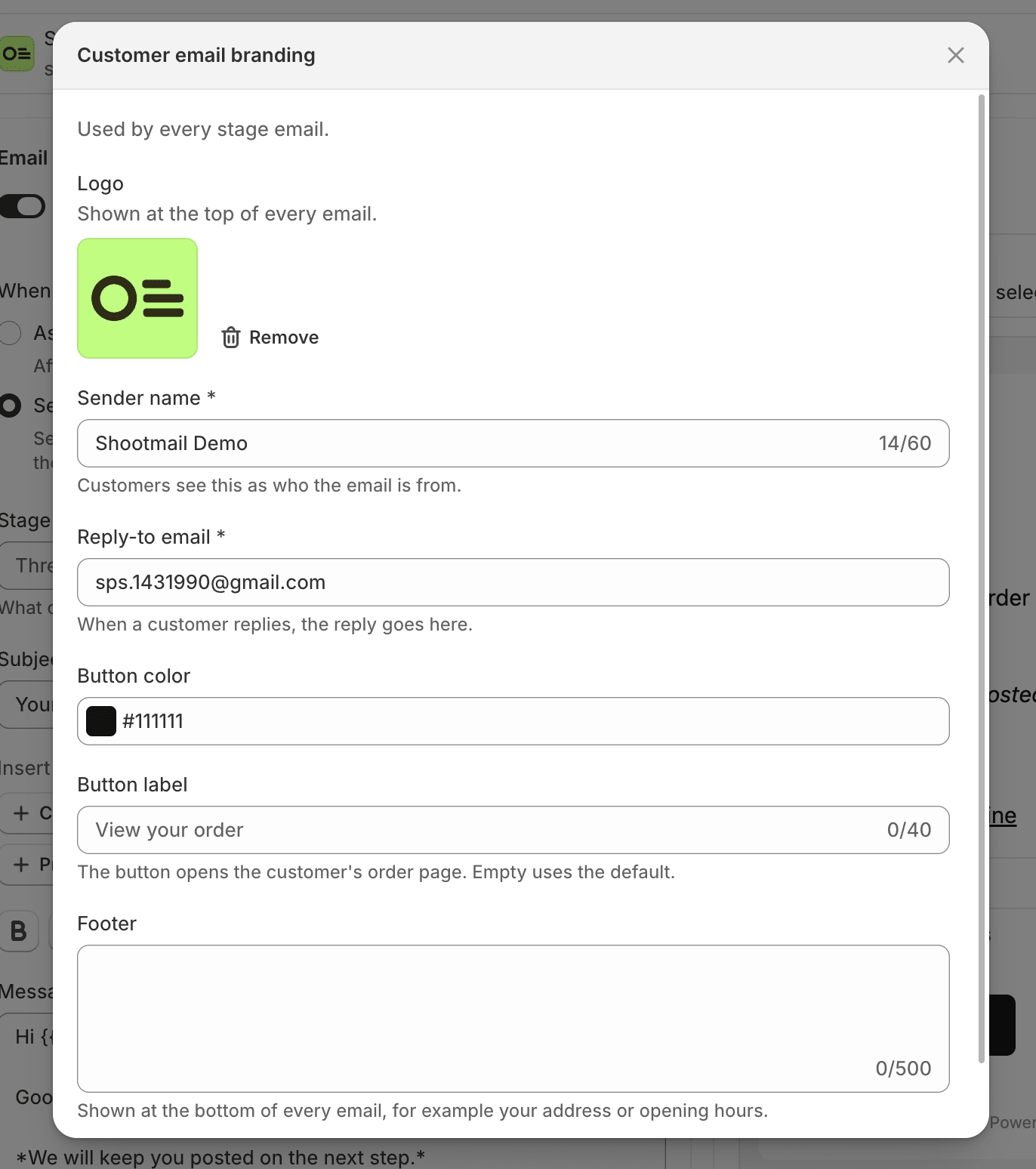
Branding is set once and used by every stage email. Open Settings → Branding, or click Set up branding on any stage’s email page. Both open the same form, so a change in one place shows up in the other.
The form has these fields:
- Logo. If your store has a logo in Shopify’s brand settings, Orderline fills it in for you. You can also upload a PNG, JPG, GIF or WebP file under 2 MB. The first time you upload, Shopify asks you to allow Orderline to add files to your store, and the logo is saved to your Shopify Files.
- Sender name, which customers see as who the email is from. It starts as your shop name.
- Reply-to email, where customer replies go. It starts as your Shopify store contact email.
- Button color and Button label for the button that opens the order page. The label starts as “View your order”.
- Footer, shown at the bottom of every email. Put your address or opening hours here.
Every word in the email is yours, including the button label and the footer. That means you can write the whole email in French, Japanese or any other language your customers read.
How do you turn on an email for a stage?
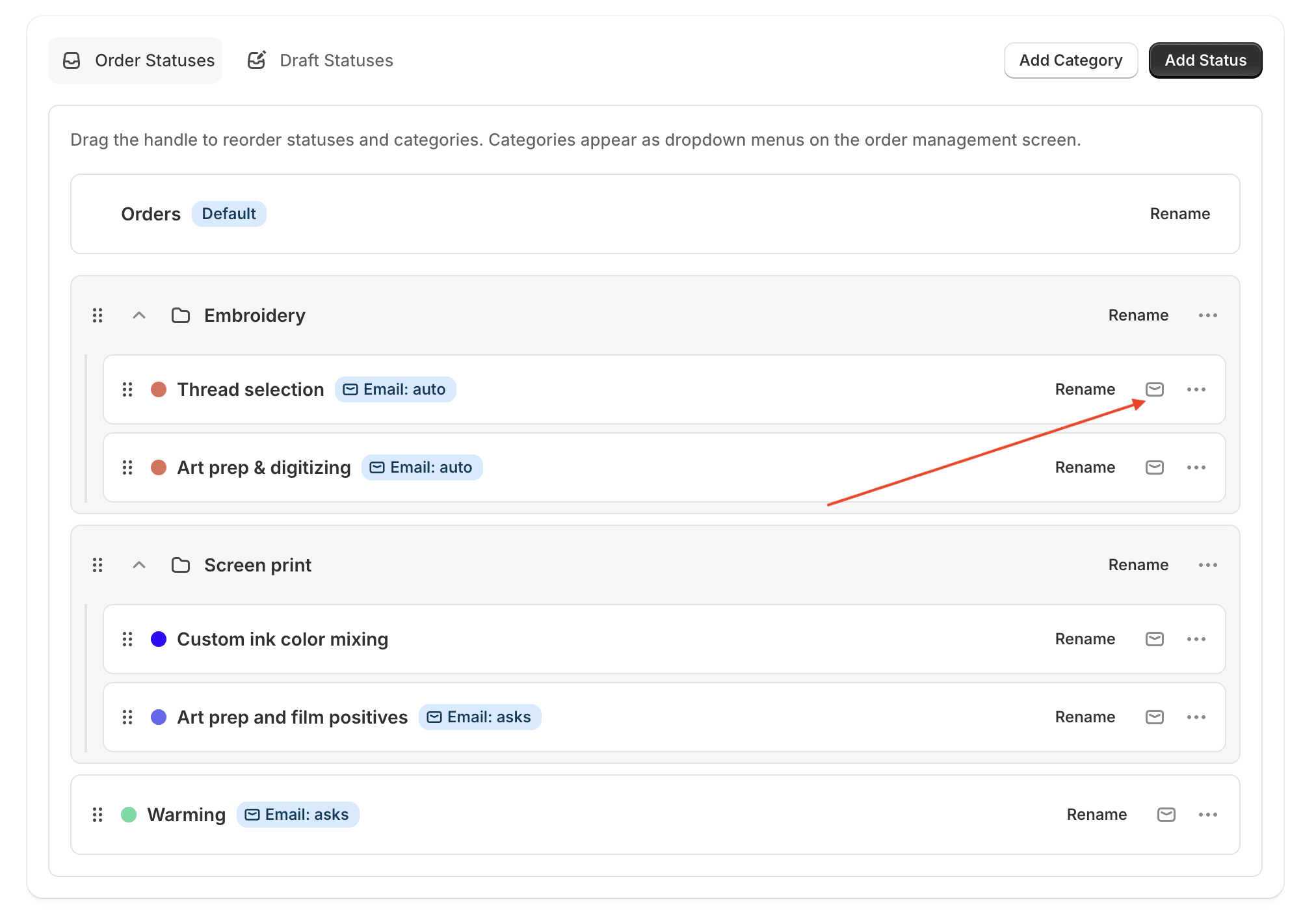
Each production stage has its own email. Open Statuses, find the stage, and click the mail icon on its row (on a phone, open the stage’s ⋯ menu and choose Customer email). Categories and the default Orders stage have no email, because products enter stages, not categories.
On the email page:
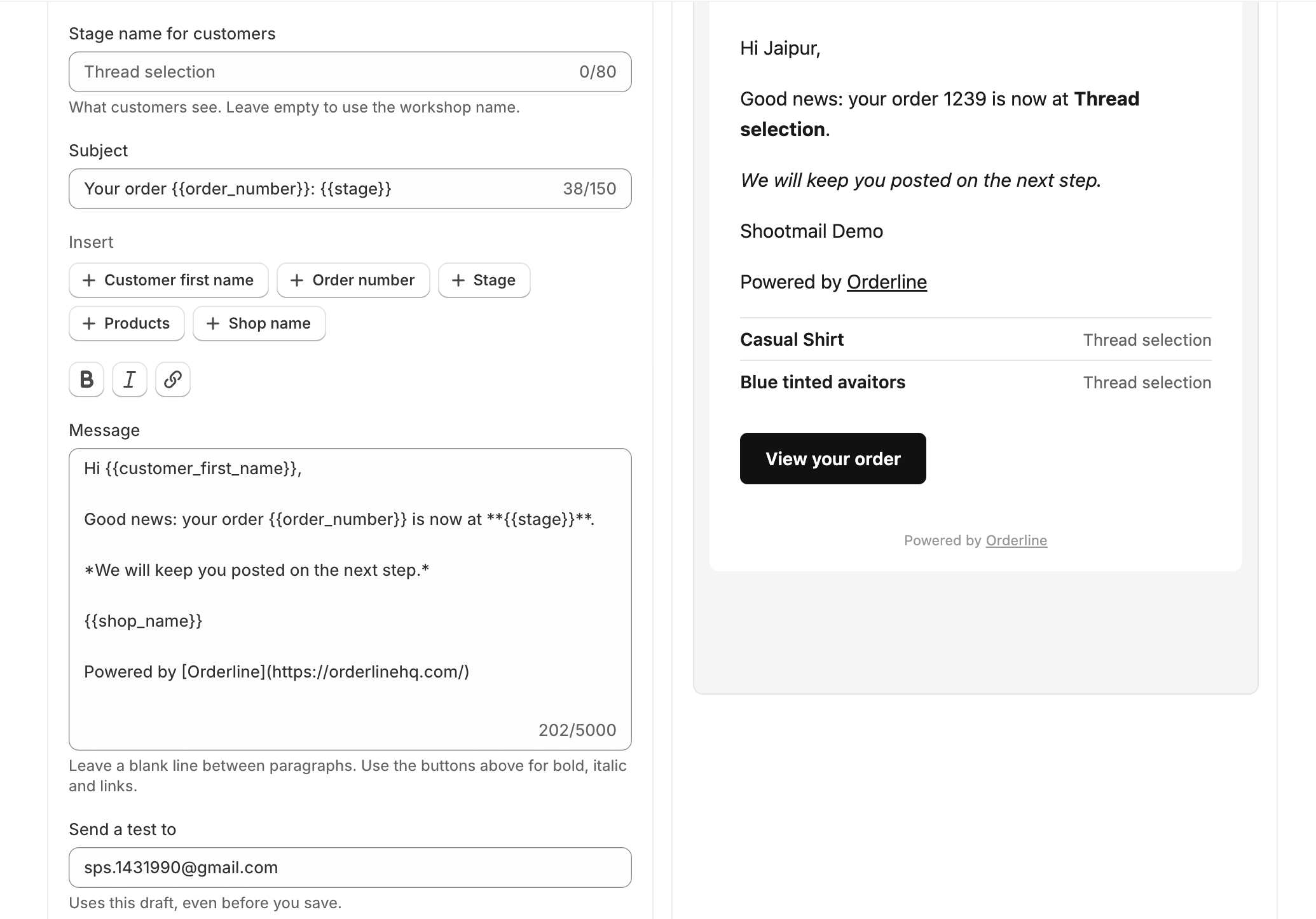
- Turn on Email customers when a product enters this stage. The subject and message are filled with a short default, so you edit instead of starting from a blank page.
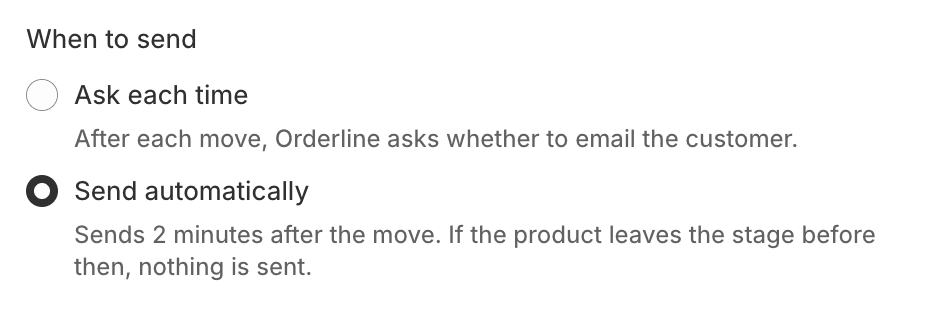
- Under When to send, pick Ask each time or Send automatically. The next section explains the difference.
- In Stage name for customers, write what customers should see. Leave it empty to use your workshop name. A stage called “Waiting on supplier stones” in the workshop can read “Preparing your stones” in the email.
- Edit the Subject and Message. Use the Insert buttons to add the customer first name, order number, stage, products or shop name. Use the bold, italic and link buttons above the message for formatting, and leave a blank line between paragraphs.
- Check the Preview on the right. It uses a real recent order from this stage, or sample data if the stage is empty.
- Under Send a test to, enter an email address and send yourself the draft. The test uses what is on screen, even before you save.
After you save, the stage row shows a badge, Email: asks or Email: auto, so you can see which stages send emails without opening each one.
Should you choose Ask each time or Send automatically?
Choose Ask each time when you want to decide per move, and Send automatically when every move into that stage should reach the customer. Ask each time is the default, and it is the safer choice while you get used to the feature.
With Ask each time, Orderline asks right after the move is saved:
- When you move one product from its stage dropdown on a computer, a small Email the customer? window names the customer, the product and the stage. Click Send email or Don’t send.
- On a phone, the question appears inside the same product sheet you used to move it, and the sheet closes after you choose.
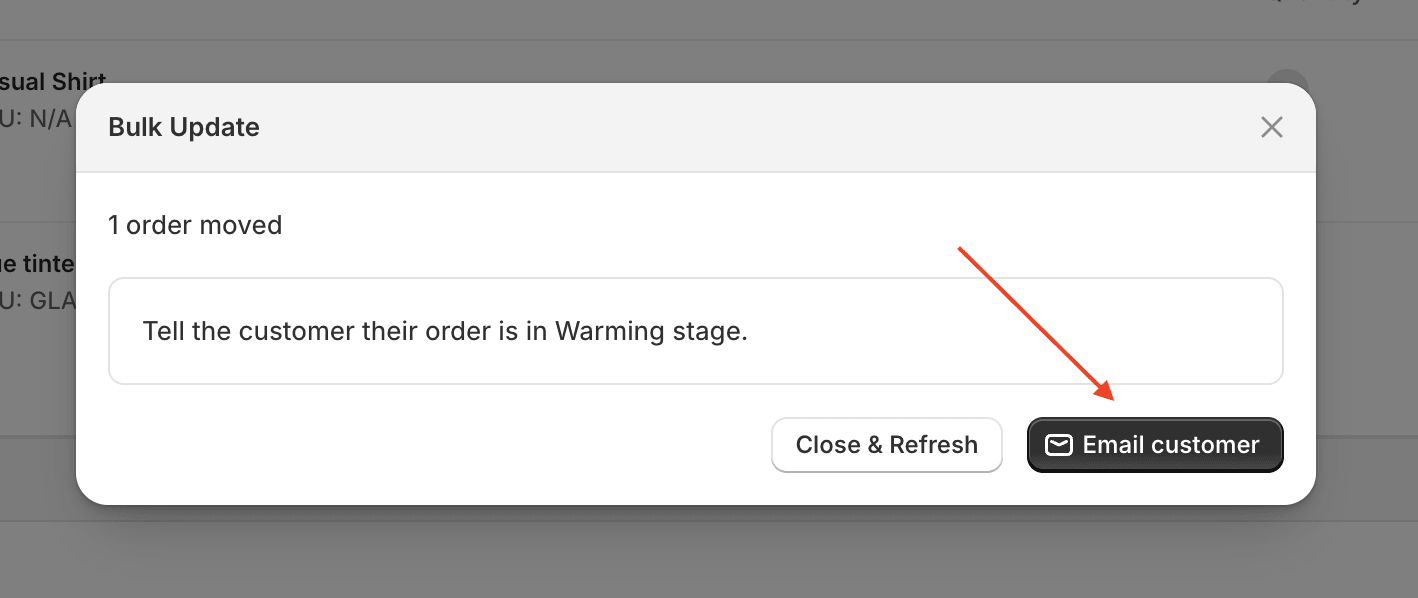
- When you move several orders at once, the progress window shows an Email 12 customers button when the move finishes. Close the window without clicking it and no emails go out.
With Send automatically, Orderline waits two minutes after the move and then checks that the product is still in that stage. If you moved a product by mistake and moved it back within those two minutes, nothing is sent. If two products from the same order enter the same stage within the window, the customer gets one email that lists both.
An order with no customer email is skipped. Orderline tells you how many orders were skipped, so you know who will not hear from you.
Why does a stage email go out per order and not per product?
A stage belongs to a product, but customers think in orders. If one order has a ring in Stone setting and a necklace in Polishing, each product can be in its own stage. When products from that order move, the customer gets one email per order that names only the products that moved.
So a bulk move of 30 orders sends 30 emails, one to each customer. Moving two pieces of the same order together sends one email listing both.
Where can you see which emails were sent?
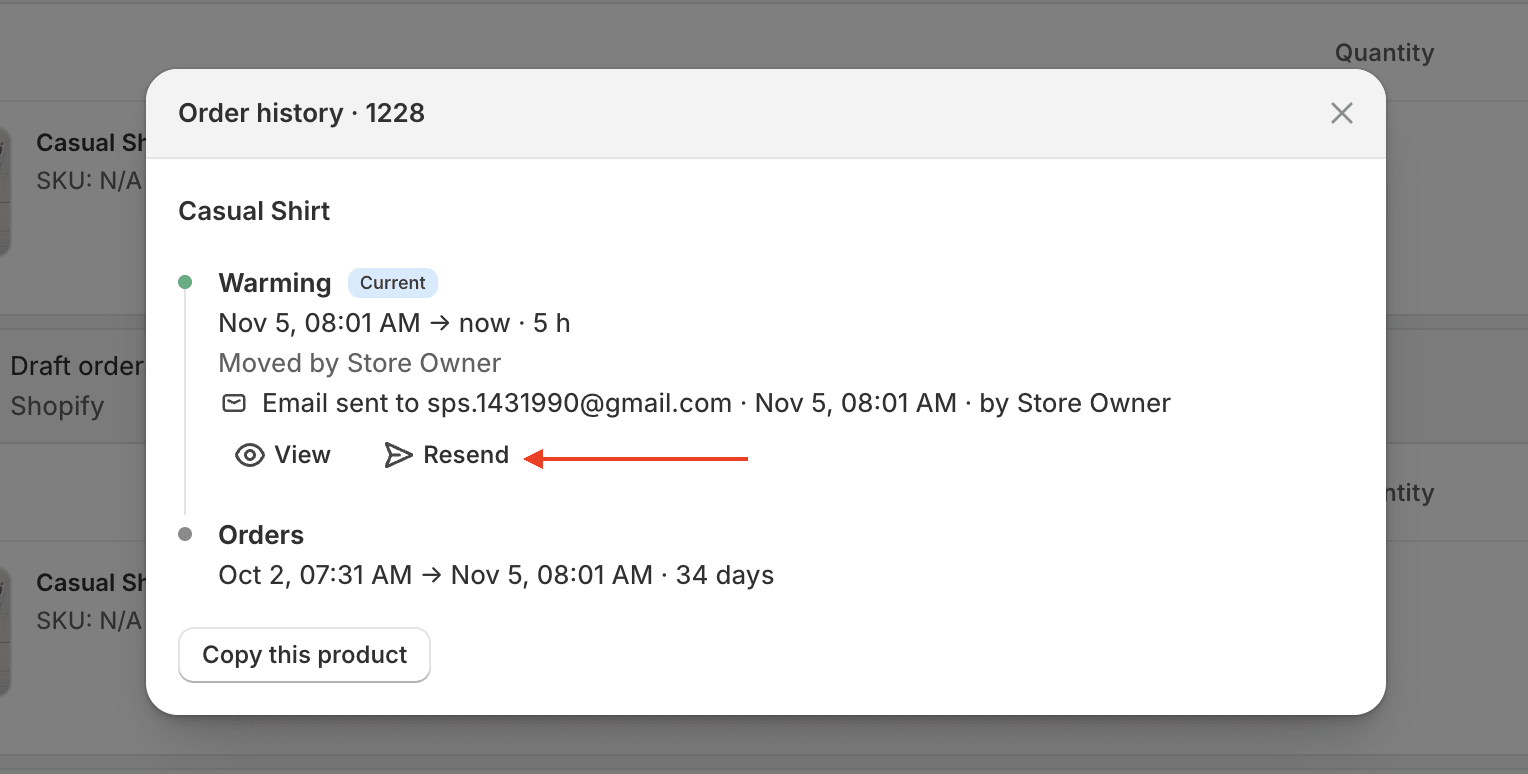
Every stage email is logged in the order’s history. Open the order’s ⋯ menu and choose View order history (on a phone, open a product’s ⋯ sheet and tap View order history at the top). Each email shows on the stage it was sent for, with who sent it and when.
Click View to see the exact email the customer received. Click Resend to send that same email again, even if you have edited the stage’s template since. A failed email shows the reason and a Retry button. The order stage history guide covers the rest of that window.
Who can set up and send stage emails?
Staff who can manage statuses can set up stage emails and branding. Anyone who can move products between stages can answer the Ask each time question and resend an email from the order history. See staff and location permissions to change who can do what.
What are the limits?
Stage emails are order updates, not marketing emails, so there is no unsubscribe link. Each shop can send up to 1,000 stage emails a day. Emails come from updates@tx.orderlinehq.com with your sender name, and replies go to your reply-to address. The tracking number is not included, because Shopify already sends it in its own shipping email.
Related guides
- Custom production statuses: create the stages that send emails
- Order stage history: see every stage a product passed through, and the emails sent on the way
- Staff and location permissions: control who can set up and send emails
- Getting started