
 Try for free
Guides
Order stage history: time in each stage
See each stage a product in a Shopify order passed through, how long it stayed and who moved it. Copy the timeline to answer a customer.
Published · Updated
On this page
Do you need order stage history?
Order stage history shows every production stage a product in a Shopify order has been through, with when it entered, when it left and how long it stayed. Use it when a customer asks where their piece is and you want a precise answer, or when you want to see which stage held an order up. If you only need to know the current stage, the orders list already shows that, and you do not need to open the history.
Shopify’s order timeline records payments, fulfillments and comments, but it knows nothing about your own production stages. Orderline’s audit log records stage changes too, but for the whole shop at once, which makes one order’s story hard to follow.
The short answer
Open an order’s ⋯ menu and choose View order history. You see one product at a time, newest stage first, with the time spent in each stage and the staff member who moved it. Two buttons copy the timeline as plain text, ready to paste into an email or a chat. History is recorded from the day the feature went live in late October 2026, so earlier moves do not appear.
What does the order history window show?
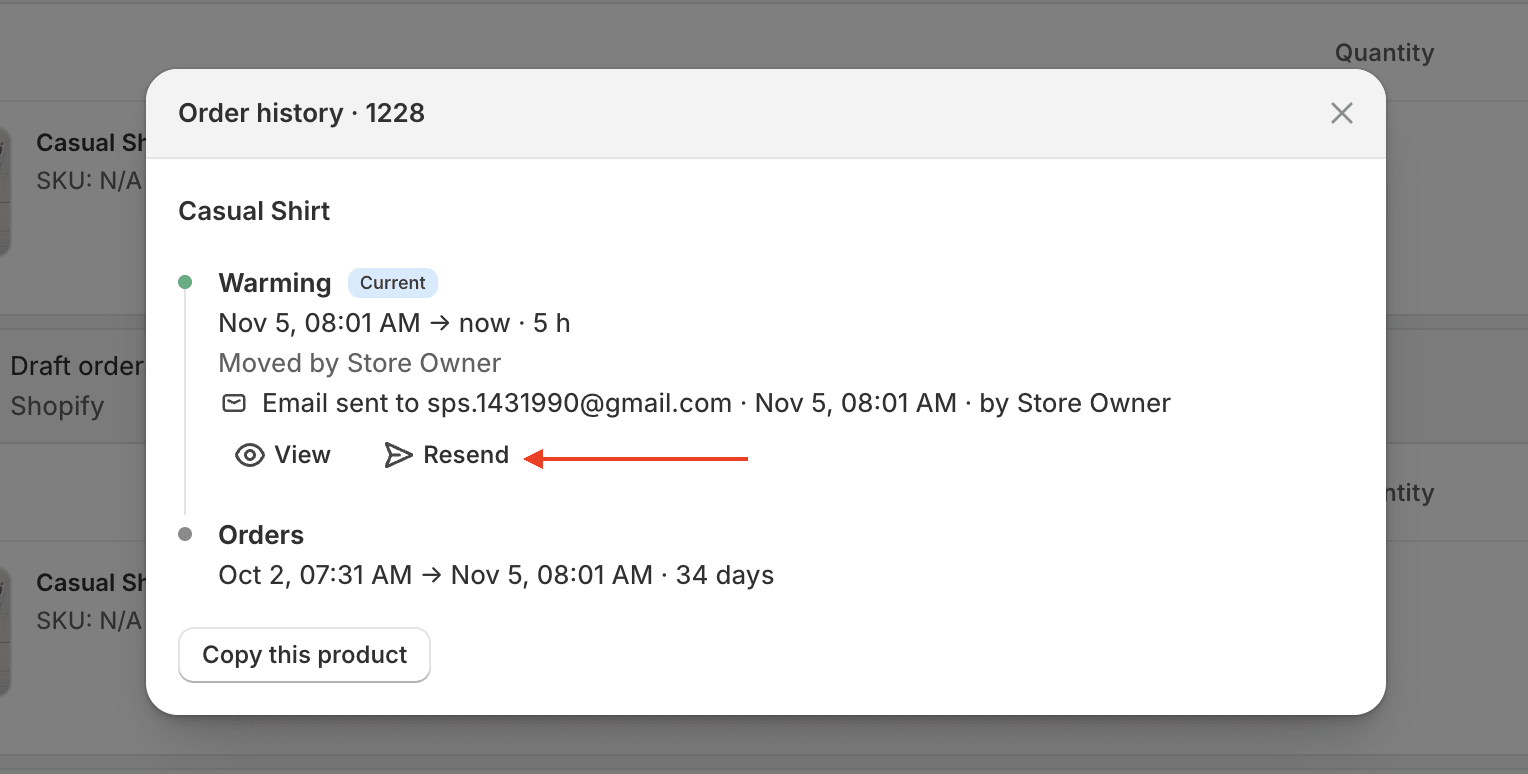
The window shows one product’s journey through your stages as a timeline, with the current stage at the top. Each stage lists when the product entered, when it left and how long it stayed. The current stage is marked Current and its time keeps running.
Take a jewelry shop with a two-piece order, #1042: a gold band and a necklace. The gold band’s history might read:
- Stone setting, Current, since 24 Oct, moved by Marie
- Casting, 22 Oct to 23 Oct, 1 day, moved by Marie
- Orders (your default stage), from the order date until it was first moved
Times use your shop’s time zone. A short stay shows in minutes, a longer one in hours, and anything over a day in days.
If the order has more than one product, a dropdown at the top picks which one you are looking at. Each option shows the product name, its variant and its current stage, so two similar pieces are easy to tell apart. Switching products does not reload anything.
How do you open order stage history?
On a computer, open the order’s ⋯ menu on the orders list and choose View order history. It sits under Notes. In compact rows, the menu shows once you expand the order.
On a phone, tap a product’s ⋯ to open its sheet. View order history is the first row. Tapping it shows the history in the same sheet, already on that product, and Back returns you to the move and location options.
The order number still opens the order in Shopify, as before.
How do you send the history to a customer?
Click Copy this product to copy the product on screen, or Copy all products to copy every product on the order at once. The text goes to your clipboard and nowhere else, so nothing is written to Shopify or to your notes. Paste it into your reply to the customer.
Copying the gold band from order #1042 gives:
#1042
Gold band
Casting: 22 Oct → 23 Oct (1 day)
Stone setting: since 24 Oct
The copied text leaves out the wait in the default stage and staff names, which the customer does not need. Those stay visible in the window for your team.
If you would rather tell customers automatically when a product moves, set up customer stage emails. Every email sent shows in this same history window, with View and Resend buttons.
What happens when a stage is renamed, deleted or the product ships?
Renaming a stage updates the name in every history, so you always see your current wording. Deleting a stage keeps the old name in past histories, so the record stays complete. When a product is fulfilled and leaves the board, its last stage closes at that time and the history shows Left the board.
What are the limits?
History starts from the day the feature went live. Moves made before that were not recorded, so an older order shows “History starts from today. Earlier moves were not recorded.” and the time since the order date. Moving a product to the stage it is already in adds nothing. A product waiting in the default Orders stage does not get a row until it is first moved, but the window still shows that wait.
Related guides
- Custom production statuses: set up the stages the history records
- Customer stage emails: email customers when a product enters a stage
- The Orderline orders view
- Internal production notes