
 Try for free
 Blog
How to See Every Customisation Without Opening Orders
Shopify keeps choices, card messages, notes and uploaded files inside each order. Read them all in one list, or print them on a packing slip.
Written by Subhendu Singh · Published · Updated
On this page
- How do made-to-order merchants view customisations currently?
- How does Orderline display customisations?
- Customer notes
- Personalisation chips
- Long text like card messages
- Image and file uploads
- Can Orderline also print the customisation for the bench?
- Frequently asked questions
- Can I see line item properties on the Shopify orders list?
- Does the Shopify order export include customisations?
- Where do customer notes show?
- How do I print personalisation on a packing slip?
- Why can't I see the option my customer chose?
- What to do next
- Sources
Made-to-order sellers offer a wide range of customization options to their customers. For example, a seller selling custom printed paper cups can offer options like logo, occasion, color, etc. A florist can offer options like bouquet type, flower type, card message, etc.
To prepare these orders, the seller and the staff needs to have the ordered line items and all the customisation options selected by the customer in front of them.
On the default order admin view of Shopify, the customisation options are visible on the order details page. So the staff has to go through each order one by one.
There are two ways to read those details without opening orders one by one:
- Orderline App: This is the plug-and-play option. You install the app and its default screen displays all customisations, line items, customer order notes and internal notes in one view. No extra setup needed. This is a paid app with a monthly subscription starting from $9.
- Packing slips: Customise the template once to include the customisations, then print slips in bulk. That route has its own page: How to Print Customisations on Shopify Packing Slips.
For a complete guide, read How to Manage Custom and Made-to-Order Orders on Shopify. This covers viewing customizations, building a production queue with ship-by dates, customizing packing slips, adding additional custom columns from metafields and a lot more.
How do made-to-order merchants view customisations currently?
The native Shopify’s orders list does offer a drop down on each order that lists the line items but not the customisations.
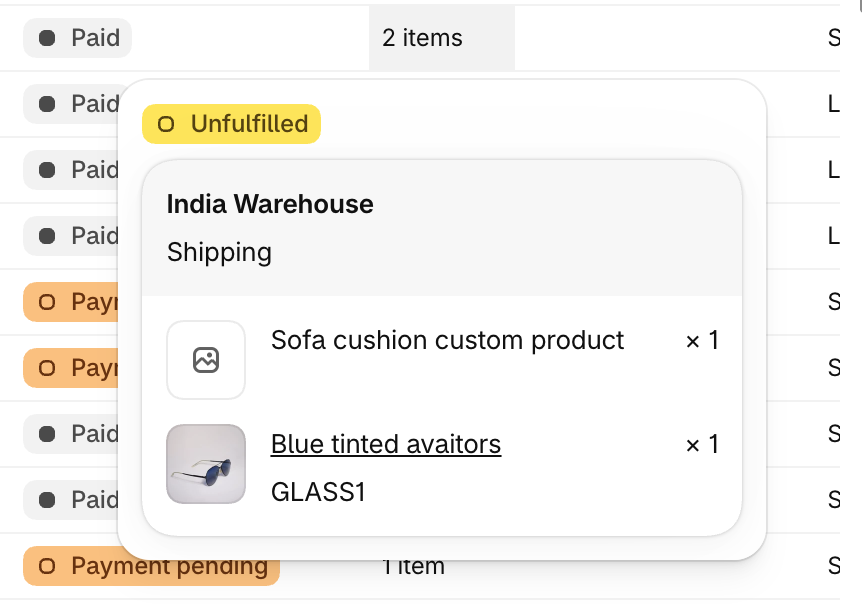
Before building Orderline, we researched which solutions the merchants use to view customisations without opening each order and here is what we found:
- Line Items: “click the little arrow in the Items column, this shows an overlay tooltip of the items; but it only shows one orders items tooltip at a time.” (Shopify Community). Checking 20 orders that way still takes 20 hovers, and moving the mouse closes the preview.
- CSV Export: Shopify’s standard export carries line item names, quantities, SKUs and prices, plus order notes and note attributes, but nothing for line item properties (Shopify Help Center). In 2022, a Shopify staff member told a merchant that the export would carry line item data. The merchant ran it and replied that the custom properties “did not show up on the exported CSV file.” (Shopify Community)
- Packing slips: Print the order instead of clicking it. The slip carries the line items, and once the template prints line item properties it carries the choices too. The packing slip page covers how to get them onto the page.
How does Orderline display customisations?
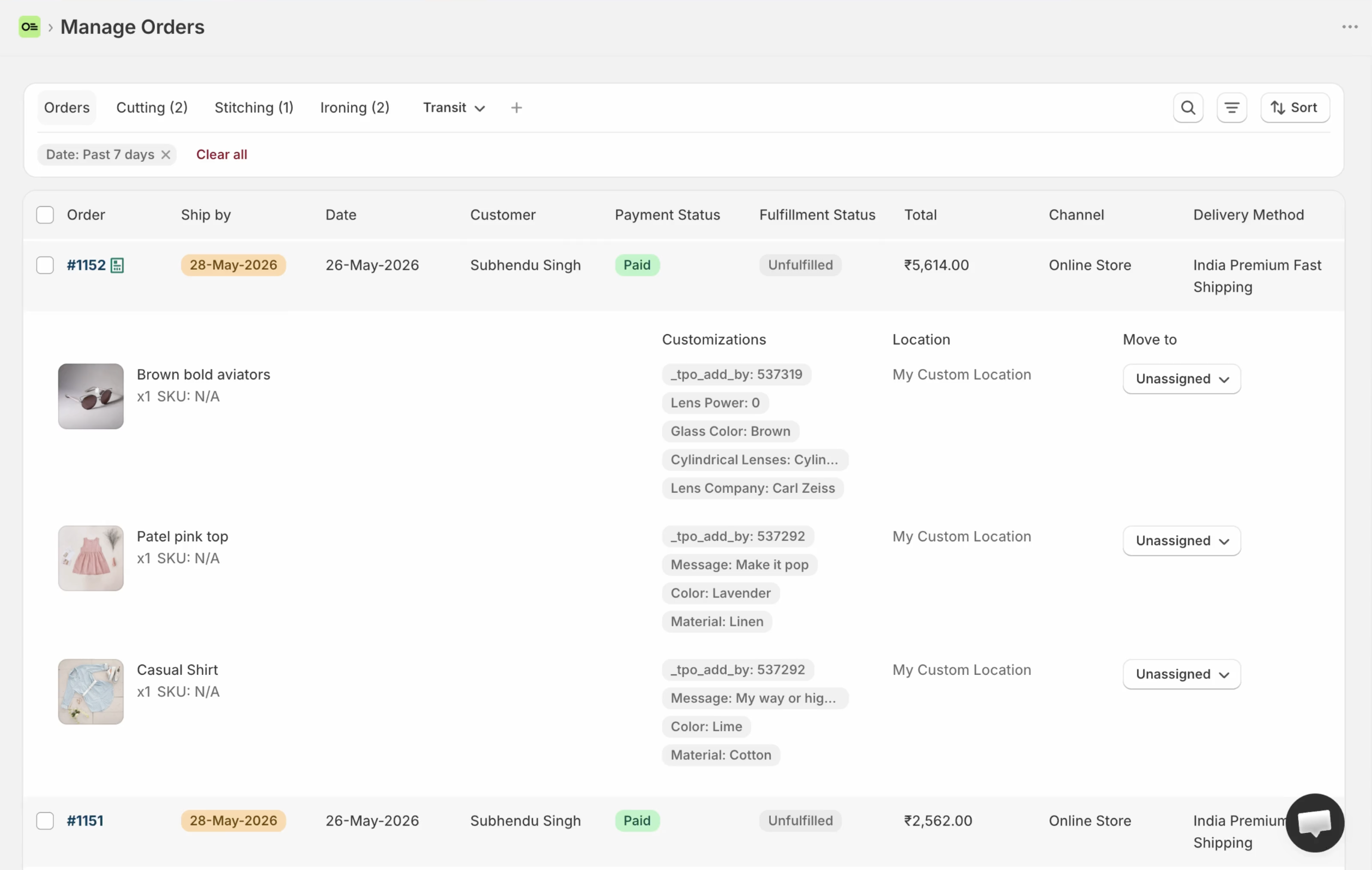
This is the plug-and-play option. Install the Orderline app and you are done. Orderline’s unified orders list displays line items with customisations selected by the customer, order notes, card messages etc.
Orderline works with any product options app like Infinite product options, Globo, Easify etc, so the choice really depends on which customisation choices you want to give to your customers and what is supported by the product options app. Here is how Orderline handles different types of customisations:
Customer notes
A customer note belongs to the order rather than a line item. Orderline gives it a dedicated strip above the items so it stays visible without getting mixed into product options. The same notes strip also displays delivery instructions, in case of local pickup and the internal notes you save just for your staff to see.
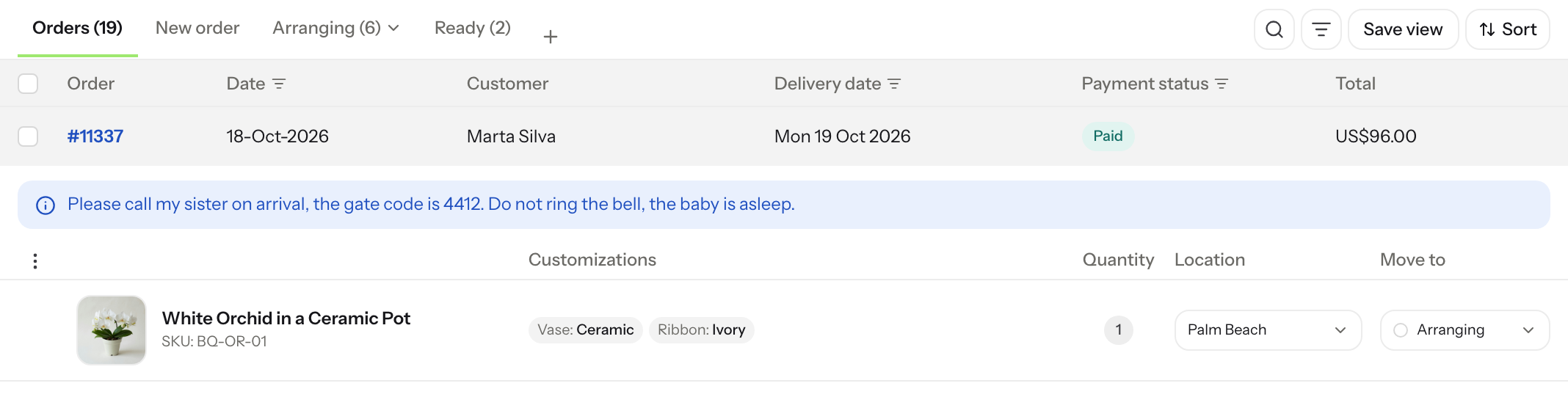
The note says how to deliver. Nobody has to open the order to read it.
Personalisation chips
Short answers appear as compact chips. Each one holds a grey label and a dark value, and several sit side by side on one line. Choices like Thread colour: Sage, Placement: Left chest and Font: Script read in a single pass, without extra words around them. Dropdowns, swatches and font pickers all produce short values like these.
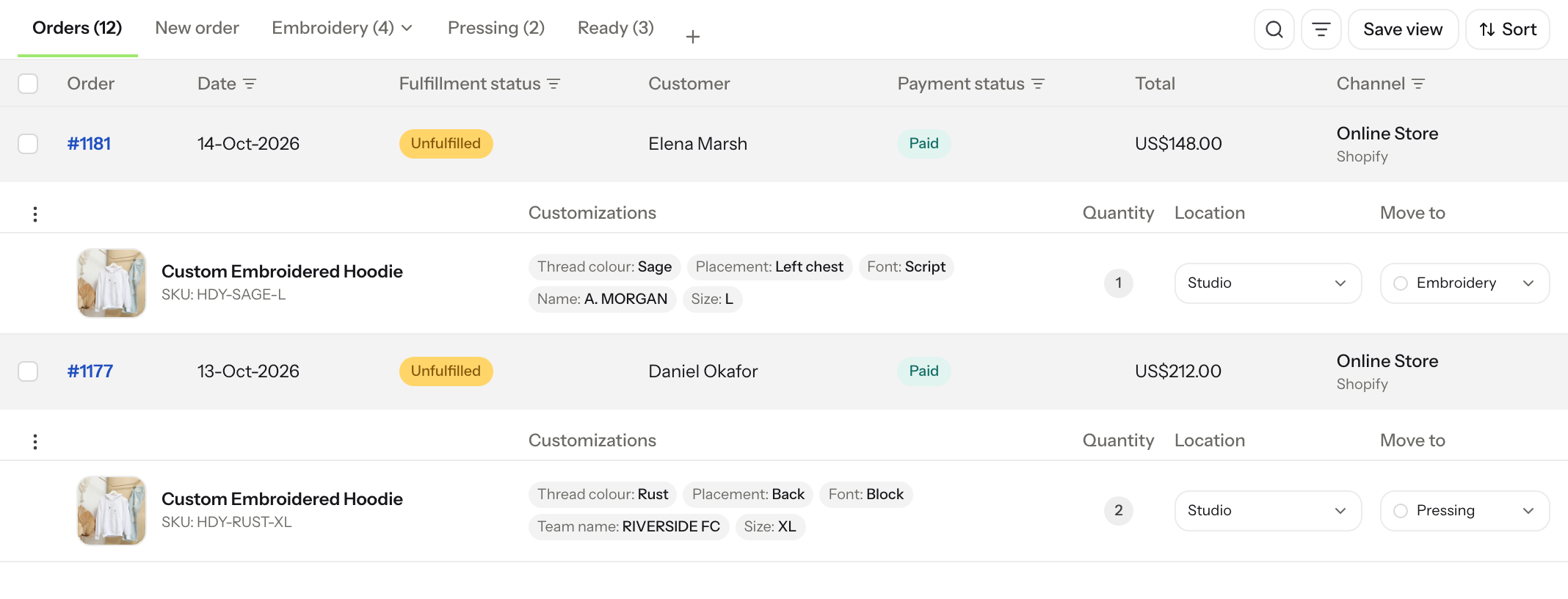
Five choices on two lines.
Long text like card messages
When a customer writes longer text, the value drops the chip format and wraps under its label instead. A card message stays whole at whatever length the customer wrote, with no ellipsis cutting it off. That full view matters most for gift notes, engraving copy, and lists of names on team apparel orders.
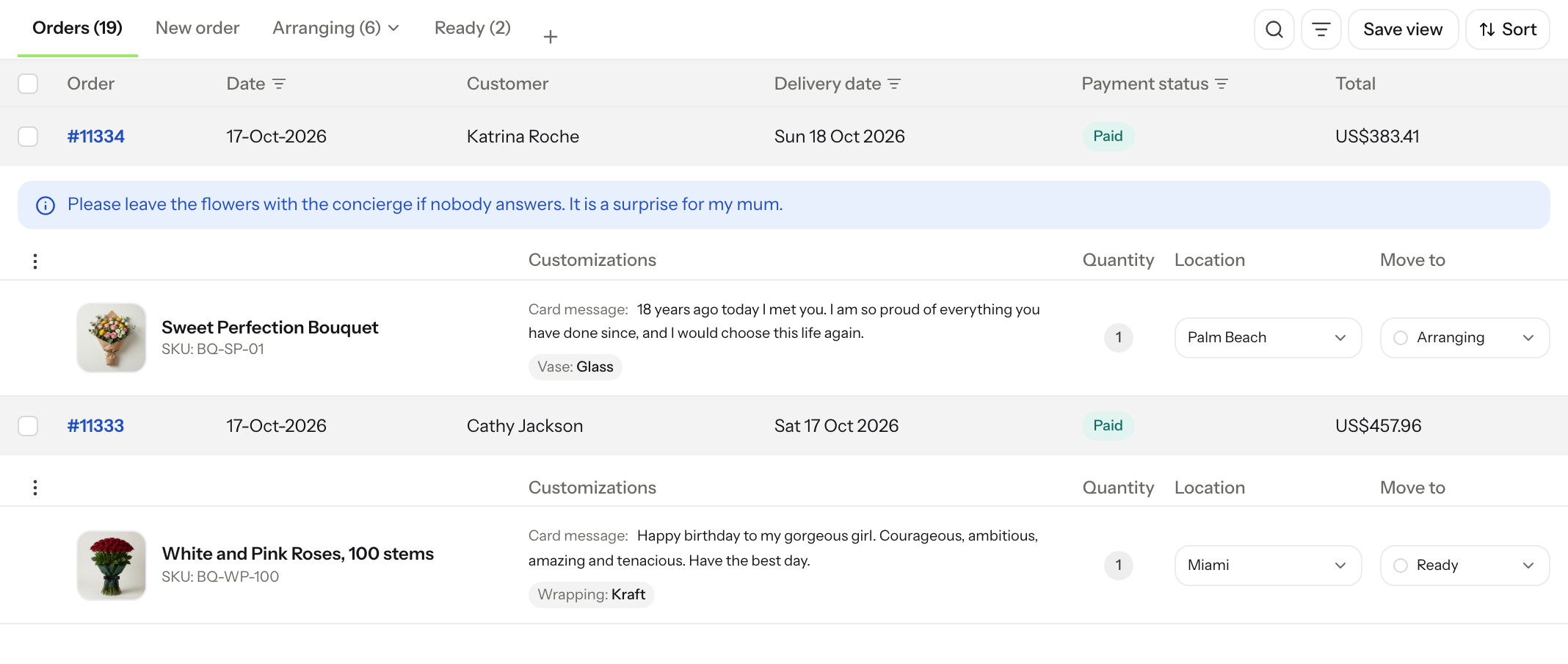
Two card messages, both readable in full.
Image and file uploads
An uploaded image arrives as a URL, and Orderline draws it as a small thumbnail beside the option. Clicking the thumbnail opens the full image in a new tab, so a logo can be checked without downloading files. A PDF or any other link stays a clickable link.
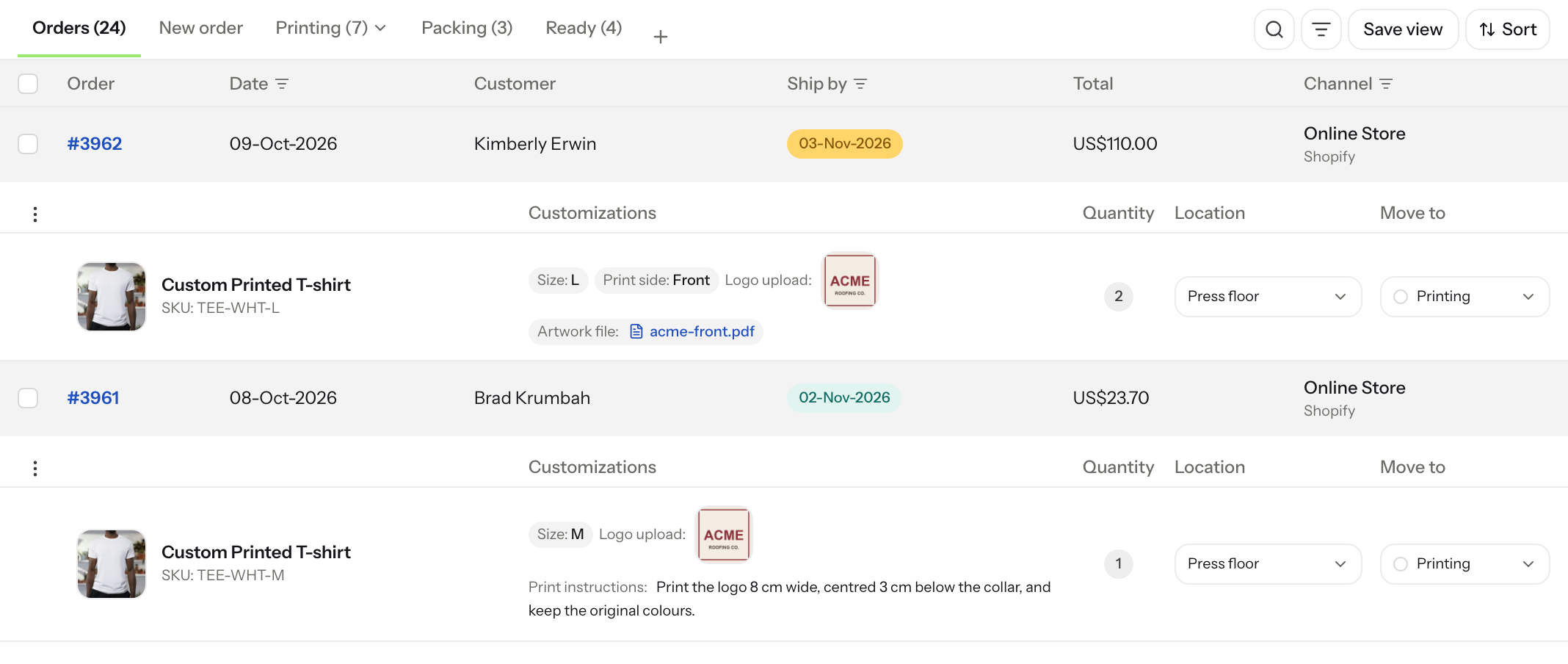
The logo is a thumbnail and the artwork is a link. Both sit under the item.
Can Orderline also print the customisation for the bench?
Yes. Orderline’s packing slips are built for production rather than for customers, so they print the line item customisations, the product image, the customer note and your internal notes. You can print up to 25 orders at a time from the same list, which keeps the screen and the paper in one place. The details and the template options are in How to Print Customisations on Shopify Packing Slips and the packing slips guide.
Frequently asked questions
Can I see line item properties on the Shopify orders list?
Not with Shopify alone. Properties show inside each order, and the Items column arrow opens a tooltip for one order at a time. An app’s own orders list is the only on-screen way to see them all at once.
Does the Shopify order export include customisations?
No. The export has columns for line item name, quantity, SKU and price, plus order notes and note attributes, and nothing for line item properties. If you need them in a spreadsheet, use an export app and test that your options app’s fields arrive.
Where do customer notes show?
In Orderline they appear as a strip above the line items, with the note text in the list and a link to open the rest. Delivery instructions and internal notes sit alongside. Shopify’s own orders list does not show the note text, so you open the order to read it.
How do I print personalisation on a packing slip?
Add a loop over each line item’s properties in Shopify’s packing slip template, generate that code with our free template designer, or build a template in an order printer app. How to Print Customisations on Shopify Packing Slips walks through the edit.
Why can’t I see the option my customer chose?
Your options app has to save the buyer’s input as a line item property. If a choice appears in the cart and disappears from the order, the app is writing it somewhere else, such as a cart attribute or a metafield. Ask its support team which field the input writes to, then place a test order.
What to do next
Choose the route that matches how your team already works, and test it this week.
- If your bench works from paper, print the customisations on packing slips covers the template edit, the free designer and the order printer apps.
- If you need the list on screen, install Orderline and open Orders. The unified orders view guide shows what each row holds.
- If you are not sure yet, tag a week of custom orders, save a view filtered on that tag, and print the slips. Once clicking into each order takes longer than making the products, come back to the first two steps.
Sources
Read 19 October 2026.
- Shopify Help Center: Exporting orders
- Shopify Liquid docs: line_item
- Shopify Community: Is there ANY way to show the actual ordered items in the Admin Orders page? (October 2024 to April 2025)
- Shopify Community: Orders Export CSV Contain Line Item Properties (December 2022)