
 Try for free
 Blog
How to Print Customisations on Shopify Packing Slips
The default Shopify packing slip doesn't print the customer's customisation. Change the template once so it does, then print slips for multiple orders.
Written by Subhendu Singh · Published · Updated
On this page
- The short answer
- Why is the customisation missing from my packing slip?
- Can Orderline print the customisation on its packing slips?
- How do I add the customisation to Shopify's packing slip template for free without an external app?
- How do I add the customisation without writing code?
- Which order printer app should I use?
- Can I print packing slips for multiple orders at once?
- When does a printed slip stop working?
- Frequently asked questions
- Does Shopify Order Printer print line item properties?
- Do I need a developer to change the packing slip?
- Will this work with my product options app?
- Can I print a 4 by 6 thermal packing slip?
- What to do next
- Sources
Made-to-order sellers offer a wide range of customisation options to their customers. A seller selling custom printed paper cups can offer a logo, an occasion and a colour. A florist can offer a bouquet type, a flower type and a card message.
To prepare the order, the fulfilment staff needs the customisation details requested by the customer in front of them. The usual way to do this is to print packing slips.
Shopify already prints the packing slips but the default slip doesn’t print the customisations. It shows the product, its image, the SKU and the quantity, and nothing that the customer selected on the product page. So your staff still has to open each order on the screen to read what to make, or write the details on the printed slip by hand.
The good news is that this can be fixed. Shopify lets you change the packing slip so it prints the customisation, and you only have to do it once. This guide shows you how.
If you rather want a plug-and-play app that lists all order line items, customisations, order notes and order deadlines in one view, read how to see every customisation on your Shopify orders without opening each one. For the rest of the workflow around custom orders, read How to Manage Custom and Made-to-Order Orders on Shopify.
The short answer
To print the customisations selected by customers on the packing slips, you need to either customise the default packing slip template provided by Shopify by replacing its code or use an app that can print packing slips with custom details without coding. Below are the three routes you can take:
- Orderline app: Orderline has a built-in packing slip customiser where you can toggle data on or off to include in the packing slips. This data can come from the line item properties, metafields or order custom attributes. This app is paid and starts from $9 per month.
- Free packing slip designer: Orderline also has a free packing slip designer tool that has 4 templates and helps you customise the packing slips visually and generates an optimized liquid code that you can paste in the Shopify settings.
- Order printer apps: You can use Shopify’s free Order printer app (rated 3.6) or paid Order printer pro (rated 4.9). These apps also help you customise the packing slip template but make it easy by letting you include metafields or liquid variables without you having to figure out the code yourself.
| Orderline | Shopify’s packing slip template plus our designer | Shopify Order Printer | Order Printer Pro | |
|---|---|---|---|---|
| Cost | starts from $9/m | Free | Free | Free to install, paid plans |
| How you add the customisation | Toggle buttons, select fields from metafields, line item properties or custom attributes | Generate visually with our designer | Edit the app’s template | Options for line item properties, liquid variables, metafields |
| Printing multiple orders | Select in bulk and print from Orderline’s order screen | From the Shopify orders list | Up to 50 orders | Yes |
| Best for | If you sell custom products and also manage custom production stages | One slip, with nothing extra installed | Free printing from Shopify’s own app | If you also need to manage other branded business documents like invoices. |
Why is the customisation missing from my packing slip?
The default packing slip template doesn’t print it. Shopify saves the customer’s choices on the line item as properties, and the default template prints only the product title and image, the SKU and the quantity. So the slip arrives without the detail your staff needs.
Here is a default slip for an order of sunglasses.
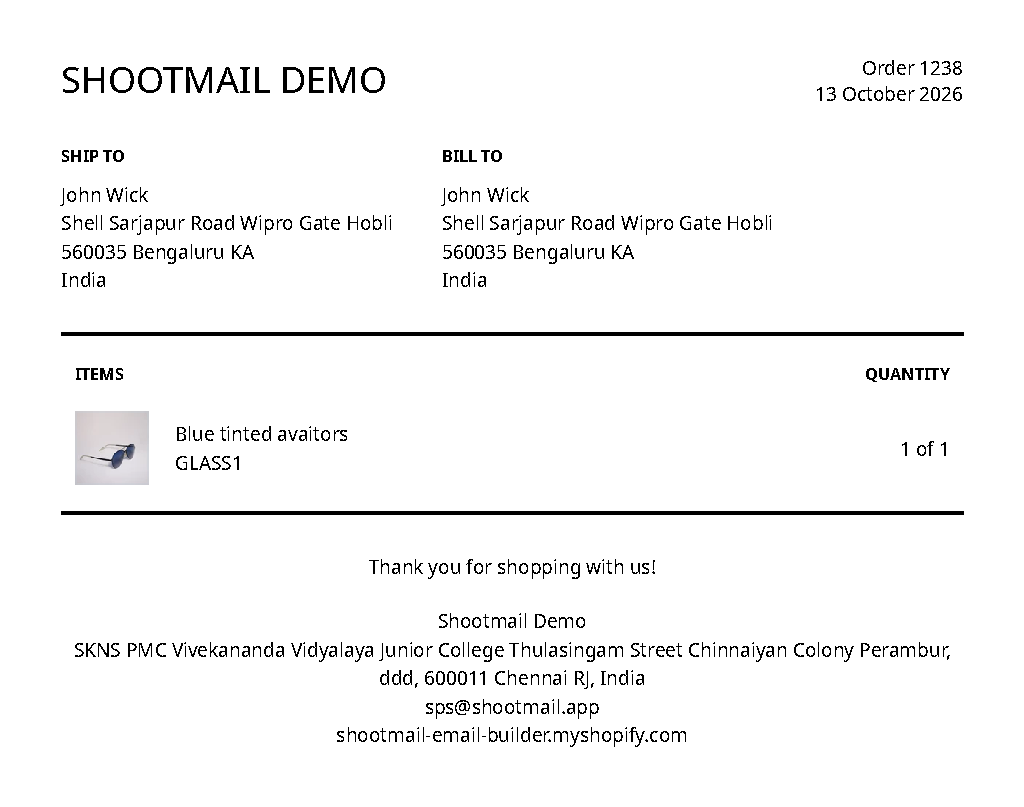
The default slip: the product, its image, the SKU and the quantity. Nothing the customer chose.
The details are in Shopify, though. Shopify’s packing slip reference lists line_item.properties among the values the template can print, next to the title, the SKU and the quantity (Shopify Help Center). The template just doesn’t ask for them.
So shops write the details by hand. One merchant described the routine in 2022: “I print the packing slips from the Shopify orders page and hand write everything in so I can fulfill orders.” (Shopify Community). Four years later, picklist apps still miss options. Another merchant tested about five of them and reported that “NONE of them print out with all the options from Infinite Options” (Shopify Community).
Can Orderline print the customisation on its packing slips?
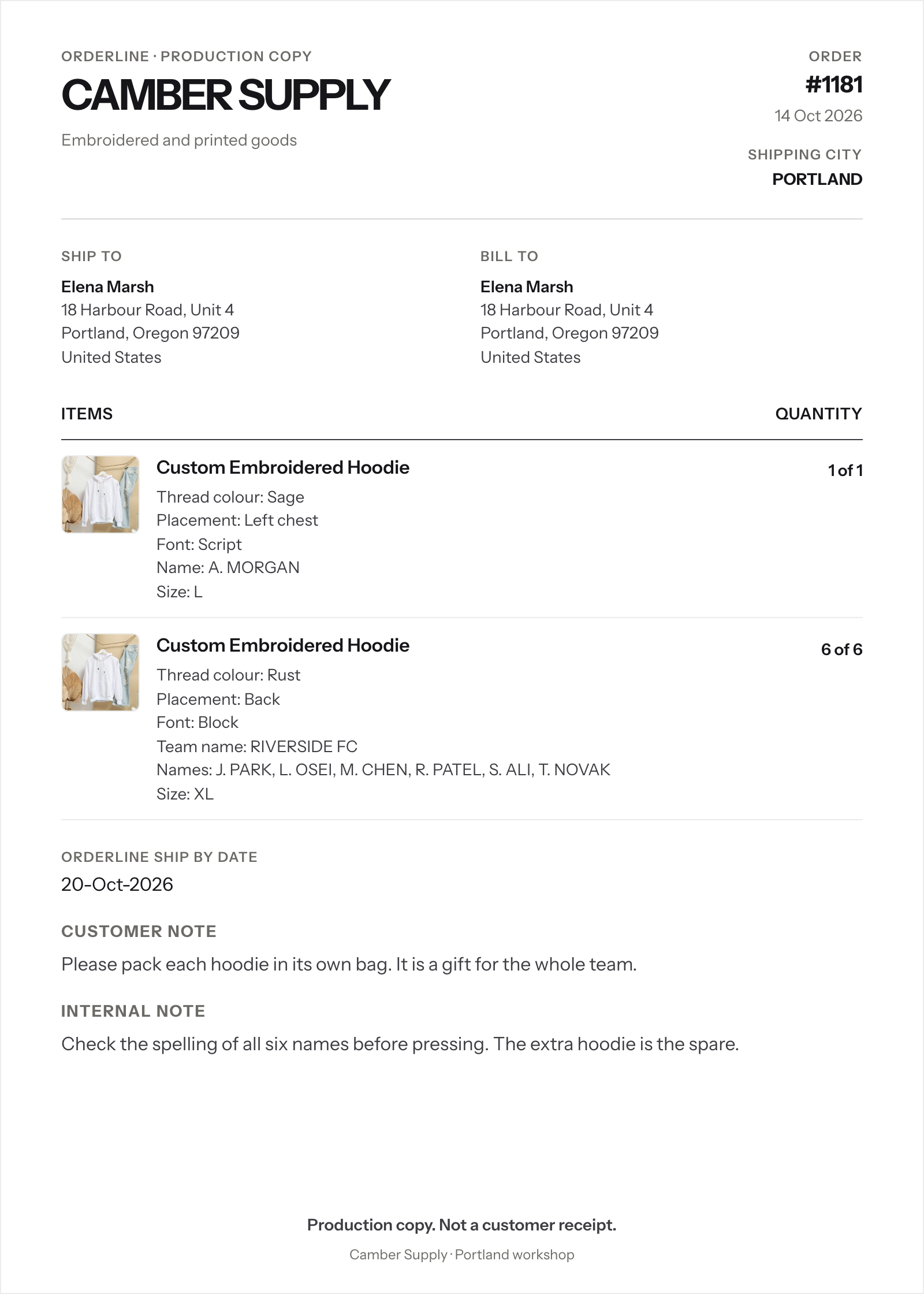
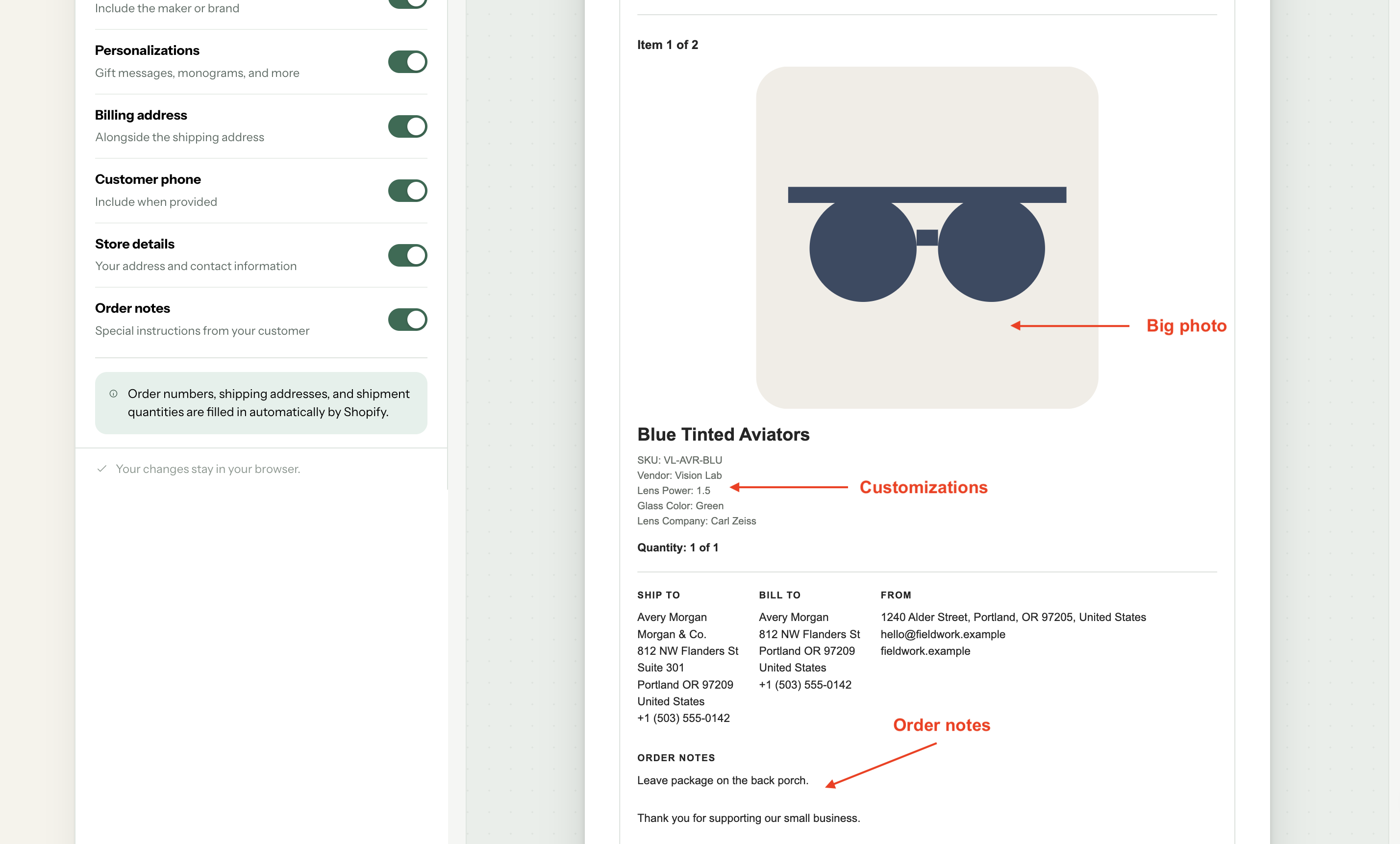
Yes. Orderline’s has a built-in packing slips customizer built for the workshop, so they print the customisation under each item and the notes at the bottom, without any template work.
Each slip has the shop name, the order date, the ship to and bill to addresses, and each item with its image and variant. Under the item it prints the line item properties (customisations), and at the bottom the customer note and your internal notes. You can easily toggle the data on or off and add more fields.
The customisation under each item, the ship-by date, then the customer and internal notes.
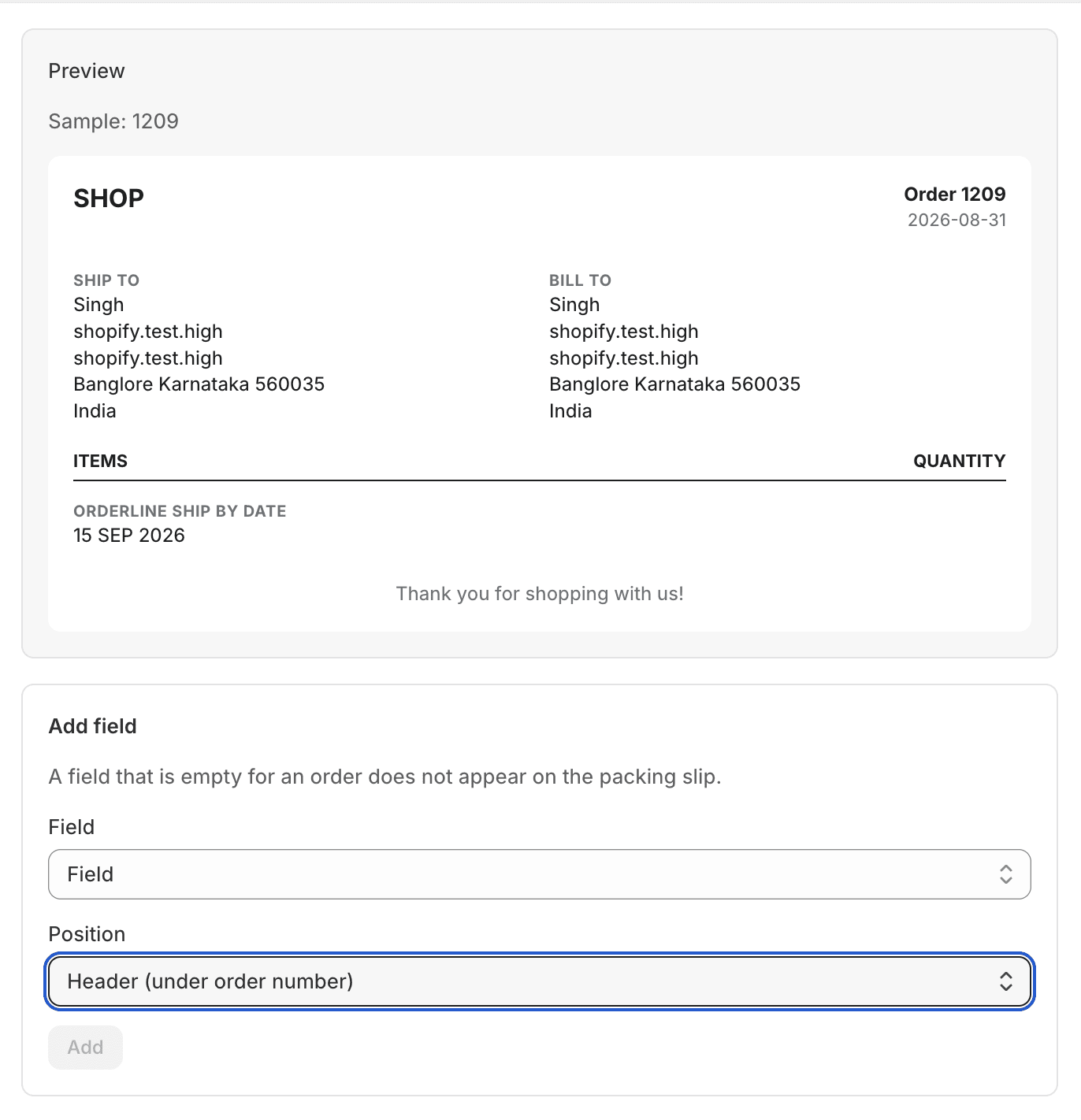
The blocks stay in a fixed order, and you can add an extra field, like an order metafield or a shipping address field, to the header or under the items. Orderline is our app and it starts from $9 a month (pricing). Setup is in the packing slips guide, and the list the slips come from is in the orders view guide.
How do I add the customisation to Shopify’s packing slip template for free without an external app?
Open the packing slip template and add one short block under the product title. The block repeats for every property on the item and prints it as a label and a value. You make the change once, and every slip after that carries the customisation.
The template is a page of code, and Shopify uses a language called Liquid to fill it in. You don’t need to learn Liquid for this change. The block below is the only code you add.
- In your Shopify admin, go to Settings, then Shipping and delivery. In the Documents section, click Packing slip template (Shopify Help Center).
- Find the part that prints the items. It starts with
{% for line_item in line_items_in_shipment %}, which means “repeat this for every item in the shipment”. - Just under the line that prints the product title, paste the block below.
- Click Preview template and check it on an order that has a real customisation. If it looks right, click Save.
{% for property in line_item.properties %}
  {% unless property.first contains '_' %}
    <p>{{ property.first }}: {{ property.last }}</p>
  {% endunless %}
{% endfor %}
Each line item property is a key-value pair, so property.first is the label, like Thread colour, and property.last is the value, like Sage. The first line repeats for every property on the item, and the last line prints it on the slip. The unless line skips any label that starts with _, because most options apps use those labels for their own settings rather than for the customer.
The note a customer leaves at checkout is saved on the order, not on the line item, so it prints with {{ order.note }}. Put it above the items, after the addresses, so it reads as a message and not as another product option.
Print one real order before you print a batch. Every options app writes its labels a little differently, and one test print saves a lot of reprinting.
How do I add the customisation without writing code?
Use our free packing slip designer. It builds the template for you: choose one of four layouts, add your logo, turn on the customisation, and copy the generated code into Shopify’s packing slip template.
The designer writes the code, then you paste it into the packing slip template.
There are three limits to know before you start.
The designer previews with sample orders rather than your own products, so check the result after you install it in Shopify. It supports A4 and US Letter paper only, so there is no 4 by 6 thermal layout. And the code it generates is meant for Shopify’s packing slip template, not for an order printer app, so don’t paste it into one.
Which order printer app should I use?
Start with Shopify Order Printer, because it is free and made by Shopify. Move to Order Printer Pro if you need extra fields, metafields or branded layouts without editing code.
Shopify Order Printer prints packing slips, pick lists and invoices from templates you edit in HTML and Liquid, and it can print up to 50 orders at once. Shopify staff have pointed merchants to it when they asked how to print the customisation on a slip (Shopify Community, 2021). Its App Store rating is 3.6 from 381 reviews (October 2026). Its templates also use Liquid, so the block above works inside the app.

The same Liquid, in Shopify’s own app.
Order Printer Pro is free to install, with paid plans above that. It prints the same documents, and it lets you add line item properties and metafields without code. A metafield is an extra field you create in Shopify to save information that has no place of its own, like a delivery window. That is why shops pick it when they need extra fields or a branded layout. It is rated 4.9 from 2,992 reviews (October 2026).

A template editor with fields for extra data, no code needed.
Can I print packing slips for multiple orders at once?
Yes. In Shopify, go to Orders, select the orders you want, and choose Print packing slips from the bulk actions. Shopify prints one slip per order.
One store owner turned that batch into a work list: “I select all orders that are unfulfilled and then click print packing slip.” Opened as a PDF, it gives “all my unfulfilled orders on 1x page with their items.” (Shopify Community).
If you print from Orderline, the slips include the customisation and both notes, and you can print up to 25 orders at a time from the same screen.
When does a printed slip stop working?
When the order changes after you print it. A slip is a copy of the order at that moment. If the customer emails an hour later to change the inscription, the paper at the workshop is still the old version and nothing on it tells you. The order on the screen is updated, so you need to print the slip again, and someone has to notice.
A slip also prints only what Shopify saved as a line item property. If your options app saved the choice somewhere else, like a cart attribute or a metafield, the template can’t print it. That is the problem behind the picklist complaints above. Also,
Frequently asked questions
Does Shopify Order Printer print line item properties?
Yes, when its template asks for them. Order Printer uses Liquid, so the block above works inside the app. Shopify’s app is free and prints up to 50 orders at once.
Do I need a developer to change the packing slip?
No, if you use Orderline or an order printer app. The change is one block of code that you paste into Shopify’s packing slip editor. Our free designer writes that block for you if you would rather not touch code. Yes, if you want a completely customized packing slip.
Will this work with my product options app?
Yes, if your options app saves the customer’s choices as line item properties. Infinite Options, Globo, Easify and most storefront option apps do. If the choice only appears in the cart and not on the order, the app is saving it somewhere else. Top Shopify product options apps covers how to check before you buy one.
Can I print a 4 by 6 thermal packing slip?
Not with our designer, which supports A4 and US Letter only. A 4 by 6 slip needs a layout made for that paper size, and shrinking a full page onto a label usually cuts off the customisation you added it for.
What to do next
- Open your packing slip template and paste the block, or build the slip with the free designer. Preview it on a real personalised order and print one slip to check.
- If you need the customer note and your internal notes on the slip as well, use Orderline, which prints them along with the customisation.
- If you would rather see the customisation on a screen, read how to see every customisation on your Shopify orders without opening each one. For the full workflow, read How to Manage Custom and Made-to-Order Orders on Shopify.
Sources
Read 20 October 2026.
- Shopify Help Center: Packing slips
- Shopify Help Center: Customizing packing slips
- Shopify Help Center: Packing slip variable reference
- Shopify Liquid docs: line_item
- Shopify App Store: Shopify Order Printer (3.6 from 381 reviews, read 20 October 2026)
- Shopify App Store: Order Printer Pro (4.9 from 2,992 reviews, read 20 October 2026)
- Shopify Community: How can I add personalization to my packing slips? (December 2021)
- Shopify Community: How can I export orders with variants using Dynamic Product Options? (July 2022)
- Shopify Community: Infinite Options and picklist apps (June 2026)
- Shopify Community: Is there ANY way to show the actual ordered items in the Admin Orders page? (October 2024 to April 2025)
- Default packing slip screenshot from a Shopify demo store, provided by the founder (20 October 2026)